
1. Introduction
This manual provides comprehensive instructions for the setup, operation, and maintenance of your LUNA HOME Luna Small Indoor Camera (Model k500). Please read this manual thoroughly before using the device to ensure proper functionality and safety.

Figure 1: LUNA HOME Luna Small Indoor Camera
2. What's in the Box
- Indoor Security Camera
- Instruction Manual
- Power Adapter

Figure 2: Various angles of the Luna Small Indoor Camera
3. Setup & Installation
3.1 Initial Setup
- Power On: Connect the camera to the included power adapter and plug it into a power outlet. The camera will power on automatically.
- Download App: Download the free LUNA AI app from the iOS App Store or Google Play Store.
- Create Account: Register for a new account or log in if you already have one.
- Add Device: Follow the in-app instructions to add your Luna Small Indoor Camera. Ensure your smartphone's Bluetooth is enabled for easy pairing. The camera supports 2.4GHz Wi-Fi connectivity.
3.2 Mounting Options
The Luna Small Indoor Camera is designed for versatile placement. Its compact size and flexible 6-inch USB cord allow for easy installation without tools.
- Freestanding: Place the camera on any flat surface such as a shelf, table, or desk.
- Wall Mount: The camera can be mounted to a wall using the provided mounting accessories.
The flexible USB cord also acts as a mounting arm, allowing you to bend and position the camera as needed.

Figure 3: Flexible mounting arm in use
3.3 Video Demonstration: Easy Setup
Video 1: This short video demonstrates the quick and easy setup process of the Luna AI Camera, highlighting its smart DIY home monitoring system capabilities.
4. Operating Instructions
4.1 Live View & Remote Access
Access crystal-clear 2MP Full HD live footage from your camera anytime, anywhere, via the LUNA AI app on your iOS or Android smartphone.
4.2 Two-Way Audio
The camera features built-in two-way audio, allowing you to speak and listen in real-time through the app. This is ideal for communicating with family members, pets, or visitors.
4.3 Color Night Vision & Spotlight
Equipped with infrared night vision and an LED spotlight, the camera provides clear color night vision, ensuring detailed surveillance even in low-light conditions.

Figure 4: Color Night Vision in action
4.4 Motion Detection & Smart Alerts
Receive instant push notifications on your smartphone when motion is detected. Optional subscription plans offer advanced GenAI alerts for specific detections like humans, vehicles, or animals.
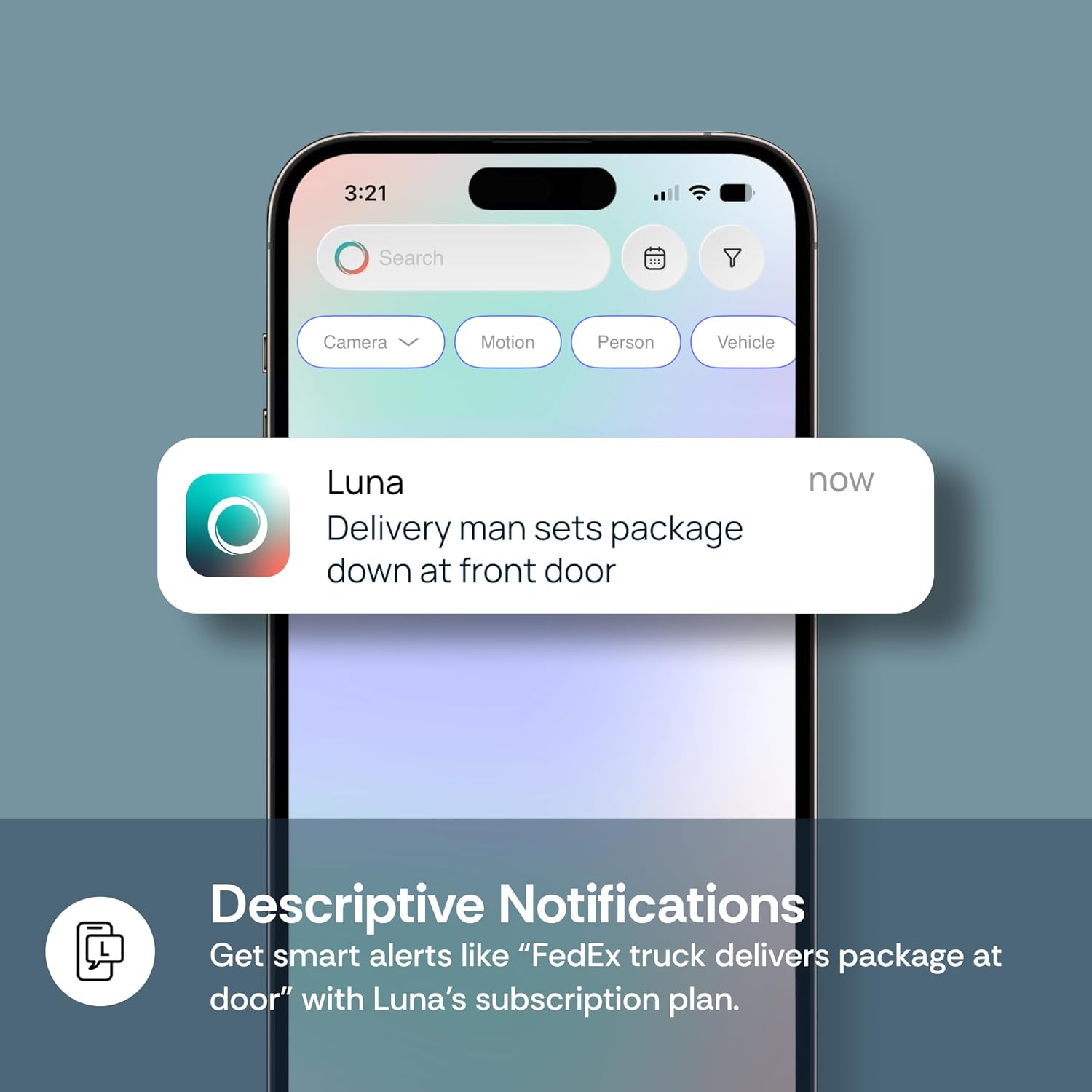
Figure 5: Example of descriptive notifications
4.5 Local & Cloud Storage
Store recorded footage locally using a MicroSD card (up to 128GB, sold separately) or opt for secure US-based cloud storage with a 7-day free trial. Subscription plans offer extended cloud storage and advanced features.

Figure 6: Luna AI Features comparison
4.6 Video Demonstration: App Features
Video 2: This video provides a demonstration of the Luna Indoor Security Camera's night vision and two-way talk features through the mobile app.
5. Specifications
| Feature | Detail |
|---|---|
| Model Number | k500 |
| Brand | LUNA HOME |
| Indoor/Outdoor Usage | Indoor |
| Video Capture Resolution | 1080p (2MP Full HD) |
| Connectivity Protocol | Bluetooth, Wi-Fi (2.4GHz) |
| Power Source | Corded Electric |
| Special Features | 2-Way Audio, Built-In Light, Easy to Install, HD Resolution, Portable |
| Low Light Technology | Color Night Vision |
| Alert Type | Audio and Motion |
| Storage Options | MicroSD (up to 128GB, sold separately), Cloud Storage |
| Item Dimensions L x W x H | 2.2 x 1.4 x 6.9 inches |
| Item Weight | 1.6 ounces |
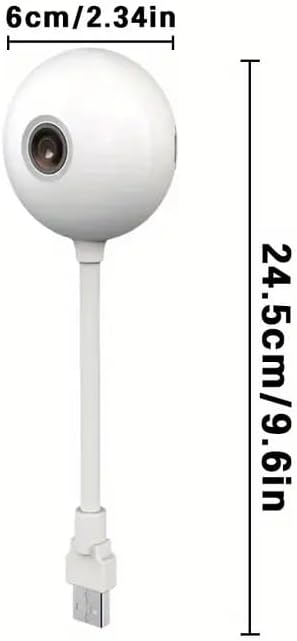
Figure 7: Camera dimensions
6. Maintenance
To ensure optimal performance and longevity of your Luna Small Indoor Camera, follow these maintenance guidelines:
- Cleaning: Gently wipe the camera lens and body with a soft, dry cloth. Avoid using harsh chemicals or abrasive materials.
- Firmware Updates: Regularly check the LUNA AI app for available firmware updates. Keeping your camera's firmware up-to-date ensures access to the latest features and security enhancements.
- Power Supply: Use only the provided power adapter to prevent damage to the camera.
- Placement: Ensure the camera is placed in a stable indoor environment, away from extreme temperatures, direct sunlight, and moisture. The camera is not water resistant.
7. Troubleshooting
If you encounter issues with your Luna Small Indoor Camera, refer to the following common troubleshooting steps:
- Camera Not Connecting to Wi-Fi:
- Ensure your Wi-Fi network is 2.4GHz. The camera does not support 5GHz Wi-Fi.
- Verify your Wi-Fi password is correct.
- Move the camera closer to your Wi-Fi router to improve signal strength.
- Restart your Wi-Fi router and the camera.
- Poor Video Quality:
- Check your Wi-Fi signal strength in the app. A weak signal can affect video quality.
- Ensure the camera lens is clean and free from dust or smudges.
- Motion Detection Not Working:
- Verify that motion detection is enabled in the LUNA AI app settings.
- Adjust the motion detection sensitivity in the app.
- Ensure there are no obstructions blocking the camera's view.
- Two-Way Audio Issues:
- Check the volume settings for both microphone and speaker in the app.
- Ensure your smartphone's microphone is not muted or blocked.
8. Warranty & Support
Your LUNA HOME Luna Small Indoor Camera is covered by a manufacturer's warranty. For detailed warranty information, please refer to the warranty card included in your product packaging or visit our official website.
8.1 Contact Us
For any questions, technical support, or assistance, please contact LUNA HOME customer service:
- Phone: (855) 604-5862
- Website: lunahomeai.com
- Email: support@lunahome.com


