
DigiLand DigiLand-S10
DigiLand Android Tablet S10 User Manual
Model: DigiLand-S10
1. Introduction
This manual provides essential information for the proper use and maintenance of your DigiLand Android Tablet S10. Please read it thoroughly before operating the device to ensure optimal performance and longevity. The DigiLand S10 is a 10.1-inch Android 14 tablet designed for versatile use, featuring an Octa-Core processor, ample memory, and a high-definition display.
2. Safety Information
- Do not expose the tablet to extreme temperatures, direct sunlight, or high humidity.
- Avoid dropping or subjecting the tablet to strong impacts.
- Use only the original charger and accessories provided with the tablet.
- Do not attempt to disassemble or repair the tablet yourself. Refer to qualified service personnel.
- Keep the tablet away from water and other liquids.
- Dispose of the tablet and its battery responsibly according to local regulations.
3. Package Contents
Upon opening the package, please verify that all items listed below are present and in good condition:
- DigiLand Android Tablet S10 (Blue)
- USB Type-C Charging Cable
- Power Adapter
- Quick Start Guide

Figure 3.1: Items included in the DigiLand Tablet S10 package. This image displays the tablet itself, its packaging box, a USB Type-C charging cable, a power adapter, and a quick start guide, ensuring users can confirm all components are present.
4. Product Overview
The DigiLand S10 tablet features a sleek design with essential ports and controls for user convenience.
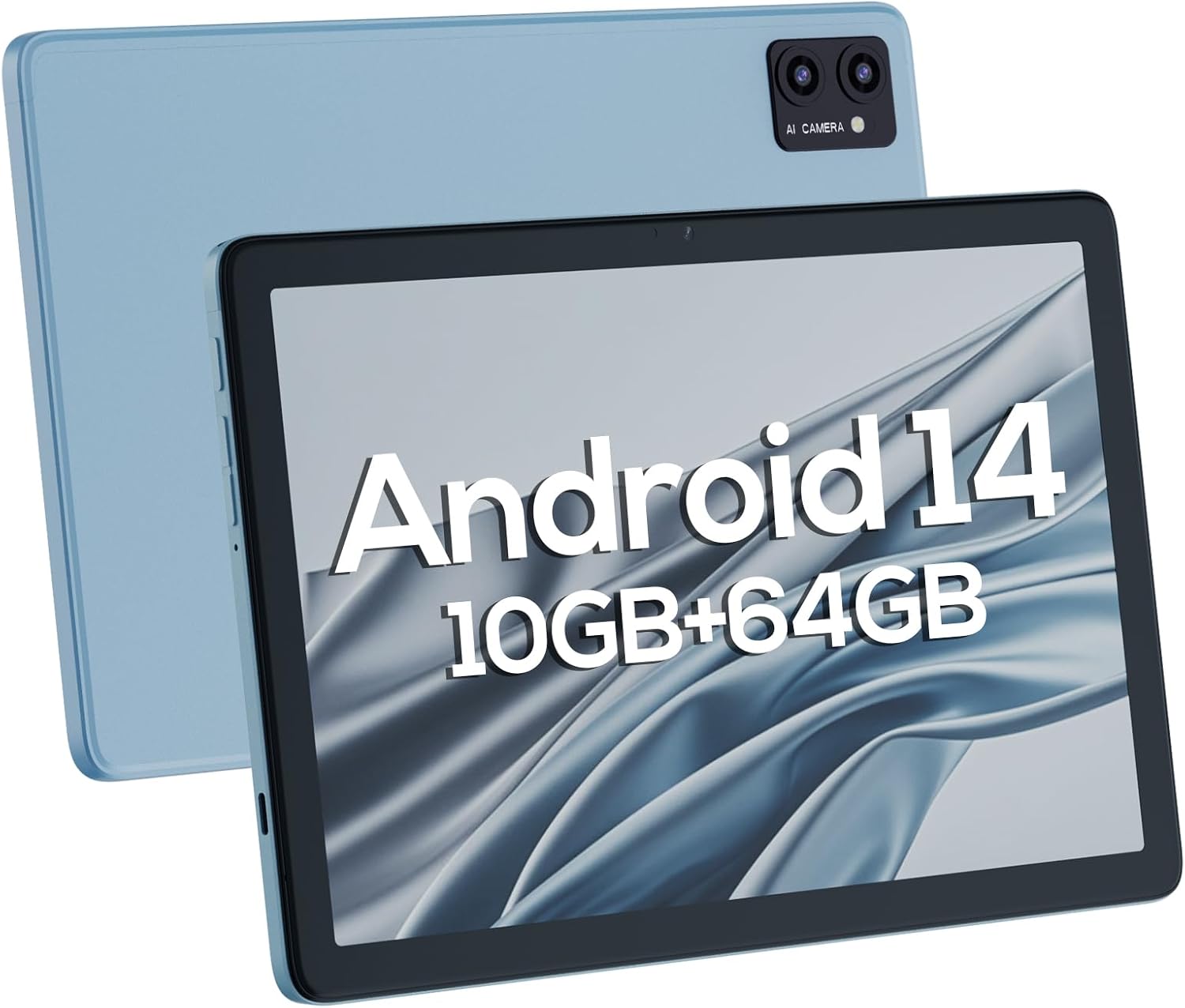
Figure 4.1: Front and rear views of the DigiLand Android Tablet S10. The image highlights the tablet's 10.1-inch display on the front and the dual camera module on the blue-colored back panel.
Key Components:
- 10.1-inch IPS HD Display: Provides vibrant visuals with 800x1280 resolution.
- Front Camera (5MP): Located on the front bezel, suitable for video calls and selfies.
- Rear Camera (8MP): Located on the back, for capturing photos and videos.
- Power Button: Used to turn the tablet on/off or put it to sleep/wake.
- Volume Buttons: Adjust the audio volume.
- USB Type-C Port: For charging and data transfer.
- 3.5mm Headphone Jack: For connecting wired headphones.
- MicroSD Card Slot: For expanding storage up to 256GB.
- Dual Speakers: Provide audio output.
5. Setup
5.1 Initial Charging
Before first use, fully charge your tablet. Connect the USB Type-C cable to the tablet's charging port and the power adapter to a wall outlet. The battery indicator on the screen will show charging status. A full charge typically takes several hours.
5.2 Powering On/Off
- To Power On: Press and hold the Power button until the DigiLand logo appears.
- To Power Off: Press and hold the Power button until a power-off menu appears. Select "Power off" and confirm.
- To Sleep/Wake: Briefly press the Power button.
5.3 Initial Setup Wizard
Upon first power-on, the Android 14 setup wizard will guide you through basic configurations:
- Select your language.
- Connect to a Wi-Fi network.
- Sign in with your Google account or create a new one.
- Review and accept terms and conditions.
- Set up screen lock (PIN, pattern, or password).
- Configure other settings as prompted.
5.4 Expanding Storage
The tablet supports MicroSD cards up to 256GB for additional storage. Locate the MicroSD card slot (often near the headphone jack or power button, as shown in Figure 4.1) and insert the card gently until it clicks into place. You may need to format the card via the tablet's settings for optimal use.
6. Operating the Tablet
6.1 Basic Navigation
- Home Screen: The main screen where you can access apps and widgets.
- App Drawer: Swipe up from the home screen to view all installed applications.
- Notifications Panel: Swipe down from the top of the screen to access notifications and quick settings.
- Recent Apps: Tap the square navigation button (or swipe up and hold from the bottom if using gestures) to see recently opened applications.
6.2 Connecting to Wi-Fi and Bluetooth
- Wi-Fi: Go to Settings > Network & internet > Wi-Fi. Turn Wi-Fi on and select your desired network. Enter the password if required.
- Bluetooth: Go to Settings > Connected devices > Connection preferences > Bluetooth. Turn Bluetooth on and pair with available devices.
6.3 Using the Cameras
The tablet features a 5MP front camera and an 8MP rear camera.
- Open the Camera app.
- Tap the camera switch icon to toggle between front and rear cameras.
- Tap the shutter button to take a photo or start/stop video recording.

Figure 6.1: Visual representation of the tablet's camera capabilities, showing sample images captured by both the 5MP front and 8MP rear cameras.
6.4 Battery Management
The 6000mAh battery provides extended usage. To optimize battery life:
- Reduce screen brightness.
- Turn off Wi-Fi and Bluetooth when not in use.
- Close unused applications running in the background.
- Enable Battery Saver mode in Settings.

Figure 6.2: Battery performance details for the DigiLand Tablet S10. This graphic illustrates the 6000mAh battery capacity and provides estimated usage durations for various activities like video playback (9 hours), music (14 hours), and browsing (15 hours).
7. Maintenance
- Cleaning: Use a soft, lint-free cloth to clean the screen and body. Avoid abrasive cleaners.
- Software Updates: Regularly check for and install system updates to ensure optimal performance and security. Go to Settings > System > System update.
- Storage Management: Periodically clear cache, delete unnecessary files, and uninstall unused apps to free up storage space.
- Backup Data: Regularly back up important data to a cloud service or external storage device to prevent data loss.
8. Troubleshooting
| Problem | Possible Solution |
|---|---|
| Tablet won't turn on | Ensure the battery is charged. Press and hold the Power button for 10-15 seconds to force restart. |
| Slow performance | Close unused apps, clear cache, restart the tablet. Consider a factory reset if issues persist (backup data first). |
| Wi-Fi connection issues | Restart the tablet and router. Forget the network and reconnect. Ensure Wi-Fi is enabled. |
| Apps crashing | Clear app cache/data (Settings > Apps), update the app, or reinstall it. |
| Screen unresponsive | Force restart the tablet. If issue persists, contact support. |
9. Specifications
Below are the detailed technical specifications for the DigiLand Android Tablet S10:
| Feature | Detail |
|---|---|
| Brand | DigiLand |
| Model Name | DigiLand-S10 |
| Operating System | Android 14 |
| Screen Size | 10.1 Inches |
| Screen Resolution | 800 x 1280 (IPS HD Display) |
| Processor | A523, Octa core, Cortex A55@1.8 GHz, 22nm |
| RAM | 10GB (4+6GB) |
| Internal Storage | 64 GB |
| Expandable Storage | Up to 256GB via TF card (MicroSD) |
| Front Camera | 5MP |
| Rear Camera | 8MP |
| Battery Capacity | 6000mAh |
| Connectivity | Wi-Fi (2.4G+5G), Bluetooth 5.0, USB Type-C, 3.5mm Headphone Jack |
| Dimensions (LxWxH) | 7 x 4 x 0.5 inches |
| Item Weight | 2.42 pounds (approx. 510g) |
| Color | Blue |

Figure 9.1: Overview of the DigiLand Tablet S10's core specifications. This graphic highlights features such as Android 14, MTK Helio A523 Octa-Core Processor, 10GB RAM, 64GB ROM (expandable to 256GB), 10.1-inch HD display, 6000mAh battery, 5MP front camera, 8MP rear camera, 510g weight, and 8.8mm thickness.
10. Warranty and Support
10.1 Warranty Information
DigiLand products typically come with a limited manufacturer's warranty. Please refer to the warranty card included in your product packaging or visit the official DigiLand website for detailed terms and conditions regarding warranty coverage, duration, and limitations. Keep your proof of purchase for warranty claims.
10.2 Customer Support
For technical assistance, troubleshooting, or any inquiries regarding your DigiLand Android Tablet S10, please contact DigiLand customer support. Contact information can usually be found in the Quick Start Guide or on the official DigiLand website. When contacting support, please have your product model (DigiLand-S10) and purchase details ready.
Thank you for choosing DigiLand. We hope you enjoy your new tablet!
Related documentsDigiLand-S10


Ask a question about this manual
Ask about setup, troubleshooting, compatibility, parts, safety, or missing instructions. Manuals+ will review the question and use this page’s manual context to help answer it.