
ACMER P1 S PRO 10W
ACMER P1 S Pro 10W Laser Engraver User Manual
Model: P1 S PRO 10W
1. Introduction
Welcome to the user manual for the ACMER P1 S Pro 10W Laser Engraver. This powerful and versatile machine is designed for precision engraving and cutting across a wide range of materials. This manual provides essential information for safe operation, setup, maintenance, and troubleshooting to help you maximize the potential of your laser engraver.
2. Safety Information
Your ACMER P1 S Pro is a Class 4 laser product. Adherence to safety guidelines is paramount to prevent injury and ensure proper operation.
- Eye Protection: Always wear the provided laser safety glasses when the machine is in operation. The laser shield integrated into the device filters 97% of UV rays, but additional eye protection is mandatory.
- Ventilation: Operate the engraver in a well-ventilated area to dissipate fumes and smoke produced during engraving and cutting.
- Flammable Materials: Keep flammable materials away from the working area. The laser can ignite certain materials.
- Supervision: Never leave the laser engraver unattended while it is operating.
- Emergency Stop: Familiarize yourself with the location of the emergency stop button and how to use it.
- Children and Pets: Keep children and pets away from the operating machine.
- Power Supply: Use only the specified power adapter. Ensure the power supply is stable and grounded.
3. Product Overview
3.1. Components
The ACMER P1 S Pro laser engraver features a robust and modular design, allowing for easy assembly and maintenance. Key components include the laser module, gantry system, control board, and work area.

Figure 3.1: The ACMER P1 S Pro 10W Laser Engraver, showcasing its open-frame design and examples of engraved items such as a wooden dog, leather wallet, and metal tumbler.
3.2. Key Features
- Powerful Cutting Capability: Equipped with a 32-bit core control motherboard and 10000mW machine power, this engraver offers an ultra-fine laser focus of 0.06mm and a minimum engraving accuracy of 0.01mm. It can cut 30mm wood board, 20mm acrylic, and even 0.1mm stainless steel plate in a single pass.
- Easy to Use: The modular design facilitates assembly, repair, and part replacement. It is compatible with multiple systems and mobile applications, allowing quick connection via Wi-Fi, USB cable, or TF card.
- Versatile Application: Features a large 380 x 370mm engraving area. Capable of engraving cylinders with an optional rotary roller. It supports over one hundred materials including paper, bamboo, wood, leather, PCB board, aluminum oxide, metal, and glass.
- Class 4 Safety Laser: Certified with Class 4 laser certification, meeting IEC 60825-1 standards, providing a comprehensive safety solution.
- Safe and Reliable: Includes a laser shield to protect eyes and filter 97% of UV rays during operation.
4. Setup
The ACMER P1 S Pro is designed for straightforward assembly. Follow these general steps for initial setup:
- Unpacking: Carefully unpack all components and verify against the packing list.
- Assembly: Assemble the frame and gantry system according to the provided assembly guide. The modular design simplifies this process.
- Laser Module Installation: Securely attach the laser module to the gantry.
- Cable Connections: Connect all necessary cables, including power, USB, and motor cables.
- Software Installation: Install the recommended engraving software on your computer or mobile device. The machine supports various systems and mobile apps.
- Connectivity: Establish a connection to the engraver via Wi-Fi, USB cable, or TF card as per your preference and software requirements.
5. Operating Instructions
Operating your ACMER P1 S Pro involves preparing your design, setting parameters, and initiating the engraving or cutting process.
5.1. Material Compatibility and Performance
The engraver is highly versatile, capable of working with over one hundred materials, including:
- Paper
- Bamboo
- Wood (up to 30mm cutting depth)
- Leather
- PCB board
- Aluminum oxide
- Metal
- Glass
- Acrylic (up to 20mm cutting depth)
- Stainless steel (up to 0.1mm cutting depth)

Figure 5.1: Comparison of maximum cutting depths, highlighting the P1 S Pro's capability to cut 12mm plywood, 6mm acrylic, and 8mm MDF.
5.2. Engraving Speed and Accuracy
The P1 S Pro boasts an engraving speed of up to 10000mm/min, allowing for efficient project completion. Its ultra-fine laser focus of 0.06mm ensures high precision with a minimum engraving accuracy of 0.01mm.
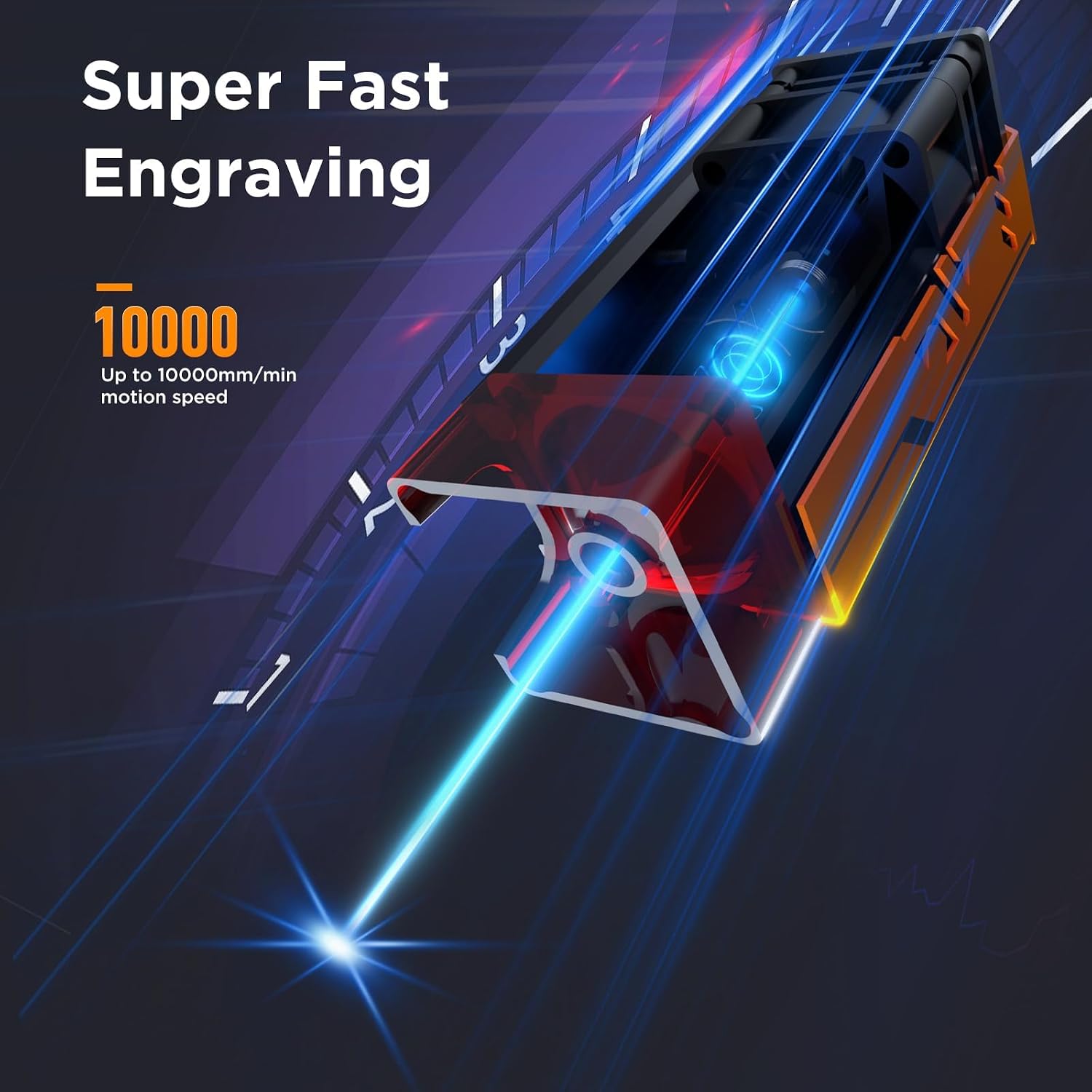
Figure 5.2: Visual representation of the P1 S Pro's super fast engraving capability, reaching speeds of up to 10,000mm/min.

Figure 5.3: Speed comparison demonstrating the P1 S Pro's efficiency at 10,000 mm/min, enabling faster project completion.
5.3. Basic Operation Steps
- Prepare Material: Place your chosen material flat within the 380 x 370mm engraving area. Ensure it is securely positioned.
- Design Preparation: Create or import your design using the compatible software.
- Parameter Settings: Adjust laser power, speed, and passes based on the material type and desired effect. Refer to software guidelines for recommended settings.
- Focus Adjustment: Adjust the laser focus according to the material thickness to ensure optimal engraving/cutting quality.
- Start Operation: Initiate the engraving or cutting process from the software. Monitor the machine during operation.
6. Maintenance
Regular maintenance ensures the longevity and optimal performance of your ACMER P1 S Pro laser engraver.
- Clean the Lens: Periodically clean the laser lens with a soft, lint-free cloth and lens cleaning solution to maintain laser beam quality.
- Clear Debris: Remove any dust, debris, or material residue from the work area and machine components after each use.
- Lubricate Moving Parts: Apply a small amount of lubricant to the guide rails and moving parts as needed to ensure smooth operation.
- Inspect Cables: Regularly check all cables for wear or damage and ensure they are securely connected.
- Firmware Updates: Check for and install any available firmware updates for the engraver to ensure optimal performance and new features.
7. Troubleshooting
This section addresses common issues you might encounter. For more complex problems, please contact customer support.
| Problem | Possible Cause | Solution |
|---|---|---|
| Laser not firing or weak output | Incorrect focus, dirty lens, low power setting, loose cable. | Adjust focus, clean lens, increase power setting in software, check cable connections. |
| Engraving/Cutting quality is poor | Incorrect speed/power settings, material not flat, worn laser module. | Adjust speed and power, ensure material is flat, consider laser module replacement if worn. |
| Machine not connecting to computer/app | Incorrect port selection, driver issues, Wi-Fi connectivity problems. | Verify port, reinstall drivers, check Wi-Fi connection, try different connection method (USB/TF card). |
| Machine stops mid-operation | Overheating, software error, power interruption. | Allow machine to cool, restart software, check power supply. |
8. Specifications
| Manufacturer | ACMER |
| Model Number | P1 S PRO 10W |
| Part Number | P1 S PRO 10W |
| Item Weight | 11.28 pounds |
| Product Dimensions | 23.43 x 13.39 x 6.3 inches |
| Color | P1 Spro 10w |
| Item Package Quantity | 1 |
| Batteries Included/Required | No |
| Laser Output Power | 10000mW (10W) |
| Engraving Area | 380 x 370mm |
| Engraving Speed | Up to 10000mm/min |
| Laser Focus | 0.06mm |
| Minimum Engraving Accuracy | 0.01mm |
| Date First Available | April 25, 2025 |
9. Warranty and Support
The ACMER P1 S Pro Laser Engraver comes with a 12-month warranty period from the date of purchase. This warranty covers manufacturing defects and malfunctions under normal use.
For technical support, warranty claims, or any inquiries regarding your product, please contact ACMER customer service through their official channels. Please have your model number and purchase details ready when contacting support.
Visit the ACMER Store on Amazon for more information and resources.
Related documentsP1 S PRO 10W


Ask a question about this manual
Ask about setup, troubleshooting, compatibility, parts, safety, or missing instructions. Manuals+ will review the question and use this page’s manual context to help answer it.