
Introduction
This manual provides detailed instructions for the Blackview WAVE 8 smartphone. It covers essential information regarding device setup, operation, maintenance, and troubleshooting to ensure optimal performance and user experience. Please read this manual thoroughly before using your device.
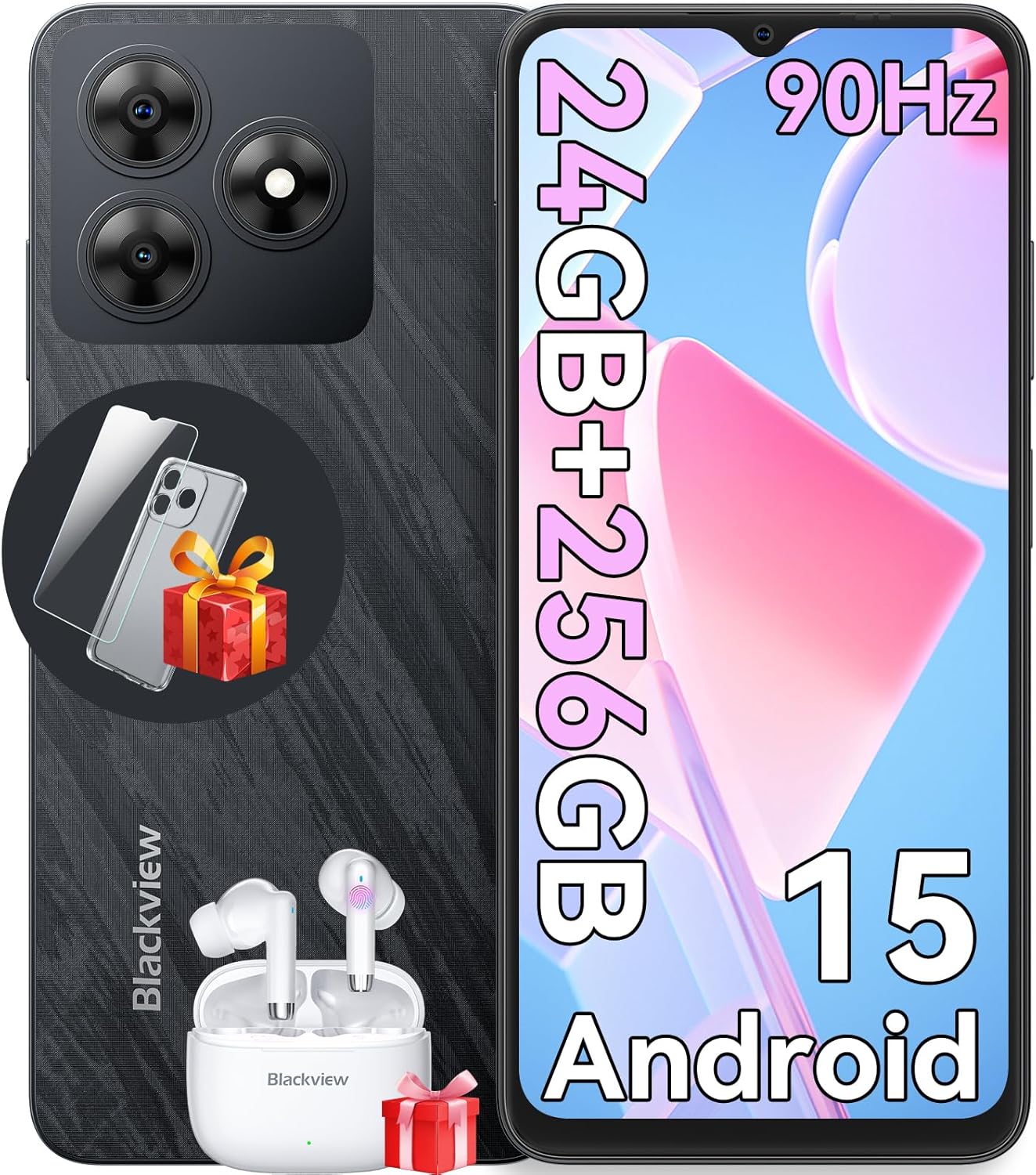
Image: The Blackview WAVE 8 smartphone, showcasing its sleek design, camera module, and included accessories like earbuds and a screen protector.
What's in the Box
Upon unboxing your Blackview WAVE 8, please verify that all the following items are included:
- Blackview WAVE 8 Cell Phone
- 10W Charger
- PC Protective Case
- Tempered Film (Screen Protector)
- User Manual (this document)
- Type-C Cable
- SIM Tray Ejector (SIM Card is not included)

Image: A visual representation of all items included in the Blackview WAVE 8 retail packaging, such as the phone, charger, cables, case, and manual.
Setup
SIM Card and Storage Installation
The Blackview WAVE 8 supports dual SIM cards and a TF (microSD) card for expanded storage. Use the provided SIM tray ejector tool to open the SIM tray.
- Locate the SIM tray slot on the side of your device.
- Insert the SIM tray ejector tool into the small hole next to the tray and press gently until the tray pops out.
- Carefully place your Nano-SIM cards and/or TF card into the designated slots on the tray. Ensure the gold contacts are facing down and the cards are correctly oriented.
- Gently push the tray back into the slot until it is flush with the device body.

Image: An infographic highlighting key features of the Blackview WAVE 8, including a visual representation of its dual SIM and TF card slots.
Initial Power On and Basic Configuration
To power on your device for the first time, press and hold the Power button located on the side until the Blackview logo appears. Follow the on-screen prompts to complete the initial setup:
- Language Selection: Choose your preferred language.
- Wi-Fi Connection: Connect to a Wi-Fi network to download updates and set up your Google account.
- Google Account: Sign in with your Google account or create a new one. This is essential for accessing the Google Play Store and other Google services.
- Security Setup: Configure your preferred screen lock method (PIN, pattern, password, fingerprint, or face unlock).
- Data Transfer: Optionally transfer data from an old device.
Operating Your Blackview WAVE 8
Display Features
The Blackview WAVE 8 features a 6.56-inch HD+ IPS display with a 90Hz refresh rate, providing smooth visuals and vibrant colors. It also includes eye comfort modes to reduce strain during prolonged use.
- 90Hz Refresh Rate: Provides a smoother scrolling and gaming experience compared to standard 60Hz displays.
- Eye Comfort Modes: Access these modes in Display Settings to reduce blue light emission and adjust screen color for comfortable viewing, especially in low light. Options include Reading Mode, Night Light, and Dark Mode.

Image: A graphic detailing the 6.56-inch HD+ IPS display, its 90Hz refresh rate, 720x1612 resolution, 81% screen-to-body ratio, and 450 nits brightness.

Image: A visual explanation of the Blackview WAVE 8's eye comfort modes, including Reading Mode, Night Light, and Dark Mode, designed to reduce eye fatigue.
Performance and Storage
Powered by an Octa-Core chipset, the WAVE 8 offers smooth performance for daily tasks and multitasking. It comes with 8GB of physical RAM, expandable to 24GB with virtual RAM, and 256GB of internal storage, which can be further expanded up to 2TB using a TF card.

Image: A diagram illustrating the Octa-core processor, 24GB RAM (8GB physical + 16GB virtual), and 256GB ROM with support for up to 2TB TF card expansion.
Camera System
Capture your moments with the Blackview WAVE 8's 13MP ISOCELL 4H7 rear camera and 8MP front camera. The camera app offers various modes to enhance your photography.
- Automatic Mode: Point and shoot for quick, high-quality photos.
- HDR: Improves dynamic range for balanced exposure in challenging lighting conditions.
- Beauty Mode: Enhances facial features for flattering selfies.
- Portrait Mode: Creates a depth-of-field effect, blurring the background to highlight the subject.
- Night Mode: Optimizes settings for clearer, brighter photos in low-light environments.
- Panorama Mode: Capture wide scenic views by stitching multiple photos together.
- Video Recording: Supports 1080P video recording.

Image: An overview of the Blackview WAVE 8's camera capabilities, featuring its 8MP front and 13MP rear cameras, and showcasing different photography modes like HDR, Beauty, Portrait, Night, and Panorama.

Image: A side-by-side comparison demonstrating the effect of HDR mode on the Blackview WAVE 8 camera, showing improved detail and color in both bright and dark areas.

Image: Examples of photos taken using the Beauty Mode on the Blackview WAVE 8, illustrating how it enhances subjects for more appealing portraits.

Image: Photos demonstrating the Portrait Mode feature of the Blackview WAVE 8 camera, showing subjects in sharp focus against a blurred background.

Image: An example of a panoramic shot taken with the Blackview WAVE 8, showcasing its ability to capture wide, expansive scenes.

Image: A comparison showing the effectiveness of Night Mode on the Blackview WAVE 8 camera, with a brighter and more detailed image in low-light conditions.
Battery Management
The Blackview WAVE 8 is equipped with a 5000mAh long-lasting battery, providing extended usage times. It supports 10W charging.
- Charging: Use the provided 10W charger and Type-C cable for optimal charging speed.
- Battery Optimization: To extend battery life, reduce screen brightness, close unused apps, and enable battery saver mode when needed.

Image: An illustration of the Blackview WAVE 8's 5000mAh battery, with estimated usage times for web browsing, gaming, video playback, music, calls, and standby.
DokeOS 4.0 Based on Android 15
Experience an enhanced user interface with DokeOS 4.0, built on the latest Android 15 operating system. This system offers improved personalization, convenience, fluency, and privacy features.
- EasyShare App: A self-developed network-free solution for faster data transfer.
- Live Caption: Provides real-time captions for media playing on your device.
- Screen Attention: Keeps the screen on while you are looking at it.
- Customizable Timer: Set timers for various activities.
- Game Mode: Optimizes performance and minimizes interruptions during gaming.
- Focus Mode App: Offers preset focus modes to help you concentrate.
- Atomized Memory 2.0: Improves RAM management for smoother operation.
- Smart Pre-Loading: Boosts app launch speed.
- F2FS (Flash Friendly File System): Enhances file system performance.
- Set Privacy Boundaries: Granular control over app permissions and data access.

Image: A comprehensive graphic detailing the various features of DokeOS 4.0, including personalization, convenience, fluency, and privacy enhancements.
Connectivity and Security
The Blackview WAVE 8 offers robust connectivity options and security features.
- Network Compatibility: Supports Dual SIM 4G connectivity with various GSM carriers (T-Mobile, Speedtalk, Mint Mobile, BTC, MetroPCS, H2O, Movistar, Telcel, Tigo, Claro, Ultra Mobile, Tello, Bell Wireless, Rogers Wireless, Chatr, Telus, Fido, Fizz). Note: Does not work with CDMA carriers such as AT&T, Cricket Wireless, Verizon, Straight Talk, or U.S. Cellular.
- GPS: Integrated GPS, AGPS, Glonass, Galileo, and Beidou for accurate navigation.
- Audio: Features a Smart-K Speaker and a 3.5mm earphone jack.
- Security: Includes a 2-in-1 Power Button & Fingerprint Sensor for quick and secure unlocking, along with Face Unlock.

Image: A map indicating supported network operators and a list of 2G, 3G, and 4G frequency bands compatible with the Blackview WAVE 8.

Image: A visual representation of the Blackview WAVE 8's 2-in-1 power button and fingerprint sensor, its multi-system GPS capabilities, and the inclusion of a Smart-K speaker and 3.5mm earphone jack.
Maintenance
Cleaning Your Device
To maintain the appearance and functionality of your Blackview WAVE 8, regularly clean it with a soft, lint-free cloth. Avoid using harsh chemicals or abrasive materials that could damage the screen or body.
Software Updates
Keep your device's software updated to ensure you have the latest features, security patches, and performance improvements. You can check for updates in the device's Settings menu under 'System' or 'Software Update'.
Storage Optimization
Regularly manage your device's storage to prevent performance issues. Delete unnecessary files, uninstall unused applications, and move large media files to the expandable TF card if applicable.
Troubleshooting
If you encounter issues with your Blackview WAVE 8, try the following basic troubleshooting steps:
- Device Not Responding: Press and hold the Power button for about 10-15 seconds to force a restart.
- Connectivity Issues (Wi-Fi/Bluetooth/Cellular): Try toggling the respective connection off and on. Restart your device. For cellular issues, ensure your SIM card is properly inserted and your plan is active.
- Apps Crashing/Freezing: Clear the app's cache and data in Settings > Apps. If the issue persists, uninstall and reinstall the app.
- Slow Performance: Close background apps, clear cache, and ensure sufficient storage space. Consider a factory reset as a last resort (back up your data first).
- Battery Draining Quickly: Check battery usage in Settings to identify power-hungry apps. Reduce screen brightness, disable unnecessary features (GPS, Bluetooth, Wi-Fi when not in use), and enable battery saver mode.
For persistent issues, refer to the official Blackview support resources or contact customer service.
Specifications
| Feature | Specification |
|---|---|
| Model Name | Wave8-256GB |
| Operating System | Android 15 (DokeOS 4.0) |
| Display Size | 6.56 Inches |
| Resolution | 720 x 1612 HD+ |
| Refresh Rate | 90 Hz |
| RAM Memory | 8 GB (expandable to 24 GB virtual RAM) |
| Storage Capacity | 256 GB (expandable up to 2 TB via TF card) |
| Rear Camera | 13 MP |
| Front Camera | 8 MP |
| Battery Capacity | 5000 mAh |
| Charging | 10W |
| Connectivity | 4G LTE, Wi-Fi, Bluetooth, USB Type-C, 3.5mm Audio Jack |
| Navigation | GPS, AGPS, Glonass, Galileo, Beidou |
| Security Features | Fingerprint ID (side-mounted), Face ID |
| Dimensions | 7 x 3.5 x 2 inches |
| Item Weight | 15.5 ounces |
Warranty and Support
Blackview stands by the quality of the WAVE 8 smartphone with a 2-year warranty. Should you require assistance, Blackview offers dedicated and responsive customer service.
- 2-Year Repair Support: Your device is covered for two years from the date of purchase against manufacturing defects.
- 24/7 Online Service Support: Access assistance and troubleshooting resources online at any time.
For warranty claims or technical support, please visit the official Blackview website or contact their customer service team using the contact information provided with your purchase.

Image: A graphic illustrating Blackview's commitment to customer support, highlighting 24/7 online service and 2-year repair support.


