
1. Introduction
Thank you for choosing the BEVA 1080P HD Endoscopic Inspection Camera. This device is designed for detailed visual inspection in hard-to-reach areas, offering high-definition imaging and versatile compatibility. This manual provides essential information for the safe and effective use of your endoscope, including setup, operation, maintenance, and troubleshooting.
2. Product Overview
Key Features:
- 1080P HD Resolution: Provides clear images and videos for detailed inspections.
- 8mm Probe Diameter: Compact and portable for accessing narrow spaces.
- 8 Adjustable LED Lights: Ensures clear visibility even in dark environments.
- IP68 Waterproof Rating: Suitable for use in wet and damp conditions.
- 2600mAh Battery: Offers 4-5 hours of long standby time.
- Wide Compatibility: Connects to iOS and Android smartphones via included adapters.
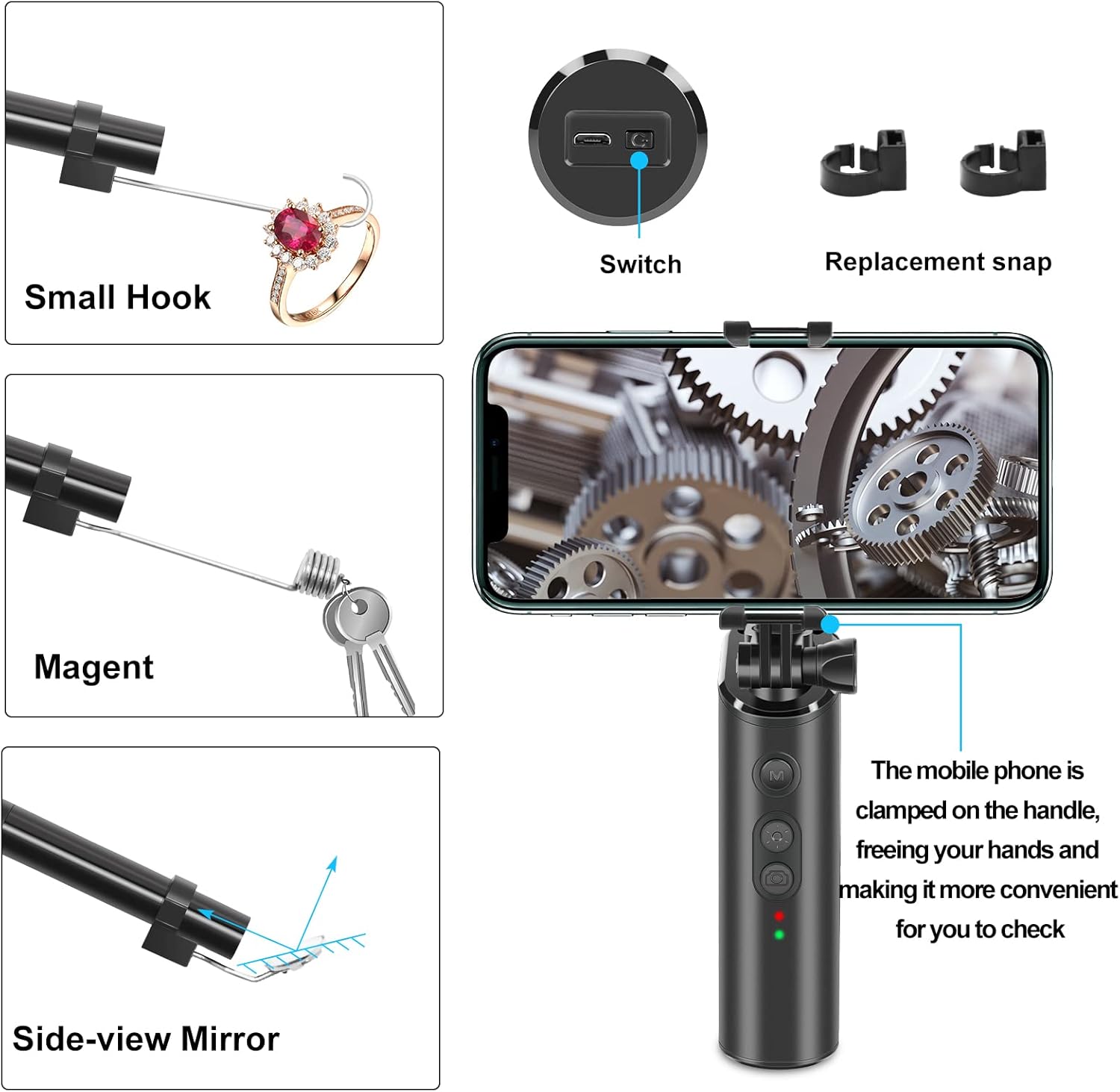
- Included Accessories: Small hook, magnet, and side-view mirror for enhanced functionality.
Components and Accessories:
The BEVA Endoscopic Camera comes with several components and accessories to assist with various inspection tasks.


3. Setup
3.1 Charging the Device:
- Connect the endoscope to a standard USB power adapter (not included) using the provided charging cable.
- The charging indicator light will illuminate. A full charge typically takes a few hours.
- Once fully charged, the indicator light may change color or turn off, depending on the model.
3.2 Connecting to Your Smartphone:
- Download the App: Search for the recommended endoscope application in your smartphone's app store (e.g., App Store for iOS, Google Play Store for Android). Refer to the packaging or a small QR code on the device for the specific app name.
- Power On: Press and hold the power button on the endoscope handle to turn it on. The indicator light will show it's active.
- Connect Adapter: Plug the appropriate adapter (iPhone or Micro USB) into your smartphone's charging port.
- Connect Endoscope: Connect the endoscope's USB cable to the adapter.
- Open App: Launch the downloaded endoscope application. The camera feed should appear on your screen. If not, check your phone's settings for camera permissions or try restarting the app and device.
4. Operating Instructions
4.1 Basic Operation:
- Power On/Off: Press and hold the power button on the handle.
- Adjust LED Brightness: Use the dedicated button on the handle to cycle through different brightness levels for the 8 LED lights.
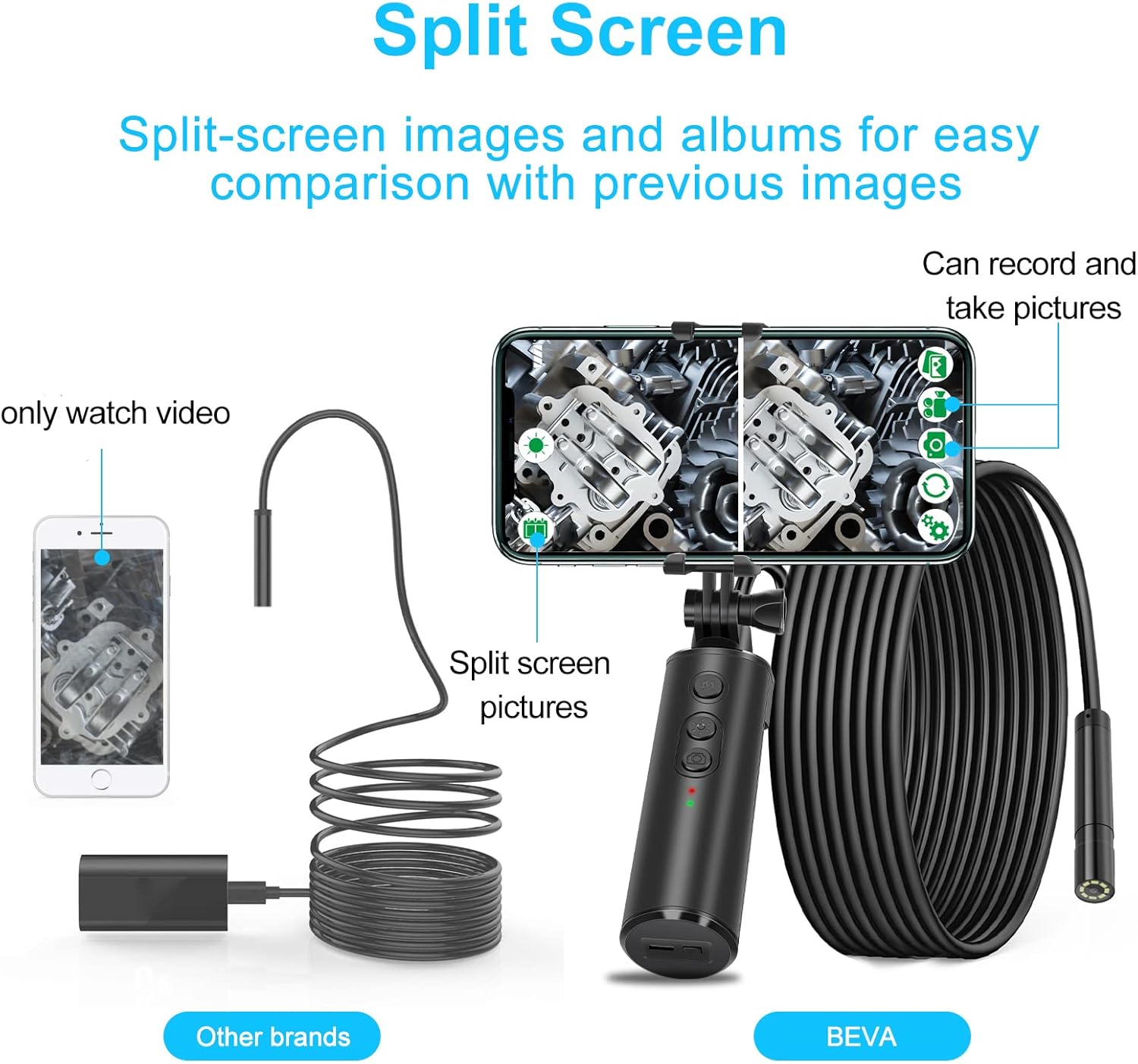
- Taking Photos: Press the camera button on the handle or within the app to capture still images.
- Recording Videos: Press the video button on the handle or within the app to start/stop video recording.
4.2 Using Accessories:
- Small Hook: Attach the hook to the endoscope probe to retrieve small objects from tight spaces.
- Magnet: Use the magnet accessory to pick up metallic items.
- Side-view Mirror: Attach the mirror to the probe for inspecting areas at a 90-degree angle.
4.3 Advanced Features:
- Split Screen: If supported by the app, utilize the split-screen function to compare live footage with previously captured images or view multiple angles simultaneously.
- Image Rotation: The app may offer options to rotate the image for optimal viewing orientation.
5. Maintenance
5.1 Cleaning:
- After each use, especially in dirty or wet environments, gently wipe the camera lens and probe with a soft, dry cloth.
- For stubborn dirt, use a slightly damp cloth and then dry thoroughly. Do not use harsh chemicals or abrasive cleaners.
- Ensure the USB port is clean and dry before charging or connecting to a device.
5.2 Storage:
- Store the endoscope in a cool, dry place, away from direct sunlight and extreme temperatures.
- Keep the protective cap on the camera lens when not in use to prevent scratches.
- If storing for an extended period, ensure the battery is partially charged (around 50%) to prolong its lifespan.
6. Troubleshooting
If you encounter issues with your BEVA Endoscopic Camera, please refer to the following common problems and solutions:
| Problem | Possible Cause | Solution |
|---|---|---|
| No image on phone screen | Device not powered on; Loose connection; App not open or permissions denied; Low battery. | Ensure device is powered on; Reconnect cable firmly; Open app and grant camera permissions; Charge the device. |
| Poor image quality | Insufficient lighting; Dirty lens; Incorrect focal distance. | Adjust LED brightness; Clean the camera lens; Adjust distance to object (optimal focal length is 8mm). |
| Device not charging | Faulty cable or adapter; Dirty USB port. | Try a different USB cable and power adapter; Clean the USB port on the device. |
| App crashes or freezes | App software issue; Phone system overload. | Restart the app and your phone; Check for app updates; Ensure your phone has sufficient memory. |
7. Specifications
| Feature | Specification |
|---|---|
| Brand | BEVA |
| Model Number | 5 (F280) |
| Video Resolution | 1080p |
| Probe Diameter | 8 mm |
| Focal Length | 8 mm |
| Battery Capacity | 2600 mAh Lithium-ion |
| Cable Length | 5 meters |
| Waterproof Rating | IP68 |
| LED Lights | 8 adjustable LEDs |
| Compatibility | iOS, Android (via iPhone/Micro USB adapter) |
| Included Components | Protective caps, magnets, hook, side-view mirror |
| Dimensions (Package) | 18.2 x 17.5 x 4.8 cm |
| Weight (Package) | 390 grams |
8. Warranty and Support
BEVA offers comprehensive customer service and a strong warranty to ensure confidence in product quality. For specific warranty details, including coverage period and terms, please refer to the documentation provided with your purchase or contact your retailer.
Customer Support:
If you require further assistance, have questions not covered in this manual, or need to report a product issue, please contact BEVA customer support through the following channels:
- Refer to the contact information provided on the product packaging or the official BEVA website.
- Contact the seller directly through the platform where the product was purchased.
Please have your product model number (Model 5 / F280) and purchase details ready when contacting support.