
1. Product Overview
The Motorola MQ20 is a high-performance WiFi 6E Tri-Band Router designed to provide extensive and reliable wireless coverage for your home or office. Featuring advanced WiFi 6E technology, it operates across 2.4GHz, 5GHz, and 6GHz bands, delivering speeds up to 8.4 Gbps. This router is engineered for seamless connectivity, supporting numerous devices for activities such as 4K/8K streaming, online gaming, and large file transfers.
The MQ20 is equipped with 8 high-gain internal antennas, enabling a single unit to cover up to 3,000 square feet. Its design prioritizes ease of setup and management through the MotoSync+ app, offering features like advanced parental controls and next-generation security protocols.

Image 1.1: Front view of two Motorola MQ20 WiFi 6E Routers.
2. Package Contents
Verify that your package contains the following items:
- Motorola MQ20 WiFi 6E Router Unit(s) (Dual Pack includes two units)
- Power Adapter(s)
- Ethernet Cable
- Quick Start Guide
If any items are missing or damaged, please contact Motorola customer support.
3. Physical Features
Familiarize yourself with the ports and indicators on your Motorola MQ20 router.
Front Panel
- LED Indicator: Displays the status of the router (e.g., power, internet connection). Refer to the Quick Start Guide for specific LED patterns and their meanings.
Rear Panel
- Power Port: Connects to the provided power adapter.
- Internet (WAN) Port: Connects to your modem using an Ethernet cable.
- LAN Ports (LAN1, LAN2, LAN3): Connects wired devices such as computers, gaming consoles, or smart TVs.
- Reset Button: Used to restore the router to factory default settings. Press and hold for 10 seconds while the router is powered on.
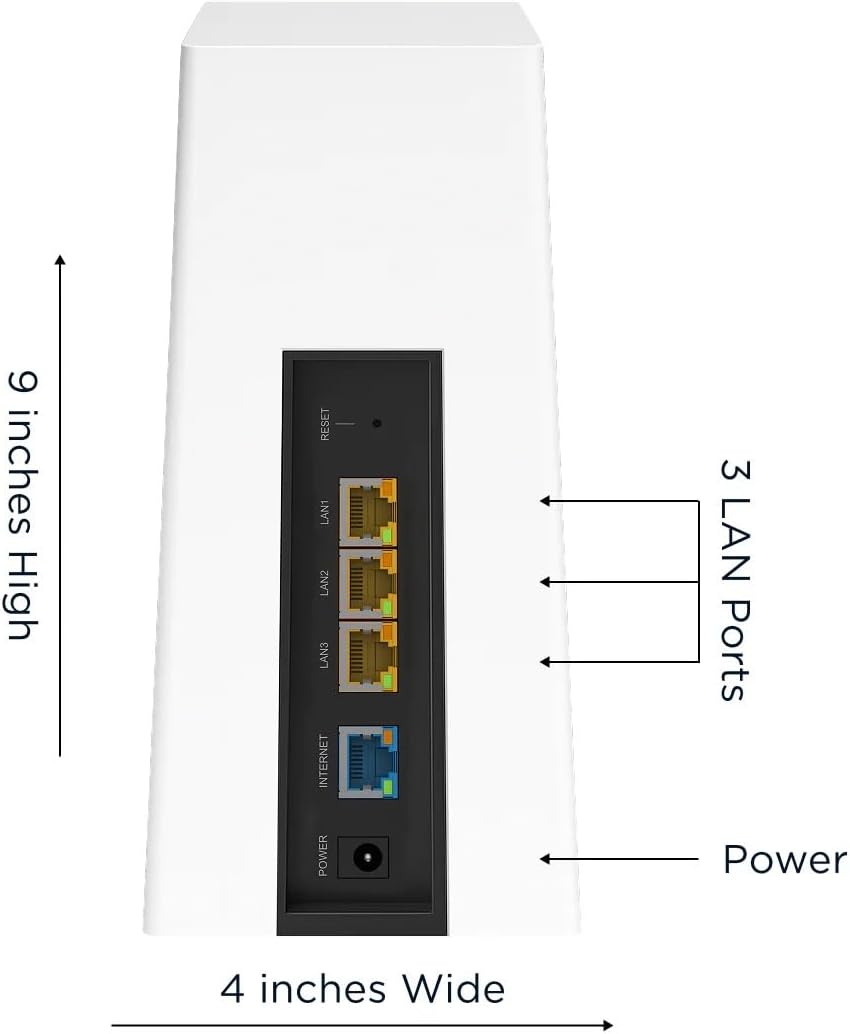
Image 3.1: Rear panel of the Motorola MQ20 Router with labeled ports.
4. Setup Instructions
Setting up your Motorola MQ20 router is primarily done through the MotoSync+ mobile application. Follow these steps for initial installation:
- Download the MotoSync+ App: Search for "MotoSync+" in your device's app store (available for iOS and Android) and install it.
- Position Your Router: Place the MQ20 router in a central location in your home, away from obstructions and other electronic devices that may cause interference.
- Connect to Modem: Connect one end of the provided Ethernet cable to the Internet (WAN) port on the back of your MQ20 router and the other end to an available Ethernet port on your broadband modem.
- Power On: Connect the power adapter to the Power port on the router and plug it into an electrical outlet. Wait for the router's LED indicator to stabilize (refer to the Quick Start Guide for specific LED behavior during startup).
- Launch MotoSync+ App: Open the MotoSync+ app on your smartphone or tablet. Follow the on-screen instructions to create an account and set up your new network. The app will guide you through configuring your Wi-Fi name (SSID) and password.
- Connect Devices: Once setup is complete, connect your wireless devices (smartphones, tablets, laptops) to your new Wi-Fi network using the SSID and password you created.
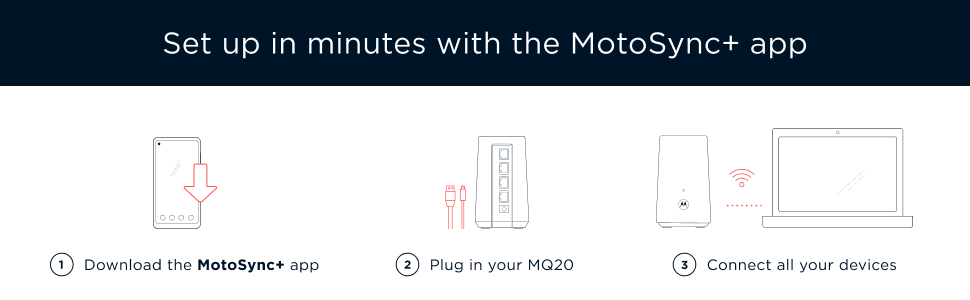
Image 4.1: Simplified setup process using the MotoSync+ app.
5. Operating Instructions
The MotoSync+ app serves as the central control panel for your Motorola MQ20 router, allowing you to manage your network from anywhere.
MotoSync+ App Features:
- Network Status: View the current status of your internet connection and router.
- Connected Devices: See all devices connected to your network, identify them, and manage their access.
- User Dashboard: Create profiles for family members and assign devices to them for easier management.
- Parental Controls: Set internet access schedules, block websites, and pause internet for specific users or devices.
- Security Features: Monitor and manage advanced security settings, including malware blocking and phishing defense.
- Guest Network: Easily set up a separate Wi-Fi network for guests, keeping your main network secure.

Image 5.1: The MotoSync+ app provides comprehensive network management.
Video 5.1: An overview of the Motorola MQ20 router's features and the MotoSync+ app for easy mesh network management.
6. Advanced Features
Tri-Band WiFi 6E Technology
The MQ20 utilizes Tri-Band technology, operating on three distinct frequency bands: 2.4GHz, 5GHz, and 6GHz. This allows for dedicated high-speed connections for compatible devices, reducing congestion and improving overall network performance.
- 2.4 GHz: Offers wider coverage and better penetration through walls, suitable for older devices and smart home gadgets.
- 5 GHz: Provides faster speeds and lower latency, ideal for streaming and gaming in closer proximity to the router.
- 6 GHz: The newest band, offering the fastest speeds and lowest latency for Wi-Fi 6E compatible devices, minimizing interference.

Image 6.1: Illustration of the MQ20's Tri-Band technology.
Extensive Coverage
With its powerful internal antennas, a single MQ20 unit can provide Wi-Fi coverage for areas up to 3,000 square feet, ensuring a strong signal throughout multi-story homes.
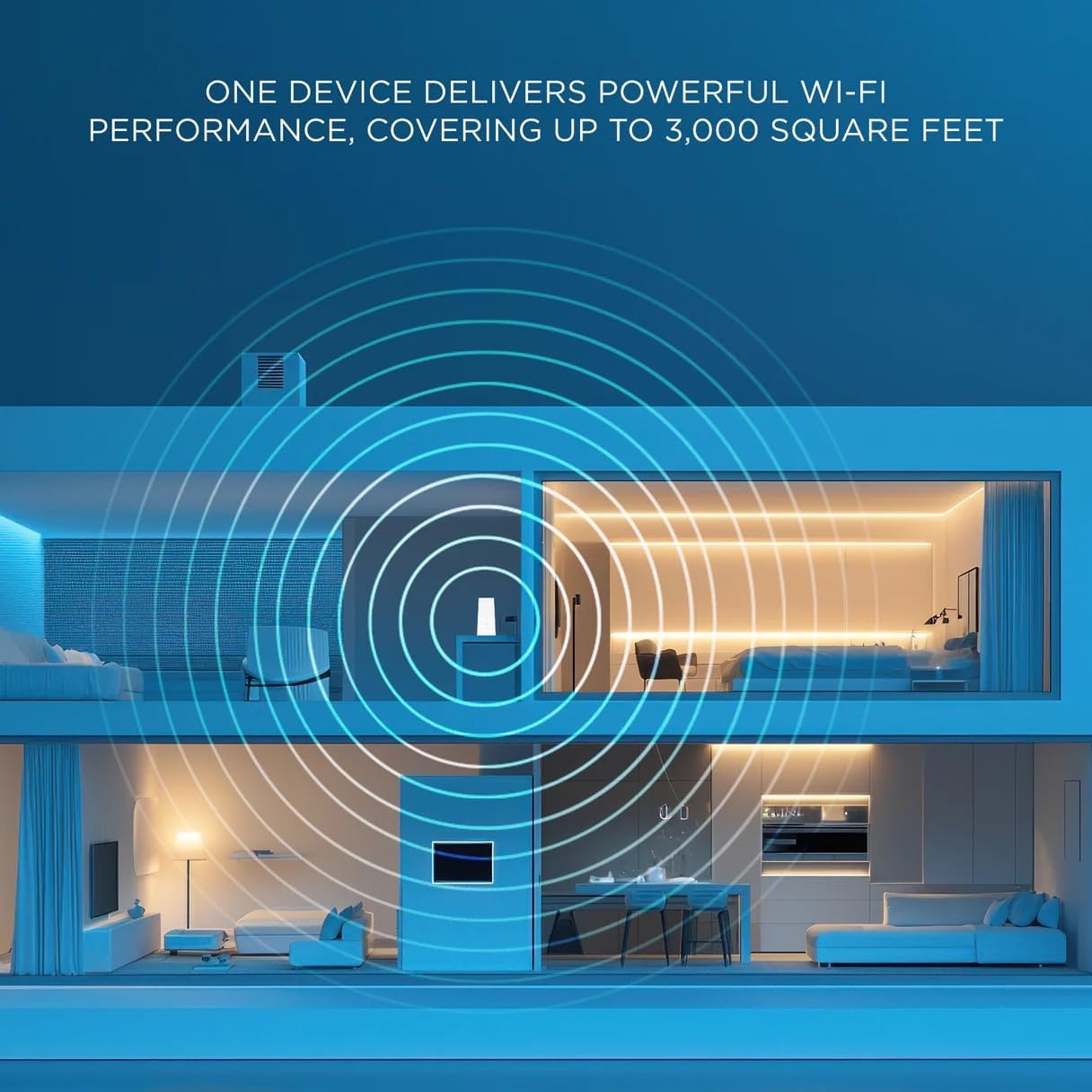
Image 6.2: The MQ20 provides whole-home Wi-Fi coverage.
Network Security
The MQ20 includes advanced security features to protect your network and connected devices. These include an advanced firewall, real-time malware blocking, ransomware protection, and phishing defense. Access and manage these features through the MotoSync+ app.
7. Maintenance
To ensure optimal performance and longevity of your Motorola MQ20 router, consider the following maintenance tips:
- Firmware Updates: Regularly check for and install firmware updates through the MotoSync+ app. Updates often include performance improvements, security enhancements, and bug fixes.
- Optimal Placement: Ensure the router is placed in an open area, free from physical obstructions (like large furniture or walls) and sources of electronic interference (like microwaves or cordless phones).
- Cleaning: Keep the router clean and free of dust. Use a soft, dry cloth to wipe the exterior. Avoid using liquid cleaners or abrasive materials.
- Reboot Periodically: A periodic reboot (unplugging the power for 30 seconds and plugging it back in) can help clear temporary issues and refresh network performance.
8. Troubleshooting
If you encounter issues with your Motorola MQ20 router, try the following troubleshooting steps:
No Internet Connection
- Check Cables: Ensure all Ethernet cables are securely connected to the router and modem.
- Reboot Devices: Power cycle your modem first, wait 2 minutes, then power cycle your MQ20 router. Wait for both devices to fully restart.
- Check Modem Status: Verify that your modem has an active internet connection (check its indicator lights).
- Contact ISP: If the modem indicates no internet, contact your Internet Service Provider (ISP).
Slow Wi-Fi Speeds or Dropped Connections
- Router Placement: Ensure the router is centrally located and not obstructed.
- Interference: Move the router away from other electronics that might cause interference.
- Firmware: Ensure your router's firmware is up to date via the MotoSync+ app.
- Channel Optimization: The MotoSync+ app may offer tools to optimize Wi-Fi channels to avoid interference from neighboring networks.
Cannot Access MotoSync+ App
- Wi-Fi Connection: Ensure your mobile device is connected to the MQ20's Wi-Fi network.
- App Update: Make sure the MotoSync+ app is updated to the latest version.
- Router Status: Verify the router is powered on and functioning correctly (check LED indicators).
9. Specifications
| Feature | Specification |
|---|---|
| Model Name | MQ20 |
| Item Model Number | MQ 20 |
| Brand | Motorola |
| Frequency Band Class | Tri-Band (2.4GHz, 5GHz, 6GHz) |
| Wireless Communication Standard | 802.11a (Wi-Fi 6E compatible) |
| Maximum Speed | Up to 8.4 Gbps |
| Coverage Area | Up to 3,000 sq. ft per unit |
| Connectivity Technology | Ethernet |
| Special Feature | Parental Control |
| Compatible Devices | Gaming Console, Personal Computer, Smartphone |
| Package Dimensions | 11 x 10.25 x 5.75 inches |
| Item Weight | 5.49 pounds |
| Manufacturer | Motorola |
10. Warranty and Support
Motorola products are designed for reliability and performance. For detailed warranty information, please refer to the warranty card included in your product packaging or visit the official Motorola website.
For technical assistance, troubleshooting, or further inquiries, please contact Motorola customer support through their official website or the MotoSync+ app's support section. Ensure you have your product model number (MQ20) and purchase information ready when contacting support.


