
ieGeek Baby 7
ieGeek 5" Split Screen Baby Monitor Instruction Manual
Model: Baby 7
1. Introduction
Thank you for choosing the ieGeek 5" Split Screen Baby Monitor. This manual provides detailed instructions for the safe and efficient operation of your new baby monitor system. Please read this manual thoroughly before use and keep it for future reference.
This system features HD night vision, two-way talk, cry and motion detection, and temperature and humidity sensors. It supports both a dedicated 5-inch 720p display and smartphone app connectivity for versatile monitoring.
2. What's in the Box
- 2 x Baby Cameras
- 1 x 5-inch Display Monitor
- 2 x 1.5M Power Cables
- 3 x Screws (for mounting)
- 1 x Quick Guide
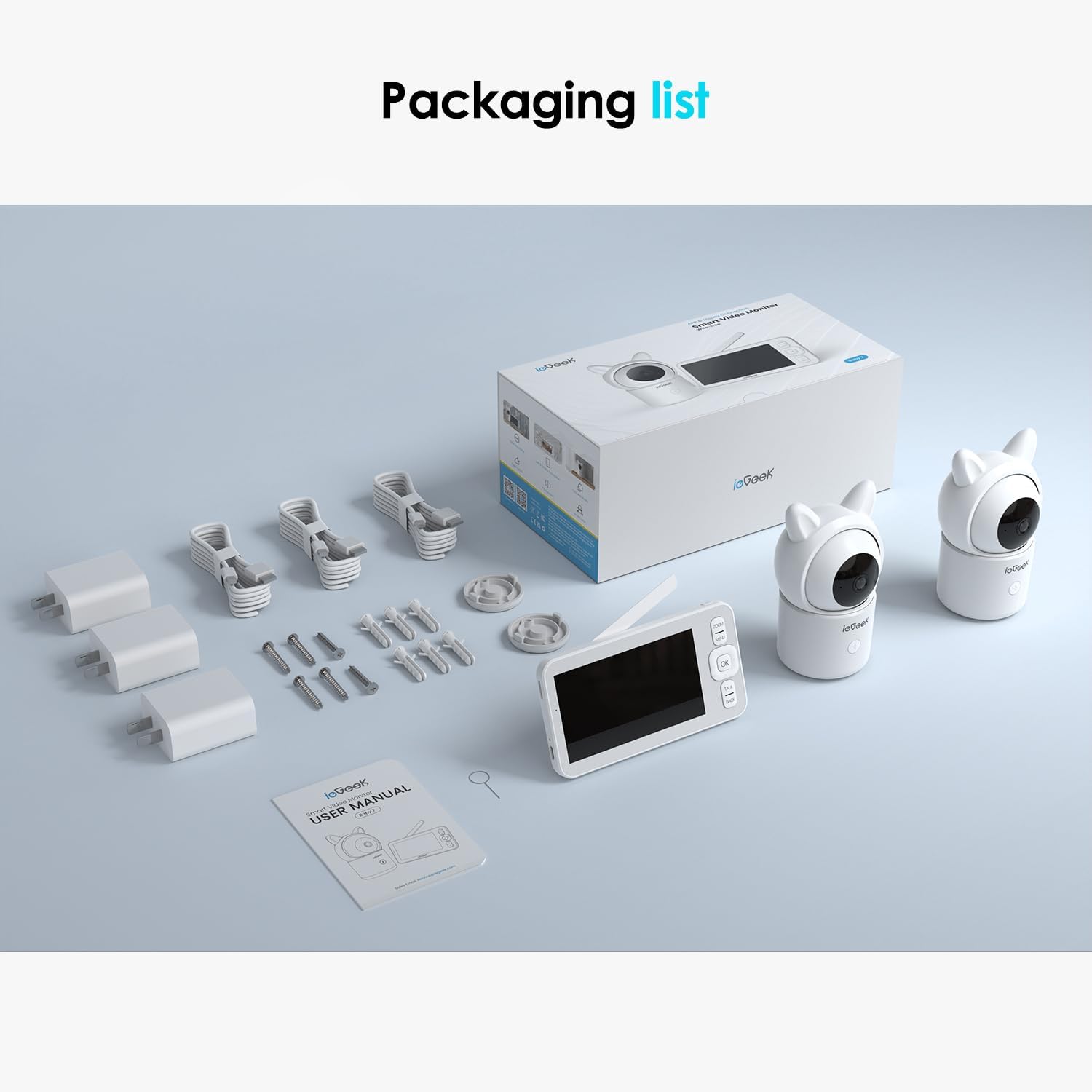
Figure 2.1: Packaging list showing all included components of the ieGeek Baby Monitor system.
3. Product Overview
The ieGeek Baby Monitor system consists of two cameras and a portable 5-inch LCD display. The cameras are designed with a cute, friendly appearance and offer comprehensive monitoring features.

Figure 3.1: Overview of the ieGeek Baby Monitor system, including two cameras, the 5-inch monitor, and a smartphone showing the companion app.
3.1 Key Features
- Split Screen Viewing: Monitor two rooms or two babies simultaneously on the 5-inch 720p HD display.
- Two-Way Talk: Communicate with your baby through the camera's speakers.
- Cry & Motion Detection: Receive instant alerts for crying or movement.
- Temperature & Humidity Sensor: Monitor the nursery environment.
- HD Night Vision: Clear visibility in low-light conditions.
- WiFi & Non-WiFi Options: Connect via the dedicated monitor or through a smartphone app (2.4GHz WiFi required for app).
- Pan & Tilt: Remotely adjust camera view (355° pan, 100° tilt).
- SD Card Support: Record and save video and images (SD card not included).
4. Setup
4.1 Powering On
- Connect the power cables to both cameras and the display monitor.
- Plug the power adapters into a wall outlet.
- The monitor and cameras will automatically power on and attempt to pair.
4.2 Camera Placement
Place the cameras in a location that provides a clear view of your baby. Ensure the cameras are out of reach of children and pets. Wall mounts and hardware are included for secure installation if desired.

Figure 4.1: Camera placement considerations, highlighting the 355° pan and 100° tilt range for comprehensive room coverage.
4.3 App Connection (Optional)
For remote monitoring via smartphone, download the ieGeek app. The monitor supports 2.4GHz WiFi for app connectivity. Follow the in-app instructions to pair your cameras with your smartphone.

Figure 4.2: Connection options for the ieGeek Baby Monitor, illustrating both direct monitor connection and 2.4GHz WiFi app connectivity.
5. Operating Instructions
5.1 Monitor Display
The 5-inch LCD display provides a clear view from your cameras. You can switch between single camera view or split-screen view to monitor both cameras simultaneously.

Figure 5.1: VOX Mode functionality, demonstrating how the monitor provides instant alerts based on audio activation, showing a sleeping baby and a crying baby.
5.2 Two-Way Talk
Press and hold the "Talk" button on the monitor to speak to your baby through the camera's speaker. Release the button to listen.
5.3 Pan, Tilt, and Zoom (PTZ)
Use the directional buttons on the monitor to remotely pan (left/right) and tilt (up/down) the camera lens. The system also supports digital zoom for closer inspection.
5.4 Cry & Motion Detection
The monitor will alert you when crying or motion is detected. Sensitivity levels can be adjusted in the settings menu.

Figure 5.2: Motion detection feature, alerting users to movement in the monitored area.
5.5 Temperature & Humidity Monitoring
The monitor displays the current temperature and humidity of the room where the camera is located. Alerts can be set for out-of-range conditions.

Figure 5.3: Temperature and Humidity monitoring, ensuring a comfortable environment for the baby.
5.6 Night Vision
The cameras automatically switch to night vision mode in low light, providing clear black and white video.

Figure 5.4: Night vision capability, providing clear images even in complete darkness.
5.7 Recording and Storage
Insert an SD card (not included) into the monitor to record video and capture snapshots. These can be reviewed directly on the monitor or via the app.

Figure 5.5: Recording and storage options, including cloud storage and SD card support for capturing precious moments.
5.8 Feeding Reminder
Set feeding reminders through the monitor's settings to help maintain a consistent feeding schedule.

Figure 5.6: Feeding reminder feature, assisting parents with scheduling feeding times.
5.9 Electronic Fence (Dangerous Area Alarm)
Utilize the electronic fence feature to set virtual boundaries. The monitor will alert you if your baby enters a designated dangerous area.

Figure 5.7: Electronic Fence feature, allowing users to define and receive alerts for dangerous areas.
6. Maintenance
- Cleaning: Use a soft, dry cloth to clean the monitor and cameras. Do not use liquid cleaners or aerosols.
- Storage: Store the device in a cool, dry place when not in use.
- Battery Care: The monitor has a built-in rechargeable battery. For optimal battery life, avoid extreme temperatures and fully charge before first use.
7. Troubleshooting
| Problem | Possible Cause | Solution |
|---|---|---|
| No image on monitor | Cameras not powered on or paired; out of range. | Ensure cameras are plugged in and powered. Re-pair cameras if necessary. Move monitor closer to cameras. |
| Poor image quality | Low light; camera lens dirty; interference. | Check lighting conditions. Clean camera lens. Reduce interference from other electronic devices. |
| No sound or poor sound | Volume too low; microphone blocked; out of range. | Increase monitor volume. Ensure microphone is clear. Move monitor closer to cameras. |
| App not connecting | Incorrect WiFi password; 5GHz WiFi network; camera not in pairing mode. | Verify 2.4GHz WiFi network. Re-enter WiFi password. Follow app instructions for pairing. |
| SD card not recognized | Card inserted incorrectly; unsupported format; faulty card. | Re-insert SD card correctly (contacts downward). Format card if prompted. Try a different SD card. |
8. Specifications
- Brand: ieGeek
- Model: Baby 7
- Screen Size: 5 Inches
- Material: Acrylonitrile Butadiene Styrene (ABS)
- Color: Cream
- Compatible Devices: Smartphones, Tablets, IOS
- Item Weight: 2.16 pounds
- Package Dimensions: 9.29 x 7.55 x 4.21 inches
- Batteries: 1 C battery required (included for monitor)
- UPC: 734931736201
9. Warranty
The ieGeek 5" Split Screen Baby Monitor comes with a standard manufacturer's warranty. Please refer to the warranty card included in your packaging for specific terms and conditions. Keep your purchase receipt as proof of purchase for warranty claims.
10. Support
For technical support, product inquiries, or warranty service, please contact ieGeek customer support through their official website or the contact information provided in your quick guide. You can also visit the ieGeek Store on Amazon for additional resources.
Related documentsBaby 7


Ask a question about this manual
Ask about setup, troubleshooting, compatibility, parts, safety, or missing instructions. Manuals+ will review the question and use this page’s manual context to help answer it.