
NOKBABO Compatible with iPad 10th/11th Gen, Air 11 inch (M3/M2), Pro 11 inch (4th/3rd/2nd/1st)
NOKBABO iPad Keyboard Case User Manual
Model: Compatible with various iPad 10th/11th Gen, Air, and Pro 11-inch models
Introduction
Thank you for choosing the NOKBABO iPad Keyboard Case. This manual provides detailed instructions on how to set up, operate, and maintain your new keyboard case, designed to enhance your iPad experience with its versatile features, including a built-in touchpad, backlit keyboard, and 360° rotation.
Package Contents
- NOKBABO iPad Keyboard Case
- Type-C Charging Cable
- User Manual (this document)
Compatibility
This keyboard case is designed for specific iPad models. Please verify your iPad model number before use to ensure compatibility.

Image: Detailed compatibility chart for NOKBABO iPad Keyboard Case.
Compatible Models:
- iPad 11th generation 11 inch (2025) - A16 Chip
- iPad 10th generation 10.9 inch (2022) - A2696, A2757, A2777, A3162
- iPad Air 11 inch M3 (2025)
- iPad Air 11 inch M2 (2024) - A2902, A2903, A2904
- iPad Pro 11 inch 4th Gen (2022) - A2759, A2435, A2761, A2762
- iPad Pro 11 inch 3rd Gen (2021) - A2377, A2301, A2459, A2460
- iPad Pro 11 inch 2nd Gen (2020) - A2228, A2068, A2230, A2231
- iPad Pro 11 inch 1st Gen (2018) - A1980, A2013, A1934, A1979
- iPad Air 5th Gen 10.9 inch (2022) - A2588, A2589, A2591
- iPad Air 4th Gen 10.9 inch (2020) - A2072, A2316, A2324, A2325
Incompatible Models:
- iPad Pro 11-inch (M4) 2024
- iPad Pro 13-inch (M4) 2024
- iPad Pro 10.5 inch / 9.7 inch
- iPad 9th / 8th / 7th Gen 10.2 inch
- iPad Air 3rd Gen 10.5 inch
Setup
1. Charging the Keyboard
Before first use, fully charge the keyboard. Connect the provided Type-C charging cable to the keyboard's charging port and a USB power adapter (not included).
- Charging Time: Approximately 2.5 hours.
- Working Time: Up to 150 hours with backlight off; 50+ hours with backlight on.
- Standby Time: Up to 90 days.

Image: The keyboard case being charged via a Type-C cable, highlighting battery life metrics.
2. Inserting Your iPad
Carefully align your iPad with the case and gently press it into place, ensuring all corners are securely seated. The case provides full protection for your device.

Image: The NOKBABO iPad Keyboard Case with an iPad, demonstrating its design and how the iPad fits.
3. Bluetooth Pairing
- Ensure the keyboard is charged and powered on.
- On your iPad, go to Settings > Bluetooth.
- Turn on Bluetooth.
- The iPad will search for discoverable devices. Select "NOKBABO Keyboard" (or similar name) from the list.
- Follow any on-screen prompts to complete the pairing process. Once paired, the keyboard will automatically connect to your iPad when both are on and within range.
Operating Instructions
Keyboard Functions
- Typing: Use the keyboard for efficient typing, similar to a laptop. The scissors-key mechanism provides a quiet typing experience.
- iOS Shortcut Keys: A dedicated row of iOS shortcut keys is located at the top of the keyboard for quick access to functions like brightness adjustment, volume control, media playback, and more.
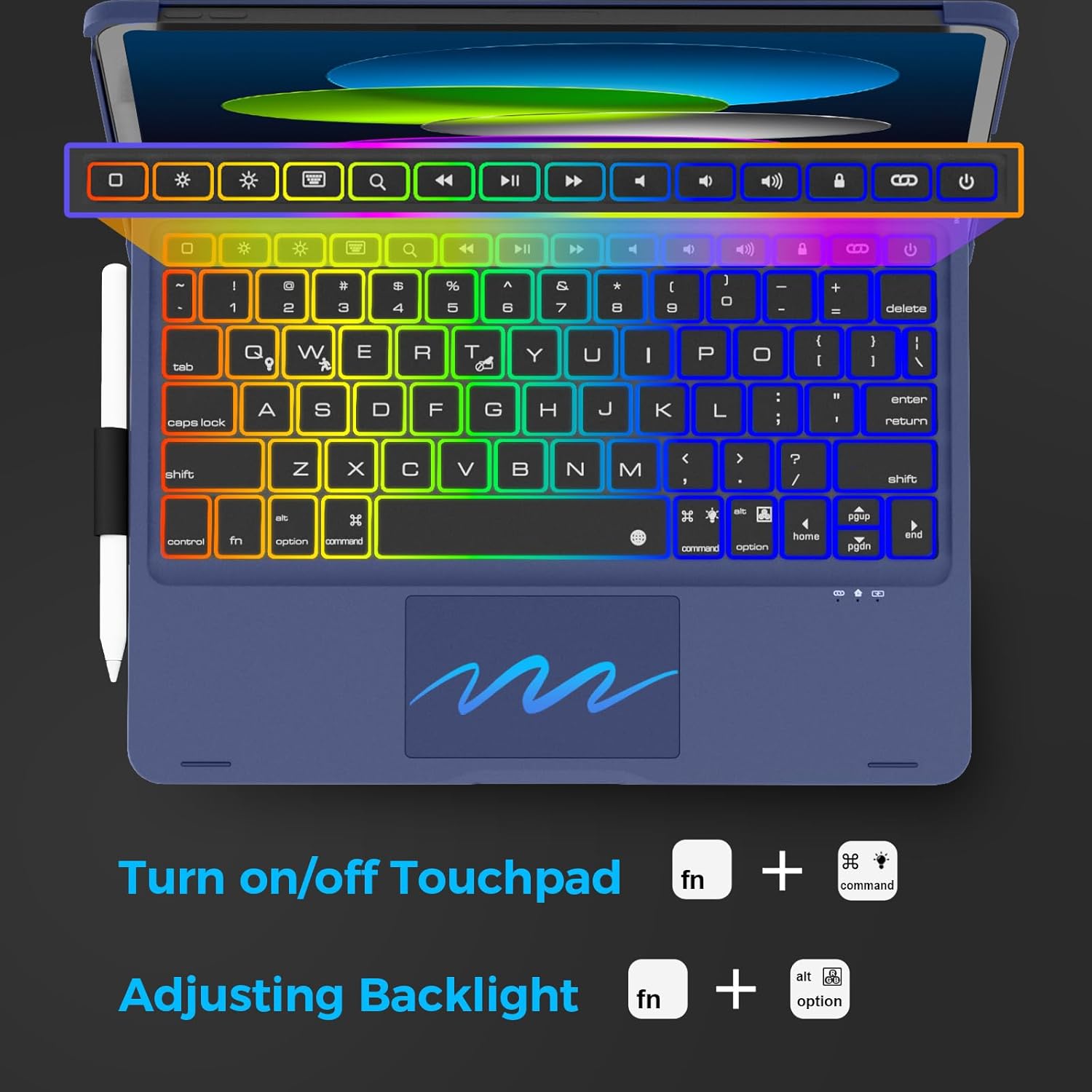
Image: Close-up of the keyboard, highlighting the iOS shortcut keys and instructions for touchpad and backlight control.
Touchpad Usage
The built-in multi-touch touchpad allows for precise navigation and control of your iPad, eliminating the need for an external mouse.
- Basic Navigation: Tap to click, drag to move items.
- Multi-finger Gestures: Supports various multi-touch gestures for enhanced productivity (e.g., two-finger scroll, pinch to zoom). Refer to iPadOS settings for a full list of supported gestures.
- Turn On/Off Touchpad: Press Fn + Command keys simultaneously to enable or disable the touchpad.
Backlight Control
The keyboard features a 7-color rainbow backlight with 3 adjustable brightness levels.
- Adjusting Brightness: Press Fn + Option keys simultaneously to cycle through brightness levels.
- Changing Colors: Use the dedicated backlight key (often represented by a lightbulb icon) to switch between the 7 available colors.

Image: The keyboard with its rainbow backlight illuminated, highlighting features like multi-touch trackpad, auto sleep/wake, pencil holder, rechargeable battery, and protective case.
Versatile Viewing Modes (360° Rotation & 180° Folding)
The durable hinge allows for 360° rotation and 180° folding, providing multiple viewing and usage modes:
- Laptop Mode: Traditional laptop setup for typing and productivity.
- Tablet Mode: Fold the keyboard completely behind the iPad for a pure tablet experience.
- Stand Mode: Position the iPad at various angles for viewing content.
- Tent Mode: Ideal for watching videos or presentations in confined spaces.
- Share Mode: Rotate the screen to share content with others.
- Protect Mode: Close the case to fully protect your iPad.
- Corner Mode: A specific angle for comfortable drawing or writing.
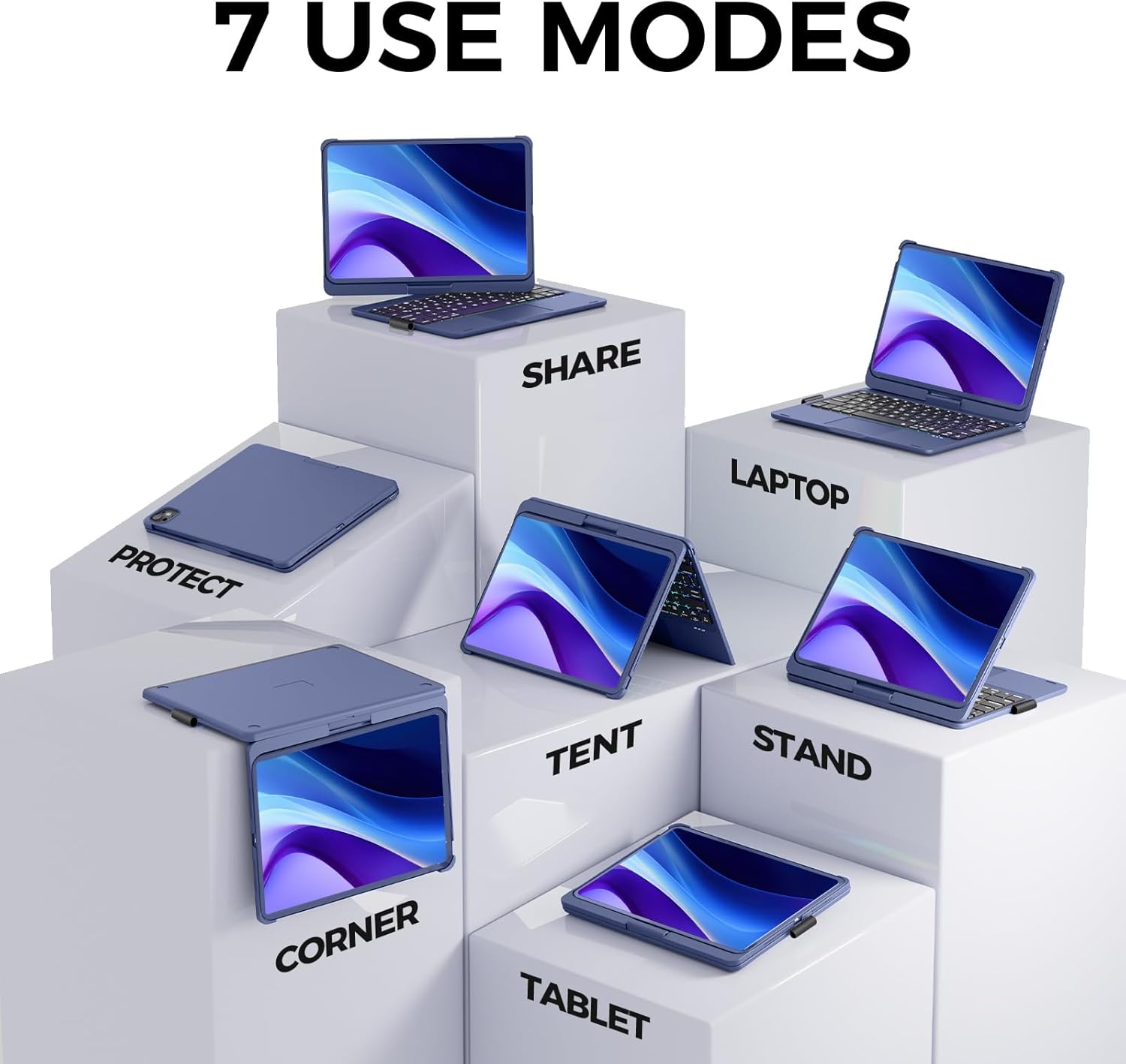
Image: Visual representation of the seven versatile use modes (Share, Laptop, Protect, Tent, Stand, Corner, Tablet) enabled by the 360° rotation and 180° folding hinge.

Image: Examples of the keyboard case in use, demonstrating its 360° rotation and 180° folding capabilities for different tasks like typing, drawing, and carrying.
Pencil Holder
The integrated pencil holder on the side of the case provides a convenient and secure place to store your Apple Pencil (or similar stylus) when not in use, preventing loss.
Maintenance
- Cleaning: Use a soft, damp cloth to wipe the exterior of the case and keyboard. Avoid harsh chemicals or abrasive materials.
- Battery Care: To prolong battery life, avoid fully discharging the keyboard frequently. Charge it regularly, even if not in constant use.
- Storage: When not in use for extended periods, store the keyboard case in a cool, dry place.
Troubleshooting
Keyboard Not Connecting via Bluetooth:
- Ensure the keyboard is fully charged.
- Make sure the keyboard's power switch is in the "On" position.
- On your iPad, turn Bluetooth off and then on again.
- Forget the device in iPad's Bluetooth settings and re-pair it.
- Restart both your iPad and the keyboard.
Backlight Not Working or Adjusting:
- Ensure the keyboard has sufficient battery charge.
- Press Fn + Option to cycle through brightness levels.
- Press the backlight key (lightbulb icon) to change colors.
Touchpad Not Responding:
- Ensure the touchpad is enabled by pressing Fn + Command.
- Check Bluetooth connection.
- Restart the keyboard and iPad.
Specifications
| Product Dimensions | 10 x 7.59 x 0.72 inches |
| Item Weight | 1.81 pounds |
| Material | Acrylonitrile Butadiene Styrene (ABS) |
| Battery Type | 1 Lithium Ion battery (included) |
| Charging Port | Type-C |
| Special Features | Backlit, 360 Degree Rotated, Trackpad, Rechargeable, Pencil Holder, Auto Sleep/Wake |
| Manufacturer | NOKBABO |
| Country of Origin | China |
Warranty and Support
NOKBABO provides a 1-Year Product Service from the date of purchase. If you encounter any issues with your keyboard case within this period, NOKBABO will provide a replacement.
For support inquiries, please contact our professional after-sales team. Your questions will be replied to within 12 working hours.
Please refer to your purchase documentation or the NOKBABO official website for specific contact methods.
Related documentsCompatible with iPad 10th/11th Gen, Air 11 inch (M3/M2), Pro 11 inch (4th/3rd/2nd/1st)


Ask a question about this manual
Ask about setup, troubleshooting, compatibility, parts, safety, or missing instructions. Manuals+ will review the question and use this page’s manual context to help answer it.