
Introduction
The Monster VoiceLink 200 is a wireless headset designed for clear communication and immersive audio experiences. It features Bluetooth 5.4 connectivity, an AI noise-cancelling microphone, and a USB dongle for versatile use across various devices. This manual provides detailed instructions for setup, operation, and maintenance to ensure optimal performance and longevity of your headset.
What's in the Box
Carefully unpack your Monster VoiceLink 200 headset and verify that all components are present:
- Monster VoiceLink 200 Wireless Headset
- USB Dongle
- USB-C Charging Cable
- User Manual (this document)

Image: The Monster VoiceLink 200 Wireless Headset shown with its accompanying USB dongle.
Product Overview
Familiarize yourself with the physical components and controls of your headset.
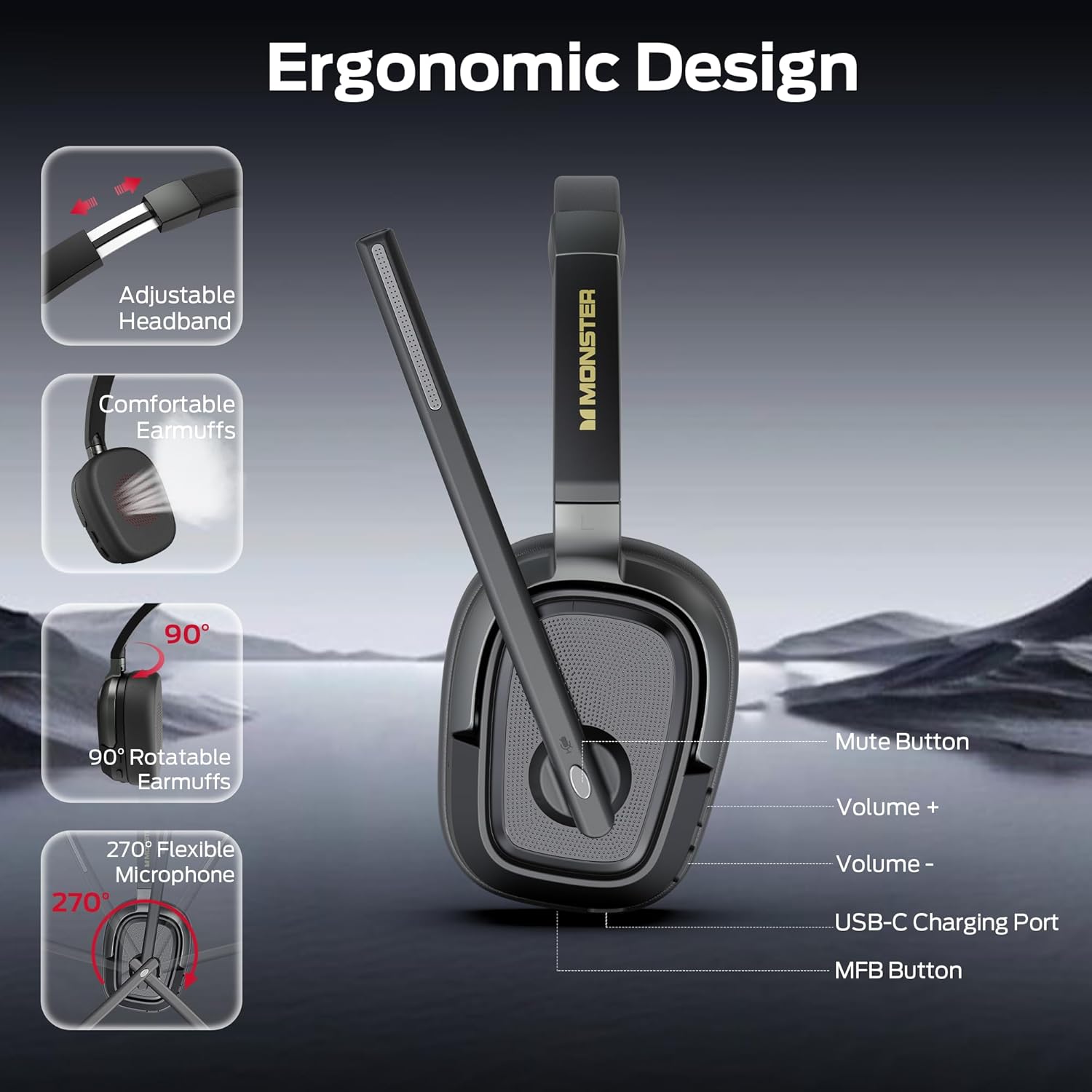
Image: A detailed view of the Monster VoiceLink 200 headset highlighting its ergonomic design and control buttons.
Headset Components:
- Adjustable Headband: For a secure and comfortable fit.
- Comfortable Earmuffs: Breathable memory foam ear cushions for extended wear.
- Rotatable Earmuffs: Adapt to ear shape and allow for flat storage.
- Flexible Microphone: 270° rotatable boom mic with AI noise cancellation.
- Mute Button: Located on the microphone arm for quick privacy.
- Volume Controls: Buttons for increasing and decreasing audio volume.
- USB-C Charging Port: For recharging the headset battery.
- MFB Button (Multi-Function Button): For power, pairing, and call management.
Setup
Charging the Headset:
- Connect the USB-C charging cable to the headset's charging port.
- Connect the other end of the cable to a USB power source (e.g., computer USB port, wall adapter).
- The LED indicator will show charging status. A full charge takes approximately 1.55 hours.
Connecting via USB Dongle (Recommended for PC/Laptop):
- Plug the USB dongle into an available USB port on your computer.
- Power on the headset by pressing and holding the MFB button until the LED indicator flashes.
- The headset will automatically pair with the USB dongle. The LED indicator will show a solid light once connected.
- Ensure the Monster VoiceLink 200 is selected as the audio input and output device in your computer's sound settings.

Image: The headset connected wirelessly to a laptop via the USB dongle, with a smartphone showing Bluetooth connection.
Connecting via Bluetooth (for Mobile Devices/Bluetooth-enabled PCs):
- With the headset powered off, press and hold the MFB button until the LED indicator flashes rapidly (pairing mode).
- On your device (smartphone, tablet, etc.), enable Bluetooth and search for available devices.
- Select "Monster VoiceLink 200" from the list of devices.
- Once connected, the LED indicator on the headset will show a solid light.
Operating Instructions
Power On/Off:
- Power On: Press and hold the MFB button for approximately 3 seconds.
- Power Off: Press and hold the MFB button for approximately 5 seconds.
Call Management:
- Answer/End Call: Press the MFB button once.
- Reject Call: Press and hold the MFB button for 2 seconds.
- Mute/Unmute Microphone: Press the dedicated Mute button on the microphone arm.
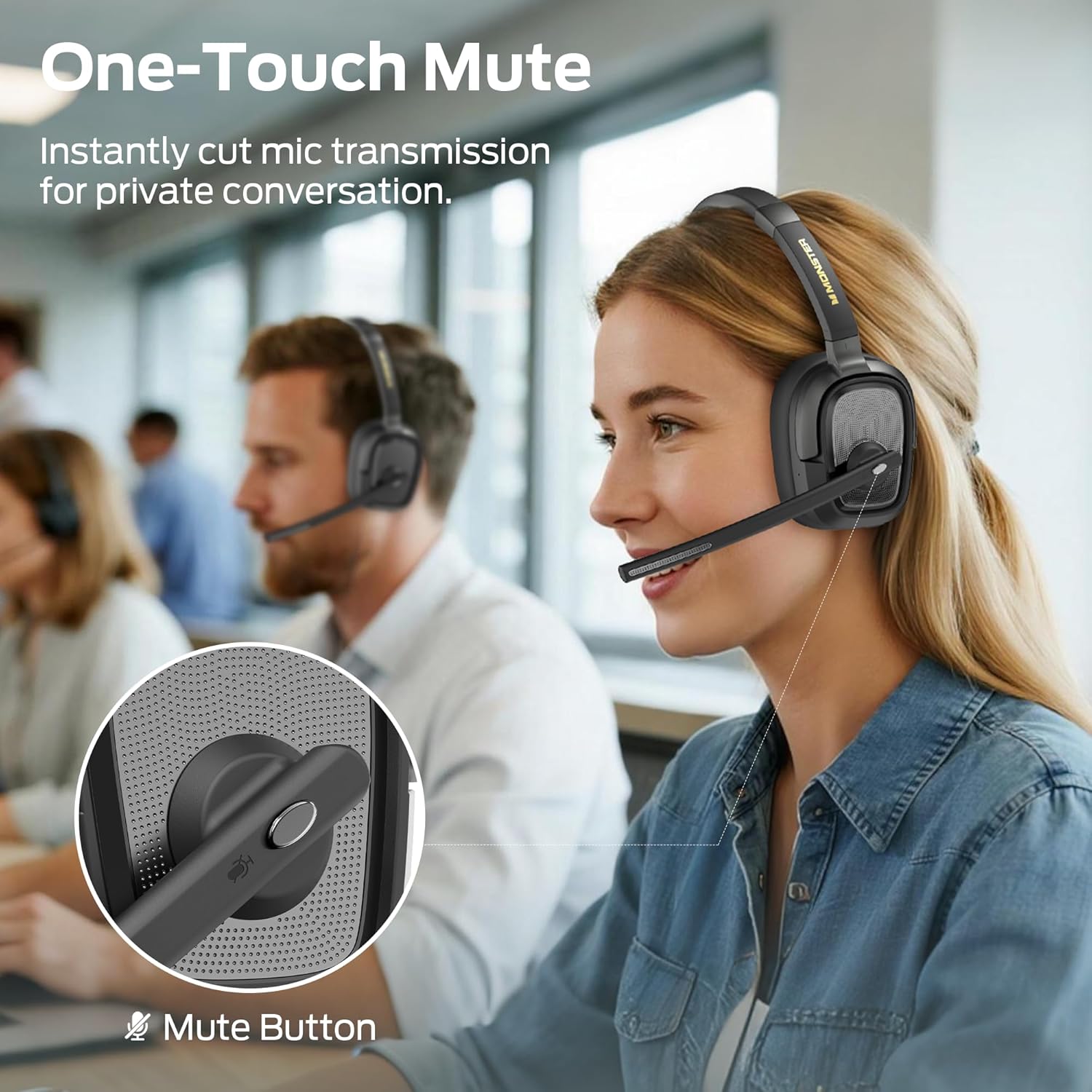
Image: A user demonstrating the one-touch mute button on the headset's microphone arm, indicating instant privacy during conversations.

Image: Two individuals using the headset in different environments, illustrating the effectiveness of AI noise-cancelling for clear calls.
Audio Playback:
- Play/Pause: Press the MFB button once.
- Volume Up: Press the Volume + button.
- Volume Down: Press the Volume - button.
- Next Track: Press and hold the Volume + button.
- Previous Track: Press and hold the Volume - button.
Compatibility:
The Monster VoiceLink 200 is compatible with a wide range of platforms and devices, including:
- Microsoft Teams
- Zoom
- Skype
- Webex
- Google Meet
- Discord
- Laptops, Desktops, Cellphones

Image: A user wearing the headset, surrounded by logos of popular communication platforms like Microsoft Teams, Zoom, and Skype, indicating wide compatibility.
Maintenance
- Cleaning: Use a soft, dry cloth to clean the headset. Do not use abrasive cleaners or solvents.
- Storage: Store the headset in a cool, dry place away from direct sunlight and extreme temperatures. The rotatable ear cups allow for compact storage.
- Battery Care: To prolong battery life, avoid fully discharging the headset frequently. Charge it regularly, even if not in use for extended periods.
- Water Exposure: The headset is not waterproof. Avoid exposure to liquids.
Troubleshooting
| Problem | Possible Solution |
|---|---|
| Headset does not power on. | Ensure the headset is fully charged. Press and hold the MFB button for 3 seconds. |
| Cannot pair with device. | Ensure the headset is in pairing mode (rapidly flashing LED). Check that Bluetooth is enabled on your device and it is within range. For USB dongle, ensure it is properly inserted and selected as audio device. |
| No sound or poor sound quality. | Check volume levels on both the headset and your connected device. Ensure the headset is selected as the default audio output. Move closer to the connected device to improve signal. |
| Microphone not working. | Ensure the microphone is not muted. Check that the headset is selected as the default audio input device in your computer's sound settings or application settings. |
| Interference with other wireless devices. | If using the USB dongle, try using a different USB port. Ensure other wireless devices are not causing interference. |
Specifications
| Model Name | Monster VoiceLink 200 |
| Connectivity Technology | Wireless (Bluetooth 5.4, USB Dongle) |
| Audio Driver Type | Dynamic Driver (40mm) |
| Noise Control Features | AI Noise Cancellation (Mic), Active Noise Cancellation (Headphones) |
| Battery Life (Music) | Up to 60 Hours |
| Battery Life (Talk Time) | Up to 40 Hours |
| Charging Time | Approximately 1.55 Hours |
| Bluetooth Range | Up to 15 Meters |
| Material | Plastic |
| Item Weight | 10.2 ounces |
| Item Model Number | H19 |
Warranty and Support
For warranty information and customer support, please refer to the documentation included with your purchase or visit the official Monster website. Keep your proof of purchase for any warranty claims.


