
UGREEN 55316
UGREEN 40Gbps M.2 NVMe Enclosure (Model 55316) User Manual
Comprehensive instructions for setup, operation, and maintenance.
1. Introduction
This manual provides detailed instructions for the UGREEN 40Gbps M.2 NVMe Enclosure, Model 55316. Please read this manual thoroughly before using the product to ensure proper installation and operation. This enclosure is designed for high-speed data transfer and efficient heat dissipation for M.2 NVMe SSDs.
2. Package Contents
- UGREEN 40Gbps M.2 NVMe Enclosure (Model 55316)
- USB-C to USB-C Cable
- Screwdriver
- Thermal Pad(s)
- Mounting Screws (for SSD and enclosure)
- User Manual (this document)
Note: SSD is not included and must be purchased separately.
3. Product Specifications
| Feature | Detail |
|---|---|
| Model Number | 55316 |
| Data Transfer Rate | Up to 40Gbps (3600MB/s) |
| Chipset | ASM2464PD |
| Compatible SSD Types | M.2 NVMe SSD (M-Key/B+M Key PCIe) |
| Supported SSD Sizes | 2230, 2242, 2260, 2280 |
| Max Storage Capacity | 8 TB |
| Interface | USB Type-C (Compatible with Thunderbolt 4/3, USB4/3.2/2.0) |
| Operating Systems | Windows, macOS, Linux, Android |
| Material | Aluminum Alloy |
| Heat Dissipation | Double-sided fin design, three-dimensional cooling, fanless |
| Product Dimensions | 4.8 x 2.6 x 1.06 inches (12.2 x 6.6 x 2.7 cm) |
| Item Weight | 8.2 ounces (232 grams) |
Note: This enclosure does not support SATA NGFF solid-state drives or mSATA solid-state drives. It also does not support SSDs with pre-installed heat sinks.
4. Setup Guide
Follow these steps to install your M.2 NVMe SSD into the UGREEN enclosure.
4.1 Disassembly
- Using the provided screwdriver, carefully loosen the screws on the side of the enclosure.
- Gently slide open the enclosure cover to reveal the internal circuit board.

Image: The UGREEN NVMe enclosure disassembled, showing the aluminum housing, internal circuit board, and heat dissipation fins.
4.2 SSD Installation
- Locate the M.2 slot on the circuit board.
- Align your M.2 NVMe SSD with the slot (M-Key or B+M Key PCIe) and gently insert it at an angle.
- Press down the SSD and secure it with the provided screw into the appropriate mounting hole (2230, 2242, 2260, or 2280).
- Apply the thermal pad(s) to the top surface of the SSD, ensuring good contact for heat transfer to the enclosure's fins.

Image: Illustration showing different M.2 NVMe SSD sizes (2230, 2242, 2260, 2280) and how they fit into the enclosure's M-Key slot.
4.3 Reassembly
- Carefully slide the enclosure cover back into place, ensuring it aligns correctly.
- Tighten the screws on the side of the enclosure to secure the cover. Do not overtighten.

Image: The fully assembled UGREEN 40Gbps M.2 NVMe Enclosure, shown with its two USB-C cables.
5. Operating Instructions
5.1 Connecting to a Device
- Connect one end of the provided USB-C cable to the enclosure's USB-C port.
- Connect the other end of the USB-C cable to a compatible port on your computer or device (Thunderbolt 4/3, USB4, USB 3.2, USB 3.1, USB 3.0, or USB 2.0).
- The enclosure is plug-and-play and should be recognized automatically by your operating system.
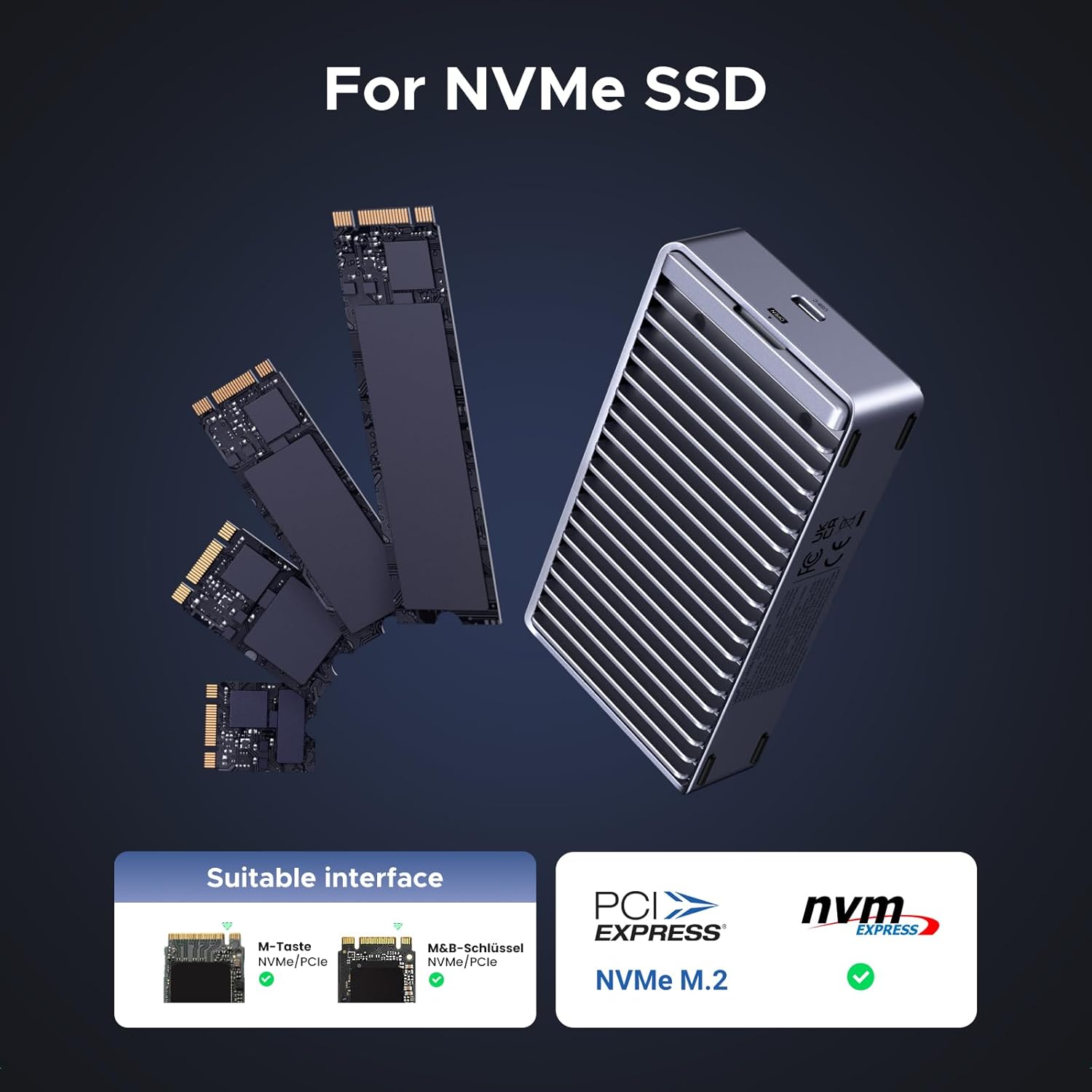
Image: The UGREEN NVMe enclosure connected to a laptop, demonstrating its use as an external storage device.
5.2 Initializing and Formatting the SSD
If you are using a new SSD, it will need to be initialized and formatted before use. The process varies slightly by operating system:
- Windows: Open Disk Management, find the unallocated drive, initialize it (GPT recommended), and then create a new simple volume.
- macOS: Open Disk Utility, select the new drive, and erase/format it (APFS or Mac OS Extended recommended).
- Linux: Use disk utility tools like GParted or command-line tools like
fdiskandmkfs.
For optimal performance, ensure your host device's port supports Thunderbolt 4 or USB4 and use a compatible cable to achieve the maximum 40Gbps transfer speeds.

Image: The UGREEN NVMe enclosure positioned next to a laptop, highlighting its USB4 40Gbps capability.
6. Maintenance
- Cleaning: Use a soft, dry cloth to clean the exterior of the enclosure. Avoid liquid cleaners or solvents.
- Heat Dissipation: The enclosure's fin design is optimized for passive cooling. Ensure adequate airflow around the device, especially during prolonged high-load operations. Avoid blocking the fins.
- Storage: When not in use, store the enclosure in a cool, dry place away from direct sunlight and extreme temperatures.
- Handling: Handle the enclosure with care to prevent physical damage.

Image: An exploded view of the UGREEN NVMe enclosure, illustrating its aluminum alloy housing, double-sided heat-dissipating fins, and M.2 thermally conductive silicone sheet for efficient cooling.
7. Troubleshooting
7.1 Device Not Recognized
- Check Connections: Ensure the USB-C cable is securely connected to both the enclosure and your host device.
- Try Another Port/Cable: Test with a different USB-C port on your device or a different USB-C cable to rule out port or cable issues.
- SSD Installation: Verify that the M.2 NVMe SSD is correctly seated in the enclosure's slot and secured.
- Initialization/Formatting: For new SSDs, ensure it has been initialized and formatted according to your operating system's requirements (refer to Section 5.2).
- Compatibility: Confirm that your SSD is an M.2 NVMe (PCIe) type. SATA NGFF or mSATA SSDs are not supported.
7.2 Slow Transfer Speeds
- Host Port: Ensure your host device's USB-C port supports Thunderbolt 4, Thunderbolt 3, or USB4 for maximum speeds. Connecting to a USB 3.0/3.1/3.2 port will result in lower speeds.
- Cable: Use a high-quality Thunderbolt 4 or USB4 certified cable to achieve 40Gbps speeds. The provided cable is designed for optimal performance.
- SSD Performance: The actual speed is also limited by the performance of your installed NVMe SSD.
- System Load: High CPU usage or other background processes on your computer can affect transfer speeds.
7.3 Overheating
- Airflow: Ensure the enclosure's fins are not obstructed and there is sufficient airflow around the device.
- Thermal Pad: Verify that the thermal pad is correctly installed and making good contact with the SSD and the enclosure's internal heat sink.
- Prolonged Use: During extended periods of heavy data transfer, it is normal for the aluminum enclosure to become warm as it dissipates heat from the SSD. This is part of its design.
8. Warranty and Support
UGREEN products come with a standard manufacturer's warranty. For specific warranty terms and conditions, please refer to the warranty card included with your product or visit the official UGREEN website.
For technical support, troubleshooting assistance, or any product-related inquiries, please contact UGREEN customer service through their official website or the contact information provided in your product packaging.
You can also visit the UGREEN Store on Amazon for more product information and support resources.
Related documents55316


Ask a question about this manual
Ask about setup, troubleshooting, compatibility, parts, safety, or missing instructions. Manuals+ will review the question and use this page’s manual context to help answer it.