
1. Introduction
This manual provides detailed instructions for the installation, operation, and maintenance of your SIXWIN Android 13 Car Stereo. This unit is specifically designed for Hyundai I30 models manufactured between 2006 and 2011 with manual A/C systems. It features an Android 13 operating system, 4G+64G memory, Bluetooth 5.0, Network Radio, Weather Forecast, 32-band Equalizer (32EQ), 59 customizable UI desktop themes, 3-way split screen functionality, intelligent voice control, Mirror Link, Wireless CarPlay, Wireless Android Auto, GPS Navigation, WiFi connectivity, backup camera support, and steering wheel control compatibility.
Please read this manual thoroughly before installation and operation to ensure proper use and to maximize your experience with the product.
2. Setup and Installation
2.1 Package Contents
Before beginning installation, verify that all components are present in the package:
- 1 x Car Stereo Unit
- 1 x Power Cable
- 1 x GPS Antenna
- 1 x Rear Camera Input Cable
- 1 x RCA Cable
- 2 x USB Cables
- 2 x Mounting Brackets
- 1 x Backup Camera
- 1 x Microphone
- 1 x Radio Housing
- 1 x Extended Line
- 1 x Instruction Manual
- 4 x Screws
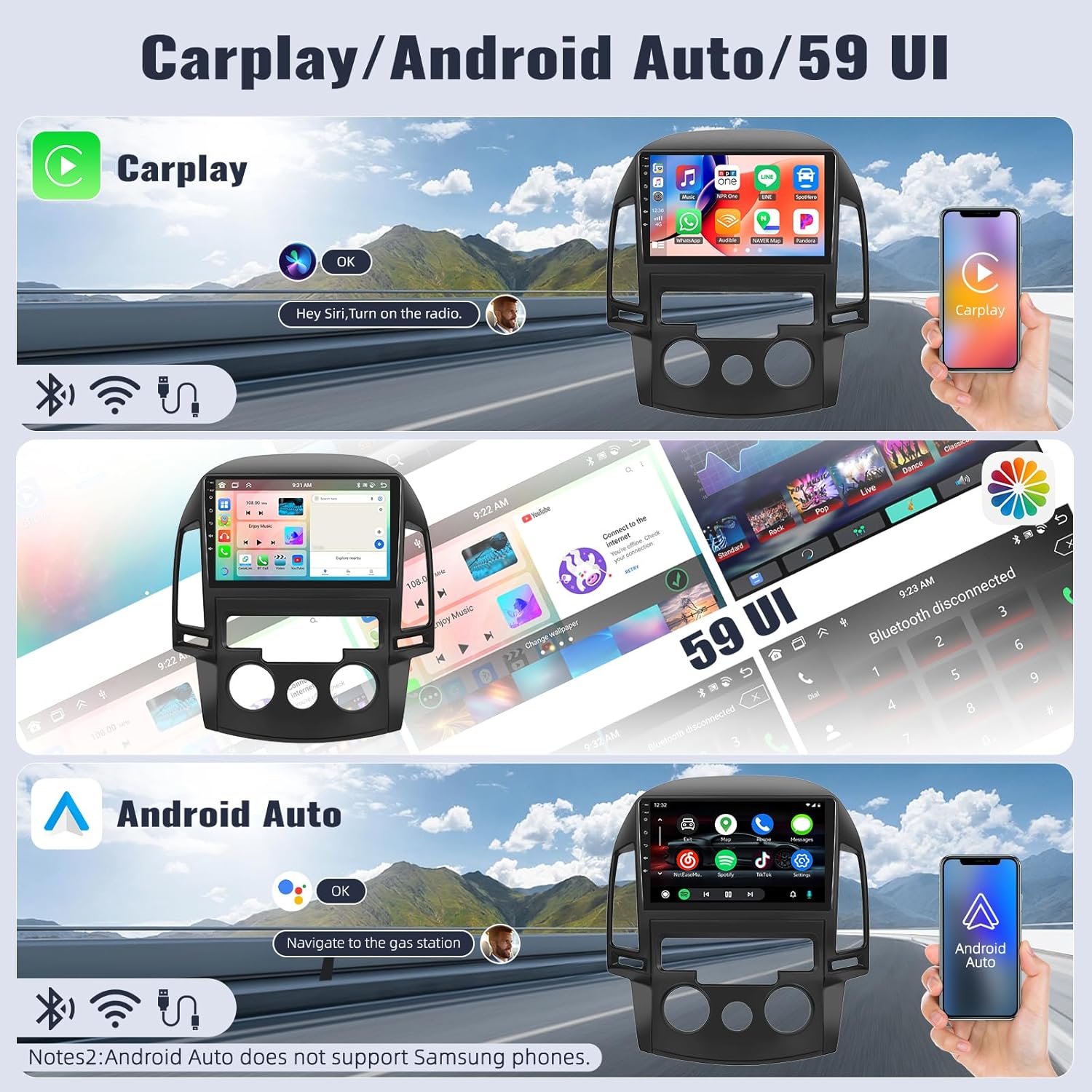
Figure 2.1: Package contents and main unit dimensions. The image displays the 9-inch car stereo unit with measurements (310mm/12.2inch width, 409mm/16.1inch height, 236mm/9.2inch depth) and a list of included accessories such as USB cable, GPS antenna, rear camera input cable, power cable, accessories, RCA cable, user manual, microphone, rear camera, and installation tool.
2.2 Pre-Installation Notes
- This car radio is designed for the basic version of Hyundai I30 (2006-2011) with manual A/C only.
- Ensure the vehicle's ignition is off and the battery is disconnected before starting installation.
- Professional installation is recommended.
2.3 Installation Steps
- Carefully remove the original car radio and trim panels from your Hyundai I30.
- Connect the provided power cable, GPS antenna, and other necessary cables to the new SIXWIN car stereo.
- Install the backup camera (if applicable) and route its cable to the head unit.
- Mount the new car stereo into the dashboard opening using the provided mounting brackets and screws.
- Reconnect the vehicle's battery and test the unit's functionality.
- Reinstall the trim panels.

Figure 2.2: Installation display. The image shows a 'Before installation' view of a Hyundai I30 dashboard with the original radio, and two 'After installation' views showing the SIXWIN 9-inch car stereo seamlessly integrated into the dashboard.
2.4 Backup Camera Wiring
The reversing input must be plugged in even if the reversing camera is not used.
- Red Cable (1): Connect to the positive pole of the car reversing light cable.
- Black Cable (2): Connect to the negative pole of the car reversing light cable.
- The other two red extension cables (3 & 4) do not need to be connected.
- The white plug must be connected to the main device, otherwise Bluetooth and WiFi functionality may not work.
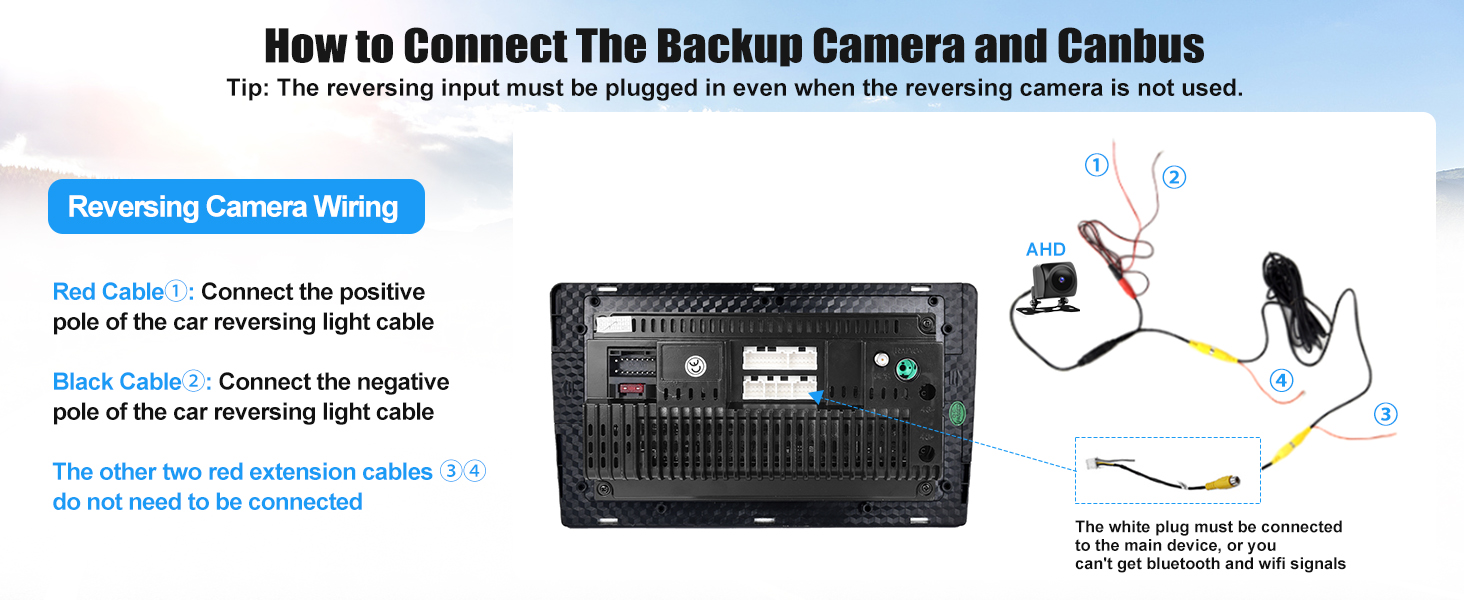
Figure 2.3: Backup Camera and Canbus Connection Diagram. This diagram illustrates the wiring for the backup camera, showing connections for the red cable to the positive reversing light, the black cable to the negative reversing light, and emphasizing the white plug connection to the main unit for Bluetooth and WiFi functionality.
2.5 Product Display and Connections
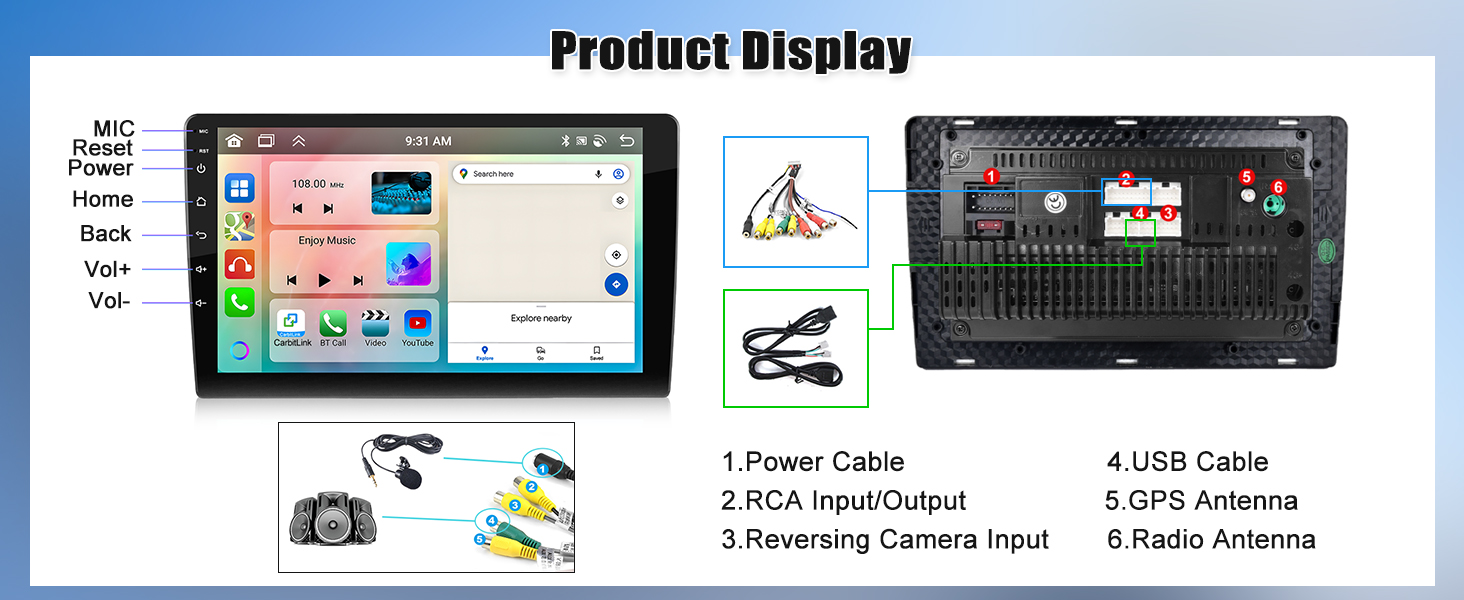
Figure 2.4: Product Display. The image highlights the front panel controls (MIC, Reset, Power, Home, Back, Vol+, Vol-) and the rear connection ports, including Power Cable, RCA Input/Output, Reversing Camera Input, USB Cable, GPS Antenna, and Radio Antenna.
3. Operating Instructions
3.1 General Interface and Customization
- 59UI Desktop Themes: Personalize your car stereo's interface by choosing from 59 different desktop themes to match your mood or car interior.
- 19 Wallpapers: Select from 19 pre-installed wallpapers to further customize your display.
- Three Split Screen Function: Run up to three applications simultaneously on the screen for enhanced multitasking. For example, navigate with GPS while listening to music and viewing a video.

Figure 3.1: Interface Customization. This image demonstrates the weather forecast display, the three-way split screen functionality, and the process of changing wallpapers on the car stereo's interface.
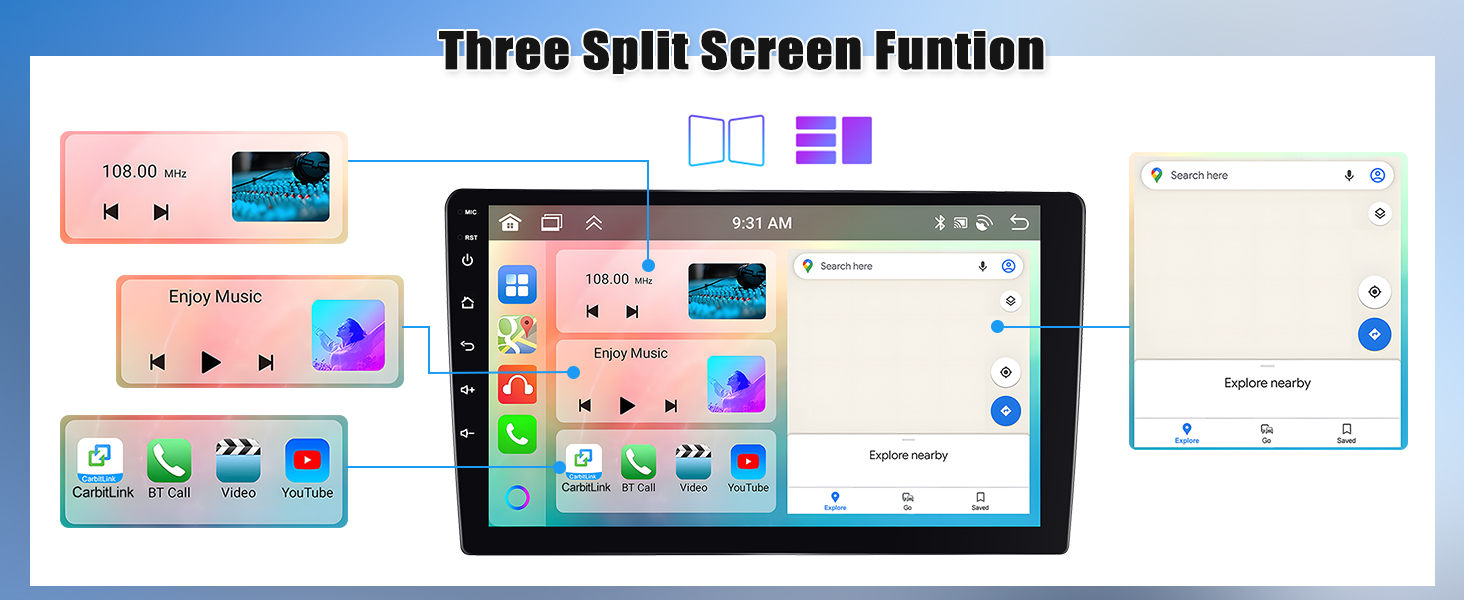
Figure 3.2: Three Split Screen Function. This image illustrates how the car stereo can display three applications simultaneously, such as a music player, a video player, and a navigation app, enhancing multitasking capabilities.
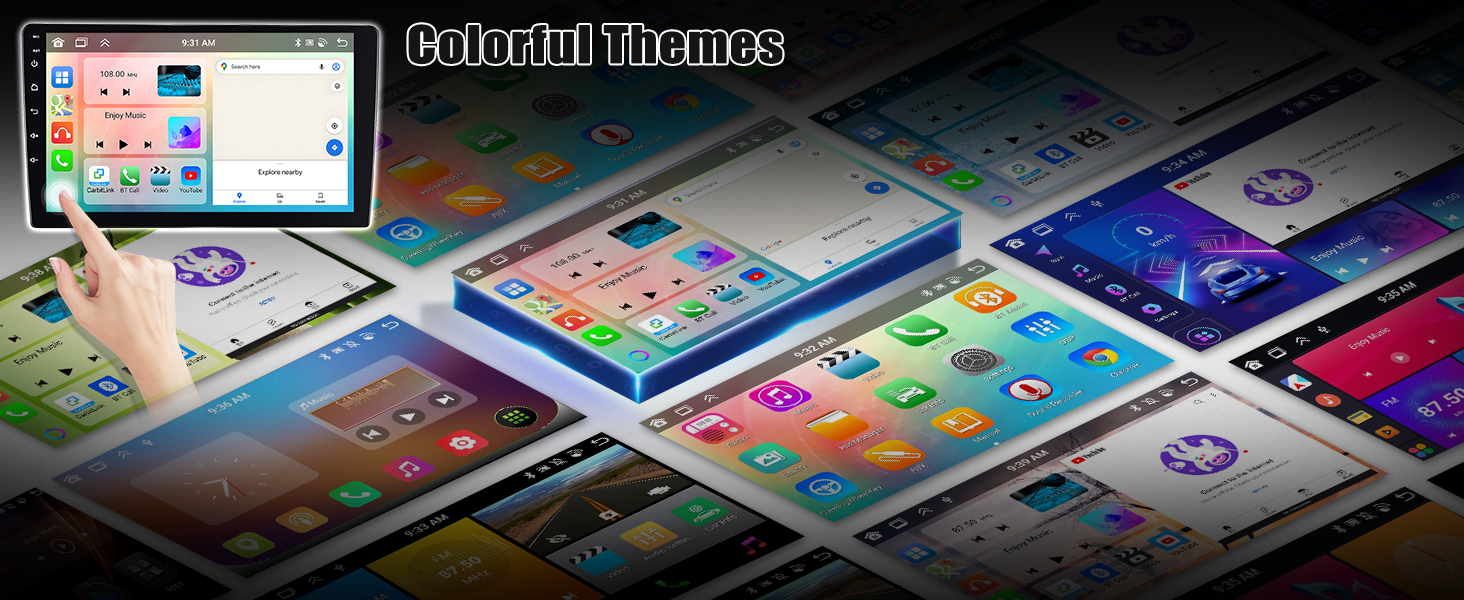
Figure 3.3: Colorful Themes. This image displays a variety of colorful desktop themes and user interface options available for customization on the car stereo, allowing users to personalize their experience.
3.2 Wireless CarPlay & Android Auto
Connect your smartphone wirelessly or via USB to access essential apps safely while driving.
- Access maps, GPS navigation, phone contacts, email, notifications, and music.
- Use Siri or Google Assistant for voice control.
- Note: Android Auto does not support Samsung phones.

Figure 3.4: CarPlay and Android Auto. This image shows the car stereo displaying both CarPlay and Android Auto interfaces, along with a smartphone connected, illustrating seamless integration for navigation, music, and voice commands.
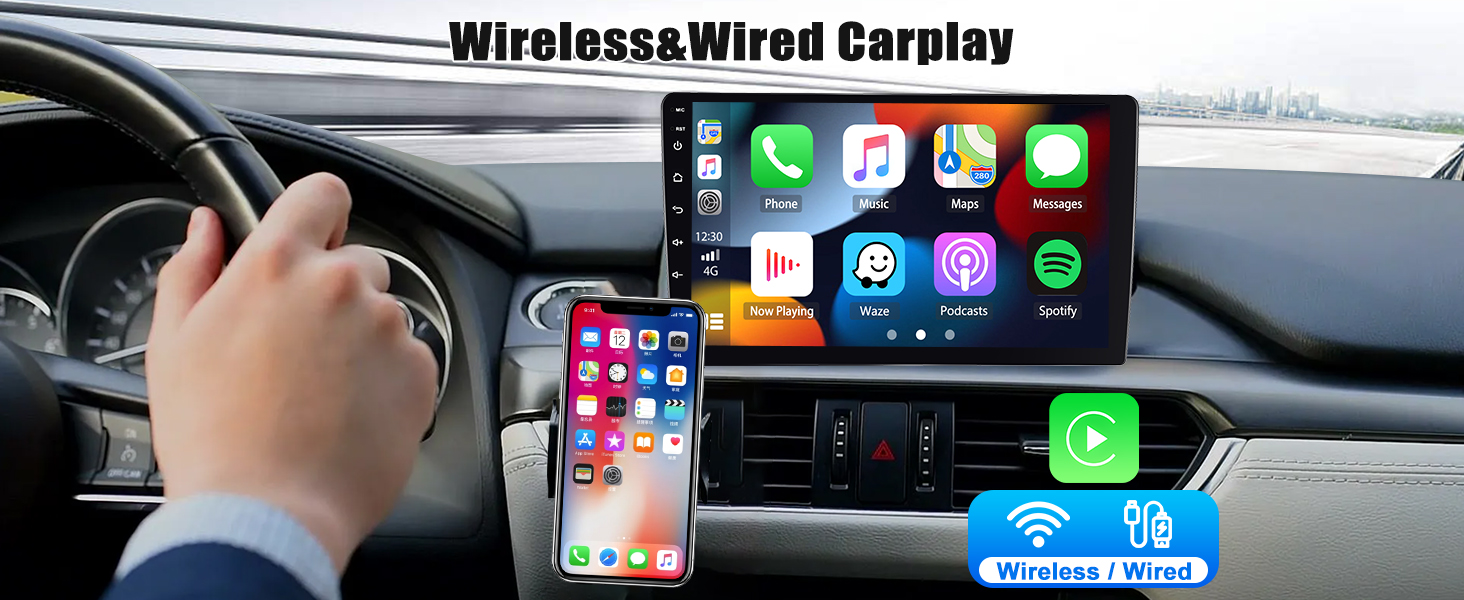
Figure 3.5: Wireless CarPlay. This image depicts the car stereo displaying the Wireless CarPlay interface, with a smartphone connected, allowing access to iOS apps like Phone, Music, Maps, and Messages.
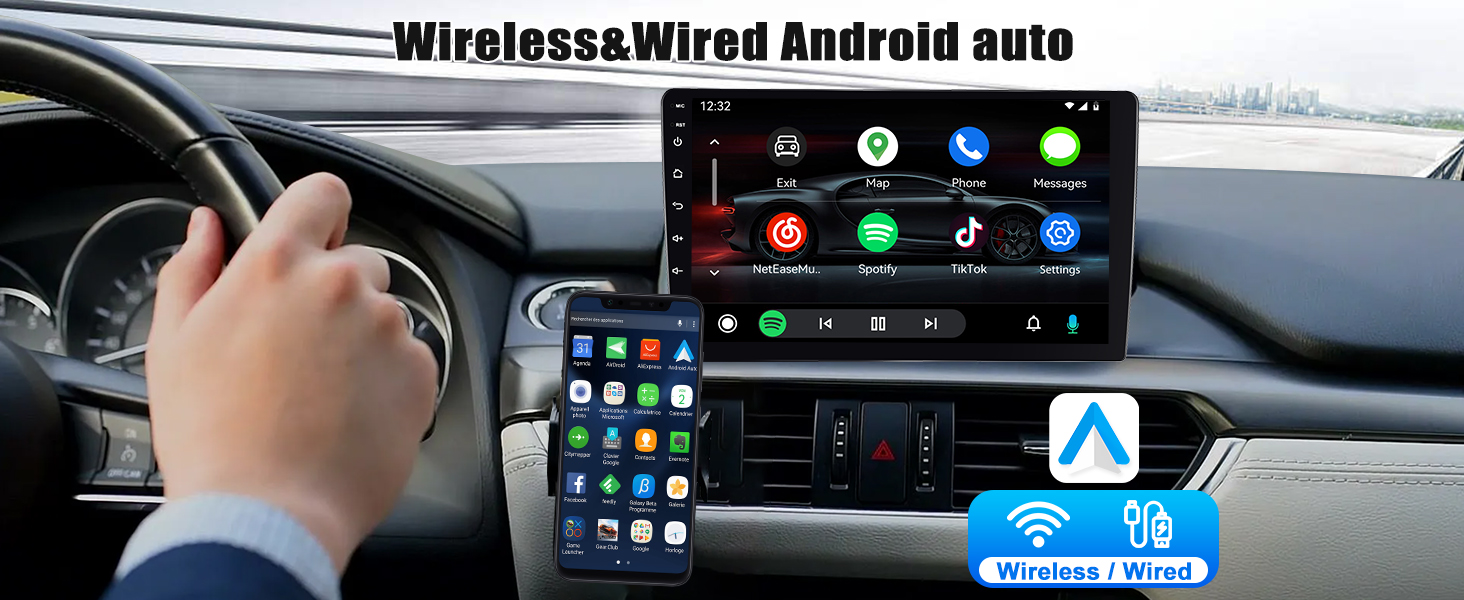
Figure 3.6: Wireless Android Auto. This image illustrates the car stereo displaying the Wireless Android Auto interface, with a smartphone connected, providing access to Android apps such as Maps, Phone, and Messages.
3.3 Bluetooth 5.0
The unit features Bluetooth 5.0 for stable and fast wireless connections.
- Hands-free Calling: Make and receive calls safely without holding your phone.
- Bluetooth Music: Stream audio from your smartphone or other Bluetooth-enabled devices.
- Phonebook Download: Sync your phone's contacts for easy access.
- External Microphone: Connect an external microphone for clearer call quality.

Figure 3.7: Bluetooth, Radio, and DSP. This image displays the Bluetooth 5.0 interface for hands-free calling and music, the FM/RDS radio interface with station search, and the DSP 32EQ settings for audio customization.
3.4 Mirror Link
Mirror your smartphone's screen onto the car stereo display.
- For iOS: One-way control (view phone screen on stereo).
- For Android: Two-way control (control phone from stereo screen) via WiFi or USB.

Figure 3.8: Mirror Link, Steering Wheel Control, and Backup Camera. This image illustrates the Mirror Link function displaying a phone screen, the interface for programming steering wheel controls, and the view from the backup camera.
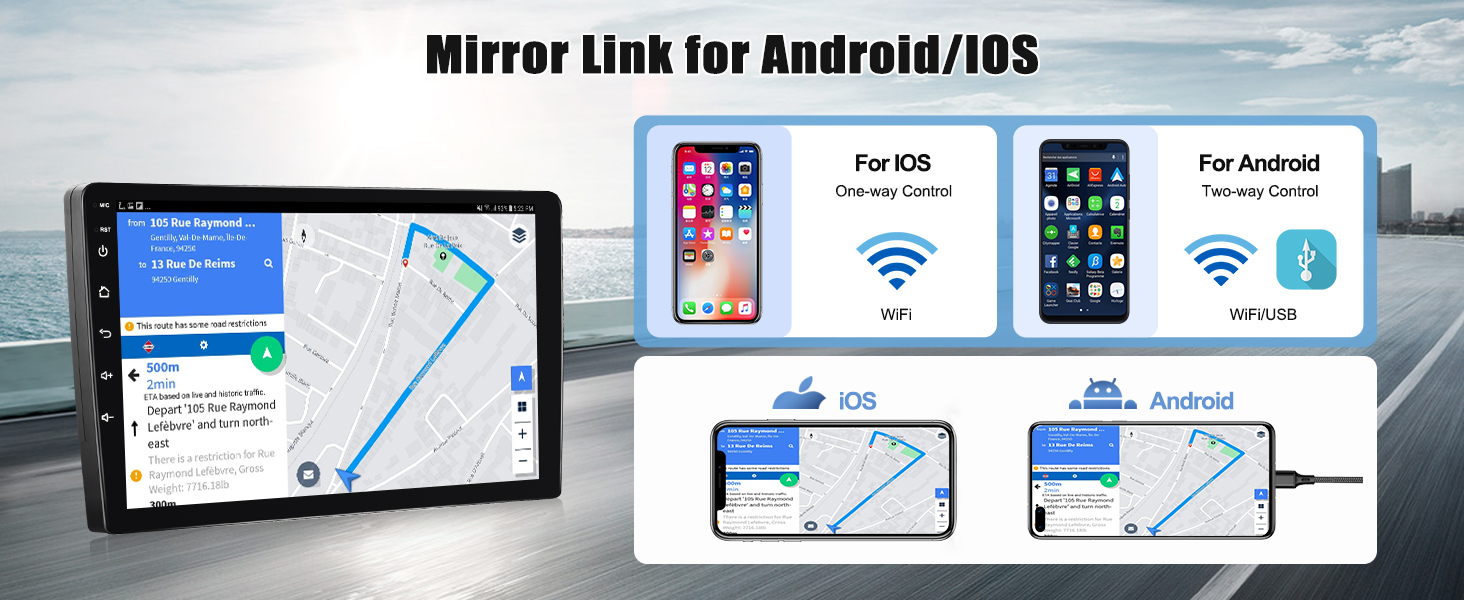
Figure 3.9: Mirror Link for Android/iOS. This image explains the Mirror Link feature, showing one-way control for iOS via WiFi and two-way control for Android via WiFi/USB, with examples of phone screens mirrored onto the car stereo.
3.5 GPS Navigation & WiFi
The car stereo includes built-in GPS and WiFi for navigation and online services.
- Online and Offline Navigation: Supports both online and offline maps. Use the pre-installed 'Here We Go' app for offline navigation by downloading necessary map data.
- WiFi Connectivity: Connect to a WiFi hotspot to use online navigation, download apps, browse the internet, and stream online videos directly on the car stereo.

Figure 3.10: Connectivity Features. This image highlights the WiFi connection for browsing and online video, GPS navigation with online/offline map support, and the Network Radio interface.
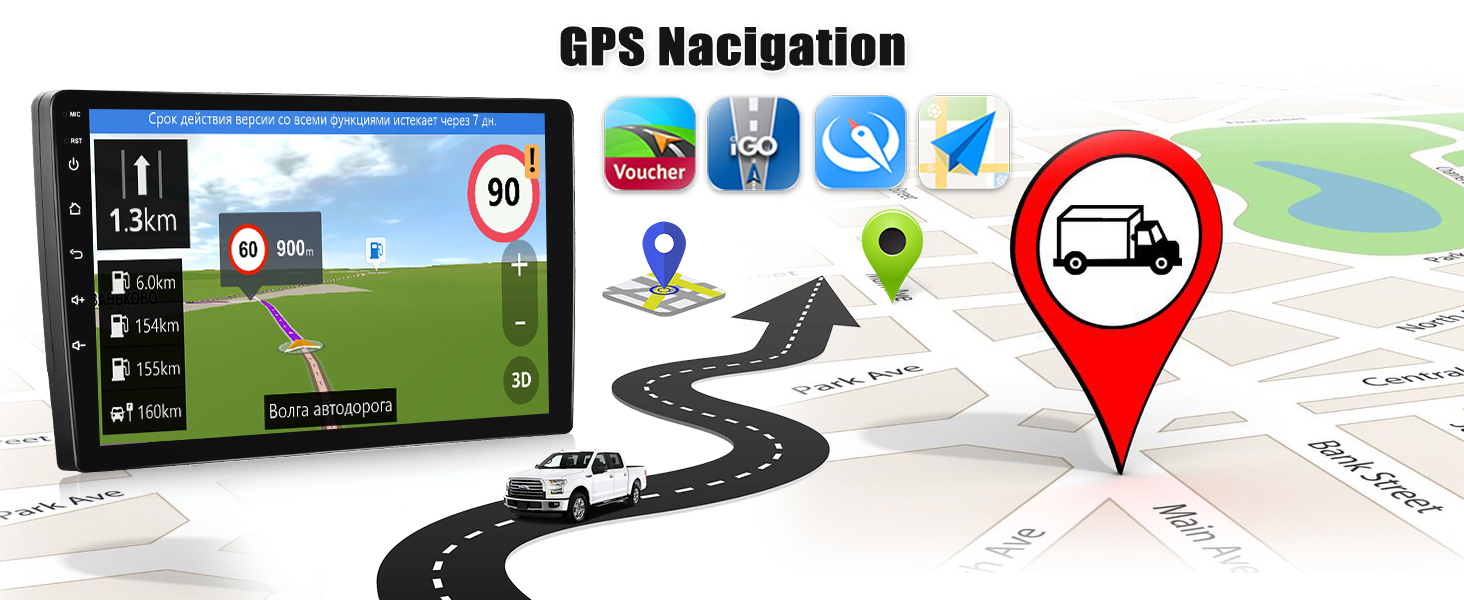
Figure 3.11: GPS Navigation. This image displays the GPS navigation interface with various map applications and route information, indicating support for both online and offline maps.
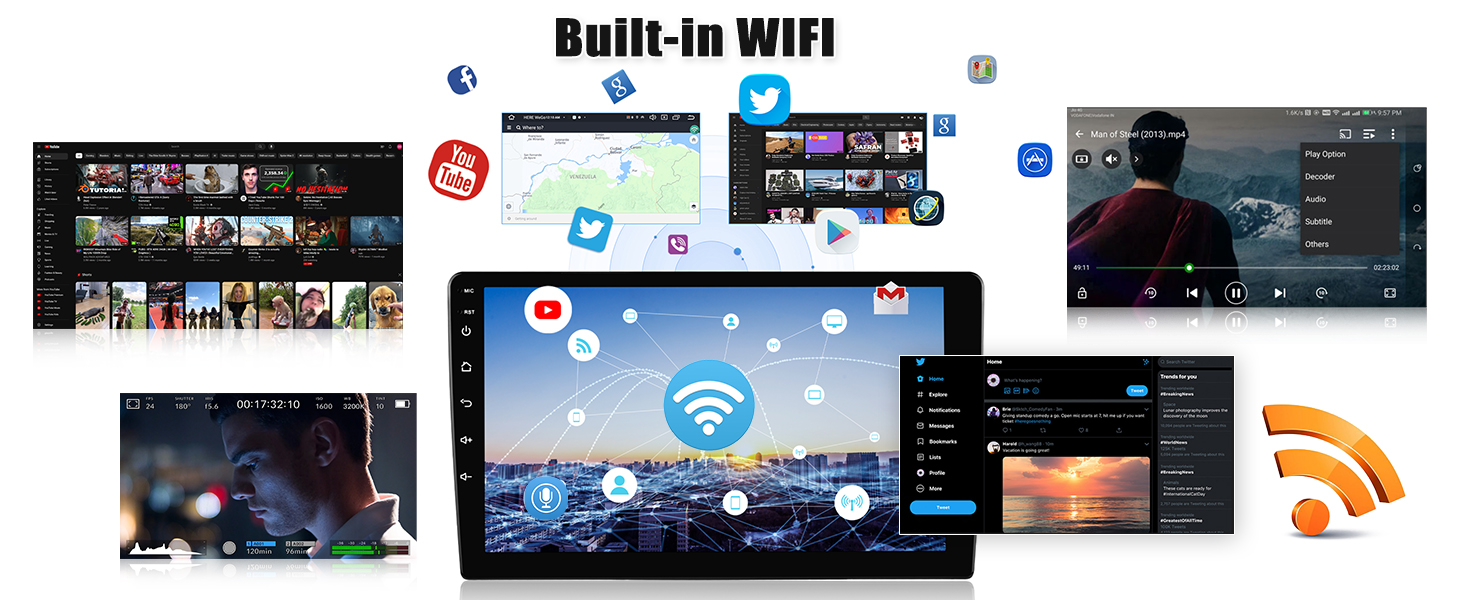
Figure 3.12: Built-in WiFi. This image demonstrates the car stereo's built-in WiFi capability, showing various online applications like YouTube, social media, and web browsing, indicating a mobile phone-like experience.
3.6 Network Radio
Access mainstream radio stations from various countries, even if you are not in the local broadcast area, through internet connectivity.
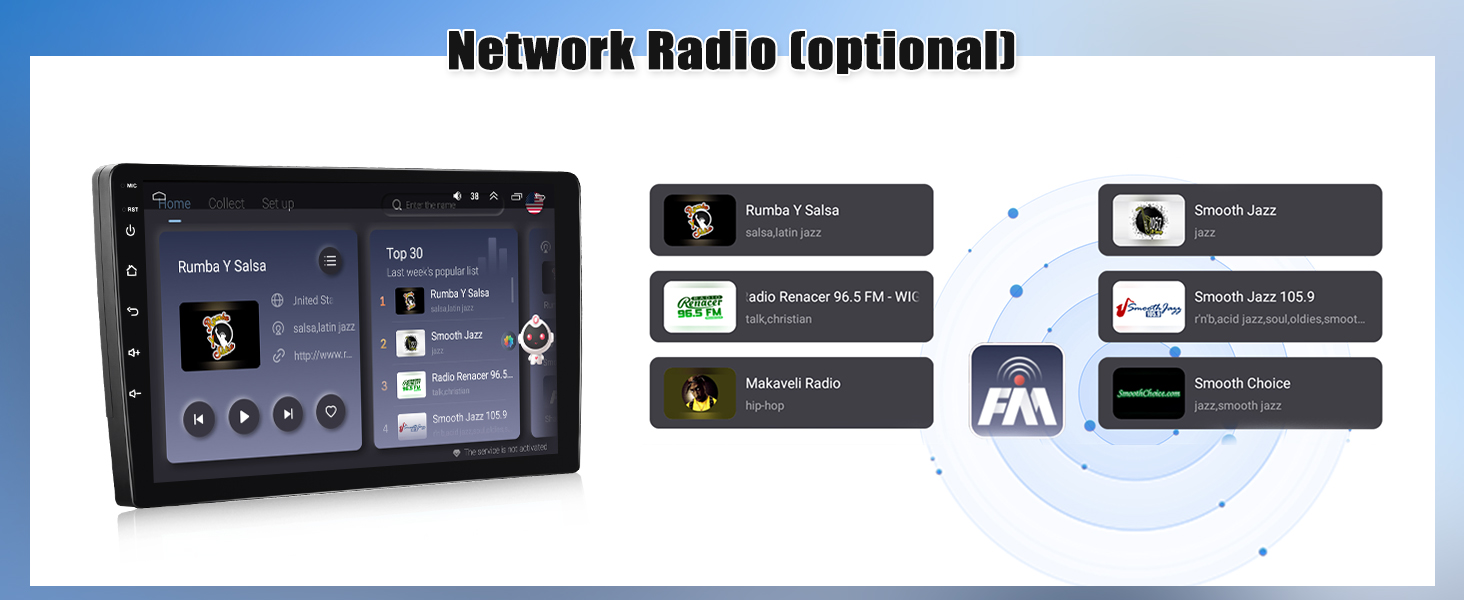
Figure 3.13: Network Radio. This image displays the Network Radio interface, showing a list of online radio stations and their logos, indicating access to a wide range of global radio content.
3.7 Steering Wheel Control
Program your car's steering wheel buttons to control the stereo, allowing you to switch songs, adjust volume, and answer calls without taking your hands off the wheel.
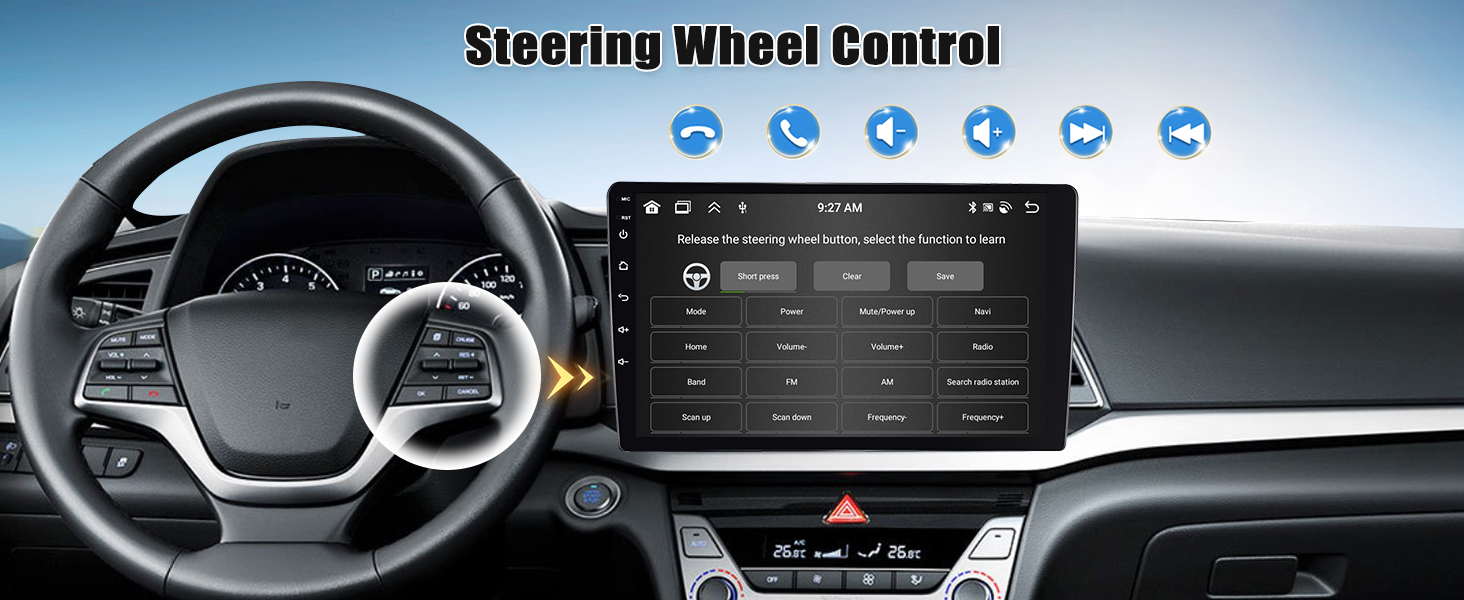
Figure 3.14: Steering Wheel Control. This image shows the car stereo's interface for programming steering wheel controls, allowing users to assign functions like volume adjustment, track skipping, and call answering to their vehicle's existing buttons.
3.8 Backup Camera
The included AHD backup camera automatically displays the rear view on the unit's screen when you engage reverse gear, enhancing safety and ease of parking.
3.9 Weather Forecast
View the weather forecast for the upcoming week directly on your car stereo screen, aiding in travel planning.
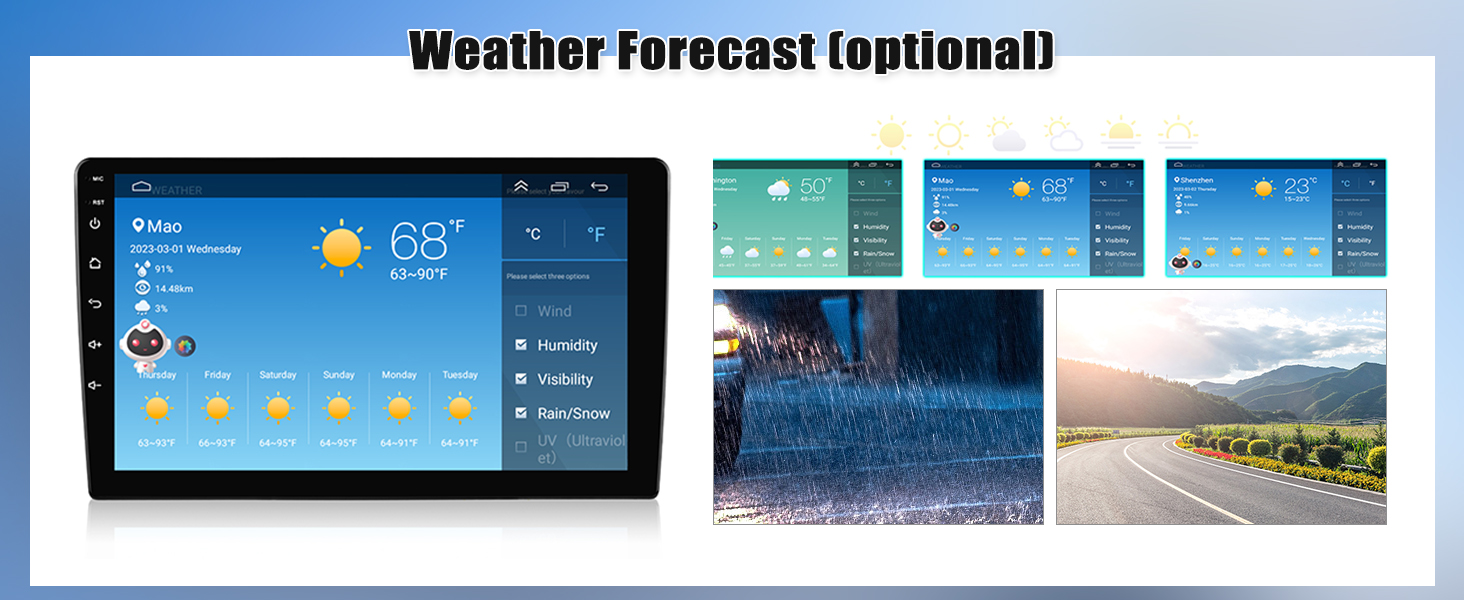
Figure 3.15: Weather Forecast. This image displays the weather forecast interface on the car stereo, showing current conditions and a weekly outlook, including temperature, humidity, wind, and precipitation.
3.10 DSP 32EQ
Customize your audio experience with the built-in Digital Sound Processor (DSP) and 32-band Equalizer (32EQ).
- Adjust sound fields, balance, and fader settings.
- Choose from 7 preset equalizer modes or create your own custom settings.
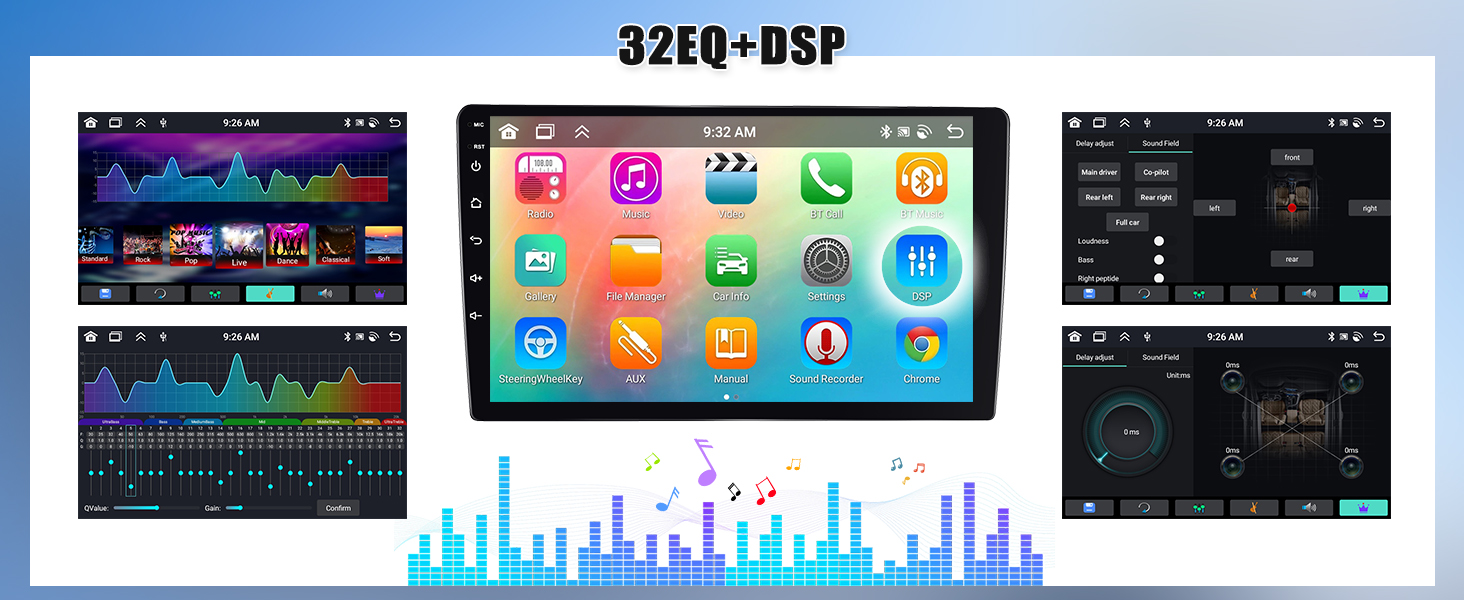
Figure 3.16: 32EQ + DSP. This image illustrates the advanced audio settings interface, including the 32-band equalizer for precise sound tuning and Digital Sound Processor (DSP) controls for optimizing the audio output.
3.11 Voice Assistant
Utilize the intelligent voice control feature to operate various functions of the car stereo hands-free, enhancing convenience and safety.
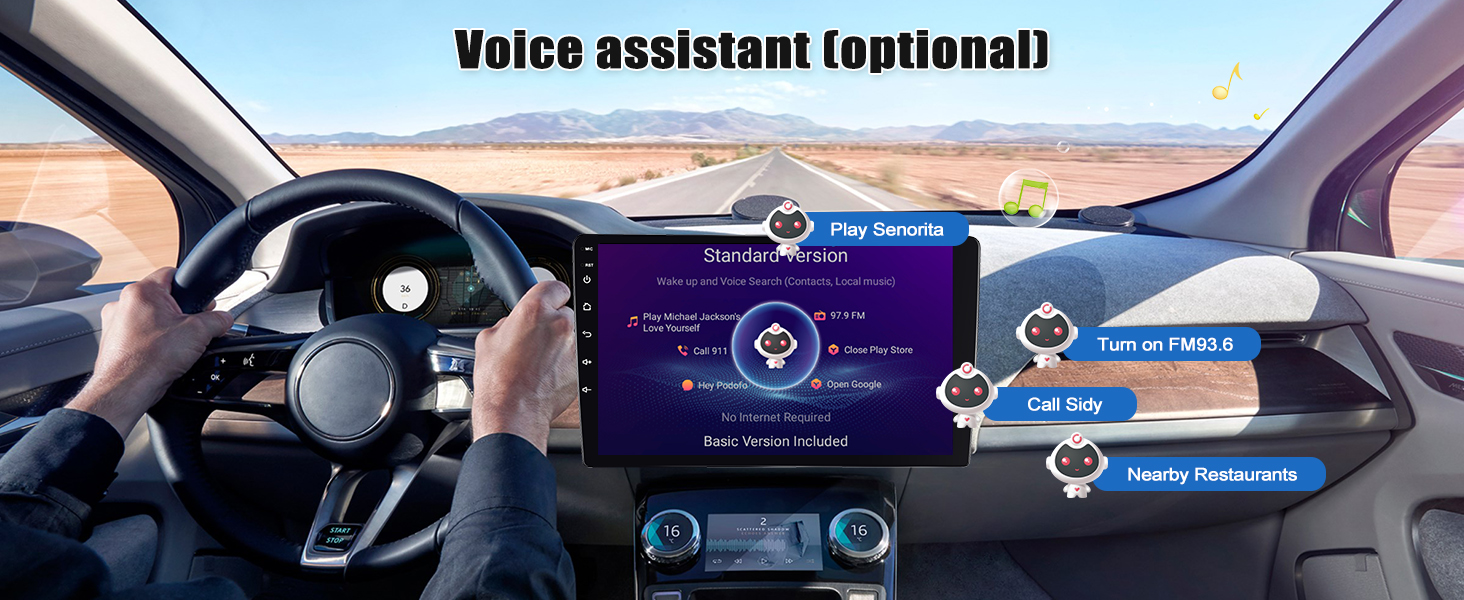
Figure 3.17: Voice Assistant. This image displays the voice assistant interface on the car stereo, showing examples of voice commands for playing music, making calls, and finding nearby restaurants.
3.12 Long Press to Switch APP
Quickly switch between applications by long-pressing on the app icon, providing a convenient way to manage open programs.
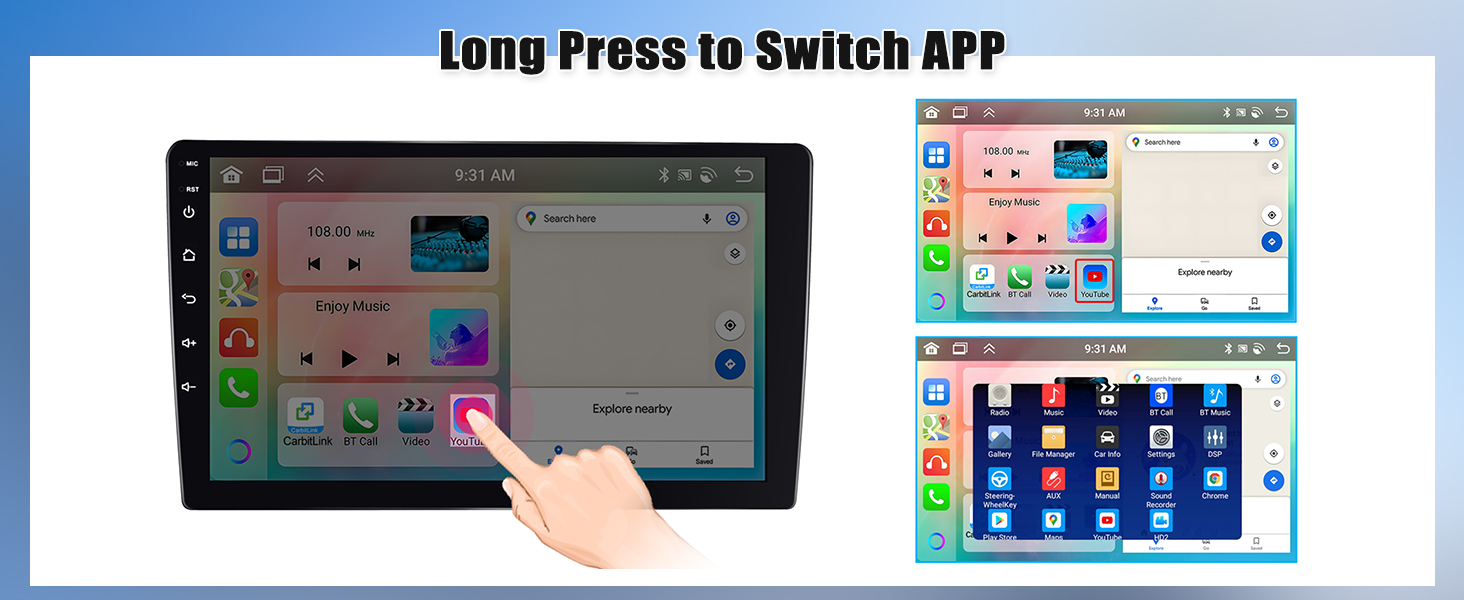
Figure 3.18: Long Press to Switch APP. This image illustrates the functionality of long-pressing an app icon to quickly switch between running applications or access a list of open apps on the car stereo.
4. Maintenance
- Screen Cleaning: Use a soft, lint-free cloth to clean the touch screen. For stubborn smudges, lightly dampen the cloth with water or a screen-safe cleaner. Avoid harsh chemicals or abrasive materials.
- Temperature: Avoid exposing the unit to extreme temperatures, both hot and cold, for extended periods.
- Software Updates: Periodically check for software updates to ensure optimal performance and access to new features. Follow the on-screen instructions for any available updates.
- General Care: Keep the unit free from dust and debris. Ensure all connections are secure.
5. Troubleshooting
If you encounter issues with your car stereo, please refer to the following common solutions:
| Problem | Possible Cause | Solution |
|---|---|---|
| Unit does not power on | Loose power connection, blown fuse, vehicle battery issue. | Check power cable connections. Inspect vehicle fuses. Ensure vehicle battery is charged. |
| No sound | Volume too low, mute activated, speaker wiring issue, incorrect audio output settings. | Increase volume. Check if mute is active. Verify speaker wiring. Adjust audio settings in DSP/EQ. |
| Bluetooth/WiFi not working | Module disabled, incorrect pairing, white plug for camera input not connected. | Ensure Bluetooth/WiFi is enabled in settings. Re-pair device. Verify the white plug of the rear camera input cable is connected to the main unit. |
| GPS signal lost or inaccurate | GPS antenna obstructed or improperly installed, outdated map data. | Ensure GPS antenna has a clear view of the sky and is securely connected. Update map data if necessary. |
| Touch screen unresponsive | System freeze, debris on screen. | Perform a soft reset (refer to product display for reset button location). Clean the screen. |
| CarPlay/Android Auto not connecting | Incorrect connection method, phone compatibility issue (e.g., Samsung for Android Auto), software glitch. | Ensure correct USB cable or wireless connection. Check phone compatibility. Restart phone and stereo. |
If the problem persists after attempting these solutions, please contact customer support.
6. Specifications
| Feature | Detail |
|---|---|
| Brand | SIXWIN |
| Model Name | SIXWIN 4G+64G Android 13 Car Stereo |
| Vehicle Service Type | Car (Hyundai I30 2006-2011 Manual A/C) |
| Screen Size | 9 Inches |
| Operating System | Android 13 |
| Memory Storage Capacity | 64 GB |
| Connectivity Technology | Wireless (Bluetooth, Wi-Fi) |
| Special Features | Bluetooth, GPS Navigation, WiFi, Rear View Camera Input, Touchscreen, Wireless CarPlay, Android Auto, Network Radio, Weather Forecast, 32EQ, 59UI Desktop Themes, 3 Split Screen Function, Intelligent Voice, Mirror Link |
| Bluetooth Version | 5.0 |
| Supported Satellite Navigation System | GPS |
| Map Type | Worldwide (Online/Offline) |
| Touch Screen Type | Capacitive |
| Display Type | LCD |
| Human-Interface Input | Touchscreen |
| Control Method | Voice, Touchscreen, Steering Wheel Control |
| Compatible Devices | Smartphone |
| Audio Output Mode | Stereo |
| Item Weight | 1914 Grams |
| Item Dimensions (L x W x H) | 1"L x 1"W x 1"H (Note: This dimension seems generic, refer to Figure 2.1 for actual unit dimensions) |
7. Warranty Information
This SIXWIN car stereo comes with a 1-year warranty from the date of purchase. This warranty covers manufacturing defects and malfunctions under normal use. Please retain your proof of purchase for warranty claims. The warranty does not cover damage caused by improper installation, misuse, accidents, unauthorized repairs, or normal wear and tear.
8. Customer Support
For online assistance, technical support, or any questions regarding your SIXWIN Android 13 Car Stereo, please contact us:
- Email: sixwin_vip@163.com
We are committed to providing online help and user manual support to ensure your satisfaction.

Figure 8.1: Customer Support. This image shows a customer service representative and prominently displays the support email address: sixwin_vip@163.com.

