
Introduction
This manual provides comprehensive instructions for the TWSYOXPR S20 AI Translator Device. It covers device setup, operational procedures for various translation modes, maintenance guidelines, and troubleshooting tips. Please read this manual thoroughly before using your device to ensure optimal performance and longevity.
Product Overview
The TWSYOXPR S20 is an intelligent AI translator device designed to facilitate communication across language barriers. It supports real-time translation for 138 languages, integrates ChatGPT for enhanced interaction, and offers voice recording, text translation, and photo translation capabilities.

Image: Front view of the TWSYOXPR S20 AI Translator Device, showing its display screen and control buttons.
Key Features:
- 138-Language Real-time Translation: Supports a wide range of languages for instant communication.
- ChatGPT Integration: Provides natural and accurate translation with intelligent conversational capabilities.
- Real-time Voice Recording and Translation: Converts spoken content into text and translates it instantly.
- Intelligent Text Translation: Translates typed or pasted text across multiple languages.
- Photo Translation: Utilizes the built-in camera to translate text from images (e.g., menus, signs).
- Offline Translation: Offers translation capabilities without an internet connection for 17 languages.
- Portable Design: Compact and lightweight for easy carrying.
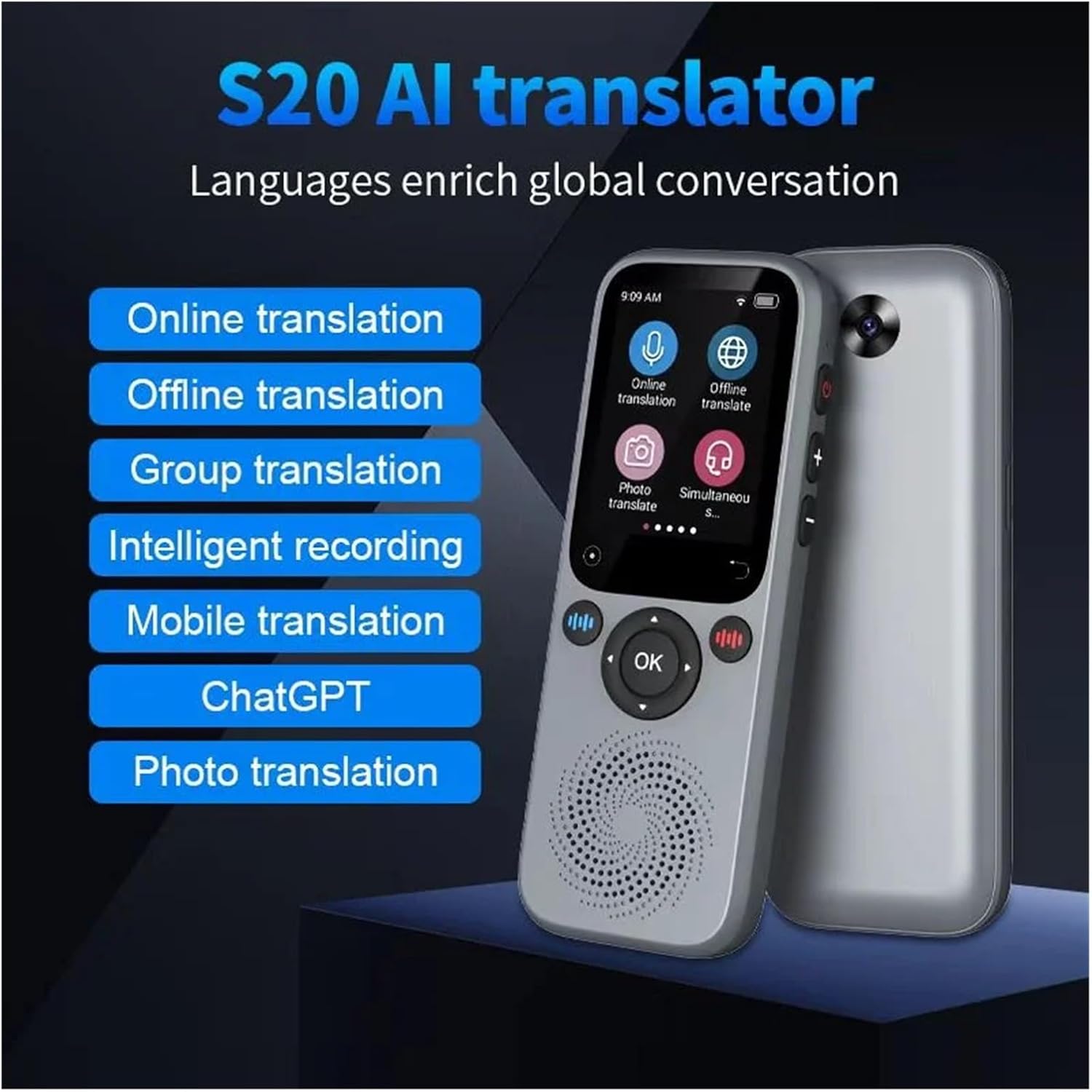
Image: The TWSYOXPR S20 AI Translator Device displayed alongside a list of its core features, including online translation, offline translation, group translation, intelligent recording, mobile translation, ChatGPT, and photo translation.
Setup
- Charging the Device:
Before first use, fully charge the device using the provided USB cable and a compatible power adapter. The charging indicator will show the charging status.
- Powering On/Off:
To power on, press and hold the power button (usually located on the side) until the screen illuminates. To power off, press and hold the power button, then select "Power Off" on the screen.
- Network Connection (Wi-Fi):
For online translation features, connect the device to a Wi-Fi network. Go to Settings > Wi-Fi, select your network, and enter the password.
- Language Selection:
Navigate to Settings > System Language to set the device's interface language. For translation, select the source and target languages within the respective translation modes.
Operating Instructions
1. Online Real-time Translation
- Ensure the device is connected to Wi-Fi.
- From the main menu, select "Online Translation".
- Tap on the language icons to select your source (input) and target (output) languages. The device supports 138 languages.
- Press and hold the designated voice input button (often marked with a microphone icon) and speak clearly into the device's microphone. Release the button when finished speaking.
- The translated text will appear on the screen, and the device will audibly pronounce the translation in the target language.

Image: The TWSYOXPR S20 AI Translator Device displaying its online translation interface, showing a conversation being translated between Chinese and English, with a world map indicating global coverage.
2. ChatGPT Integration
- From the main menu, select "ChatGPT".
- You can now interact with the AI assistant by speaking your queries or typing them.
- The device will process your input using ChatGPT's large language model technology to provide intelligent responses or translations.

Image: The TWSYOXPR S20 AI Translator Device screen highlighting the ChatGPT and AI voice assistant functions, indicating its capability for intelligent language processing and practical voice services.
3. Real-time Voice Recording and Translation
- Select "Intelligent Recording" or a similar option from the menu.
- Choose the recording language.
- Press the record button to start recording. The device will convert spoken words into text in real-time.
- After recording, you can choose to translate the recorded text into another language.
4. Intelligent Text Translation
- Select "Text Translate" from the main menu.
- Use the on-screen keyboard to input text or paste text if available.
- Select the source and target languages.
- Confirm to view the translated text.
5. Photo Translation (OCR)
- Select "Photo Translate" from the main menu.
- Position the device's camera over the text you wish to translate (e.g., a menu, sign, or document).
- Tap the capture button on the screen.
- The device will use OCR (Optical Character Recognition) to extract the text and then translate it into your selected target language.
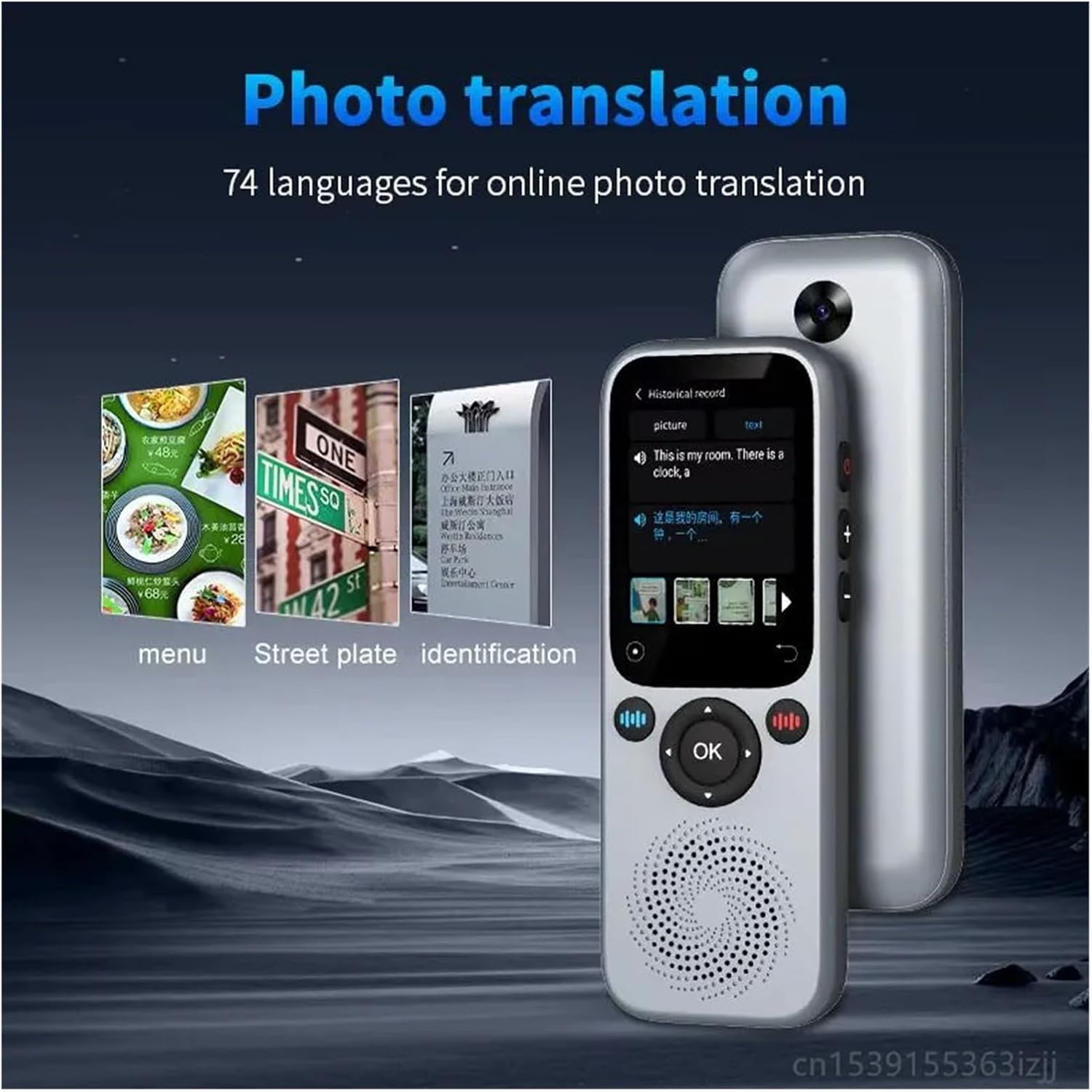
Image: The TWSYOXPR S20 AI Translator Device demonstrating its photo translation capability, showing examples of translating text from a menu, a street sign, and an identification document.
6. Offline Translation
- To use offline translation, you must first download the desired language packages while connected to Wi-Fi. Go to Settings > Offline Packages and select the languages to download.
- Once downloaded, select "Offline Translate" from the main menu.
- Choose your source and target languages from the available offline packages (17 languages supported).
- Proceed with voice input as you would for online translation.

Image: The TWSYOXPR S20 AI Translator Device displaying its offline translation function, indicating built-in support for 17 offline translation packages and the ability to translate without a signal.
Maintenance
- Cleaning: Use a soft, dry cloth to clean the device's screen and body. Avoid using liquid cleaners or abrasive materials.
- Storage: Store the device in a cool, dry place away from direct sunlight and extreme temperatures.
- Battery Care: To prolong battery life, avoid fully discharging the battery frequently. Charge the device regularly.
- Software Updates: Periodically check for software updates in the device's settings to ensure optimal performance and access to new features.
Troubleshooting
| Problem | Possible Cause | Solution |
|---|---|---|
| Device does not power on. | Low battery; device frozen. | Charge the device for at least 30 minutes. If still unresponsive, perform a hard reset (refer to device specifications for reset button location, if any, or hold power button for 10-15 seconds). |
| Translation is inaccurate or slow. | Poor internet connection; unclear speech; incorrect language selection. | Ensure a stable Wi-Fi connection. Speak clearly and at a moderate pace. Verify that the correct source and target languages are selected. |
| Cannot connect to Wi-Fi. | Incorrect password; out of range; network issue. | Double-check the Wi-Fi password. Move closer to the Wi-Fi router. Restart the device and the router. |
| Offline translation not working. | Language packages not downloaded. | Connect to Wi-Fi and download the necessary offline language packages from the settings menu. |
Specifications
- Model: S20
- Brand: TWSYOXPR
- Display Screen: Yes
- Supported Online Languages: 138+ (including Spanish, Chinese, Arabic, Russian, French, Korean, Portuguese, Japanese, Italian, English, and many more)
- Supported Offline Languages: 17 packages
- Translation Modes: Real-time Voice, Text, Photo (OCR), ChatGPT
- Connectivity: Wi-Fi
- Dimensions: Approximately 1 x 1 x 1 cm (0.39 x 0.39 x 0.39 inches) - Note: These dimensions appear to be placeholder values from the source data.
- Weight: Approximately 50 g (1.76 oz) - Note: This weight appears to be a placeholder value from the source data.
Note: Specifications are subject to change without prior notice.
Warranty and Support
For warranty information and technical support, please refer to the documentation provided with your purchase or contact the retailer/manufacturer directly. Keep your proof of purchase for warranty claims.
Manufacturer: dongguanshijianyingbaihuoshanghang
ASIN: B0F5XYTYMF