
1. Introduction
This manual provides detailed instructions for the assembly, operation, and maintenance of your ODK 55-Inch Gaming Desk. Please read this manual thoroughly before assembly and use to ensure proper function and safety. Keep this manual for future reference.
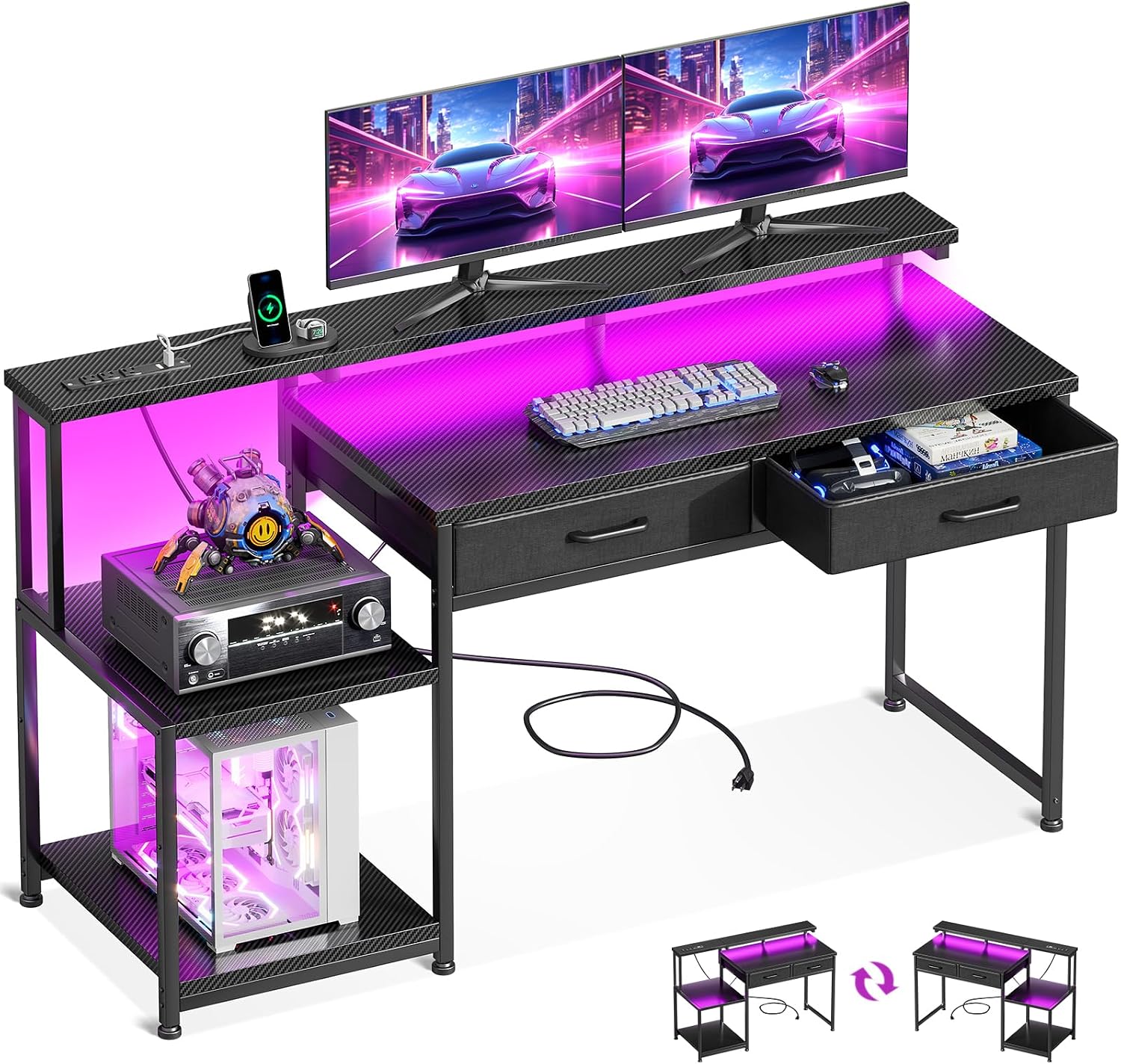
Image 1.1: ODK 55-Inch Gaming Desk, showcasing its carbon fiber black finish, LED lighting, monitor stand, and integrated storage.
2. Safety Information
Observe the following safety precautions to prevent injury or damage to the product:
- Assembly: Ensure all components are correctly assembled and all fasteners are securely tightened before use. Do not overtighten screws.
- Weight Capacity: Do not exceed the recommended weight capacity for the desktop, shelves, or monitor stand. Distribute weight evenly.
- Stability: Place the desk on a flat, stable surface. Avoid placing heavy items on the edges of the desk or shelves to prevent tipping.
- Electrical Safety: The integrated power outlet is designed for standard electrical devices. Do not overload the outlets. Avoid spilling liquids near the power outlet or LED lights. Disconnect power before cleaning or if any electrical component is damaged.
- Children and Pets: Keep small parts and packaging materials away from children and pets during assembly.
- Ventilation: Ensure adequate ventilation around electronic devices placed on the desk or shelves.
3. Package Contents
Verify that all parts are present before beginning assembly. If any parts are missing or damaged, contact customer support.
- Desktop Panel (Carbon Fiber Black)
- Monitor Stand Shelf
- Side Storage Shelf Unit (Reversible)
- Desk Legs and Support Frames
- Fabric Drawers (2 units)
- LED Light Strip with Controller
- Integrated Power Outlet Unit (3 AC, 2 USB)
- Headphone Hook
- Assembly Hardware (screws, bolts, etc.)
- Assembly Tools (e.g., Allen wrench)
- Instruction Manual
4. Setup & Assembly
Assembly is required for this product. All necessary tools and detailed instructions are included in the package. Follow the provided step-by-step guide carefully.
4.1 Key Assembly Features
- Reversible Storage Shelf: The side storage shelf unit can be assembled on either the right or left side of the desk to suit your space and preference.
- Adjustable Lower Shelf: The lower shelf within the side storage unit can be adjusted to a different height, allowing accommodation for larger items such as a PC tower.
- Fabric Drawers: The two fabric drawers are designed for easy assembly and provide convenient storage.

Image 4.1: Desk dimensions and illustration of the reversible side shelf design.
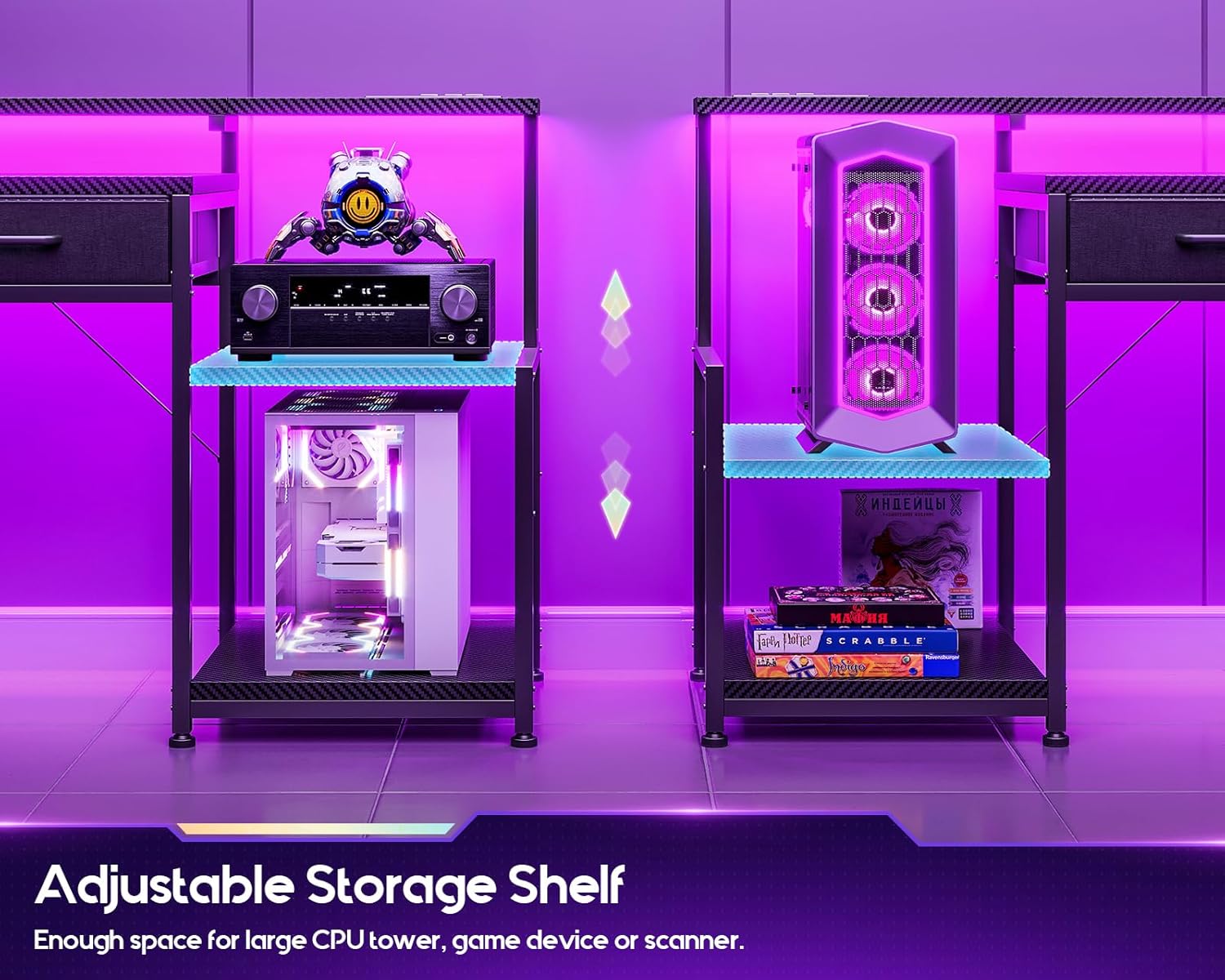
Image 4.2: Detail of the adjustable storage shelf, highlighting its flexibility for different item sizes.

Image 4.3: View of the two durable fabric drawers, demonstrating their storage capacity.
5. Operating Instructions
5.1 LED Lights Operation
The desk features an integrated LED light strip under the monitor shelf. Connect the LED strip to a power source via the provided USB cable.
Control the LED lights using the inline controller:
- Static Color Button (C): Press once to switch to static color mode. Each subsequent press cycles through 10 static colors.
- Dynamic Mode Button (M): Press once to switch to dynamic mode. Each subsequent press cycles through 10 dynamic lighting effects. Press and hold for 3 seconds to enter demo mode, which automatically cycles through various dynamic modes.
- Speed & Brightness & Power Button (S/B):
- In static mode, press to adjust brightness (3 levels).
- In dynamic mode, press to adjust the speed of the dynamic effect.
- Press and hold to turn off the LED strip. Press briefly to turn it on.
- Memory Function: The LED strip retains the last color, brightness, and mode settings when powered off and on.

Image 5.1: The RGB LED light strip displaying various color options and lighting modes.
5.2 Integrated Power Outlet
The desk includes a built-in power outlet for convenient device charging and power supply.
- AC Outlets: 3 standard AC outlets (125V/12A) for powering monitors, computers, or other electronics.
- USB Ports: 2 USB ports (5V/2A) for charging smartphones, tablets, and other USB-powered devices.
Ensure the desk's main power cord is securely plugged into a wall outlet. Do not exceed the maximum electrical load of the power strip.
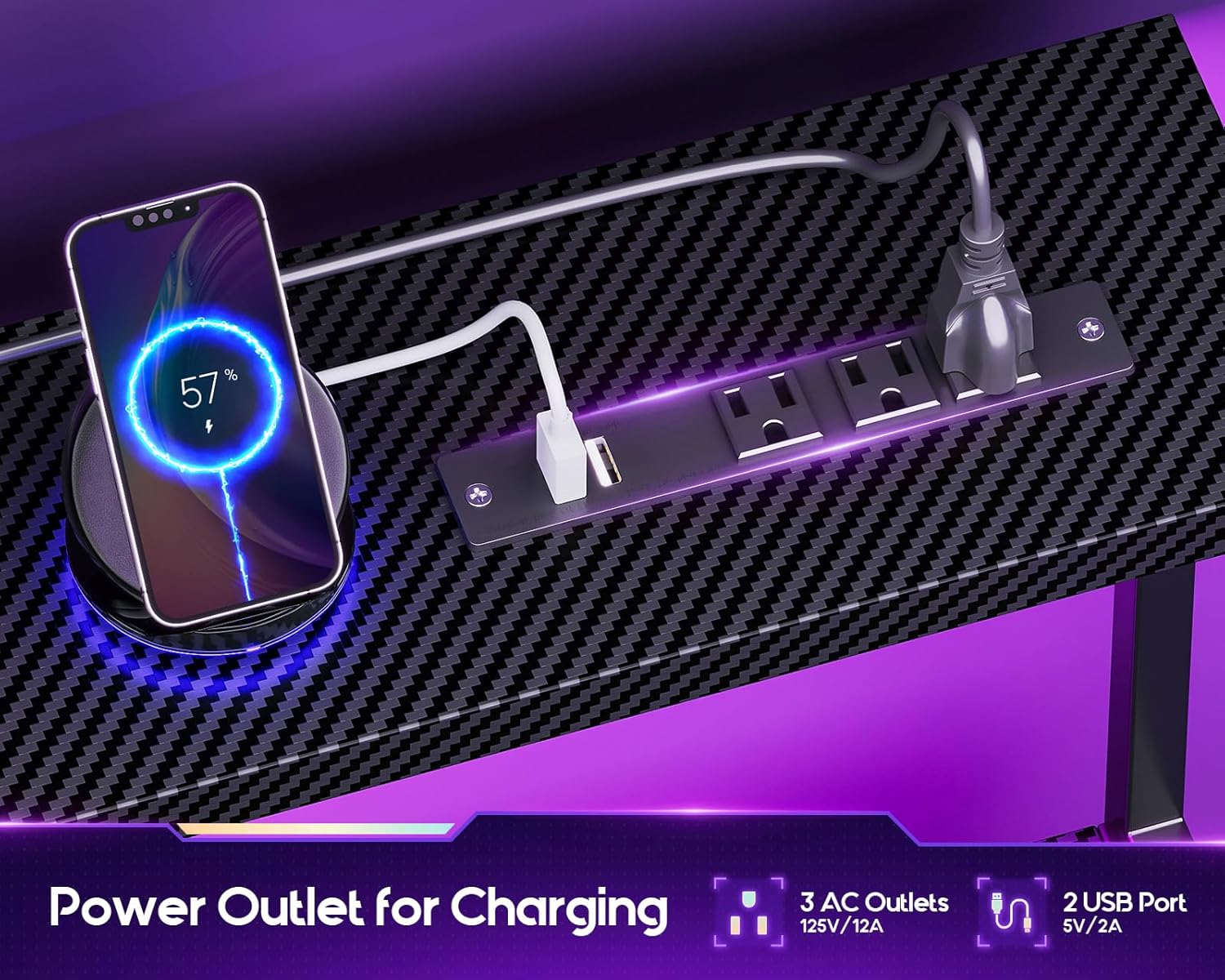
Image 5.2: Detail of the integrated power outlet, showing 3 AC outlets and 2 USB ports.
5.3 Monitor Stand and Headphone Hook
- Monitor Stand: The elevated monitor stand provides an ergonomic viewing height for your display(s) and additional storage space underneath.
- Headphone Hook: A convenient hook is provided for hanging headphones or other accessories, keeping your workspace tidy.
6. Maintenance
Regular maintenance helps prolong the life and appearance of your ODK Gaming Desk.
- Cleaning the Surface: The carbon fiber textured tabletop is designed to be scratch-resistant, anti-collision, and waterproof. For general cleaning, wipe the surface with a soft, damp cloth. Avoid abrasive cleaners or harsh chemicals that may damage the finish.
- Fabric Drawers: The fabric drawers can be spot cleaned with a mild detergent and damp cloth. Allow to air dry completely.
- Hardware Check: Periodically check all screws and fasteners to ensure they remain tight. Retighten if necessary to maintain desk stability.
- Electrical Components: Keep the power outlet and LED strip free from dust and debris. Do not attempt to repair electrical components yourself.

Image 6.1: Close-up view of the carbon fiber textured tabletop, highlighting its durable finish.
7. Troubleshooting
If you encounter issues with your ODK Gaming Desk, refer to the following common solutions:
- Desk is wobbly after assembly:
- Ensure all screws and bolts are fully tightened.
- Verify that the desk is placed on a level surface. Adjust foot pads if available.
- Review the assembly instructions to confirm all parts are correctly installed.
- LED lights are not turning on:
- Check if the USB cable for the LED strip is securely connected to a powered USB port or adapter.
- Press the 'S/B' button on the inline controller to ensure the lights are not simply turned off.
- Ensure the power source for the USB port is active.
- Power outlets are not working:
- Confirm the desk's main power cord is securely plugged into a functional wall outlet.
- Test the wall outlet with another device to ensure it has power.
- Avoid overloading the power strip with too many high-power devices.
- Drawers are difficult to open/close:
- Ensure the fabric drawers are assembled correctly and not overfilled.
- Check for any obstructions in the drawer slides or within the drawer compartment.
8. Specifications
| Feature | Detail |
|---|---|
| Brand | ODK |
| Model Number | B01171801006 |
| Product Dimensions | 18.9"D x 55.1"W x 35"H |
| Color | Carbon Fiber Black |
| Style | Modern |
| Base Material | Metal |
| Top Material Type | Carbon Fiber |
| Finish Type | Laminated |
| Special Features | Built-In USB Outlet, Monitor Stand, Reversible, LED Lights |
| Item Weight | 16.2 Kilograms |
| Number of Drawers | 2 (Fabric Drawers) |
| Power Outlet | 3 AC Outlets (125V/12A), 2 USB Ports (5V/2A) |
| Assembly Required | Yes (Tools Included) |
9. Warranty & Support
9.1 Return Policy
This product is eligible for a 30-day return for refund or replacement, subject to the retailer's terms and conditions.
9.2 Protection Plans
Optional protection plans may be available for purchase separately to extend coverage beyond the standard return period. These include:
- 2-Year Protection Plan
- 3-Year Protection Plan
- Complete Protect (monthly plan covering eligible purchases)
Refer to the specific terms and conditions of these protection plans for details.
9.3 Customer Support
For further assistance, missing parts, or warranty inquiries, please contact ODK customer service through the retailer's platform or the official ODK website.


