
1. Introduction
This manual provides essential information for the safe and effective operation of your SOOMFON SK2 Mini Projector. Please read this manual thoroughly before using the product and retain it for future reference.
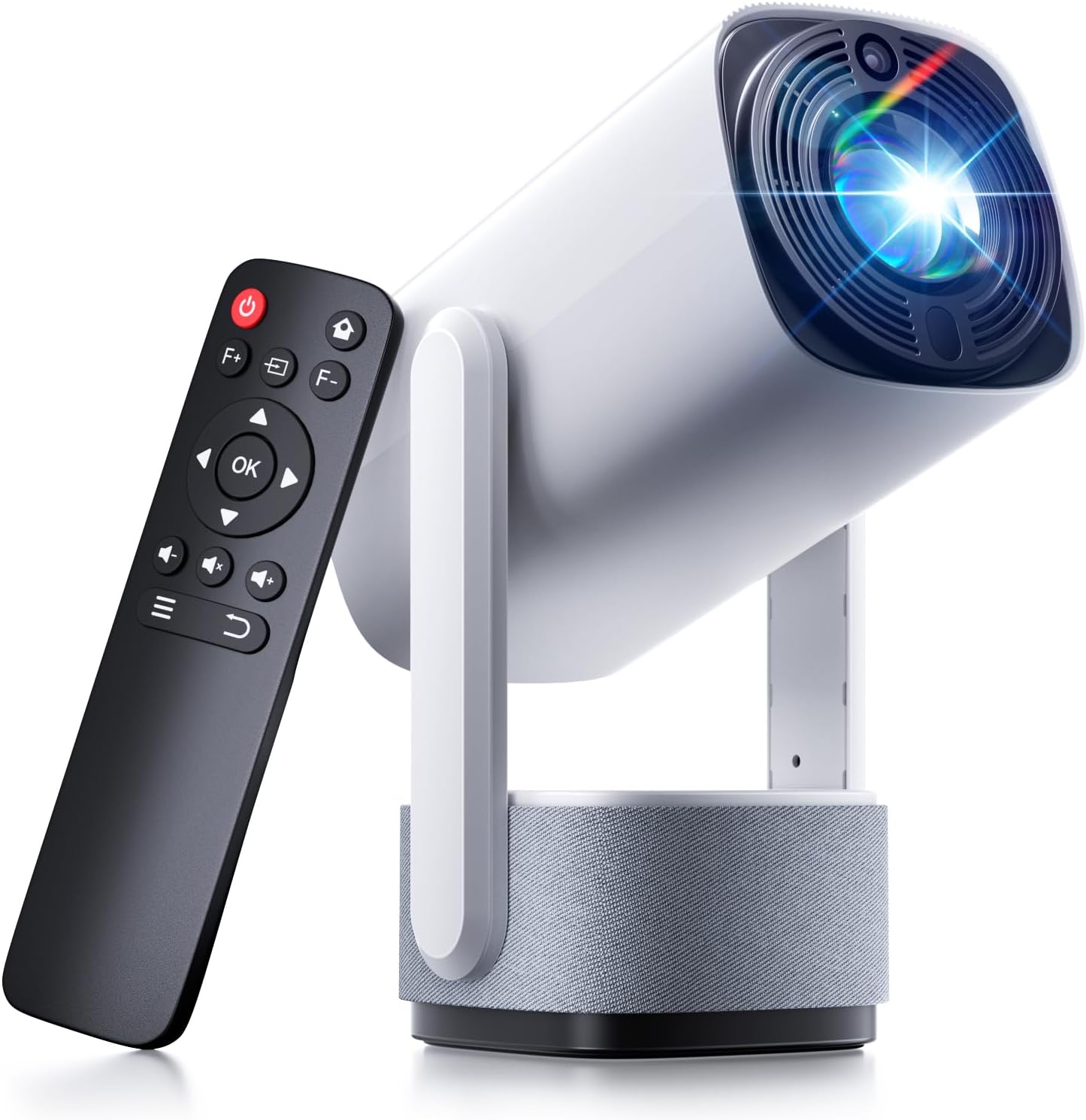
Image: The SOOMFON SK2 Mini Projector shown with its remote control.
2. Package Contents
Verify that all items listed below are included in your package:
- SOOMFON SK2 Projector
- HDMI Cable (1.5m)
- Power Cord (1.5m)
- User Manual
- Quick Guide
- Remote Control (2x AAA batteries not included)

Image: Contents of the SOOMFON SK2 Mini Projector package.
3. Product Overview
The SOOMFON SK2 Mini Projector is designed for versatile media projection, featuring a compact form factor and multiple connectivity options.
Key Features:
- Display Technology: Advanced LCD with uniform illumination.
- Resolution: Native 720p (1280 x 720), supports 4K and 1080p input.
- Brightness: 260 ANSI Lumens.
- Projection Size: Up to 150 inches.
- Portability: Compact design (7.5 x 4 x 4 inches) and lightweight (1.3 lbs).
- Rotation: 270° rotatable stand for flexible projection angles (wall-to-ceiling).
- Audio: Integrated dual 3W high-fidelity speakers.
- Connectivity: HDMI, USB, Audio ports, Wi-Fi, Bluetooth (two-way for input/output).
- Screen Mirroring: Supports Miracast and AirPlay for wireless screen sharing.
- Image Correction: Automatic keystone correction.
- Eye Protection: Diffuse reflection imaging technology.
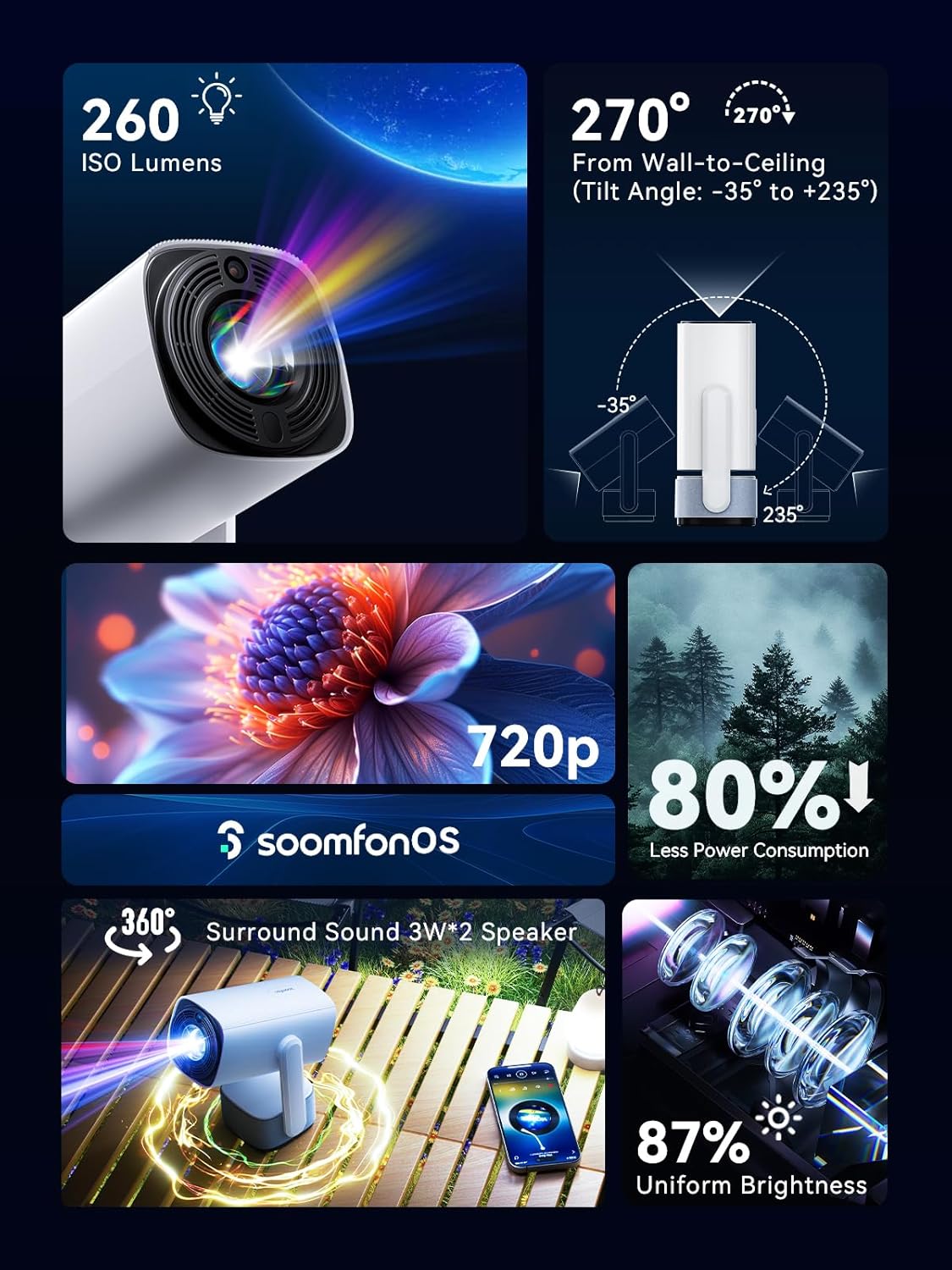
Image: Overview of the projector's main features.
4. Setup
4.1 Power Connection
- Connect the provided power cord to the projector's power input.
- Plug the other end of the power cord into a suitable electrical outlet.
4.2 Placement
Position the projector on a stable, flat surface. The 270° rotatable stand allows for flexible projection angles, including wall and ceiling projection.

Image: Projector positioned for wall-to-ceiling projection.
4.3 Initial Power On
- Press the power button on the projector or the remote control to turn on the device.
- The projector will boot up and display the main interface (SoomfonOS).
5. Operating Instructions
5.1 Focus Adjustment
Adjust the image clarity using the F+ and F- buttons on the remote control. This is a manual adjustment.
5.2 Keystone Correction
The projector features automatic keystone correction. It will automatically adjust the image to be rectangular even if the projector is placed at an angle. Manual adjustments may also be available in the settings menu if needed.

Image: Automatic keystone correction in action.
5.3 Connectivity
5.3.1 HDMI Connection
Connect an HDMI cable from your source device (e.g., laptop, game console, TV stick) to the HDMI port on the projector. Select the HDMI input source from the projector's menu.
5.3.2 USB Connection
Insert a USB flash drive into the USB port. The projector supports FAT32 formatted drives up to 32GB. Navigate to the USB section in the SoomfonOS to access media files.
5.3.3 Wi-Fi and Screen Mirroring
Connect the projector to your Wi-Fi network via the settings menu. Once connected, you can use Miracast (for Android) or AirPlay (for iOS) to wirelessly mirror your smartphone or tablet screen to the projector.

Image: Streaming content from a phone to the projector.
5.3.4 Bluetooth Connection
The projector supports two-way Bluetooth functionality:
- Bluetooth Input (Audio Mode): Connect your smartphone or other Bluetooth audio device to the projector to use it as a Bluetooth speaker. Access this mode from the homepage.
- Bluetooth Output: Connect the projector to external Bluetooth speakers or headphones for enhanced audio. Access this in the settings menu.

Image: Two-way Bluetooth connectivity options.
5.4 SoomfonOS Navigation
The projector operates on SoomfonOS, a user-friendly interface. Use the remote control's directional buttons and OK button to navigate through menus and select options. The main screen provides access to input sources, settings, and media playback options.

Image: The SoomfonOS user interface.
6. Maintenance
6.1 Cleaning
- Lens: Use a soft, lint-free cloth specifically designed for optical lenses. Do not use abrasive cleaners or solvents.
- Exterior: Wipe the projector's exterior with a soft, dry cloth. For stubborn marks, a slightly damp cloth can be used, followed by a dry cloth.
- Ventilation: Ensure the ventilation openings are clear of dust and obstructions to prevent overheating.
6.2 Storage
When not in use, store the projector in a cool, dry place away from direct sunlight and extreme temperatures. If possible, use the original packaging or a protective case to prevent dust accumulation and damage.
7. Troubleshooting
- No Image/Poor Image Quality:
- Ensure the power cord is securely connected and the projector is turned on.
- Check the input source selection (HDMI, USB, etc.) matches your connected device.
- Adjust the focus using the F+ and F- buttons on the remote.
- Ensure the room is sufficiently dark for optimal viewing, especially for larger screen sizes.
- No Audio:
- Check the volume level on both the projector and the source device.
- If using external speakers, ensure they are properly connected via Bluetooth or audio cable.
- For HDMI sources, verify the audio output settings on your source device.
- Cannot Stream from Netflix/Prime Video via Screen Mirroring:
- Due to HDCP (High-bandwidth Digital Content Protection) restrictions, direct screen mirroring of certain streaming services (like Netflix, Prime Video, Hulu) may not work or may only provide audio.
- Solution: Use an external streaming device (e.g., Amazon Fire Stick, Roku, Google TV) connected to the projector's HDMI port for these services.
- Wi-Fi Connection Issues:
- Ensure the Wi-Fi password is entered correctly.
- If experiencing issues with long Wi-Fi passwords, check the SOOMFON official website for potential firmware updates.
- Fan Noise:
- The projector's fan noise is noticeable during operation. This is normal for cooling the internal components.
- For a more immersive audio experience, consider connecting external Bluetooth speakers.
8. Specifications
| Feature | Specification |
|---|---|
| Brand | SOOMFON |
| Model Number | SK2 |
| Item Weight | 1.69 pounds |
| Product Dimensions | 9.65 x 4.53 x 3.74 inches |
| Native Display Resolution | 1280 x 720p |
| Supported Input Resolution | Up to 4K |
| Brightness | 260 ANSI Lumens |
| Connectivity Technology | HDMI, USB, Audio, Wi-Fi, Bluetooth |
| Special Features | Built-In Speaker, Built-In Wi-Fi, Portable, 270° Rotatable Stand, Automatic Keystone Correction |
| Recommended Uses | Business, Education, Gaming, Home Cinema |
9. Warranty and Support
SOOMFON is committed to providing quality products and customer satisfaction.
9.1 Technical Support
Lifetime technical support is available for your SOOMFON SK2 Mini Projector.
9.2 Contact Information
- Email: service@soomfon.com
- Live Chat: Available on the official SOOMFON website, Monday-Friday, 9 AM - 5 PM (PST).


