
1. Introduction
This manual provides detailed instructions for the setup, operation, and maintenance of your BSIMB 24-Inch FHD WiFi Digital Picture Frame. Please read this manual thoroughly before using the device to ensure proper functionality and to maximize your user experience. Keep this manual for future reference.
2. Package Contents
Carefully unpack your digital picture frame and verify that all items listed below are included and in good condition.
- BSIMB 24-Inch Digital Picture Frame
- Wall Adapter with US Plug
- Remote Control (AAA+ battery not included)
- User Manual
- Quick Start Guide
- Screwdriver
- Screws & Wall Anchors
- Stand
- Auto-Rotate Wall Mount (100x100 VESA Compatible)

Image: Package Contents
3. Setup
3.1 Initial Power On
- Connect the wall adapter to the DC IN port on the back of the frame.
- Plug the wall adapter into a power outlet. The frame will automatically power on.
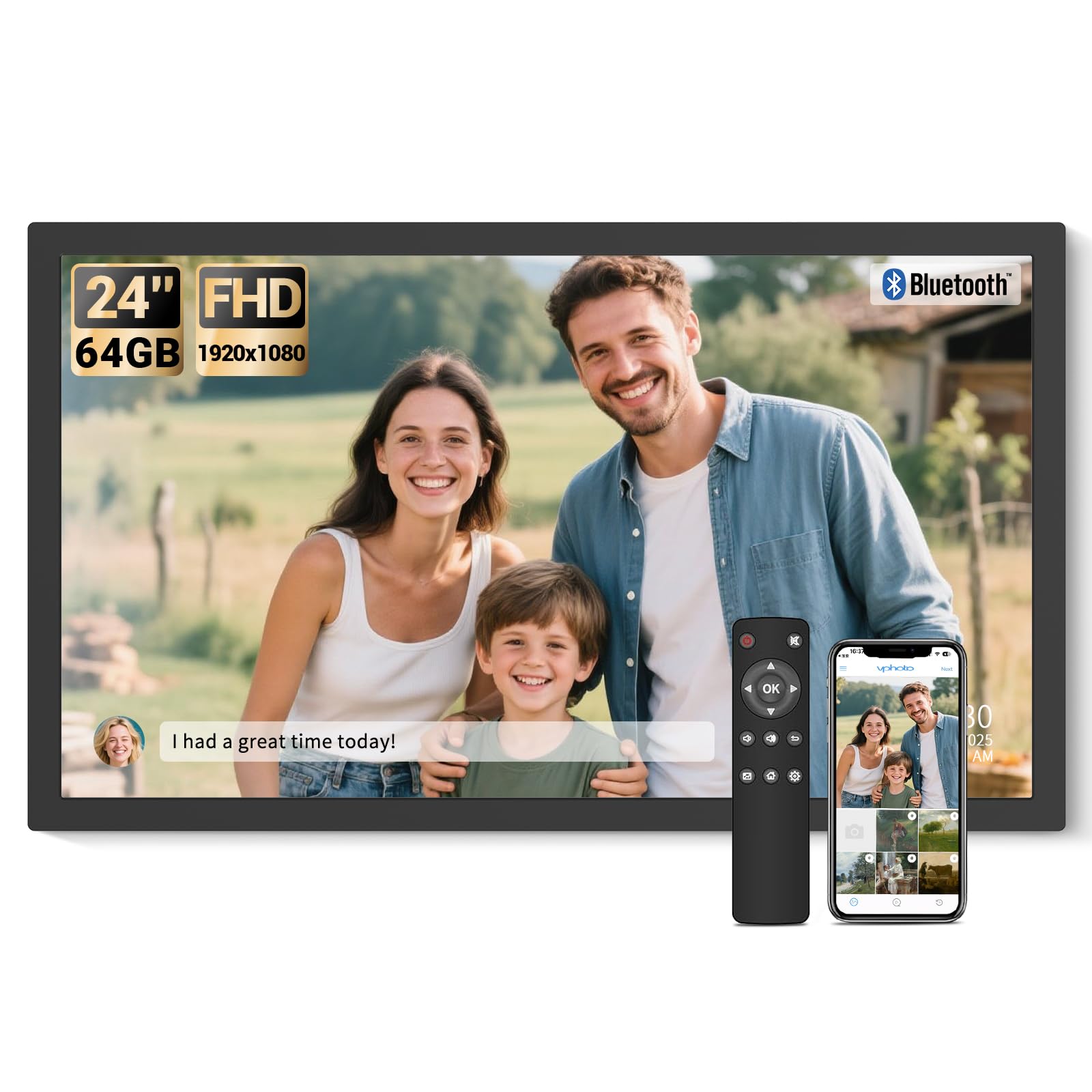
Image: Plug in and use for instant setup.
3.2 Connecting to WiFi and VPhoto App
The BSIMB Digital Picture Frame utilizes the VPhoto app for easy photo and video sharing.
- Download the VPhoto App: Search for "VPhoto" in your smartphone's app store (available on App Store and Google Play) and install it.
- Create an Account: Open the VPhoto app and follow the on-screen instructions to create a new user account.
- Connect Your Frame: On the digital picture frame, follow the initial setup wizard to connect to your WiFi network. Once connected, the frame will display a unique Frame ID.
- Link App to Frame: In the VPhoto app, enter the unique Frame ID to link your smartphone to the digital picture frame.

Image: Three steps to get started with the VPhoto app.
3.3 Wall Mounting
The frame includes an auto-rotate wall mount for flexible display options.
- Identify a suitable location on your wall for mounting.
- Use the provided screws and wall anchors to securely attach the wall mount bracket to the wall. Ensure it is level.
- Align the VESA holes on the back of the digital picture frame with the wall mount.
- Attach the frame to the bracket. The auto-rotate feature allows you to easily switch between landscape and portrait orientations after mounting.
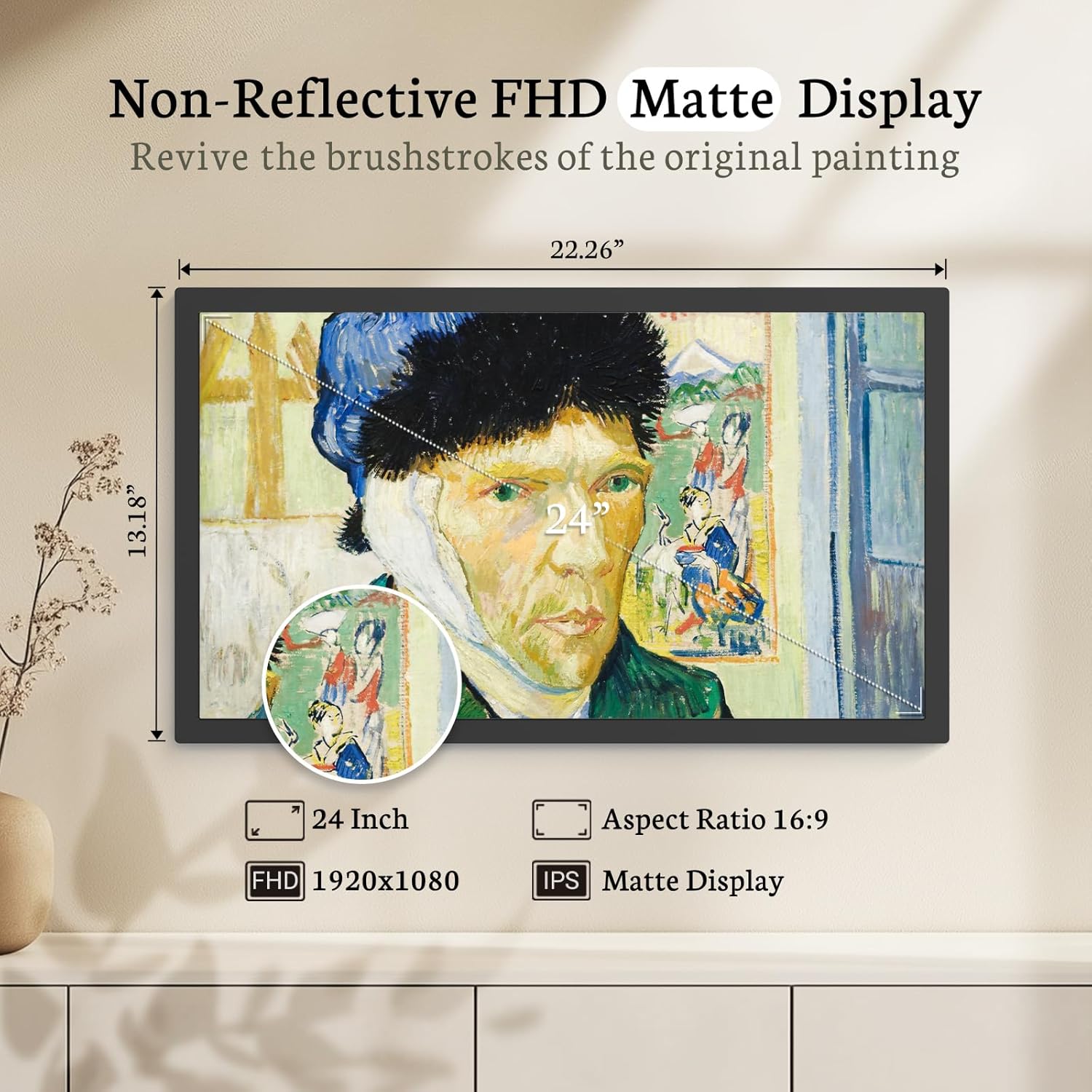
Image: Switching between landscape and portrait orientation with the swivel wall mount.
4. Operating Instructions
4.1 Uploading Photos and Videos
You can upload media to your frame using several methods:
- VPhoto App: Use the linked VPhoto app on your smartphone to select and send photos and videos directly to the frame.
- Email: The frame has a unique email address. You can send photos and short videos as attachments to this email address, and they will appear on your frame.
- Micro SD Card (TF Card): Insert a Micro SD card into the designated slot on the frame. The frame supports direct playback from the card.
- USB Drive: Insert a USB drive into the USB port. The frame supports direct playback from the drive.
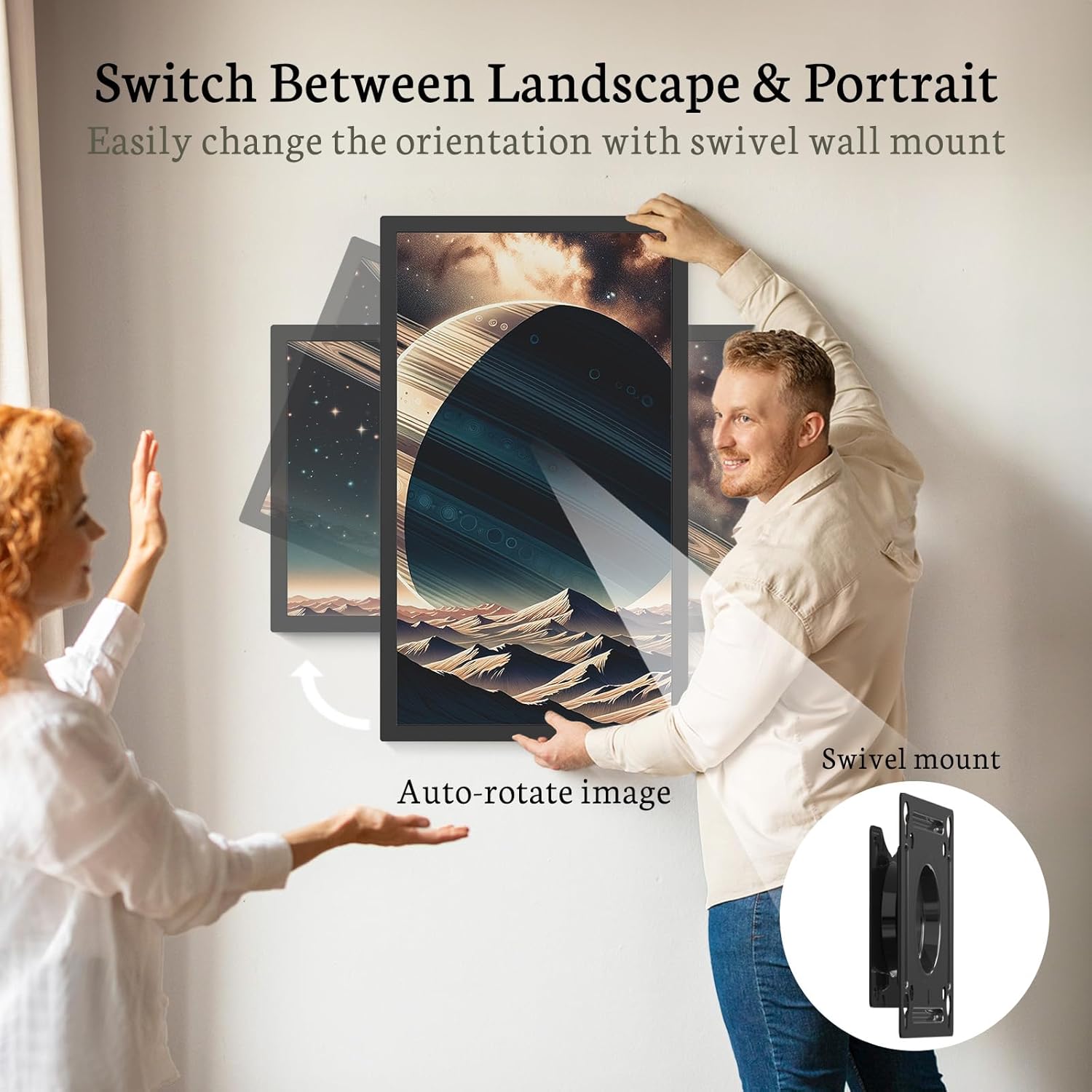
Image: Spacious 64GB storage, expandable via Micro SD card or USB drive.
4.2 Sharing with Family and Friends
Invite others to share their memories directly to your frame:
- Share your frame's unique digital code (found in the frame's settings) with friends and family.
- They can download the VPhoto app, enter the code, and send photos and videos to your frame from anywhere.

Image: Easily invite loved ones to share photos to your frame.
4.3 Using the Remote Control
The included remote control allows for convenient navigation and setting adjustments.
- Navigation: Use the directional buttons to move through menus and select options.
- Playback: Control slideshows, pause/play videos, and adjust volume.
- Settings: Access various settings such as display mode, sleep mode, and more.
Note: The remote control requires AAA+ batteries, which are not included in the package.

Image: Remote control for easy navigation and media playback.
4.4 Personalized Functions and Settings
The frame offers various customizable settings to enhance your viewing experience:
- Slideshow Mode: Adjust transition effects, display duration, and playback order for photos.
- Sleep Mode: Schedule the frame to automatically turn on and off at specific times to conserve energy.
- Photo Captions: Add captions to your photos for additional context.
- Weather and Clock: Display current weather information and time on the screen.
- Bluetooth Speaker: Connect your smartphone or other Bluetooth devices to the frame to play audio.

Image: Diverse personalized functions available on the frame.

Image: Bluetooth connectivity for audio playback.
5. Maintenance
5.1 Cleaning the Frame
To maintain the clarity and appearance of your digital picture frame:
- Gently wipe the screen with a soft, lint-free cloth. For stubborn smudges, slightly dampen the cloth with water or a screen-safe cleaning solution.
- Avoid using harsh chemicals, abrasive cleaners, or aerosol sprays directly on the screen or frame.
- Clean the frame's exterior with a dry, soft cloth.
5.2 Software Updates
Periodically check for software updates through the frame's settings menu or the VPhoto app to ensure optimal performance and access to new features.
6. Troubleshooting and Known Limitations
This section addresses common issues and clarifies certain functionalities of the BSIMB Digital Picture Frame.
6.1 USB Drive Folder Structure
The frame's current software does not support recognizing folder structures on USB drives. All images and videos on a connected USB drive will be displayed in a flat, unorganized manner. Users cannot select specific folders for playback.
6.2 USB-C Port Functionality
While a USB-C port is present, its functionality for direct file transfer from a computer may be limited or non-operational. For reliable file transfer, use a Micro SD card, USB-A drive, or the VPhoto app/email sharing features.
6.3 Usable Storage Capacity
The frame is advertised with 64GB of internal storage. However, a portion of this capacity (approximately 7GB) is occupied by the operating system and pre-installed software. The actual usable storage for user media is approximately 57GB.
6.4 General Issues
- Frame not powering on: Ensure the power adapter is securely connected to both the frame and a working power outlet.
- No WiFi connection: Verify your WiFi password and ensure the frame is within range of your router. Restarting both the frame and router may help.
- Remote control not working: Check if the AAA+ batteries are correctly inserted and have sufficient charge. Ensure there are no obstructions between the remote and the frame's IR receiver.
7. Specifications
| Feature | Detail |
|---|---|
| Screen Size | 24 Inches |
| Display Resolution | 1920x1080 (FHD) |
| Aspect Ratio | 16:9 |
| Display Type | IPS Matte Screen (Non-Touch) |
| Internal Storage | 64GB (approx. 57GB usable) |
| External Storage Support | Micro SD Card (TF Card), USB Drive |
| Connectivity | WiFi, Bluetooth |
| Audio | Built-in Bluetooth Speaker |
| Mounting | Wall Mount Included (100x100 VESA Compatible), Stand |
| Product Dimensions | 31.14 x 13.2 x 0.99 inches |
| Item Weight | 11.28 pounds |
| Color | Black |
| Manufacturer | ShenZhen IDWELL Technology Co.Ltd |
| Model Number (ASIN) | B0F58J8HTG |

Image: Display specifications and dimensions.

Image: Thoughtfully designed details and port locations.
8. Warranty and Support
8.1 Warranty Information
BSIMB offers a 30-day money-back guarantee and a 1-year worry-free warranty for this product. This warranty covers manufacturing defects and ensures your satisfaction with the product.
8.2 Customer Support
If you encounter any issues or have questions regarding your BSIMB Digital Picture Frame, please do not hesitate to contact our customer service team. We are committed to providing professional support and ensuring your satisfaction.
- Refer to the contact information provided in your Quick Start Guide or on the official BSIMB website.
Image: Professional customer service and support.


