
1. Product Overview
The Orbic Speed (RC400L) is a compact and portable 4G LTE MiFi Mobile Hotspot Router designed to provide secure and reliable Wi-Fi connectivity on the go. It allows you to connect up to 10 Wi-Fi enabled devices simultaneously, offering high-speed internet access for various activities such as checking email, streaming media, and working remotely. This device features a long-lasting rechargeable battery and dual-band 802.11ac Wi-Fi for optimal performance and range.
Key Features
- Unlocked Connectivity: Compatible with various carriers (originally Verizon).
- Extended Battery Life: Up to 12 hours of continuous use on a single charge.
- Fast Wi-Fi: Dual-band 802.11ac Wi-Fi for high-speed data and extended range.
- Multi-Device Support: Securely connect up to 10 Wi-Fi enabled devices.
- Compact and Portable: Lightweight design for easy travel and discreet placement.
- Informative LCD Display: Provides real-time status updates of the mobile hotspot.
What's in the Box
- Orbic Speed (RC400L) Mobile Hotspot Router
- USB Cable
- Lithium Ion Battery (pre-installed or separate)
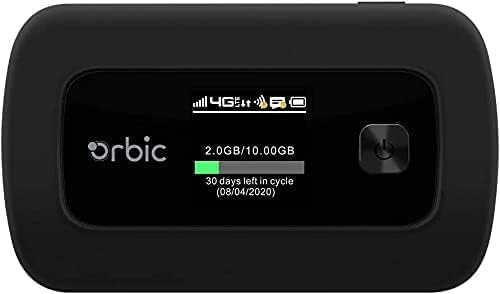
Figure 1: Orbic Speed (RC400L) Front View with Display
2. Getting Started: Setup
2.1. Charging the Device
Before initial use, fully charge your Orbic Speed hotspot. Connect the provided USB cable to the device's charging port and the other end to a compatible USB power adapter (not included) or a computer's USB port. The device's display will indicate charging status.
- Use only approved charging accessories.
- Avoid leaving the device plugged in for extended periods after it is fully charged to prolong battery life.
2.2. Inserting a SIM Card
The Orbic Speed (RC400L) requires a compatible 4G LTE SIM card (not included) to access cellular data networks. Follow these steps to insert the SIM card:
- Ensure the device is powered off.
- Carefully remove the back cover of the device. The back cover is designed to snap off easily without tools.
- Locate the SIM card slot.
- Insert the SIM card into the slot with the gold contacts facing down and the notched corner aligned correctly. Push gently until it clicks into place.
- Replace the back cover, ensuring it snaps securely into position.

Figure 2: Orbic Speed (RC400L) Back View (SIM card slot is under the cover)
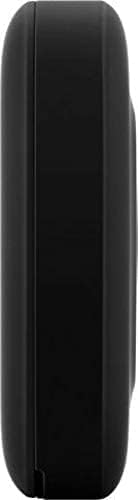
Figure 3: Orbic Speed (RC400L) Side View (Charging port location)
2.3. Powering On/Off
- To Power On: Press and hold the Power button (usually located on the front or side) until the display lights up.
- To Power Off: Press and hold the Power button until the "Power Off" option appears on the display, then confirm. Alternatively, hold the power button for several seconds until the device shuts down.
3. Operating the Hotspot
3.1. Connecting Devices via Wi-Fi
Once your Orbic Speed hotspot is powered on and has established a cellular connection, you can connect your Wi-Fi enabled devices (laptops, tablets, smartphones, etc.) to it.
- On your device, open the Wi-Fi settings.
- Scan for available Wi-Fi networks.
- Select the network name (SSID) displayed on your Orbic Speed's screen.
- Enter the Wi-Fi password (Key) also displayed on the hotspot's screen.
- Your device should now be connected to the internet through the hotspot.
The Orbic Speed supports both 2.4GHz and 5GHz Wi-Fi bands. You can switch between these or configure them via the web administration interface.
3.2. Accessing the Web Administration Interface
For advanced settings, network monitoring, and configuration, you can access the Orbic Speed's web administration interface from a connected device.
- Ensure your device is connected to the Orbic Speed's Wi-Fi network.
- Open a web browser (e.g., Chrome, Firefox, Edge).
- In the address bar, type the default IP address for the hotspot (commonly 192.168.1.1 or 192.168.0.1, refer to your device's display or packaging for the exact address).
- Enter the administrator username and password when prompted. Default credentials are often "admin" for both, but it is highly recommended to change these for security.
From the web interface, you can manage Wi-Fi settings, view connected devices, monitor data usage, change passwords, and configure other network parameters.
3.3. Understanding the LCD Display
The Orbic Speed's LCD display provides essential information at a glance:
- Signal Strength: Bars indicating the strength of the cellular network signal.
- Network Type: Icons for 4G LTE, 3G, etc.
- Wi-Fi Status: Indicates if Wi-Fi is active and if devices are connected.
- Battery Level: Icon showing remaining battery charge.
- Data Usage: Displays current data consumption (e.g., GB used out of total plan).
- Connected Devices: Number of devices currently connected to the hotspot.
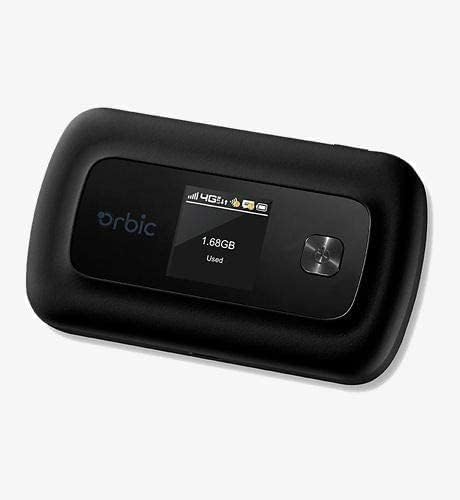
Figure 4: Orbic Speed (RC400L) Display in Use
4. Maintenance
4.1. Battery Care
To maximize the lifespan of your device's battery:
- Avoid extreme temperatures.
- Do not leave the device continuously plugged in for extended periods (e.g., 24/7) if not necessary, as this can degrade battery health over time.
- If storing the device for a long time, charge it to about 50% before storage.
- The battery is designed for easy replacement. Should replacement be necessary, the back casing can be snapped off to access the battery without tools.
4.2. Cleaning the Device
Use a soft, dry, lint-free cloth to clean the exterior of the device. Do not use liquid cleaners or aerosols directly on the device.
4.3. Software Updates
Periodically check for software updates through the web administration interface. Updates can improve performance, add features, and enhance security.
5. Troubleshooting
| Problem | Possible Cause | Solution |
|---|---|---|
| No Internet Connection | No SIM card, SIM not activated, poor cellular signal, data plan exhausted. |
|
| Device Not Powering On | Low battery, faulty charger/cable. |
|
| Slow Wi-Fi Speed | Poor cellular signal, too many connected devices, interference. |
|
| Cannot Access Web UI | Incorrect IP address, not connected to hotspot Wi-Fi. |
|
If problems persist, consider performing a factory reset (refer to the web administration interface for instructions, as this will erase all custom settings) or contact customer support.
6. Specifications
| Feature | Detail |
|---|---|
| Model Name | Orbic Speed (RC400L) |
| Connectivity Technology | USB, Wi-Fi (4G LTE) |
| Wireless Standard | 802.11ac (Dual-Band) |
| Compatible Devices | Laptop, Tablet, Smartphone, etc. |
| Color | Black |
| Item Weight | 7.8 ounces |
| Package Dimensions | 5.75 x 3.46 x 2.2 inches |
| Battery | 1 Lithium Ion battery (included) |
| Special Feature | LED Indicator |
| Manufacturer | Orbic |
7. Warranty and Support
This product is sold as an Amazon Renewed item. Amazon Renewed products are pre-owned and refurbished by qualified suppliers to work and look like new. They come with the Amazon Renewed Guarantee, which provides a replacement or refund within 90 days of receipt if the product does not work as expected.
For technical support or warranty claims, please refer to the Amazon Renewed program details or contact the seller directly through your Amazon order history. For general product inquiries or advanced troubleshooting not covered in this manual, you may also visit the official Orbic support website if available.
For additional information regarding your purchase, please visit your Amazon Order History.


