
1. Introduction
The MakeID L1-C is a compact and portable label printer designed for efficient organization in both home and office environments. It utilizes thermal printing technology, eliminating the need for ink, and connects wirelessly via Bluetooth to a dedicated smartphone application. This manual provides essential information for setting up, operating, and maintaining your device to ensure optimal performance.
2. Package Contents
Please verify that all items listed below are included in your package:
- 1 x MakeID L1-C Label Printer
- 1 x USB-C Charging Cable
- 1 x Quick Start Guide (including Japanese version manual)
- 3 x (LC) Waterproof Continuous Label Tape 16mm x 4m (2 white, 1 transparent)
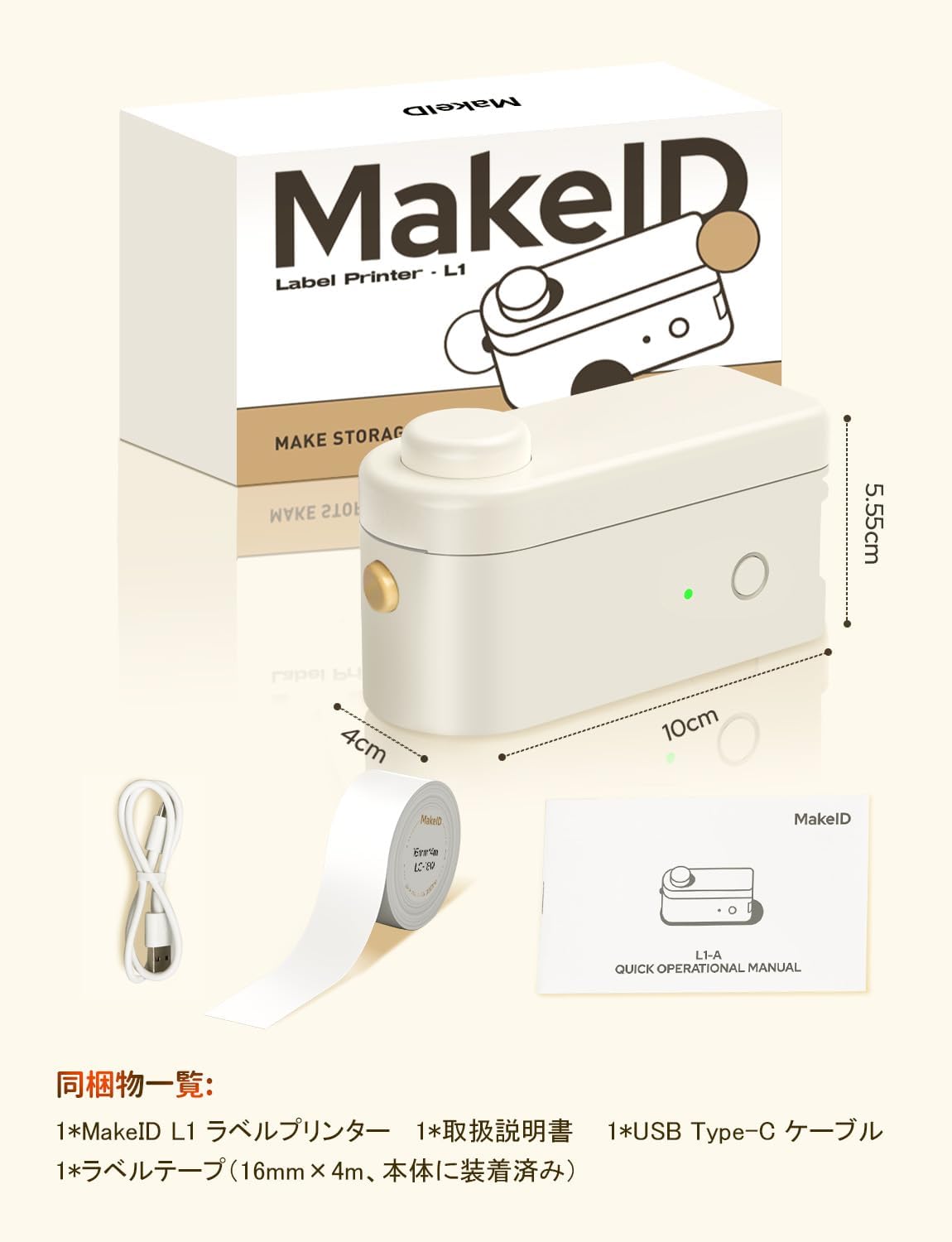
Image: MakeID L1-C Label Printer, USB-C cable, quick start guide, and label tapes.
3. Setup
3.1. Loading Label Tape
- Open the printer cover by gently lifting it.
- Insert the label roll into the designated slot, ensuring the label tape feeds out correctly.
- Pull out approximately 0.5 cm of the label tape from the paper exit slot.
- Close the printer cover securely.

Image: Detailed view of how to load the label tape into the printer.
3.2. Power On/Off
To power on the device, press and hold the power button located on the side of the printer until the indicator light turns green. To power off, press and hold the same button until the light turns off.
3.3. App Installation and Bluetooth Connection
- Download the dedicated "Make ID-Life" application from the App Store (for iOS) or Google Play (for Android).
- Ensure Bluetooth is enabled on your smartphone.
- Open the "Make ID-Life" app and grant any necessary Bluetooth permissions.
- The app will automatically detect the label size using the RFID chip embedded in the label tape, preventing waste.
- Select your printer model (L1-C) within the app to establish a connection.
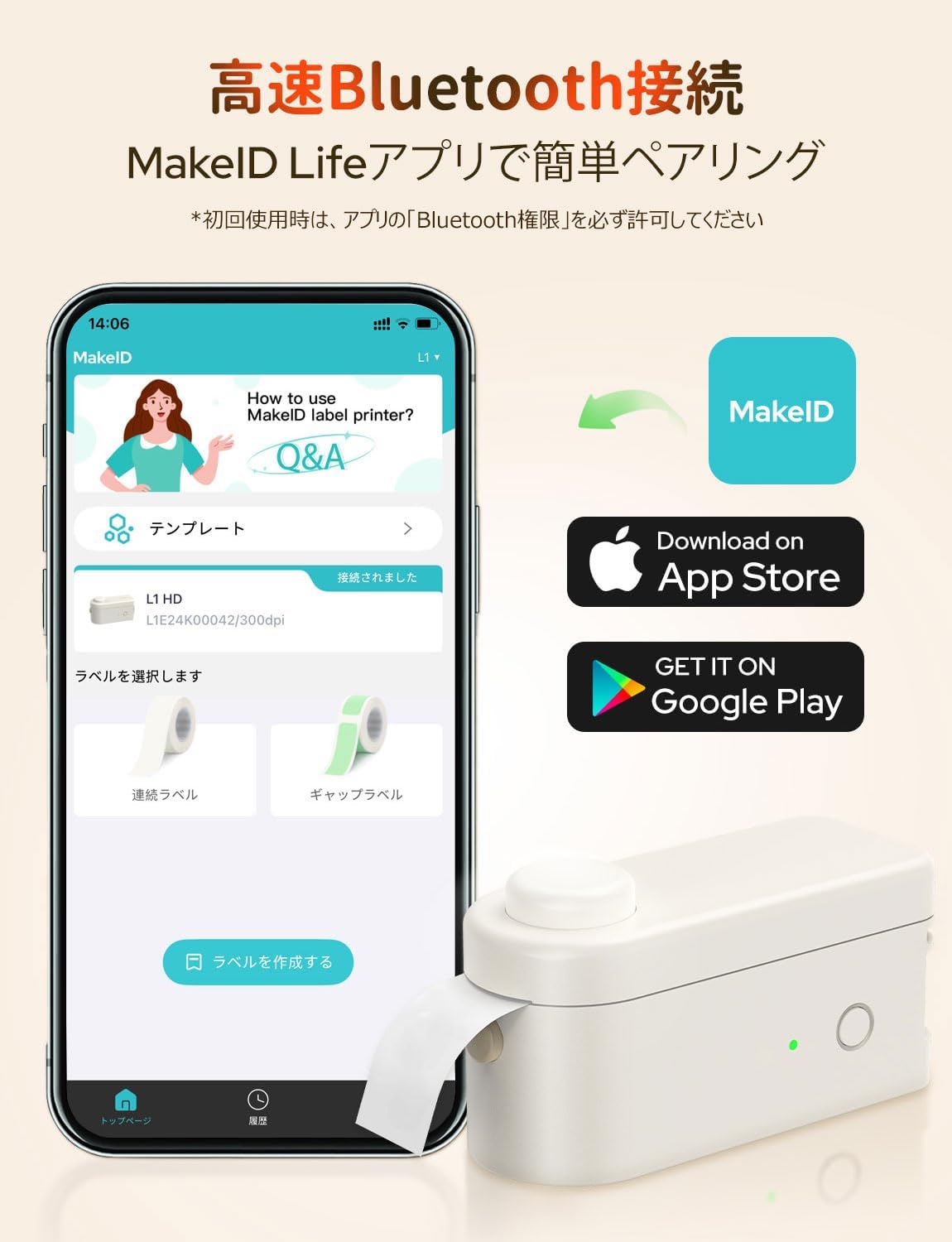
Image: MakeID-Life app interface and download options for iOS and Android.

Image: The app automatically detects label size using RFID technology.
Video: This video demonstrates the process of loading label tape, connecting the printer via Bluetooth to the MakeID-Life app, designing a label, printing it, and applying it to a container. It also shows various applications for organizing items in a refrigerator, office, and personal care products.
4. Operating Instructions
4.1. Creating Labels
The "Make ID-Life" app offers extensive customization options for creating labels:
- Text Input: Easily type and edit text for your labels.
- Fonts: Choose from over 20 fonts to personalize your labels.
- Stickers & Symbols: Access over 300 stickers and numerous symbols to enhance your designs.
- Frames: Select from over 60 decorative frames.
- Templates: Utilize over 100 pre-designed templates, including QR code templates, for quick and easy label creation.
- Image & QR Code Integration: Incorporate images and QR codes into your labels.

Image: The MakeID-Life app provides a wide range of creative templates and design tools.
4.2. Printing Labels
Once your label design is complete in the app:
- Tap the "Print" icon in the app.
- Review the print preview and adjust the print density or number of copies if necessary.
- Confirm your settings and tap the print button to send the design to the printer.
4.3. Cutting Labels
The MakeID L1-C features a built-in cutter for clean and precise label separation. After printing, simply press the circular button on the top of the printer to cut the label.
Image: The built-in cutter allows for easy and clean separation of printed labels.
4.4. Label Applications
The MakeID L1-C supports various label types, including fluorescent, metallic, transparent, and color tapes, making it suitable for diverse applications:
- Organizing kitchen items, food containers, and pantry.
- Labeling office supplies, documents, and folders.
- Creating personalized labels for gifts, crafts, and personal belongings.
- Identifying cables and electronic devices.
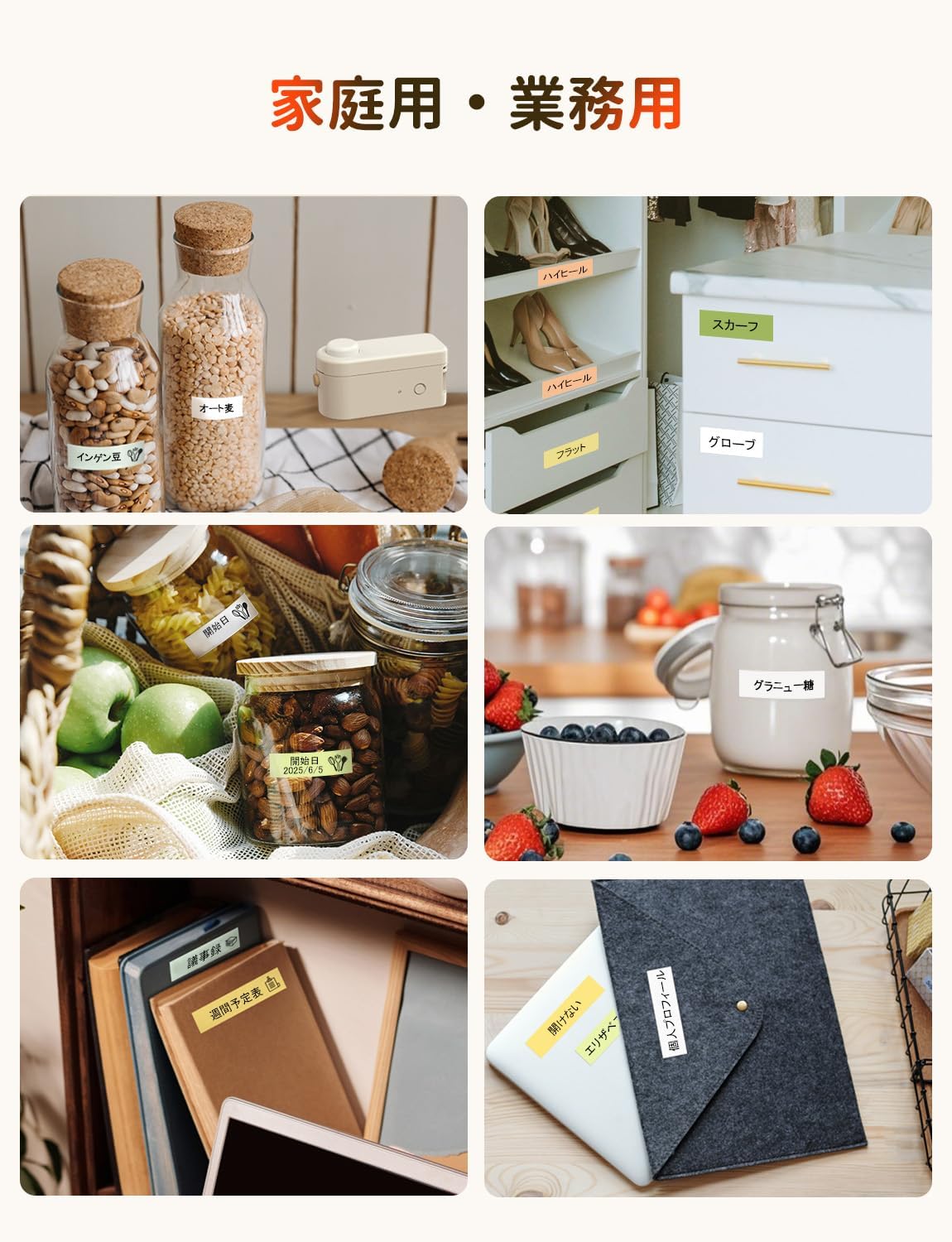
Image: Examples of labels used for home and business organization.
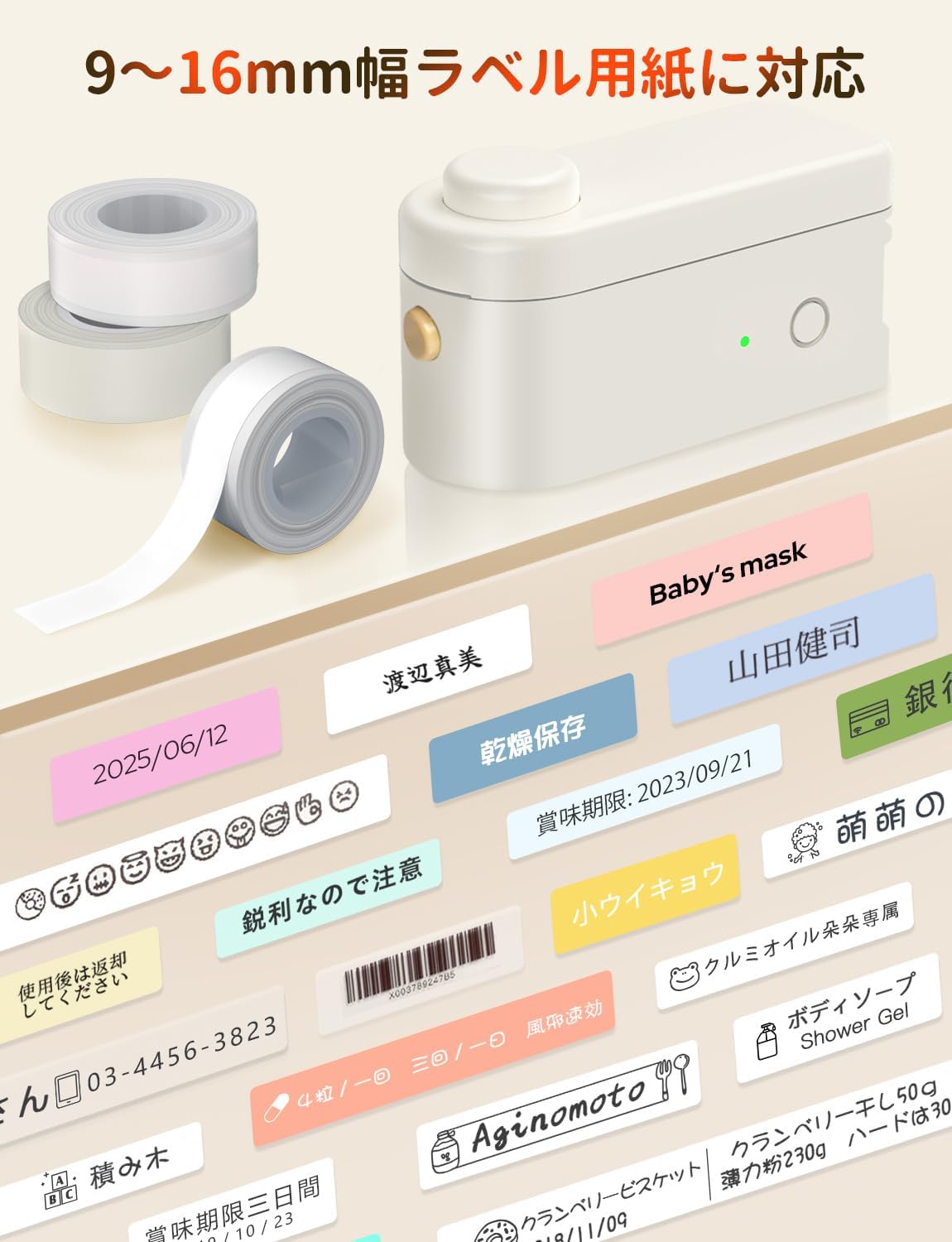
Image: A variety of labels printed with the MakeID L1-C, showcasing different designs and uses.
5. Maintenance
To ensure the longevity and optimal performance of your MakeID L1-C Label Printer, follow these maintenance guidelines:
- Cleaning: Regularly wipe the exterior of the printer with a soft, dry cloth. Avoid using abrasive cleaners or solvents.
- Print Head Care: For best print quality, ensure the print head is clean. Refer to the quick start guide for specific instructions on how to clean the print head if needed.
- Storage: Store the printer in a cool, dry place away from direct sunlight and extreme temperatures.
- Battery: Charge the built-in Li-ion battery regularly, even if not in frequent use, to maintain battery health.
6. Troubleshooting
If you encounter any issues with your MakeID L1-C Label Printer, please refer to the following common troubleshooting steps:
- Printer not connecting via Bluetooth: Ensure Bluetooth is enabled on your smartphone and the printer is powered on. Try restarting both devices and reconnecting through the "Make ID-Life" app.
- Poor print quality: Check if the label tape is correctly installed and not damaged. Ensure the print head is clean. You can also try adjusting the print density setting within the app.
- Label jam: Turn off the printer immediately. Carefully open the cover and remove any jammed label tape. Re-insert the label roll correctly and close the cover before powering on again.
- Printer not turning on: Verify that the built-in Li-ion battery is charged. Connect the printer to a power source using the provided USB-C cable.
If the problem persists after attempting these steps, please contact customer support.
7. Specifications
| Feature | Specification |
|---|---|
| Brand | MakeID |
| Model Name | L1-C-W2T1 |
| Product Model Number | L1-C-W203&W2T1-CRJP |
| Product Dimensions (W x H x D) | 6.8 x 12.8 x 6.2 cm |
| Product Weight | 260 g |
| Connectivity Technology | Bluetooth |
| Printing Technology | Thermal |
| Printer Output | Monochrome |
| Max Print Resolution (Monochrome) | 203 dpi |
| Max Print Speed (Monochrome) | 15 pages/minute |
| Max Media Size | 16 mm |
| Supported Label Widths | 9, 12, 16 mm |
| Compatible Devices | Smartphone (Android, iOS) |
| Battery Type | Built-in Li-ion Battery (3.7 Watt-hours) |
| Special Features | Portable, Lightweight, Inkless Printing, Automatic Label Recognition |
8. Warranty and Support
The MakeID L1-C Label Printer comes with a limited warranty. Please refer to the included Quick Start Guide for detailed warranty information and terms.
For technical support, troubleshooting assistance, or any inquiries regarding your product, please contact MakeID customer support through the official website or the contact information provided in your product documentation.


