Introduction
Thank you for choosing the Wantek Cat-Ear Gaming Headset V10. This manual provides detailed instructions for setting up, operating, and maintaining your headset to ensure optimal performance and longevity. Please read this manual thoroughly before using the product.
Package Contents
Verify that all items are present in your package:
- Wantek Cat-Ear Gaming Headset V10
- Detachable Cat Ears (pair)
- 3.5mm Audio Adapter (for PC/Laptop)
- User Manual

Image: The Wantek Cat-Ear Gaming Headset V10, showing the headset, detachable cat ears, 3.5mm audio adapter, and user manual.
Product Features
- Cat-Ear Design: Stylish and detachable cat ears for personalized aesthetics.
- 50mm Audio Drivers: Delivers clear audio with powerful bass for an immersive sound experience.
- Noise-Cancelling Microphone: AI-enhanced microphone reduces background noise for clear voice communication.
- 3.5mm Wired Connection: Ensures broad compatibility with various devices without requiring drivers.
- Comfortable Design: Features cloud-soft memory foam ear cushions and a lightweight build (approx. 480g) for extended wear.
- Adjustable Headband: Auto-adjusting durable frame for a comfortable fit.
- Flexible Microphone: 360° flexible metal mic pole for optimal positioning.
- RGB/LED Light: Integrated lighting on earcups (powered via USB connection).

Image: Detailed view of the headset highlighting key features: auto-adjusting headband, RGB/LED lighting on the earcups, superior memory foam earmuffs, and detachable cat ears.

Image: An exploded view illustrating the 50mm precision audio drivers, emphasizing their role in delivering stereo surround sound with wide range, powerful bass, and accurate audio.
Setup Guide
1. Connecting the Headset
The Wantek Cat-Ear Gaming Headset V10 uses a 3.5mm audio jack for sound and microphone, and a USB connector for the LED lighting.
- For PC/Laptop (with separate audio/mic ports): Connect the 3.5mm audio adapter (Y-splitter) to your computer's headphone and microphone jacks. Then, plug the headset's 3.5mm jack into the adapter.
- For Consoles (PS4/PS5, Nintendo Switch), Mobile Devices, Tablets (with combined 3.5mm port): Plug the headset's 3.5mm jack directly into the device's 3.5mm audio port.
- For Xbox One/Xbox Series X/S: An additional adapter (not included) may be required for full functionality, depending on your controller model. Connect the headset's 3.5mm jack to the adapter, then the adapter to your controller.
- For LED Lighting: Plug the USB connector into an available USB port on your computer, console, or a USB power adapter. The LED lights on the earcups will illuminate.

Image: The headset showing its 3.5mm audio jack and USB connector for power, ready for connection to various devices.

Image: A diagram illustrating the multi-platform compatibility of the headset, showing connections for PC, laptops, Macs, iPads, Nintendo Switch, tablets, mobile devices, PS4/PS5, and Xbox consoles (note: Xbox adapter not included).
2. Attaching/Detaching Cat Ears
The cat ears are detachable for user preference. Gently slide the cat ears onto the headband until they are securely in place. To remove, gently slide them off.
3. Adjusting the Headset
- Headband: The headset features an auto-adjusting headband. Place the headset on your head, and it will conform to a comfortable fit.
- Microphone: The microphone has a 360° flexible metal pole. Adjust its position to be close to your mouth for optimal voice pickup, ensuring it is not directly in front of your mouth to avoid breath noises.
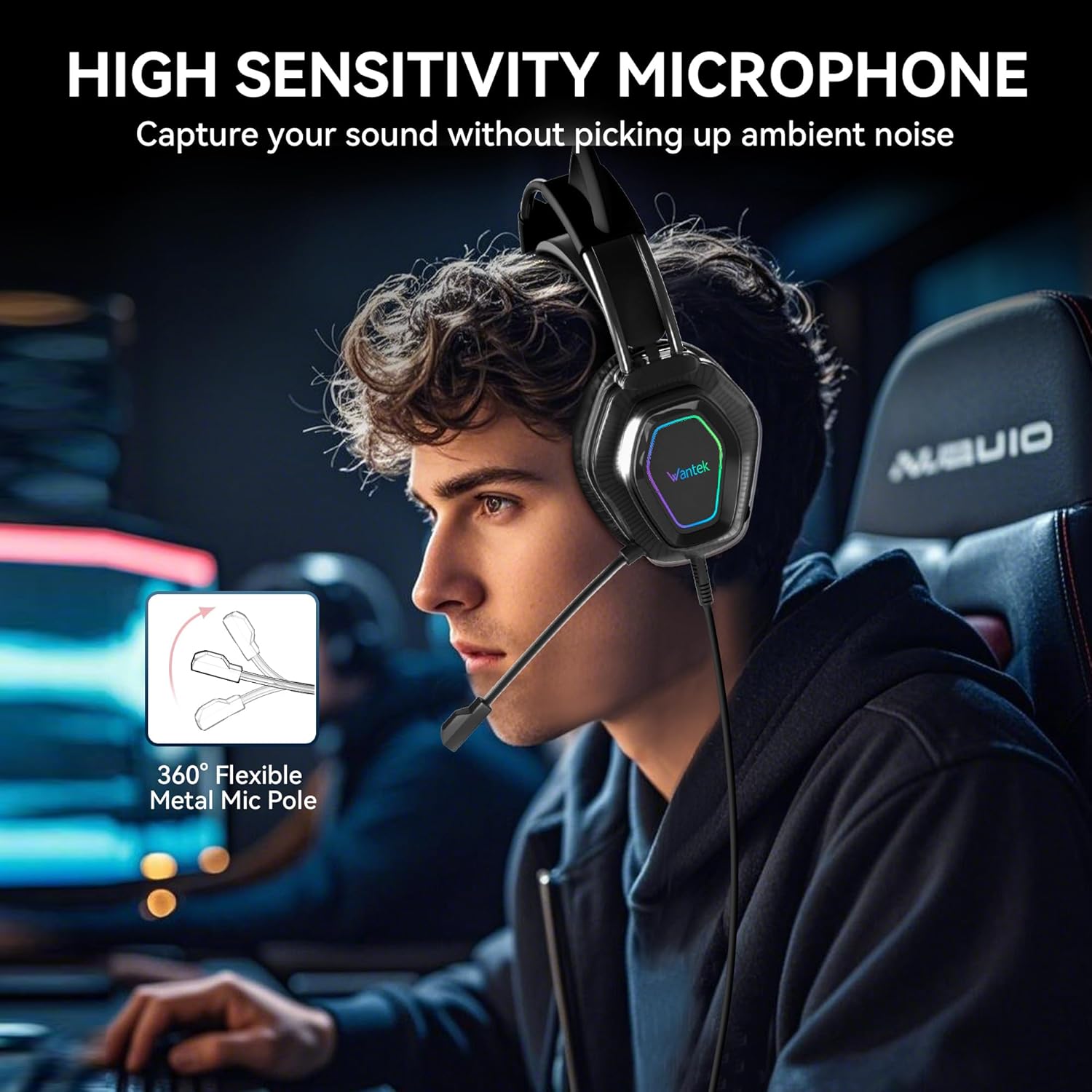
Image: A user wearing the headset, illustrating the flexibility of the microphone pole for precise positioning.
Operating Instructions
Audio Playback
Once connected, audio from your device will be routed through the headset. Adjust the volume using your device's system volume controls.
Microphone Usage
The noise-cancelling microphone is designed for clear voice input. Ensure the microphone is positioned correctly near your mouth. Microphone settings, such as input volume and mute functions, are typically controlled via your connected device's operating system or application settings.
LED Lighting
The RGB/LED lights on the earcups will activate automatically when the USB connector is plugged into a powered USB port. There are no manual controls for the LED lighting on the headset itself.
Maintenance
- Cleaning: Use a soft, dry cloth to clean the headset. Do not use abrasive cleaners or solvents. For ear cushions, a slightly damp cloth can be used, but ensure they are completely dry before use.
- Storage: Store the headset in a cool, dry place away from direct sunlight and extreme temperatures. Avoid placing heavy objects on the headset.
- Cable Care: Avoid sharp bends or kinks in the cable. Do not pull on the cable to disconnect the headset; always grasp the plug.
Troubleshooting
| Problem | Possible Cause | Solution |
|---|---|---|
| No sound from headset |
|
|
| Microphone not working |
|
|
| LED lights not illuminating |
|
|
Specifications
| Model Name | GH (V10) |
| Connectivity Technology | Wired (3.5mm Jack, USB for LED) |
| Audio Driver Type | Dynamic Driver |
| Earpiece Shape | Over-Ear |
| Material | Memory Foam, Plastic/Metal Headband |
| Item Weight | 1.06 pounds (approx. 480g) |
| Compatible Devices | Laptops, Desktops, Gaming Consoles (PS4/PS5, Nintendo Switch, Xbox*), Tablets, Telephones, Smart Speakers, Televisions, Cellphones (*Xbox may require additional adapter) |
| Color | Black |
Warranty and Support
For warranty information and technical support, please refer to the official Wantek website or contact their customer service directly. Details are typically provided on the product packaging or the official brand website.
Wantek Official Store: Visit the Wantek Store on Amazon


