
Introduction
This manual provides essential information for setting up, operating, maintaining, and troubleshooting your MSI Codex R2 Gaming Desktop. Please read this manual thoroughly before using the product to ensure proper functionality and longevity.
1. Setup Guide
1.1 Unboxing and Initial Inspection
Carefully remove all components from the packaging. Verify that all items listed below are present and undamaged:
- MSI Codex R2 Gaming Desktop
- Power Cable
- MSI Gaming Keyboard
- MSI Gaming Mouse
- Documentation (this manual, warranty card)
1.2 Connecting Peripherals
Before powering on, connect your monitor, keyboard, mouse, and other necessary peripherals.
- Connect Monitor: Use an HDMI or DisplayPort cable to connect your monitor to the graphics card ports on the rear of the desktop.
- Connect Keyboard and Mouse: Plug the USB connectors of the keyboard and mouse into any available USB ports.
- Connect Network: For wired internet, connect an Ethernet cable to the LAN port. For wireless internet, ensure your WiFi 7 antenna (if external) is connected.
- Connect Power: Plug the power cable into the desktop's power supply unit (PSU) and then into a wall outlet.

Figure 1: Rear view of the desktop, highlighting the various connectivity ports including HDMI, DisplayPort, USB, and Ethernet.
1.3 Initial Power-On and Operating System Setup
Press the power button located on the top front of the desktop. The system will boot into Windows 11 Home. Follow the on-screen instructions to complete the initial operating system setup, including language selection, network configuration, and user account creation.

Figure 2: Top front panel of the desktop, showing the power button, USB ports, and audio jacks.
2. Operating Instructions
2.1 Power On/Off
- Power On: Press the power button once.
- Shut Down: In Windows, go to Start > Power > Shut down. Do not force shut down by holding the power button unless necessary to prevent data loss.
- Restart: In Windows, go to Start > Power > Restart.
2.2 Network Connectivity
Your desktop supports both wired (Ethernet) and wireless (WiFi 7) network connections. Ensure drivers are installed for optimal performance.
2.3 USB and Audio Ports
Utilize the various USB ports (USB 3.2 Gen 1, USB 3.2 Gen 2) for connecting external devices. The front panel includes dedicated headphone and microphone jacks for convenience.
2.4 RGB Lighting Control
The MSI Codex R2 features customizable RGB lighting. Press the dedicated MSI LED button on the top front panel to cycle through various lighting options. For advanced customization, install and use the MSI Center software.

Figure 3: Front view of the desktop, showcasing the illuminated RGB cooling fans.
3. Maintenance
3.1 Cleaning
Regularly clean the exterior of the desktop with a soft, dry cloth. Use compressed air to clear dust from ventilation grilles and fan openings to maintain optimal airflow and cooling performance. Ensure the system is powered off and unplugged before cleaning.
3.2 Airflow and Cooling
The desktop is equipped with multiple cooling fans to manage heat. Ensure the desktop is placed in a well-ventilated area, away from obstructions that could block airflow. Avoid placing the desktop on soft surfaces that may impede ventilation.
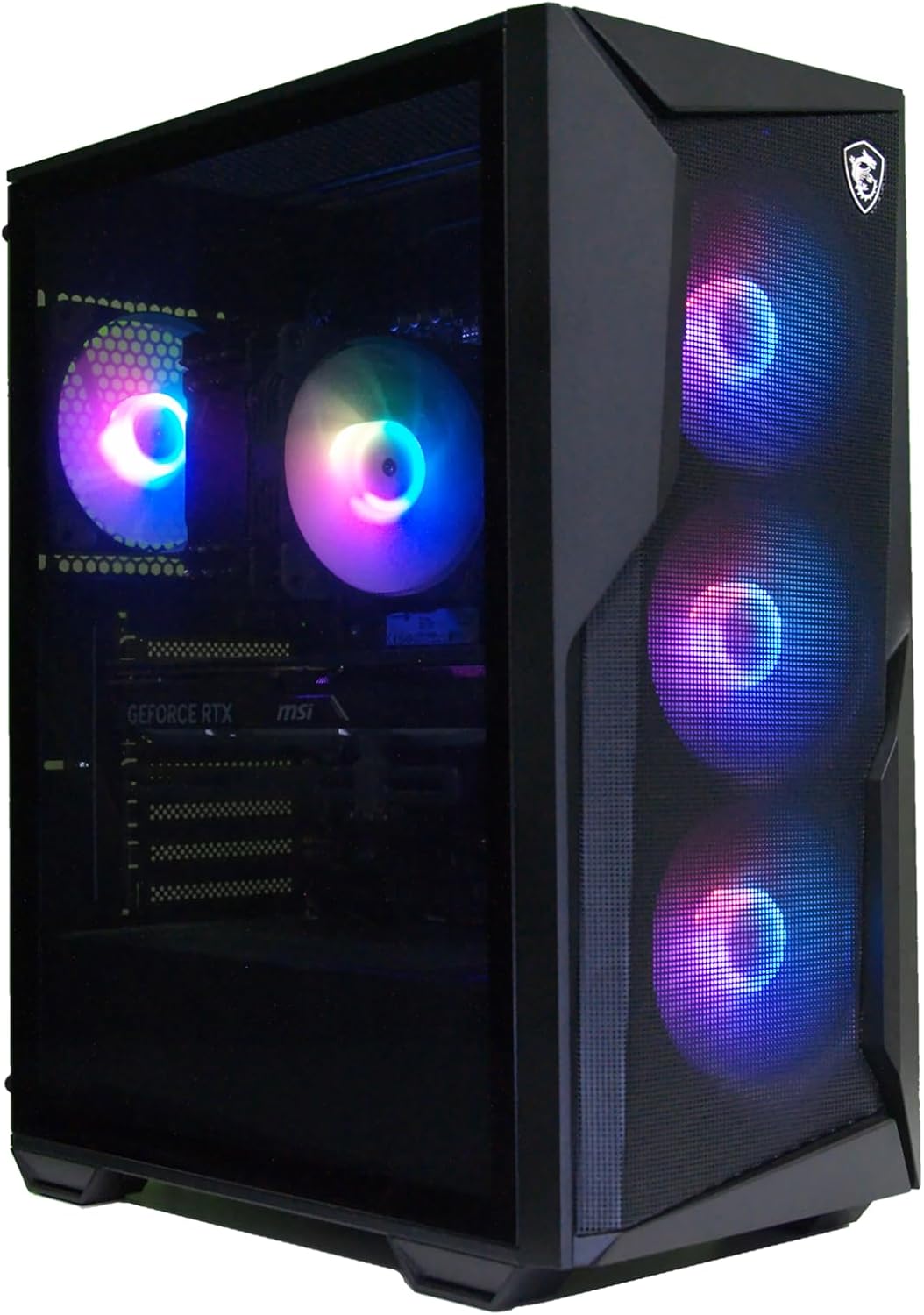
Figure 4: Angled view of the desktop, illustrating the internal layout and cooling fan placement.
3.3 Software Updates
Keep your operating system (Windows 11 Home), graphics drivers (NVIDIA), and other system drivers updated to ensure stability, security, and optimal performance. Check the MSI official website for the latest driver and BIOS updates for your specific model.
4. Troubleshooting
4.1 System Does Not Power On
- Verify the power cable is securely connected to both the desktop and the wall outlet.
- Ensure the power switch on the PSU (located at the rear of the desktop) is in the 'ON' position.
- Test the wall outlet with another device to confirm it has power.
4.2 No Display on Monitor
- Check that the monitor is powered on and the correct input source is selected.
- Ensure the video cable (HDMI/DisplayPort) is securely connected to both the graphics card on the desktop and the monitor.
- If multiple video outputs are available, try connecting to a different port on the graphics card.
4.3 System Performance Issues
- Close unnecessary background applications to free up system resources.
- Ensure all drivers (graphics, chipset, etc.) are up to date.
- Check for adequate ventilation and clean any dust buildup to prevent overheating.
- Run a system diagnostic tool (if available through MSI Center) to identify potential hardware issues.
4.4 Boot Issues (e.g., RAM related)
If the system fails to boot or experiences instability, especially after hardware changes:
- Ensure all internal components, particularly RAM modules, are seated correctly.
- If you have recently installed new RAM or changed RAM settings (e.g., XMP profiles), try resetting BIOS to default settings or testing with one RAM stick at a time.
5. Specifications
| Feature | Detail |
|---|---|
| Model Name | Codex R2 B14NVN7-440US |
| Processor | Intel Core i7-14700F (2.1 GHz base, up to 5.4 GHz max) |
| Graphics Card | NVIDIA GeForce RTX 5060Ti 16GB GDDR6 |
| RAM | 32GB DDR5 (6000 MHz), 4 slots, Max 192GB |
| Storage | 2TB M.2 NVMe SSD |
| Operating System | Windows 11 Home |
| Power Supply | 650W 80+ Gold PSU |
| Wireless Connectivity | WiFi 7, Bluetooth |
| Wired Connectivity | Ethernet |
| Ports (Rear) | HDMI, DisplayPort, USB 3.2 Gen 1, USB 3.2 Gen 2, Audio Jacks |
| Ports (Front) | USB, Headphone, Microphone |
| Dimensions (HxWxD) | 19 x 8.38 x 16 inches |
| Weight | 21.3 Pounds |
6. Warranty and Support
6.1 Manufacturer's Warranty
This MSI Codex R2 Gaming Desktop is covered by a 1 Year Manufacturer Limited Warranty. Please refer to the warranty card included in your product packaging for detailed terms and conditions. Keep your proof of purchase for warranty claims.
6.2 Technical Support
For technical assistance, driver downloads, or further support, please visit the official MSI website. You can find contact information for customer service and support resources there.
Note: MSI recommends Windows 11 Pro for business use.


