1. Introduction
This manual provides detailed instructions for the installation, operation, maintenance, and troubleshooting of your Vantrue S1 Pro Dash Cam. Please read this manual thoroughly before using the device to ensure proper functionality and safety.
The Vantrue S1 Pro is a high-performance front mini dash cam designed to capture crystal-clear footage with its 2.7K resolution and 2.5K@60FPS recording capabilities. It features advanced technologies such as STARVIS 2 for superior night vision, PlatePix™ for enhanced license plate clarity, and an Advanced Driver Assistance System (ADAS) for improved driving safety. With voice control, LTE support for live monitoring, built-in WiFi and GPS, and various 24/7 parking modes, the S1 Pro offers comprehensive vehicle surveillance and recording.
2. Package Contents
Please verify that all items listed below are included in your package:
- Vantrue S1 Pro 1CH Dash Cam
- Car Charger
- Quick Guide
- Crowbar
- Cable Clip
- Charging Cable (Type-C USB Data Cable)
- GPS Mount
- 3M Adhesive Stickers
- Electrostatic Stickers (x2)
3. Setup and Installation
Follow these steps to properly install your Vantrue S1 Pro Dash Cam:
- Install the Electrostatic Sticker:
First, wipe the adhesive aid onto the windshield where you intend to mount the dash cam. Peel off the side labeled '1' of the electrostatic sticker and attach it to the windshield. Smooth out any air bubbles. Then, remove the side labeled '2' of the electrostatic sticker. This sticker helps in easy removal of the dash cam mount without leaving residue. - Mount the Dash Cam:
Remove the 3M adhesive protective film from the dash cam mount. Position the camera on the electrostatic sticker at your desired location, typically behind the rearview mirror to ensure it does not obstruct your view. Press firmly to secure. - Hide Wiring:
Use the provided crowbar tool to tuck excess wires into the gap between the windshield and the roof lining. This keeps the installation neat and prevents wires from dangling. - Route Wires Along A-Pillar:
Lead the wires down along the A-pillar (the frame between the windshield and the front side window). Carefully hide the wires within the trim using the crowbar. - Connect to Power:
Connect the charging cable to the dash cam and plug the car charger into your vehicle's cigarette lighter socket. The dash cam will power on automatically when the vehicle starts.
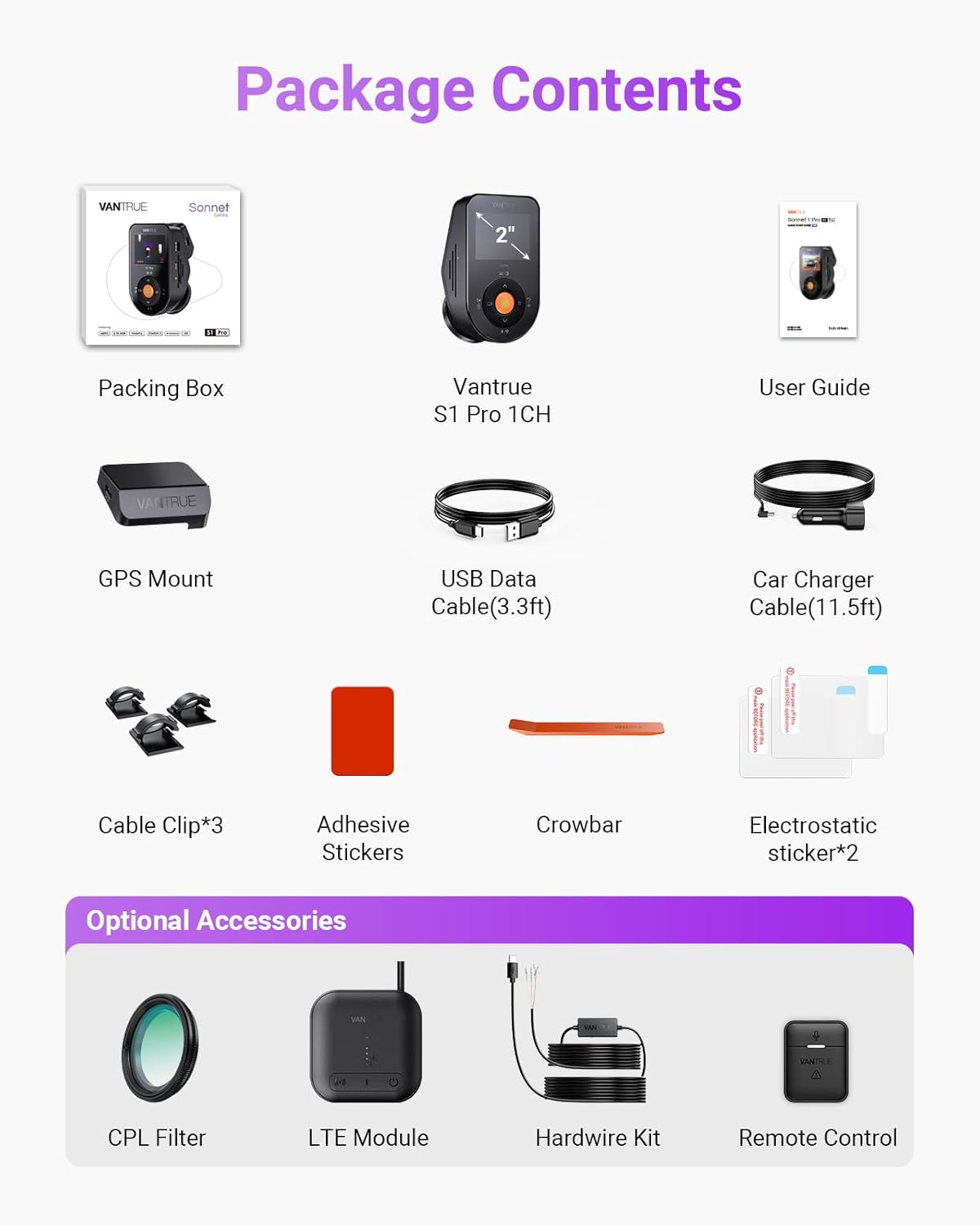
Image: The Vantrue S1 Pro Dash Cam installed discreetly behind the rearview mirror, demonstrating its compact and hidden design.

Image: Visual guide illustrating the simple installation of the dash cam, showing its placement and connection to the car charger.
Video: Official Vantrue S1 Pro 1-CH Installation Guide. This video demonstrates the step-by-step process of installing the dash cam, including applying the electrostatic sticker, mounting the device, and routing the power cable for a clean setup.
4. Operating Instructions
4.1 Crystal-Clear 2.5K@60FPS Recording
The S1 Pro records at 2.5K resolution at 60 frames per second (FPS), double the standard 30FPS. This higher frame rate significantly reduces motion blur, capturing critical details like license plates and road signs even during high-speed driving or sudden braking. The STARVIS 2 sensor and F1.8 aperture enhance clarity in various lighting conditions.

Image: A visual comparison demonstrating the superior clarity of 60FPS recording compared to 30FPS, particularly for fast-moving objects like license plates.
4.2 PlatePix™ Night Vision & HDR
Vantrue's proprietary PlatePix™ technology, combined with the STARVIS 2 IMX675 sensor, optimizes license plate capture in low light or backlit conditions, offering 1.5X enhanced clarity. High Dynamic Range (HDR) technology balances extreme light and dark areas, accurately restoring details in high-contrast scenarios such as nighttime roads or tunnel entrances/exits.

Image: A comparison illustrating the improved readability of license plates using PlatePix™ and STARVIS 2 technology, especially in challenging lighting.
4.3 24/7 Live Monitoring via Vantrue LTE
With an optional Vantrue LTE module (ASIN: B0F1ZY4Y3S, sold separately) and a hardwire kit (ASIN: B083XB8T7T, sold separately), you can monitor your vehicle in real-time, whether it's moving or parked. Receive instant collision alerts and share time-stamped videos directly with insurers. Multi-account access allows for parental oversight or fleet management.

Image: A user receiving a notification on their smartphone from the dash cam, demonstrating the 24/7 live monitoring feature.
4.4 Advanced Driver Assistance System (ADAS) & Voice Control
The advanced ADAS system provides real-time warnings for lane departure, forward collision, and pedestrian detection, enhancing driving safety. The S1 Pro also supports 12-language voice commands, allowing hands-free operation for tasks like
Related Documents - S1 Pro 1CH
 |
Vantrue E360 User Manual: Installation, Features, and Support Comprehensive user manual for the Vantrue E360 5.2K 360° panoramic dash cam. Learn about installation, component overview, menu functions, drive and handheld recording modes, WiFi connectivity, app features, parking modes, firmware updates, and support. |
 |
VANTRUE N5 4-Channel Voice Controlled Smart Dash Cam User Manual A comprehensive guide to the VANTRUE N5 4-channel smart dash cam, covering installation, setup, features like voice control and GPS, operation, specifications, safety warnings, and warranty information. |
 |
Vantrue N5 User Manual: 4-channel Voice Controlled Smart Dash Cam Comprehensive user manual for the Vantrue N5 4-channel voice-controlled smart dash cam, detailing installation, operation, features, specifications, safety, and support. |
 |
Vantrue Sonnet 1 Pro Max: Manuale Utente e Guida Completa Questa guida utente completa per la dash cam Vantrue Sonnet 1 Pro Max copre installazione, configurazione, funzioni avanzate, sicurezza e supporto. Ottimizza la tua esperienza di guida. |
 |
VANTRUE Nexus 5 (N5) 4-channel Voice Controlled Smart Dash Cam User Manual A comprehensive user manual for the VANTRUE Nexus 5 (N5) 4-channel voice-controlled smart dash cam, covering installation, setup, features, app usage, specifications, and important safety information. |
 |
VANTRUE E360 Dash Cam User Manual - Installation, Features, and Settings Comprehensive user manual for the VANTRUE E360 dash cam. Learn about installation, features like loop recording, parking mode, voice control, and app connectivity. Get detailed specifications and support. |