
1. Important Safety Information
Please read and understand all instructions before using this product. Failure to follow these instructions may result in electric shock, fire, or other hazards.
- This camera is designed for indoor use only. Do not expose it to rain, moisture, or water.
- Use only the provided power adapter or a certified equivalent.
- Keep the camera away from direct sunlight, heat sources, and strong magnetic fields.
- Ensure the camera is placed on a stable surface or securely mounted to prevent falling.
- Do not attempt to disassemble or repair the camera yourself. Contact customer support for assistance.
- Keep out of reach of children and pets.
2. Product Overview
The Geeni Scope 2K Smart Auto-Tracking Indoor Security Camera offers advanced surveillance features for your home. It provides 2K Quad HD video, motion detection with auto-tracking, night vision, and two-way audio communication.

Image: Geeni Scope 2K Smart Auto-Tracking Indoor Security Camera highlighting its key features such as 2K Live Video, Motion Sensor, Pan & Tilt, Night Vision, 2-Way Audio, App Control, Share Access, microSD Slot, Built-in Siren, and Person Detection.
Key Features:
- 2K Ultra HD Video: Capture sharp and clear images with 2K HD resolution.
- Smart Auto-Tracking: Camera automatically follows detected movement.
- Motion Detection Alerts: Receive instant notifications on your smartphone.
- Enhanced Night Vision: Clear surveillance in complete darkness up to 20 feet.
- Two-Way Audio: Communicate through the camera using the built-in microphone and speaker.
- Wide Coverage: 355° horizontal pan and 50° vertical tilt viewing angles.
- Voice Control: Compatible with Amazon Alexa and Google Assistant.
- Local Storage: Supports microSD card for video recording.
3. What's in the Box
- Geeni Scope 2K Smart Auto-Tracking Indoor Security Camera
- Power Adapter
- Mounting Kit (screws, wall anchors)
- User Manual
4. Setup Guide
Step 1: Download the Geeni App
Download the Geeni app from the App Store (for iOS devices) or Google Play Store (for Android devices). Register for an account or log in if you already have one.
Step 2: Power On the Camera
Connect the provided power adapter to the camera and plug it into a power outlet. The camera will power on, and an indicator light will begin to flash, indicating it is ready for pairing.
Step 3: Add Device in Geeni App
- Open the Geeni app and tap the "+" icon in the top right corner to add a new device.
- Select "Video Camera" from the device list.
- Follow the on-screen instructions to connect the camera to your 2.4GHz Wi-Fi network. Ensure your Wi-Fi password is correct.
- The app will display a QR code. Hold your phone approximately 6-8 inches (15-20 cm) in front of the camera lens until you hear a prompt.
- Once connected, the indicator light will turn solid blue. You can then name your camera and begin using it.
Step 4: Camera Placement
Place the camera on a flat surface or mount it to a wall using the included mounting kit. Ensure the camera has a clear view of the area you wish to monitor. The camera is designed for indoor use only.

Image: The Geeni Scope 2K camera demonstrating its wide coverage with 355° horizontal pan and 50° vertical tilt capabilities, ensuring no blind spots in indoor monitoring.
5. Operating Instructions
5.1 Live View and Pan & Tilt Control
Open the Geeni app and select your camera to view the live feed. Use the on-screen controls to pan (move horizontally) and tilt (move vertically) the camera lens to adjust your viewing angle.
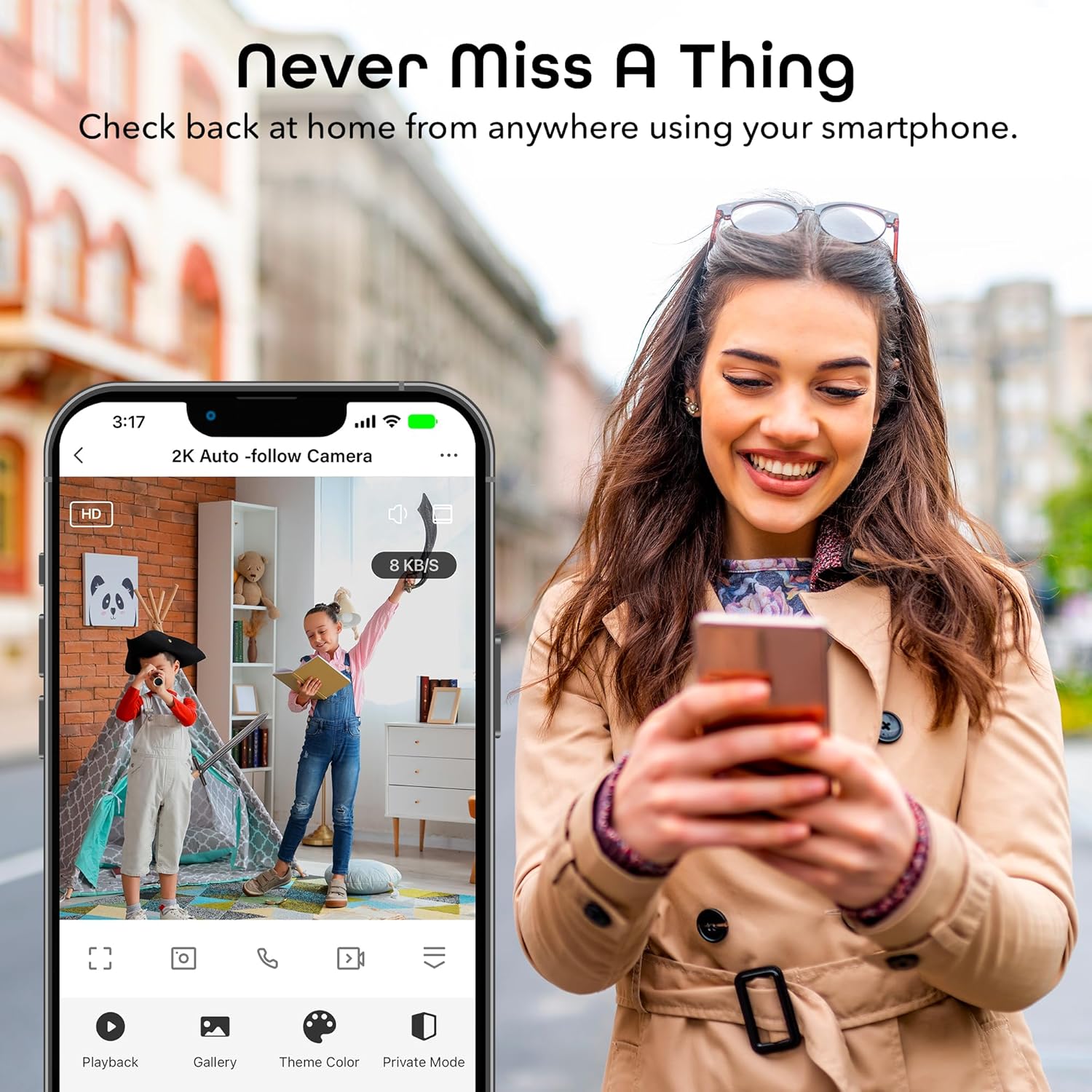
Image: A smartphone displaying the Geeni app's live view interface, allowing users to monitor their space remotely.
5.2 Motion Detection and Auto-Tracking
The camera is equipped with advanced motion detection. When motion is detected, the camera can automatically track the moving object and send an alert to your smartphone.
- To enable/disable motion detection and auto-tracking, navigate to the camera settings in the Geeni app.
- Adjust sensitivity levels to minimize false alerts.
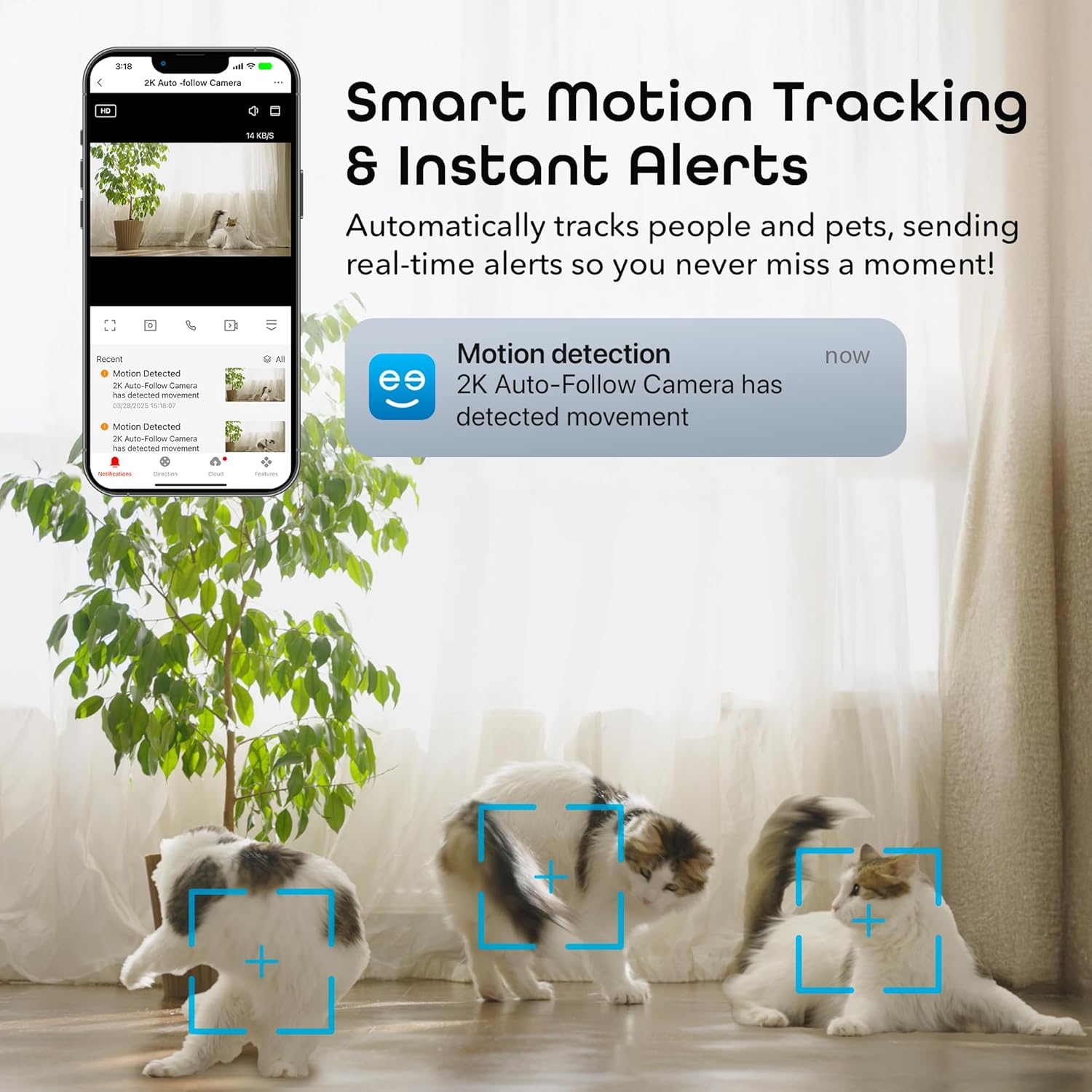
Image: A smartphone displaying a motion detection notification from the Geeni app, indicating movement detected by the 2K Auto-Follow Camera, with cats visible in the camera's field of view.
5.3 Night Vision
The camera automatically switches to enhanced night vision in low-light conditions, providing clear black-and-white video up to 20 feet.
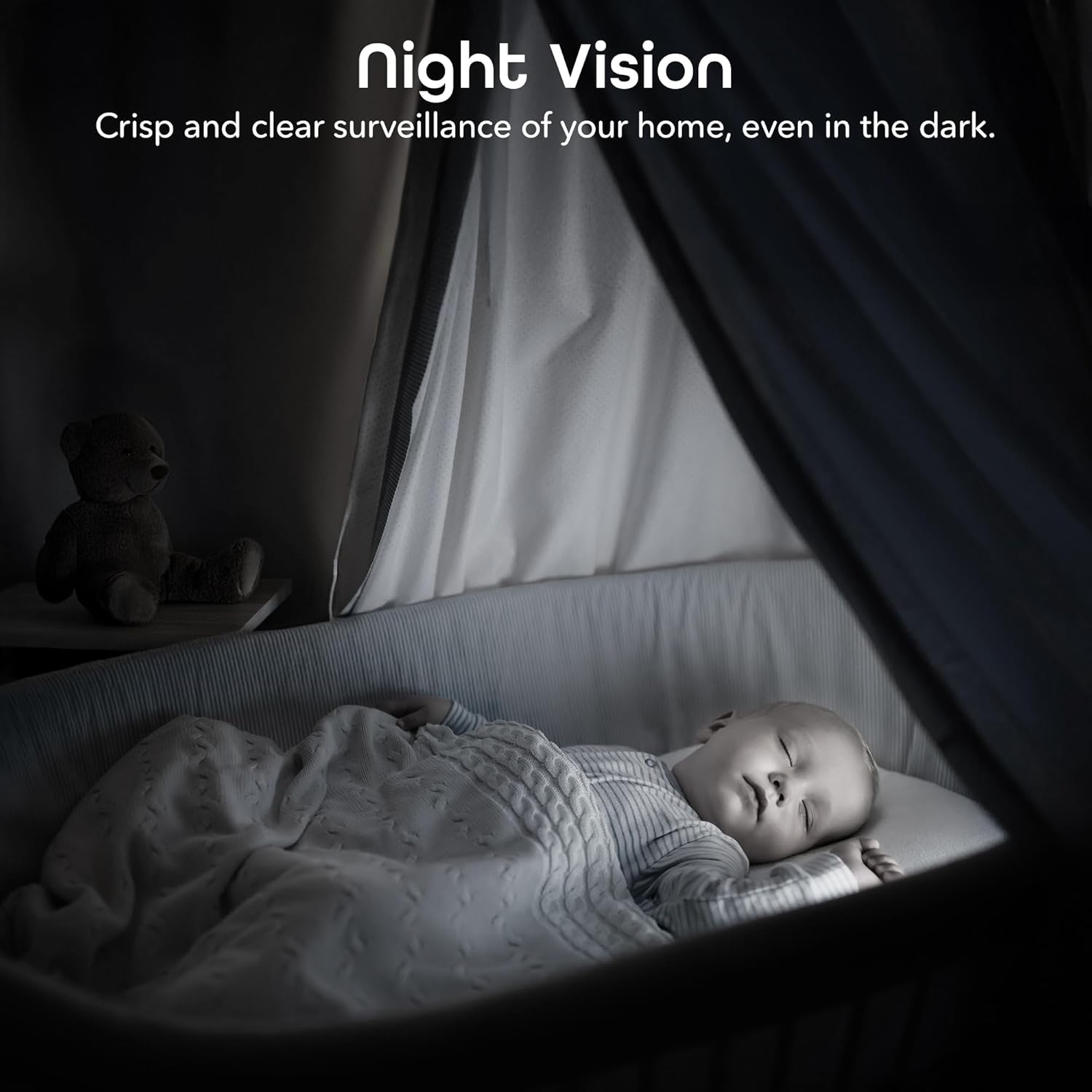
Image: A bedroom scene at night, showcasing the Geeni camera's crisp and clear night vision capability, allowing for surveillance even in complete darkness.
5.4 Two-Way Audio
Use the two-way audio feature to communicate with individuals near the camera. Tap the microphone icon in the live view to speak, and the camera's built-in speaker will transmit your voice.

Image: A person speaking into a smartphone, with a child reacting, demonstrating the instant two-way audio feature that allows communication through the camera's built-in microphone and speaker.
5.5 Recording and Storage
The camera supports local storage via a microSD card (not included). Insert a microSD card (up to 128GB, Class 10 or higher recommended) into the designated slot on the camera for continuous or event-based recording. You can also subscribe to cloud storage services through the Geeni app for additional backup.
5.6 Voice Control Integration
Integrate your Geeni Scope 2K camera with Amazon Alexa or Google Assistant for convenient voice control. Follow the instructions in the Geeni app to link your account with your preferred smart assistant. Once linked, you can use voice commands such as, "Alexa, show me the baby room camera" or "Hey Google, show me the living room camera."

Image: A tablet displaying a live camera feed of a baby in a crib, with logos for Google Home, Alexa, and the Geeni App, illustrating the camera's compatibility with voice control platforms.
5.7 Sharing Access
You can share access to your camera's live feed and features with family members or trusted individuals through the Geeni app. Go to the camera settings and select the sharing option to invite others.
6. Maintenance
- Cleaning: Gently wipe the camera lens with a soft, dry cloth to remove dust or smudges. Do not use liquid cleaners or abrasive materials.
- Firmware Updates: Periodically check the Geeni app for available firmware updates. Keeping your camera's firmware up-to-date ensures optimal performance and security.
7. Troubleshooting
Common Issues and Solutions:
- Camera not connecting to Wi-Fi:
- Ensure your Wi-Fi network is 2.4GHz. The camera does not support 5GHz networks.
- Verify your Wi-Fi password is correct.
- Move the camera closer to your Wi-Fi router.
- Reset the camera (refer to the app for specific reset instructions) and try pairing again.
- Poor video quality:
- Check your internet connection speed. A stable and fast connection is required for 2K streaming.
- Ensure the camera lens is clean and free from obstructions.
- In night vision mode, ensure there are no reflective surfaces close to the camera that could cause glare.
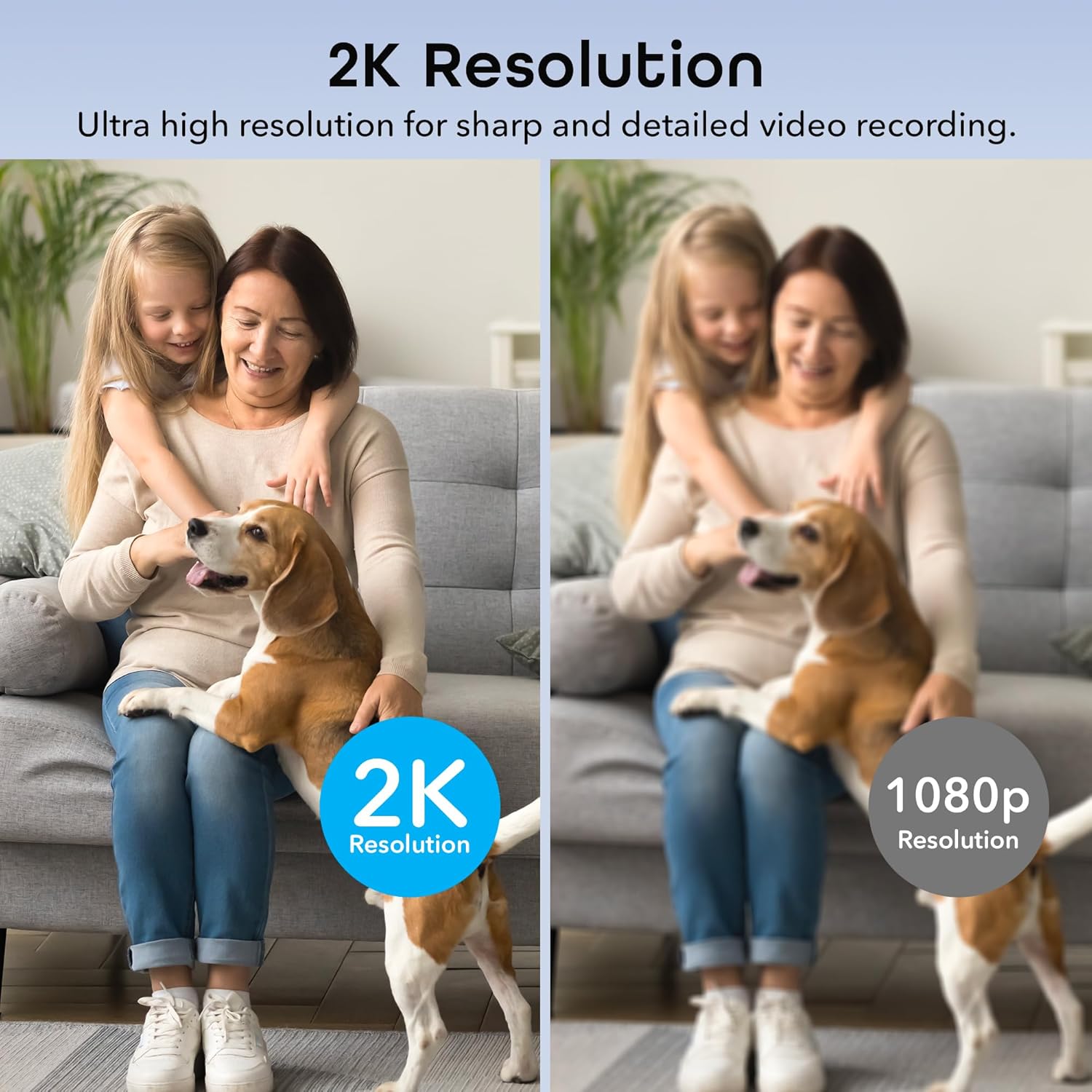
Image: A side-by-side comparison illustrating the superior sharpness and detail of 2K resolution video compared to 1080p resolution.
- Motion alerts not working:
- Verify motion detection is enabled in the Geeni app settings.
- Check your phone's notification settings to ensure the Geeni app is allowed to send notifications.
- Adjust motion sensitivity.
- Two-way audio issues:
- Ensure your phone's microphone is enabled for the Geeni app.
- Check the volume settings on both your phone and within the app.
For further assistance, please refer to the help section within the Geeni app or visit the Geeni support website.
8. Specifications
| Model Number | GNC-CW068-199 |
| Indoor/Outdoor Usage | Indoor |
| Power Source | Corded Electric |
| Connectivity Protocol | Wi-Fi (2.4GHz only) |
| Controller Type | Amazon Alexa, Google Assistant, Geeni App |
| Mounting Type | Wall Mount, Freestanding |
| Video Capture Resolution | 2K Quad HD (4MP Effective Still Resolution) |
| Viewing Angle | 100 Degrees (Fixed), 355° Pan, 50° Tilt |
| Night Vision Range | 20 Feet |
| Material | Polycarbonate (PC) |
| Dimensions (L x W x H) | 2.8 x 2.68 x 4.33 inches |
| Item Weight | 5.6 ounces |
| Video Encoding | H.264 |
| Alert Type | Motion Only |
| Water Resistance Level | Not Water Resistant |
9. Official Product Video
Video: An official product video showcasing the features and functionality of the Geeni Scope 2K Smart Auto Tracking Indoor Camera.
10. Warranty and Support
Geeni products are designed for reliability and performance. For information regarding product warranty, please refer to the warranty card included with your purchase or visit the official Geeni website.
For technical support, troubleshooting, or any questions about your Geeni Scope 2K camera, please contact Geeni Customer Support through the Geeni app's help section or their official website.


