1. Introduction
The AIMIBO G70 Wireless HDMI Transmitter and 2 Receivers kit provides a seamless solution for extending HDMI audio and video signals wirelessly. This system supports full HD 1080P at 60Hz with ultra-low latency, making it ideal for various applications including home entertainment, business presentations, and multi-screen setups. With a transmission range of up to 165 feet (50 meters) in open areas, it eliminates the need for long, cumbersome HDMI cables. The kit is designed for plug-and-play operation, requiring no complex setup or Wi-Fi connection. Additionally, it features an innovative app function that allows mirroring to mobile devices.
2. Package Contents
Please check the box contents to ensure all items are present:
- 1 x Wireless HDMI Transmitter (TX)
- 2 x Wireless HDMI Receivers (RX)
- 3 x USB C Cables
- 3 x HDMI Cables
- 2 x Mini/Micro HDMI Adapters
- 1 x User Manual

Image: A visual representation of all items included in the AIMIBO G70 Wireless HDMI kit, neatly arranged in their packaging.
3. Product Overview
The AIMIBO G70 system consists of a Transmitter (TX) and one or more Receivers (RX). Each unit is compact and designed for easy integration with your existing devices.
Key Components:
- Transmitter (TX): Connects to your source device (e.g., laptop, camera, gaming console) via HDMI. It sends the audio/video signal wirelessly.
- Receiver (RX): Connects to your display device (e.g., TV, projector, monitor) via HDMI. It receives the wireless signal from the TX unit.
- Antennas: External antennas on the units enhance signal strength and range.
- USB C Ports: Used for powering the TX and RX units.
- Function Buttons: For pairing and channel switching.

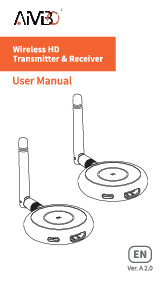
Image: Close-up view of the AIMIBO G70 Wireless HDMI Transmitter and Receiver units, highlighting their compact design and external antennas.
4. Setup Instructions
4.1 Basic Connection (TX to RX)
The AIMIBO G70 kit is designed for plug-and-play operation, with units pre-paired from the factory. No settings, Bluetooth, or Wi-Fi are needed for initial use.
- Connect the Transmitter (TX) to the HDMI output port of your source device (e.g., laptop, camera).
- Connect a USB C cable to the TX unit and plug the other end into a USB power source (e.g., device's USB port, USB wall adapter).
- Connect the Receiver (RX) to the HDMI input port of your display device (e.g., TV, monitor).
- Connect a USB C cable to the RX unit and plug the other end into a USB power source (e.g., TV's USB port, USB wall adapter).
- Wait a few seconds for the screen to automatically mirror.

Image: A step-by-step diagram illustrating how to connect the Transmitter (TX) to a laptop and the Receiver (RX) to a TV for basic mirroring.
4.2 Pairing Instructions
If re-pairing is needed, follow these steps:
- Hold the Pair button on the TX unit and power the HDMI Transmitter. Release the Pair button when the status indicator light starts flashing.
- Hold the Pair button on the RX unit and power the HDMI Receiver. Release the Pair button when the status indicator light starts flashing.
- The transmitter indicator light will flash, and the receiver indicator light will stay on, indicating a successful pairing.
Video: A seller-provided video demonstrating the pairing process for the AIMIBO Wireless HDMI Transmitter and Receiver units.
4.3 Multiple Receivers Setup
The AIMIBO G70 supports connecting up to 8 receivers simultaneously. This is ideal for mirroring content to multiple screens in large spaces.
- Prepare multiple receivers and pair them individually with the transmitter (only necessary for the initial setup).
- Connect each receiver to its respective display (TV, monitor, projector) via HDMI and power them using USB C cables.
- Connect the transmitter to your source device via HDMI and power it.
- Wait a few seconds, and the screen will sync into multiple displays, all outputting simultaneously.

Image: A diagram showing how to connect one Transmitter (TX) to a laptop and multiple Receivers (RX) to several TVs for simultaneous display.
Video: A seller-provided video demonstrating the functionality of the AIMIBO Wireless HDMI Extender supporting multiple receivers.
4.4 App Mirroring Setup (TX to Mobile Device)
The AIMIBO G70 allows you to mirror your HDMI output to a mobile device (smartphone or tablet) via a dedicated app.
- Connect the Transmitter (TX) to your HDMI output device and power it.
- Download and install the 'TuTuLink' app on your iOS or Android phone/tablet.
- Connect your mobile device to the Wi-Fi network broadcast by the TX device (usually named 'RScreen-xxx').
- Open the 'TuTuLink' app for syncing. Your mobile device will now mirror the HDMI output.
Note: The reverse operation on the touchscreen (controlling the source device from the mobile device) is not supported.

Image: A diagram illustrating how to connect the Transmitter (TX) to a laptop and mirror its display to an iPhone via the TuTuLink app.
Video: A seller-provided video demonstrating the RScreen App function for mirroring HDMI output to a mobile device.
5. Operating Instructions
5.1 Wireless Channel Switching
To optimize performance and prevent interference from other wireless signals, you can manually switch wireless channels:
- Open the TuTuLink app on your mobile device.
- Navigate to the settings page within the app.
- Select 'Channel Switching' to find and choose the smoothest wireless channel available.
5.2 General Operation
- Ensure both the TX and RX units are powered on and connected to their respective devices.
- The system will automatically establish a connection and mirror the display.
- Enjoy 1080P@60Hz full HD viewing with ultra-low latency (0.1s delay).
- The system supports HDCP, allowing you to cast content from various streaming apps.
6. Features
- Extended Viewing: Simultaneously mirror content up to 8 screens in multiple rooms (with additional receivers).
- Plug and Play: Pre-paired units, no settings, Bluetooth, or Wi-Fi required for initial setup.
- Long Wireless Range: Up to 165 feet (50 meters) transmission in open areas.
- High-Quality Transmission: 1080P@60Hz full HD resolution with dual-band 2.4 & 5.8GHz chip and 0.1s latency.
- Wide Compatibility: Works with most HDMI devices including HDTVs, projectors, monitors, laptops, PCs, MacBooks, cameras, set-top boxes, and gaming consoles.
- Mobile Screen Functionality: Transform any touchscreen (smartphone/tablet) into a portable monitor via the TuTuLink app.
7. Troubleshooting
7.1 No Delay or Lag in Video Transmission?
Our wireless HDMI transmitter and receivers operate with under 0.1 seconds delay, which is unnoticeable for video playback and presentations.

Image: A visual Q&A addressing concerns about video transmission delay.
7.2 How to Make Video Playback Smoother?
Open the TuTuLink App and click on "Channel Switching" to reduce interference from nearby wireless connections.

Image: A visual Q&A providing a solution for smoother video playback by switching channels in the app.
7.3 How Many HDMI Devices Can Be Simultaneously Outputted by 1 Transmitter?
The transmitter can be paired with multiple devices for simultaneous output. The recommended maximum is 4 receivers. You can choose to connect 4 receivers, 4 mobile devices, or a combination of both.

Image: A visual Q&A explaining the maximum number of devices that can be simultaneously outputted by one transmitter.
7.4 No Sound When Image is Transmitted?
Please check the audio settings of the output device. Make sure its 2.0 stereo. It does not support Dolby, 2.1 channel stereo, 5.1 channel stereo, or 7.1 channel stereo output.

Image: A visual Q&A providing a solution for no sound during transmission by checking audio settings.
7.5 Why Can't I Continue Playing Videos When I Exit the App on My Phone?
Because your phone has disconnected from the TX device. To resume video playback, you need to go back to the Wi-Fi settings screen, reconnect to the RScreen-xxx network, and then you will be able to continue watching the videos.

Image: A visual Q&A explaining why video playback stops when exiting the app on a mobile device.
8. Specifications
| Feature | Description |
|---|---|
| Brand | AIMIBO |
| Model Number | G70 |
| Connectivity Technology | Wireless |
| Transmission Range | 165 feet (50 meters) in open areas |
| Resolution | 1080P@60Hz Full HD |
| Latency | 0.1 seconds |
| Wireless Band | Dual-band 2.4 & 5.8GHz |
| Max Receivers Supported | Up to 8 |
| Video Encoding | H.264, H.265/HEVC |
| Audio Output Mode | Stereo, Surround (2.0 stereo supported) |
| Item Weight | 15.2 ounces |
| Product Dimensions | 2.55 x 6.1 x 0.59 inches |
9. Maintenance
To ensure the longevity and optimal performance of your AIMIBO G70 Wireless HDMI Transmitter and Receivers, please follow these maintenance guidelines:
- Cleaning: Use a soft, dry cloth to clean the units. Avoid using liquid cleaners or aerosols, as they may damage the devices.
- Storage: Store the devices in a cool, dry place away from direct sunlight and extreme temperatures when not in use.
- Handling: Handle the units and cables with care to prevent physical damage. Avoid bending the HDMI connectors excessively.
- Ventilation: Ensure the units have adequate ventilation during operation to prevent overheating.
10. Warranty and Support
AIMIBO provides 12 months of product care and 24/7 customer support. For any issues or inquiries, please contact AIMIBO customer service.