
1. Introduction
This manual provides essential information for the safe and efficient use of your KOORUI G2711P 27-inch IPS Full HD Gaming Monitor. Please read it thoroughly before operating the device and retain it for future reference.
The KOORUI G2711P monitor features a 27-inch IPS non-glare panel with Full HD (1920x1080) resolution, a 200Hz refresh rate, and a 1ms MPRT response time, designed for an immersive gaming and viewing experience. It includes multiple connectivity options and eye-care features.

Image 1.1: Front view of the KOORUI G2711P 27-inch IPS Full HD Gaming Monitor.
2. Safety Information
- Do not expose the monitor to rain or moisture to prevent fire or electric shock.
- Do not open the monitor casing. There are no user-serviceable parts inside. Refer all servicing to qualified service personnel.
- Place the monitor on a stable, flat surface to prevent it from falling.
- Ensure proper ventilation around the monitor. Do not block ventilation openings.
- Use only the power adapter supplied with the monitor.
- Unplug the monitor from the power outlet during lightning storms or when unused for long periods.
3. Setup
3.1 Unpacking
Carefully remove all components from the packaging. Ensure all parts listed in the packing list are present and undamaged. Keep packaging materials for future transport or return.
3.2 Stand Assembly
- Attach the stand base to the stand neck.
- Secure the assembled stand to the back of the monitor panel. Refer to the product images for visual guidance on the attachment method.

Image 3.1: Monitor dimensions and side view, illustrating the stand attachment area.
3.3 Connecting to a Device
The monitor supports various input options:
- HDMI: Connect an HDMI cable from your computer or other device to one of the two HDMI 2.0 ports on the monitor.
- DisplayPort (DP): Connect a DisplayPort cable from your computer to the DP 1.4 port on the monitor.
- Audio Out (A/O): Connect external speakers or headphones to the audio output port if desired, as the monitor does not have built-in speakers.

Image 3.2: Rear view of the monitor showing HDMI, DisplayPort, and Audio Out connections, along with the 75x75mm VESA mount.
3.4 Power Connection
Connect the power adapter to the monitor's power input, then plug the power cable into a wall outlet. The monitor is designed for 110V power input.
4. Operating Instructions
4.1 Power On/Off
Press the power button, typically located on the back or bottom of the monitor, to turn the monitor on or off. An indicator light will show the power status.
4.2 On-Screen Display (OSD) Menu Navigation
The monitor features a 5-way joystick for intuitive OSD menu navigation. This joystick allows you to access and adjust various display settings.
- Press the joystick: Confirm selection.
- Move joystick up/down: Adjust or select options.
- Move joystick left/right: Adjust or select options.
- Move joystick back (usually left): Exit menu or go back.

Image 4.1: Illustration of the 5-way joystick control for OSD menu navigation.
4.3 Display Settings
- Resolution: The native resolution is 1920x1080 Full HD. Ensure your device is set to this resolution for optimal display quality.
- Refresh Rate: The monitor supports up to 200Hz. Adjust your graphics card settings to utilize the higher refresh rate for smoother visuals.
- Response Time (MPRT): The monitor features 1ms MPRT (Moving Picture Response Time) for reduced motion blur. This setting can usually be enabled or adjusted in the OSD menu.
- Adaptive Sync: This technology synchronizes the monitor's refresh rate with your graphics card's frame rate to eliminate screen tearing and stuttering. Enable it in the OSD menu and your graphics card control panel.
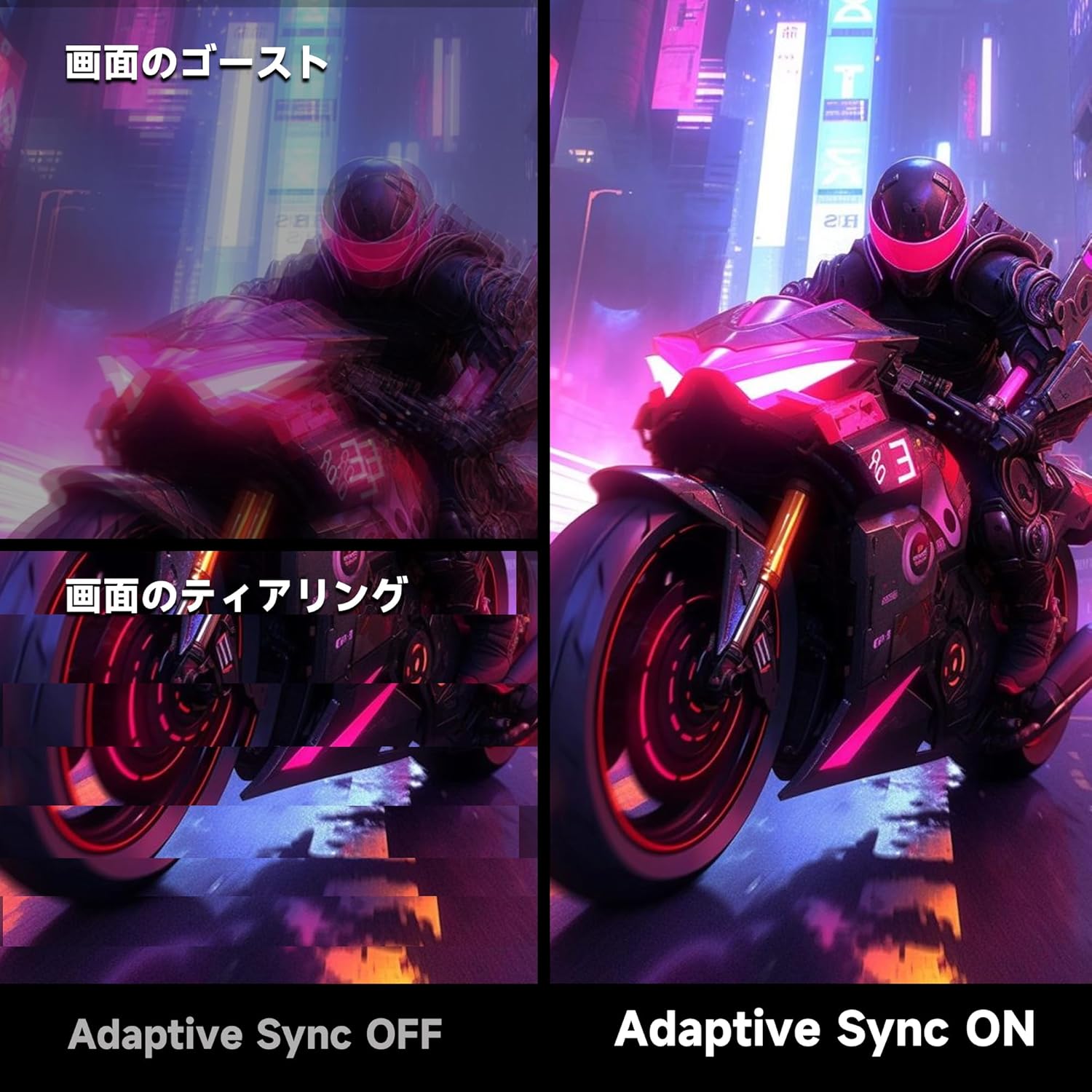
Image 4.2: Visual comparison demonstrating the effect of Adaptive Sync being OFF (showing ghosting and tearing) versus ON (smooth image).

Image 4.3: Comparison illustrating the difference in motion clarity between 200Hz 1ms MPRT and 75Hz 5ms settings.
- HDR 400: The monitor supports HDR 400 for enhanced contrast and color depth. Enable HDR in your operating system settings for compatible content.

Image 4.4: Visual representation of HDR 400 providing more impressive and vibrant images compared to standard HDR 10.
- Color Settings: The monitor offers 93% DCI-P3 color gamut for accurate and vibrant color reproduction. Adjust brightness, contrast, and color temperature via the OSD menu.

Image 4.5: Display showing a wide range of colors, indicating 93% DCI-P3 color gamut coverage for accurate and vivid visuals.
- Eye Care Features: The monitor incorporates 'Blue Light Reduction' and 'Flicker-Free' technologies to minimize eye strain during prolonged use. These settings can be adjusted in the OSD menu.
- Crosshair Function: For shooting games, a built-in crosshair overlay can be enabled via the OSD menu to assist with aiming.

Image 4.6: A gaming scene demonstrating the monitor's crosshair function, which can be toggled ON or OFF to assist players in shooting games.
5. Maintenance
5.1 Cleaning the Screen
Gently wipe the screen with a soft, lint-free cloth. For stubborn marks, dampen the cloth with a small amount of screen cleaner specifically designed for monitors. Do not spray cleaner directly onto the screen.
5.2 Cleaning the Casing
Use a soft, dry cloth to wipe the monitor casing. Avoid using abrasive cleaners or solvents that may damage the surface.
6. Troubleshooting
- No Power: Ensure the power cable is securely connected to both the monitor and the power outlet. Check if the power outlet is functioning.
- No Signal: Verify that the video cable (HDMI or DisplayPort) is correctly connected to both the monitor and your computer. Ensure the correct input source is selected in the monitor's OSD menu.
- Flickering Screen: Check the video cable connection. Try a different cable or port. Ensure your graphics card drivers are up to date.
- Image Distortion/Tearing: Ensure Adaptive Sync is enabled in both the monitor's OSD and your graphics card settings. Check for correct resolution and refresh rate settings.
- Poor Color Quality: Adjust color settings (brightness, contrast, color temperature) in the OSD menu. Ensure HDR is enabled for HDR content.
7. Specifications
| Feature | Specification |
|---|---|
| Brand | KOORUI |
| Model | G2711P |
| Screen Size | 27 inches |
| Panel Type | IPS, Non-Glare |
| Resolution | 1920 x 1080 (Full HD) |
| Aspect Ratio | 16:9 |
| Refresh Rate | 200Hz |
| Response Time | 1ms MPRT (GTG) |
| Brightness | 300 cd/m² |
| Contrast Ratio | 1000:1 |
| Viewing Angle | 178° (Horizontal/Vertical) |
| Color Gamut | 93% DCI-P3 |
| HDR Support | HDR 400 |
| Connectivity | 2x HDMI 2.0, 1x DisplayPort 1.4, 1x Audio Out |
| Speakers | Not included |
| VESA Mount Compatibility | 75x75mm |
| Dimensions (W x H x D) | 61.34 x 47.23 x 21.49 cm (with stand) |
| Weight | 5.8 kg |
| Power Input | 110V |
8. Warranty
The KOORUI G2711P monitor screen is covered by a 1-year warranty from the date of purchase. All other included accessories are covered by a 3-year warranty. Please retain your proof of purchase for warranty claims. The warranty covers manufacturing defects and malfunctions under normal use conditions.
9. Support
For technical assistance, troubleshooting, or warranty inquiries, please contact KOORUI customer support through the retailer where you purchased the product or visit the official KOORUI website for contact information. When contacting support, please have your monitor model number (G2711P) and proof of purchase readily available.


