
Introduction
This manual provides detailed instructions for the operation and maintenance of your Conrain M301 96GB MP3 Player. Please read this guide thoroughly to ensure proper use and to maximize your device's capabilities.
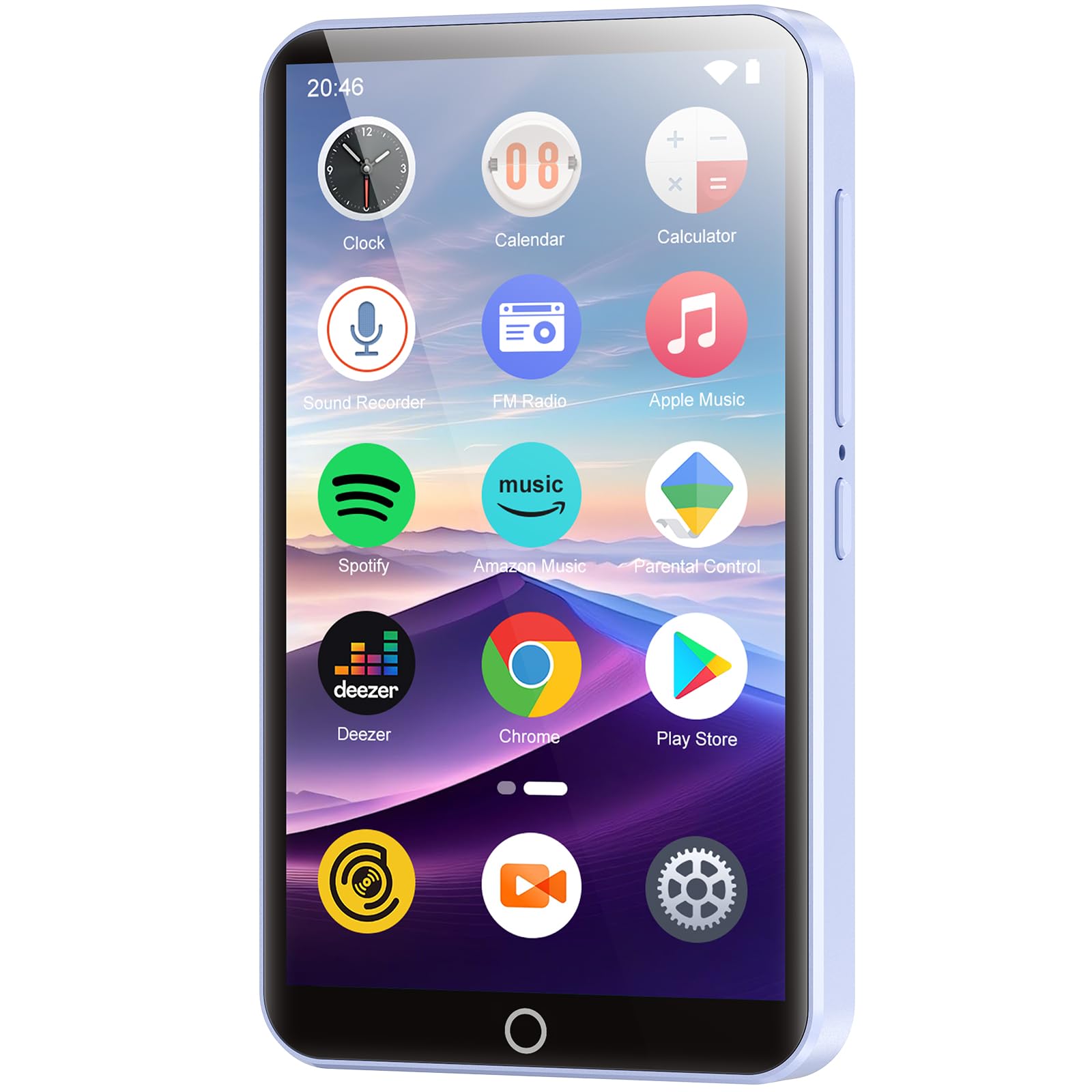
Image: The Conrain M301 MP3 Player, a compact device with a touchscreen, held in a hand, illustrating its portable design.
Product Components
The following items are included in the product package:
- 1x Conrain M301 Music Player
- 1x Wired Headphone
- 1x USB-C Charging Cable
- 1x 64GB TF Card (pre-installed)
- 1x Protective Film
- 1x Protective Case
- 1x User Manual (this document)

Image: An organized display of all items included in the Conrain M301 MP3 Player package, such as the player, wired headphones, USB-C cable, TF card, protective film, and case.
Key Features
- Operating System: Android 13 with 8-core MTK chip for smooth performance.
- Storage: 4GB RAM + 32GB ROM, with a pre-installed 64GB Micro SD card (total 96GB). Expandable up to 1TB.
- Connectivity: Bluetooth 5.0 for stable audio connections and Wi-Fi for app downloads and online streaming.
- Display: 4.02-inch IPS touchscreen for clear visuals.
- Audio: High-fidelity sound module and built-in speaker.
- Video Support: Direct playback of AVI, MKV, RMVB, MP4, MPG, MOV formats.
- Battery: 2000mAh built-in battery with USB-C fast charging.
- Additional Functions: FM Radio, Voice Recorder, E-book Reader, Alarm, Calendar, Stopwatch, Timer.

Image: A visual representation highlighting the internal MTK 8-core processor and Android 13 operating system, emphasizing the device's performance capabilities.
Setup
1. Charging the Device
Before first use, fully charge the player. Connect the provided USB-C charging cable to the device and a compatible USB power adapter (not included) or a computer's USB port. A full charge typically takes approximately 2 hours.

Image: An illustration detailing the 2000mAh battery capacity and its charging performance, including music and video playback times.
2. Powering On/Off
- To Power On: Press and hold the Power button located on the side of the device until the screen illuminates.
- To Power Off: Press and hold the Power button until a power-off menu appears on the screen. Select 'Power Off' to shut down the device.
3. Expanding Storage
The player comes with 32GB internal storage and a pre-installed 64GB Micro SD card, totaling 96GB. For additional storage, the device supports Micro SD cards up to 1TB. Locate the Micro SD card slot on the side of the player and insert a compatible card until it clicks into place.

Image: A visual representation of the MP3 player's storage capabilities, highlighting the 96GB total storage (32GB built-in + 64GB TF card) and its expandability up to 1TB with a Micro SD card.
4. Connecting to a Computer
To transfer files, connect the player to your computer using the provided USB-C cable. The device will appear as a removable storage drive. You can then drag and drop music, videos, and other files directly to the player's internal storage or the inserted Micro SD card.
Operating Instructions
1. Basic Navigation
The Conrain M301 features a 4.02-inch IPS touchscreen. Navigate through menus and applications by tapping, swiping, and using the on-screen back and home buttons. The interface is designed for intuitive use.
2. Music Playback
Access the 'Music' application from the home screen. You can browse your music library by song, artist, album, or folder. The player supports various audio formats. Utilize the built-in HiBy Music App for advanced playback features and equalizer adjustments.

Image: Multiple screenshots of the HiBy Music App interface, demonstrating features like equalizer settings, song search, music playback controls, and playlist creation.
3. Bluetooth Connectivity
To connect to Bluetooth headphones or speakers:
- Go to 'Settings' and select 'Bluetooth'.
- Turn Bluetooth 'ON'.
- Ensure your Bluetooth audio device is in pairing mode.
- Select 'Search for device' on the MP3 player.
- Choose your device from the list to pair.

Image: A graphic demonstrating the Bluetooth 5.0 connection capability of the MP3 player, showing it wirelessly linked to both earbuds and a portable speaker.
4. Wi-Fi Connectivity and App Management
The device supports Wi-Fi connectivity for internet access, app downloads, and online streaming services.
- Go to 'Settings' and select 'Wi-Fi'.
- Turn Wi-Fi 'ON' and select your desired network.
- Enter the password if prompted.
The player comes with pre-installed apps like Spotify, Deezer, and Amazon Music. The Google Play Store is available for downloading additional applications such as Audible, YouTube Kids, and Kindle.

Image: The MP3 player's screen displaying a grid of popular app icons, illustrating its Wi-Fi connectivity and the ability to customize installed applications.
5. Video Playback
The 4.02-inch IPS touchscreen supports direct playback of video formats including AVI, MKV, RMVB, MP4, MPG, and MOV without requiring conversion. Access the 'Movie' application to browse and play your video files.

Image: The MP3 player's screen actively playing a video, showcasing its 4.02-inch IPS display and support for 1080P HD video playback.
6. FM Radio
To use the FM Radio, connect wired headphones to the 3.5mm audio jack, as they act as an antenna. Open the 'Radio' application to scan for and listen to local FM stations.
7. Voice Recorder
The 'Record' application allows you to capture audio. Tap the record button to start and stop recordings. Recorded files are saved to the device's storage.
8. E-book Reader
The player supports e-book functionality. Transfer compatible e-book files (e.g., PDF) to the device and open them via the 'EBook' application. Note that the small screen size may limit the reading experience for some users.
9. Additional Tools
The device includes several utility applications:
- Alarm: Set alarms with custom times and sounds.
- Calendar: View dates and manage schedules.
- Stopwatch: Measure elapsed time.
- Timer: Set countdown timers.
Maintenance
1. Battery Care
- Avoid fully discharging the battery frequently.
- Charge the device regularly, even if not in use, to maintain battery health.
- Use only the provided USB-C cable for charging.
2. Cleaning and Storage
- Clean the screen and body with a soft, dry, lint-free cloth.
- Avoid using harsh chemicals or abrasive materials.
- Store the device in a cool, dry place away from direct sunlight and extreme temperatures.
3. Software Updates
Periodically check for software updates in the device's settings to ensure optimal performance and access to the latest features. Updates may require a Wi-Fi connection.
Troubleshooting
1. Device Will Not Power On
If the device does not power on, ensure it is fully charged. If charging does not resolve the issue, try performing a hard reset by pressing and holding all physical buttons simultaneously for several seconds until the device restarts.
2. Bluetooth Does Not Auto-Connect
Some Bluetooth devices may require manual reconnection after being turned off. Navigate to the Bluetooth settings and manually select your paired device to re-establish the connection.
3. Screen Unresponsive or Lagging
If the touchscreen becomes unresponsive or lags, try restarting the device. Ensure the screen is clean and free of debris. If the issue persists, a factory reset may be necessary (note: this will erase all data).
4. Music Files Are Not Sorted Correctly
The player's music application may sort files based on metadata (ID3 tags). Ensure your music files have correct and consistent metadata for proper sorting. Organizing music into specific folders on the device can also help manage your library.
Specifications
| Brand | Conrain |
| Model Name | M301 |
| Memory Storage Capacity | 96 GB (32GB internal + 64GB TF card) |
| Expandable Storage | Up to 1 TB via Micro SD |
| Screen Size | 4.02 Inches IPS Touchscreen |
| Connectivity Technology | Aux, Bluetooth 5.0, USB-C, Wi-Fi |
| Special Features | Built-In Speaker, FM Radio, Video Playback, Voice Recorder, Android 13 OS, 8-core MTK chip |
| Battery | 2000mAh (Nonstandard Battery, included) |
| Item Weight | 7 ounces (approximately 198g) |
| Package Dimensions | 5.83 x 5.79 x 0.75 inches |
Warranty and Support
For warranty information or technical support, please refer to the contact details provided with your purchase documentation or visit the official Conrain support website. Protection plans may be available for extended coverage.