1. Introduction
This manual provides essential information for the safe and efficient use of your myPhone Harmony LTE flip phone. Please read it carefully before using the device and keep it for future reference. The myPhone Harmony LTE is designed for ease of use, featuring large keys, a clear display, and an SOS function for emergencies.
2. Safety Information
- Battery Safety: Use only original or approved batteries and chargers. Do not short-circuit, puncture, or expose the battery to extreme temperatures. Dispose of batteries properly.
- Charging: Ensure the charger is connected to a compatible power source. Do not use damaged chargers or cables.
- Hearing Protection: Avoid prolonged listening at high volume levels to prevent hearing damage.
- Driving Safety: Do not use your phone while driving. Always prioritize road safety.
- Medical Devices: Maintain a safe distance between the phone and medical devices like pacemakers. Consult your doctor and device manufacturer for specific guidelines.
- Explosive Environments: Turn off your phone in areas with potentially explosive atmospheres, such as gas stations or chemical plants.
- Water Resistance: This phone is not water-resistant. Avoid exposure to liquids.
3. Package Contents
Please check that your package contains the following items:
- myPhone Harmony LTE Flip Phone
- Charging Station (Dock)
- USB-C Charging Cable
- Power Adapter
- Battery
- User Manual (this document)
If any items are missing or damaged, please contact your retailer.
4. Device Overview
Familiarize yourself with the physical components of your myPhone Harmony LTE.
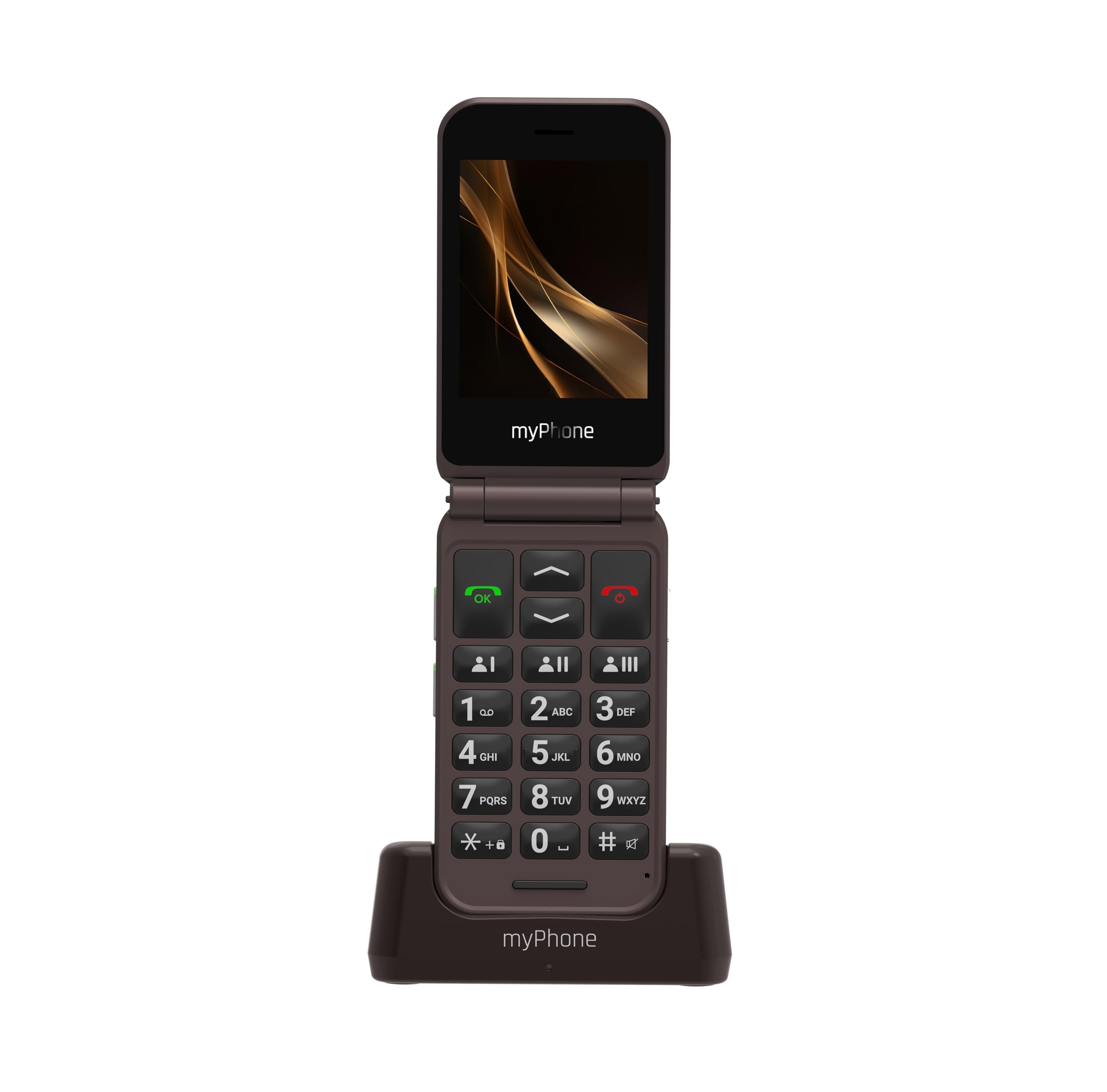
Figure 1: myPhone Harmony LTE in its charging dock (closed view).

Figure 2: myPhone Harmony LTE open, displaying the main screen and large keypad.
4.1 Front (Closed)
- External Display: Shows time, notifications, and caller ID without opening the phone.
- Camera: 2 MP camera for taking photos.
- Flashlight LED: Provides illumination.
4.2 Inside (Open)
- Main Display: 2.8-inch color screen for menu navigation and content viewing.
- Keypad: Large, easy-to-press buttons for dialing and navigation. Includes dedicated call, end call, and navigation keys.
4.3 Sides and Back
- Volume Buttons: Located on the side for adjusting call and media volume.
- Flashlight Button: Dedicated button for quick access to the flashlight.
- SOS Button: Located on the back for emergency calls and notifications.
- USB-C Port: For charging the device.
- Charging Contacts: Located at the bottom for use with the charging station.
- Interchangeable Back Cover: Allows for personalization.

Figure 3: Side view with flashlight button.

Figure 4: Bottom view with USB-C port.

Figure 5: Back of the phone with the SOS button.
5. Setup
5.1 Inserting the SIM Card and Battery
- Carefully remove the back cover of the phone.
- Insert your SIM card(s) into the designated slot(s) with the gold contacts facing down. Ensure it is correctly seated.
- Insert the battery into its compartment, aligning the contacts.
- Replace the back cover until it clicks securely into place.
5.2 Charging the Phone
Before first use, fully charge the phone battery.
- Using the Charging Station: Place the phone into the charging station, ensuring the charging contacts align. The phone will indicate charging status.
- Using the USB-C Cable: Connect the USB-C cable to the phone's USB-C port and the other end to the power adapter. Plug the adapter into a wall outlet.

Figure 6: Phone charging in the dock (open view).
5.3 Powering On/Off
- To Power On: Press and hold the red "End Call" button until the screen lights up.
- To Power Off: Press and hold the red "End Call" button, then confirm "Power Off" on the screen.
6. Operating Instructions
6.1 Making and Receiving Calls
- To Make a Call: Open the phone, dial the number using the keypad, and press the green "Call" button.
- To Answer a Call: Open the phone (if closed) and press the green "Call" button.
- To End a Call: Press the red "End Call" button.
6.2 Using the SOS Function
The SOS button allows you to quickly contact pre-set emergency numbers.
- Setting Up SOS Contacts: Navigate to the "SOS Settings" menu to add up to five emergency contacts.
- Activating SOS: Press and hold the SOS button on the back of the phone for a few seconds. The phone will automatically call and send an emergency SMS to your pre-set contacts.
6.3 Flashlight
To turn the flashlight on or off, press the dedicated flashlight button located on the side of the phone.
6.4 Volume Control
Use the volume up (+) and volume down (-) buttons on the side of the phone to adjust the call volume during a conversation or the ringtone/media volume when idle.
6.5 External Display
The 1.44-inch external display shows the current time, date, battery status, and incoming call notifications without needing to open the phone.
6.6 Camera
To use the 2 MP camera:
- Open the phone and navigate to the "Camera" application from the main menu.
- Frame your shot using the main display.
- Press the "OK" button to take a photo.
7. Maintenance
- Cleaning: Use a soft, dry cloth to clean the phone's surface. Avoid harsh chemicals or abrasive materials.
- Battery Care: To prolong battery life, avoid fully discharging the battery frequently. Store the phone in a cool, dry place when not in use for extended periods.
- Software Updates: While specific software update information is not available, it is generally recommended to keep your device's software up to date if updates become available.
8. Troubleshooting
| Problem | Possible Cause | Solution |
|---|---|---|
| Phone does not turn on. | Battery is discharged or not inserted correctly. | Charge the battery. Ensure the battery is correctly inserted. |
| Cannot make or receive calls. | No SIM card, SIM card not properly inserted, or no network coverage. | Check SIM card insertion. Ensure you are in an area with network coverage. Contact your service provider. |
| Phone not charging. | Charger or cable is faulty, or charging contacts are dirty. | Try a different charger/cable. Clean the charging contacts on the phone and dock. |
| SOS function not working. | SOS contacts not set up, or no network signal. | Ensure SOS contacts are configured in settings. Check for network signal. |
9. Specifications
| Feature | Detail |
|---|---|
| Brand | MP myPhone |
| Model Name | Harmony LTE |
| Product Type | Flip Phone |
| Main Display Size | 2.8 Inches |
| External Display Size | 1.44 Inches |
| Resolution | 240 x 320 pixels |
| Cellular Technology | 4G (LTE with VoLTE) |
| Battery Capacity | 1300 mAh |
| Charging Port | USB Type C |
| Camera Resolution | 2 MP |
| RAM | 48 MB |
| Storage Capacity | 64 GB |
| Operating System | Other |
| Connectivity | Bluetooth |
| Country of Origin | Poland |
10. Warranty and Support
Your myPhone Harmony LTE is covered by a manufacturer's warranty. For detailed warranty terms and conditions, please refer to the warranty card included in your package or visit the official MP myPhone website.
For technical support, troubleshooting assistance, or service inquiries, please contact your retailer or the MP myPhone customer service department. Contact information can typically be found on the manufacturer's website or in your product documentation.