
Introduction
The Prolink GK-6002MS is a compact, 68-key hot-swappable mechanical gaming keyboard designed for versatility and performance. It features customizable RGB backlighting, full N-Key Rollover, and durable doubleshot keycaps. This manual provides instructions for setup, operation, and maintenance of your keyboard.
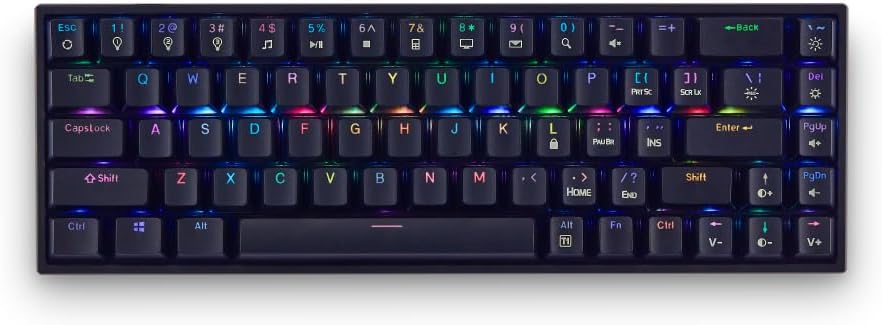
Image: Front view of the Prolink GK-6002MS keyboard showcasing its compact layout and RGB backlighting.
Key Features:
- Hot-swappable Switches: Compatible with 3-pin or 5-pin Outemu mechanical switches (Blue, Brown, Red) for personalized typing feel.
- Dynamic RGB Backlighting: 12 preset RGB lighting effects and 3 customizable lighting profiles.
- Compact 68-Key Design: Space-saving layout while retaining full functionality.
- Full N-Key Rollover (NKRO): Ensures every keystroke is registered, even during simultaneous presses.
- Doubleshot Keycaps: Enhanced durability and resistance to wear.
- Plug & Play: Easy setup with a detachable 1.75m USB Type-C braided cable.
Video: Official product overview of the Prolink GK-6002MS Mechanical Gaming Keyboard, highlighting its features and design.
Setup
The Prolink GK-6002MS keyboard is designed for simple plug-and-play operation.
- Connect the USB Cable: Locate the USB Type-C port on the keyboard. Connect one end of the provided 1.75m USB Type-C braided cable to this port.
- Connect to Computer: Plug the other end of the USB cable into an available USB port on your computer (PC or Laptop).
- Driver Installation: The keyboard is plug-and-play and typically does not require additional drivers. Your operating system (Windows, Mac OS) will automatically detect and install the necessary drivers.

Image: Diagram illustrating the keyboard's dimensions, the detachable USB-C cable connection point, multimedia shortcuts, NKRO, and doubleshot keycaps.
The keyboard is compatible with both Windows and Mac OS operating systems.

Image: The Prolink GK-6002MS keyboard shown with Windows and Mac OS logos, indicating broad compatibility.
Operating Instructions
RGB Backlighting Control
The GK-6002MS features 12 dynamic RGB backlit presets and 3 customizable lighting profiles. Use the Function (Fn) key in combination with other keys to control the lighting effects.
- Changing Presets: Press Fn + [Key] (e.g., Fn + 1!, Fn + 2@, etc.) to cycle through the 12 dynamic RGB presets.
- Customizable Profiles: The keyboard supports 3 customizable lighting profiles. Refer to the full software manual (if available) for detailed customization instructions.
- Adjusting Lighting: Use Fn + Arrow Keys or other designated keys to adjust brightness, speed, and direction of lighting effects.
- LED On/Off: A dedicated switch on the keyboard allows you to turn the LED lighting on or off.

Image: The keyboard displaying various RGB lighting effects and highlighting the keys used for customization and profile selection.
Multimedia Shortcuts
Access 10 multimedia shortcuts by pressing the Fn key in combination with the corresponding function keys (e.g., Fn + F1 for media player, Fn + F2 for volume down, etc.). The specific functions are typically indicated on the keycaps.
N-Key Rollover (NKRO)
The GK-6002MS features Full N-Key Rollover, meaning all keystrokes are registered accurately, regardless of how many keys are pressed simultaneously. This is particularly beneficial for fast-paced gaming and typing.
Hot-Swappable Switches
The keyboard supports hot-swappable Outemu mechanical switches (Blue, Brown, Red), allowing you to change switches without soldering. This enables customization of your typing experience.
- Removing Keycaps: Use the provided keycap puller to gently remove the desired keycap.
- Removing Switches: Use the provided switch puller to carefully extract the mechanical switch from its socket.
- Installing New Switches: Align the pins of the new 3-pin or 5-pin Outemu switch with the holes on the PCB. Gently press the switch into place until it clicks. Ensure the switch is seated correctly and the pins are not bent.
- Re-installing Keycaps: Place the keycap back onto the new switch stem.
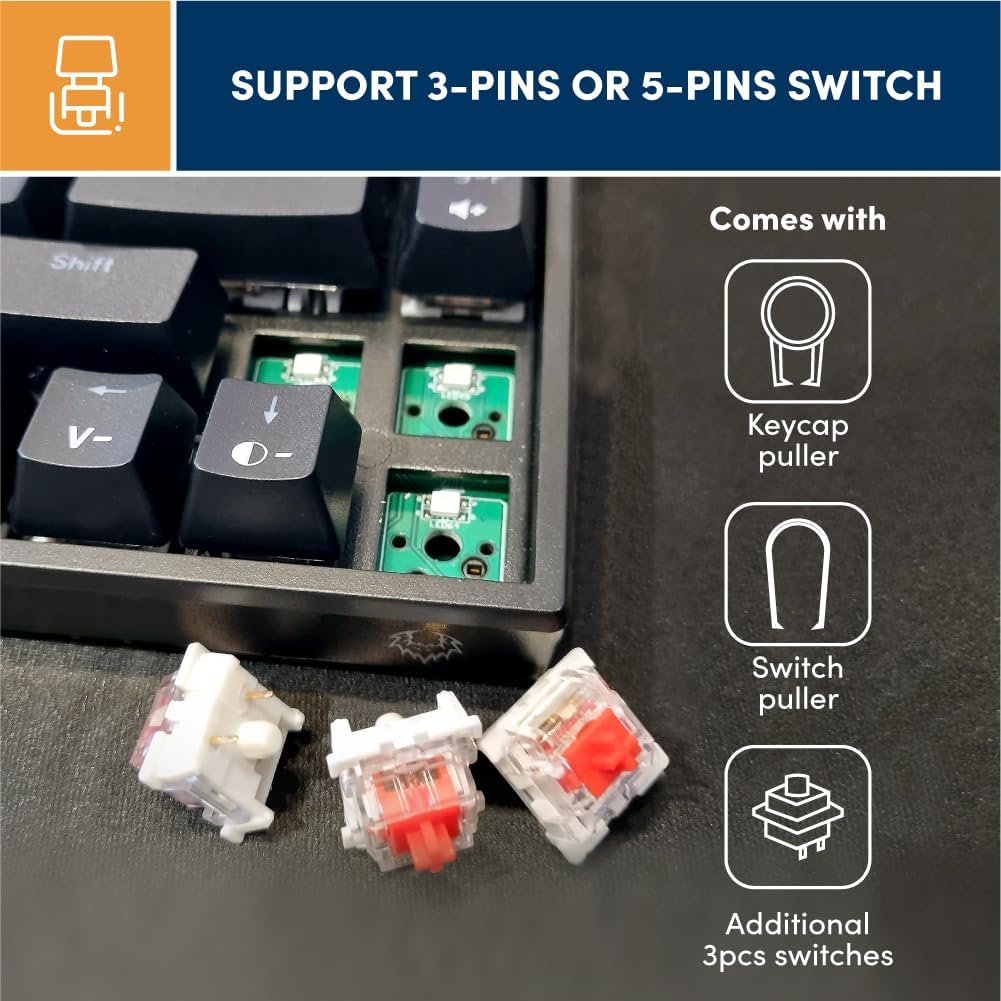
Image: Close-up view of the keyboard's PCB with switches removed, alongside a keycap puller, switch puller, and additional Outemu switches (Blue, Brown, Red) for hot-swapping.
Maintenance
Proper maintenance ensures the longevity and performance of your Prolink GK-6002MS keyboard.
- Cleaning: Regularly clean the keycaps and spaces between keys using a soft brush or compressed air to remove dust and debris. For stubborn dirt, gently wipe keycaps with a damp cloth.
- Doubleshot Keycaps: The doubleshot keycaps are designed for enhanced durability, resisting fading and wear from frequent use.
- Cable Care: Handle the detachable USB Type-C cable with care. Avoid sharp bends or excessive pulling to prevent damage.
- Storage: When not in use, store the keyboard in a clean, dry environment away from extreme temperatures and direct sunlight.
Troubleshooting
If you encounter issues with your keyboard, refer to the following common troubleshooting steps:
- Keyboard Not Responding:
- Ensure the USB cable is securely connected to both the keyboard and the computer.
- Try connecting the keyboard to a different USB port on your computer.
- Test the keyboard on another computer to rule out a computer-specific issue.
- If the LED light switch is present, ensure it is in the 'On' position.
- Keys Not Registering:
- Check if any debris is lodged under the keycap or switch.
- If using hot-swappable switches, ensure the switch is fully seated and its pins are not bent. Try re-seating the switch or replacing it with a spare.
- RGB Lighting Not Working/Incorrect:
- Ensure the LED light switch on the keyboard is turned on.
- Cycle through the RGB presets using the Fn key combinations to see if the lighting responds.
- Verify that the keyboard is receiving sufficient power from the USB port.
- Windows Key Lock Function:
- The keyboard may have a function to lock the Windows key to prevent accidental presses during gaming. Refer to the keycap legends or product documentation for the specific Fn key combination to toggle this feature.
Specifications
| Feature | Detail |
|---|---|
| Model Number | GK-6002MS |
| Brand | Prolink |
| Keyboard Description | Mechanical |
| Switch Type | Outemu Mechanical (Red, Blue, Brown hot-swappable) |
| Number of Keys | 68 |
| Connectivity Technology | USB-C (Wired, Detachable) |
| Cable Length | 1.75 meters |
| Keyboard Backlight | RGB (12 presets, 3 customizable profiles) |
| Key Rollover | Full N-Key Rollover (NKRO) |
| Keycap Type | Doubleshot ABS |
| Keystroke Lifespan | 50 million |
| Compatible Devices | Laptop, PC |
| Compatible OS | Windows, Mac OS |
| Product Dimensions (L x W x H) | 31.2 x 10.2 x 3.8 cm |
| Material | Plastic |
Warranty and Support
The Prolink GK-6002MS Mechanical Gaming Keyboard comes with a 1-year manufacturer's warranty.
For technical support, warranty claims, or further inquiries, please visit the official Prolink website or contact their customer service department. Keep your purchase receipt as proof of purchase for warranty purposes.
Prolink Official Website: www.prolink2u.com
