
1. Introduction
This manual provides essential information for setting up, operating, and maintaining your TCL 98Q7K 98-inch QLED 4K Google TV. This television features a stunning QLED 4K display with a 144 Hz panel for smooth motion, integrated Google TV for smart functionality, and advanced audio with Dolby Atmos. It also includes Google Assistant and Alexa compatibility for hands-free voice control, VisionHDR10+, and AiPQ™ processing for optimized picture quality.

2. Setup
2.1 Unboxing and Initial Inspection
Carefully remove the television from its packaging. Inspect the TV and all included accessories for any signs of damage. Keep the packaging materials for future transport or service needs.
2.2 Stand Installation
If you plan to use the TV with its included stand, follow these steps:
- Place the TV screen-down on a soft, flat surface to prevent scratches.
- Align the stand components with the designated slots on the bottom of the TV.
- Secure the stand using the screws provided in the accessory kit. Ensure all screws are tightened firmly.

2.3 Wall Mounting (Optional)
For wall mounting, a compatible VESA wall mount (not included) is required. Due to the size and weight of the 98-inch television, professional installation is highly recommended to ensure safety and proper mounting. Refer to the wall mount manufacturer's instructions for specific installation details.
2.4 Connecting Peripherals
Connect your external devices such as Blu-ray players, gaming consoles, sound systems, and cable/satellite boxes to the appropriate ports on the TV. The TCL 98Q7K features 4 HDMI ports and 2 USB ports for versatile connectivity.
3. Operating Instructions
3.1 Power On/Off
Connect the power cord to the TV and a power outlet. Press the power button on the remote control or on the TV itself to turn the television on or off.
3.2 Initial Setup with Google TV
Upon first power-on, the TV will guide you through the initial setup process for Google TV. This includes selecting your language, connecting to a Wi-Fi network, signing in with your Google account, and configuring basic settings. Follow the on-screen prompts.

3.3 Remote Control Functions
The included remote control allows you to navigate the TV's interface, adjust volume, change channels, and access smart features. It supports voice control via Google Assistant and Alexa. Insert the provided batteries into the remote control before use.
3.4 Smart Features and Voice Control
- Google TV: Access a wide range of streaming apps, movies, and shows.
- Google Assistant & Alexa: Use voice commands for hands-free control of your TV, search for content, get information, and control smart home devices.
- Chromecast Built-in: Cast content from your compatible mobile devices directly to the TV.
3.5 Gaming Features
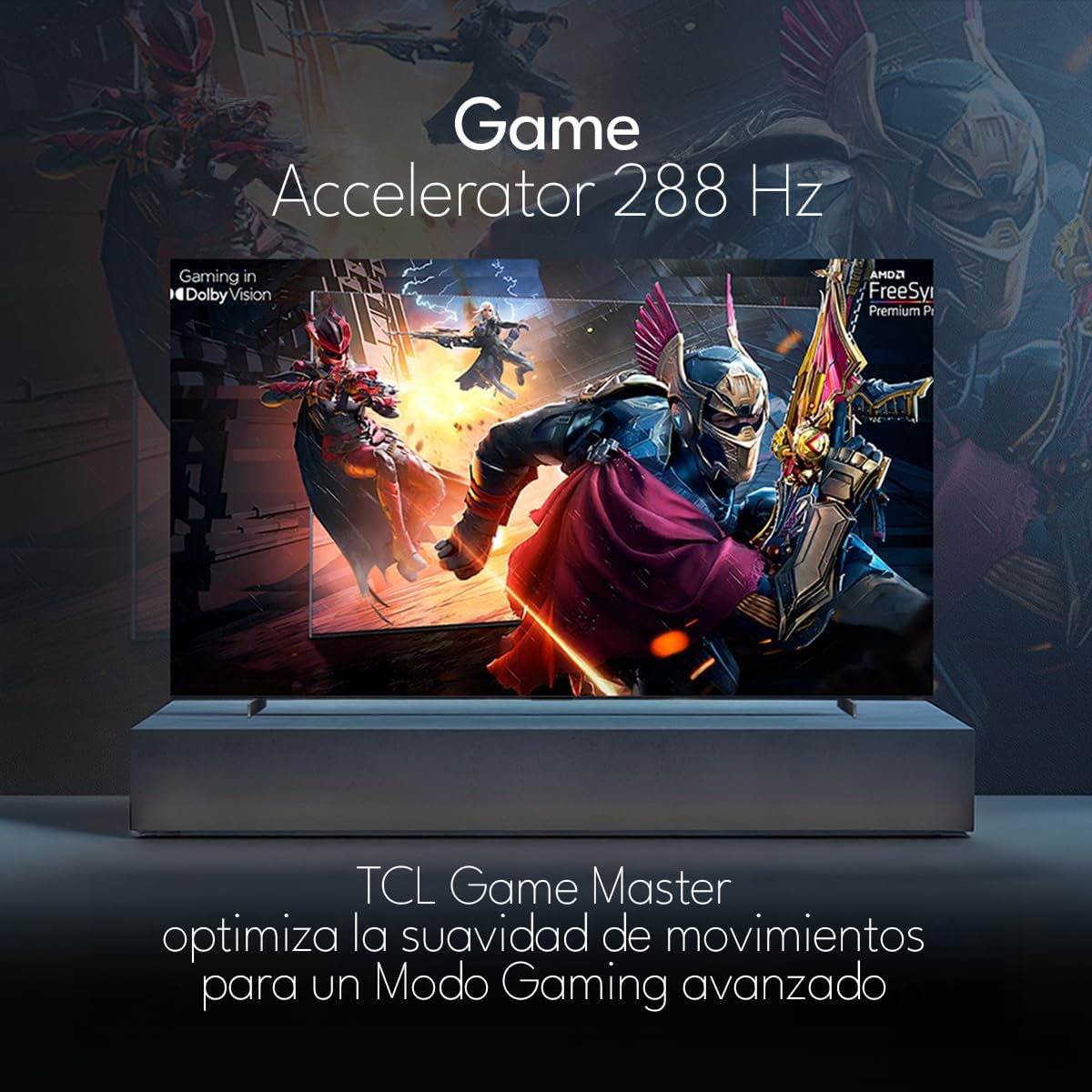
The TCL 98Q7K features a 144 Hz panel and Game Accelerator technology for an enhanced gaming experience with reduced latency and smoother motion.

3.6 Audio Features
Experience immersive sound with Dolby Atmos and the integrated ONKYO Hi-Fi System 2.1 Channels, providing clear vocals and deep bass.

3.7 Product Overview Video
4. Maintenance
4.1 Cleaning the Screen
To clean the screen, gently wipe it with a soft, lint-free cloth. For stubborn marks, lightly dampen the cloth with water or a specialized screen cleaner. Avoid using harsh chemicals, abrasive materials, or direct spraying of liquids onto the screen.
4.2 Cleaning the TV Body
Wipe the TV body with a soft, dry cloth. Do not use liquid cleaners directly on the TV body.
4.3 Software Updates
Your TCL Google TV may receive automatic software updates. To manually check for updates, navigate to the settings menu, then select System > About > System update. Ensure your TV is connected to the internet for updates.
5. Troubleshooting
If you encounter issues with your TV, refer to the following common solutions:
- No Power:
Ensure the power cord is securely plugged into both the TV and a working electrical outlet. Try plugging another device into the same outlet to confirm it has power. - No Picture or Sound:
Verify that the correct input source is selected (e.g., HDMI 1, AV). Check all cable connections between the TV and external devices. Ensure the volume is not muted or set to minimum. - Remote Control Not Working:
Replace the batteries in the remote control. Ensure there are no obstructions between the remote and the TV's IR sensor. - Network Connection Issues:
Check your Wi-Fi router and ensure it is powered on and functioning correctly. Restart the TV and your router. In the TV settings, verify the Wi-Fi connection status. - Picture Quality Issues (e.g., blurry, distorted):
Check the resolution settings of your input source. Ensure the cables are not damaged. Adjust picture settings (brightness, contrast, sharpness) in the TV menu.
For persistent issues, consult the full electronic manual available through the TV's help menu or contact TCL customer support.
6. Specifications
| Feature | Specification |
|---|---|
| Screen Size | 98 Inches |
| Display Technology | QLED |
| Resolution | 4K (3840 x 2160) |
| Refresh Rate | 144 Hz |
| HDR Format Support | Dolby Vision, HDR10, HDR10+, HLG |
| Peak Brightness | 450 NITS |
| Sound System | Dolby Atmos, Dolby Digital, ONKYO Hi-Fi System 2.1 Channels |
| Operating System | Google TV |
| Voice Control | Google Assistant, Alexa |
| Connectivity | Wi-Fi, Ethernet, 4x HDMI, 2x USB |
| Dimensions (with stand) | 217.8 x 128.5 x 42 cm |
| Dimensions (without stand) | 0.06prof. x 2.18an. x 1.25alt. Meters (approx. 6 cm depth) |
| Model Year | 2025 |
| Included Components | Manual, Remote Control, Batteries |
7. Warranty and Support
7.1 Product Warranty
The TCL 98Q7K television comes with a 2-year limited warranty from the date of purchase. This warranty covers manufacturing defects and malfunctions under normal use. Please retain your proof of purchase for warranty claims.
7.2 Customer Support
For technical assistance, troubleshooting beyond this manual, or warranty inquiries, please contact TCL customer support. Refer to the contact information provided in the separate warranty card or visit the official TCL website for your region.


