1. Introduction
The THIRDREALITY Smart Switch MT1 is a Matter over Thread retrofit device designed to convert existing toggle or rocker light switches into smart switches without requiring any electrical wiring. This device allows for smart home integration, voice control, scheduling, and remote operation of your lights and appliances. It is compatible with various smart home ecosystems including Apple Home, Google Home, SmartThings, Homey, and Home Assistant.
2. Safety Information
- Ensure the power to the switch you are retrofitting is turned off at the circuit breaker before installation.
- Do not attempt to disassemble or modify the device.
- Keep the device away from water and excessive moisture.
- Use only specified AAA batteries for power.
- This device is intended for indoor use only.
3. Package Contents
- THIRDREALITY Smart Switch MT1 (Thread Switch)
4. Product Overview
The Smart Switch MT1 is a compact device designed to fit over standard toggle or rocker light switches. It features a central button for manual control and integrates with your smart home system via Matter over Thread technology. The device is battery-powered for easy, wire-free installation.

Figure 1: Front view of the THIRDREALITY Smart Switch MT1, showing the central control button and Matter over Thread branding.
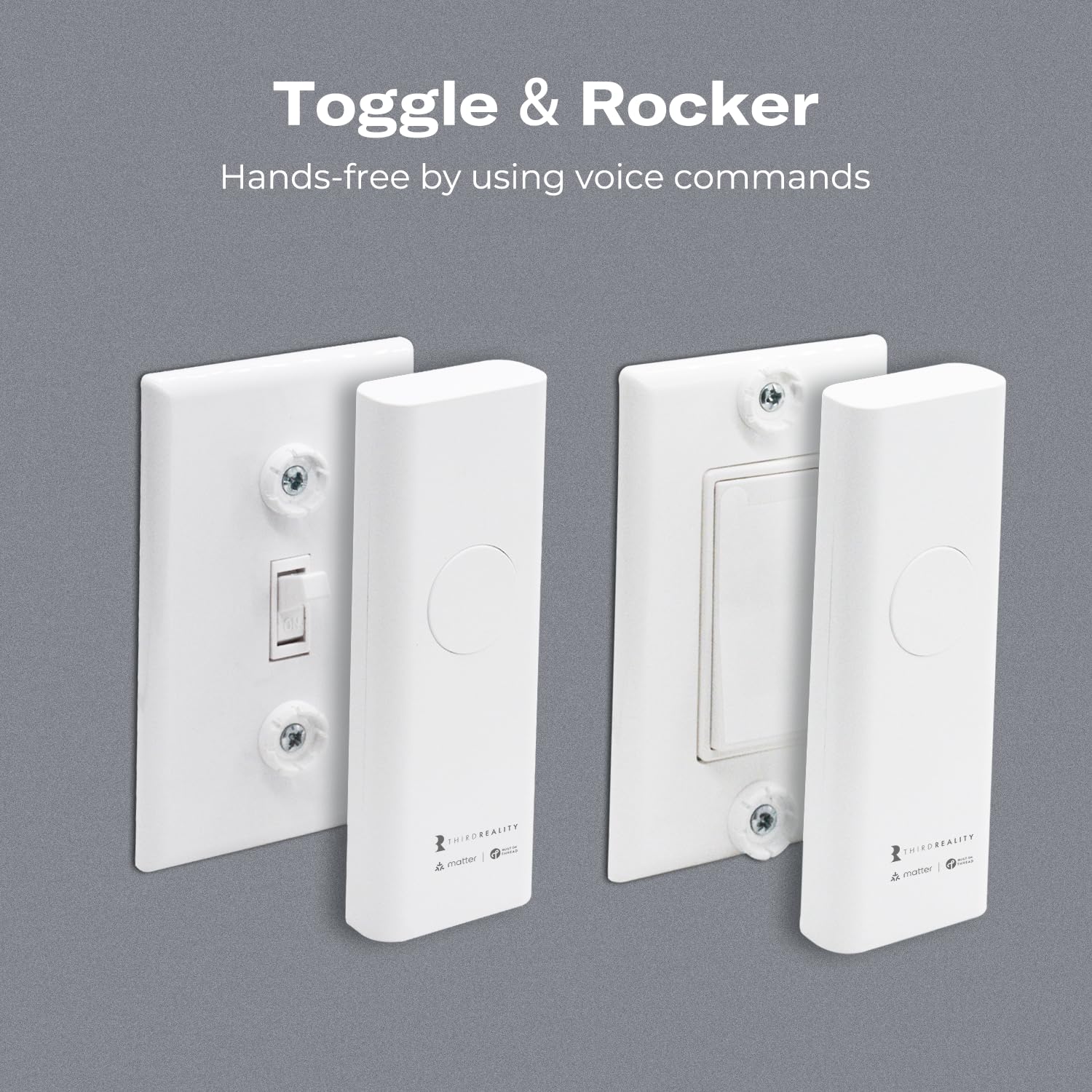
Figure 2: The Smart Switch MT1 shown installed over both a toggle switch (left) and a rocker switch (right), demonstrating its compatibility with common switch types.
5. Setup
5.1 Battery Installation
The Smart Switch MT1 is powered by two AAA batteries. To install or replace batteries, carefully open the device casing as indicated in the installation steps. Insert the batteries, ensuring correct polarity. The device is designed for up to 1 year of typical use on a single set of batteries.
5.2 Physical Installation
The Smart Switch MT1 is designed for easy, wire-free installation over your existing light switch. It can be installed in minutes over both toggle and rocker switches, and its slim design allows it to fit multi-gang switch panels.
- Ensure the existing light switch is in the 'ON' position before installation.
- Align the Smart Switch MT1 over your existing toggle or rocker switch.
- Gently press the device onto the switch plate until it snaps securely into place. The device uses a patented mechanism to fit over the switch.
- Verify that the device is firmly attached and does not obstruct the manual operation of the switch.

Figure 3: Visual guide for the easy, wire-free installation of the Smart Switch MT1 over an existing light switch.
5.3 Smart Home Integration (Matter over Thread)
The Smart Switch MT1 utilizes Matter over Thread for seamless integration. A Thread Border Router is required for connectivity. Ensure your phone's Bluetooth is enabled and connected to a stable 2.4GHz Wi-Fi network during pairing.
5.3.1 Pairing with SmartThings
To connect your Smart Switch MT1 to SmartThings:
- Before pairing, check for updates to ensure your SmartThings Hub firmware is up to date.
- Turn on Bluetooth on your phone and ensure it's connected to a stable 2.4GHz Wi-Fi network.
- Launch the SmartThings App. Tap the '+' icon to add a device.
- Select 'Matter' from the list of partner devices.
- Scan the Matter QR code on your device or packaging, or enter the setup code manually.
- Follow the on-screen prompts to complete the pairing process.
Video 1: Demonstrates the step-by-step process of pairing the THIRDREALITY Smart Switch MT1 with the SmartThings application.
5.3.2 Pairing with Google Home
To connect your Smart Switch MT1 to Google Home:
- Power up your Thread Border Router (bridge) and ensure it's connected to your network.
- Turn on Bluetooth on your phone and ensure it's connected to a stable 2.4GHz Wi-Fi network.
- Launch the Google Home App. Tap the '+' icon to add a device.
- Select 'Matter-enabled device'.
- Scan the Matter QR code on your device or packaging, or enter the setup code manually.
- Follow the on-screen prompts to complete the pairing process and assign the device to a room.
Video 2: Illustrates how to pair the THIRDREALITY Smart Switch MT1 with compatible Google Home devices.
5.3.3 Pairing with Apple Home
To connect your Smart Switch MT1 to Apple Home:
- Power up your Thread Border Router (bridge) and ensure it's connected to your network.
- Turn on Bluetooth on your phone and ensure it's connected to a stable 2.4GHz Wi-Fi network.
- Press and hold the button on the Smart Switch MT1 for at least 20 seconds until the light flashes rapidly to put it into pairing mode.
- Launch the Apple Home App. Tap the '+' icon to add an accessory.
- Scan the Matter QR code on your device or packaging, or enter the setup code manually.
- Follow the on-screen prompts to complete the pairing process and assign the device to a room.
- Use the multi-admin feature in the Apple Home App to share permissions with the 3R-Installer APP for firmware updates.
Video 3: Provides instructions on how to pair the THIRDREALITY Smart Switch MT1 with Apple Home.
5.3.4 Pairing with Home Assistant
To connect your Smart Switch MT1 to Home Assistant:
- Power up your Thread Border Router (bridge) and ensure it's connected to your network.
- Turn on Bluetooth on your phone and ensure it's connected to a stable 2.4GHz Wi-Fi network.
- Launch the Home Assistant App. Tap the '+' icon to add a device.
- Select 'Add Matter device'.
- Scan the Matter QR code on your device or packaging, or enter the setup code manually.
- Follow the on-screen prompts to complete the pairing process.
Video 4: Guides users through the process of pairing the THIRDREALITY Smart Switch MT1 with Home Assistant.
6. Operating Instructions
6.1 Manual Control
Press the central button on the Smart Switch MT1 to manually toggle the connected light or appliance on/off. The device's internal mechanism will physically move your existing switch.
6.2 App Control
Once paired with your smart home ecosystem, you can control the switch remotely using the respective app (e.g., SmartThings, Google Home, Apple Home, Home Assistant). This includes turning devices on/off, setting schedules, and creating automation routines.

Figure 4: The Smart Switch MT1 being controlled remotely via a smartphone application, demonstrating its remote control capabilities.
6.3 Voice Control
Integrate the Smart Switch MT1 with your preferred voice assistant (e.g., Siri, Google Assistant) to control connected devices using voice commands. For example, say "Hey Siri, turn on the living room light."

Figure 5: An example of using voice commands with a smart speaker to control a light connected to the Smart Switch MT1.
6.4 Automation and Scheduling
Leverage your smart home app to create custom schedules and automation routines. This can include automatically turning off lights when no one is home to save energy, or scheduling on/off times for convenience.
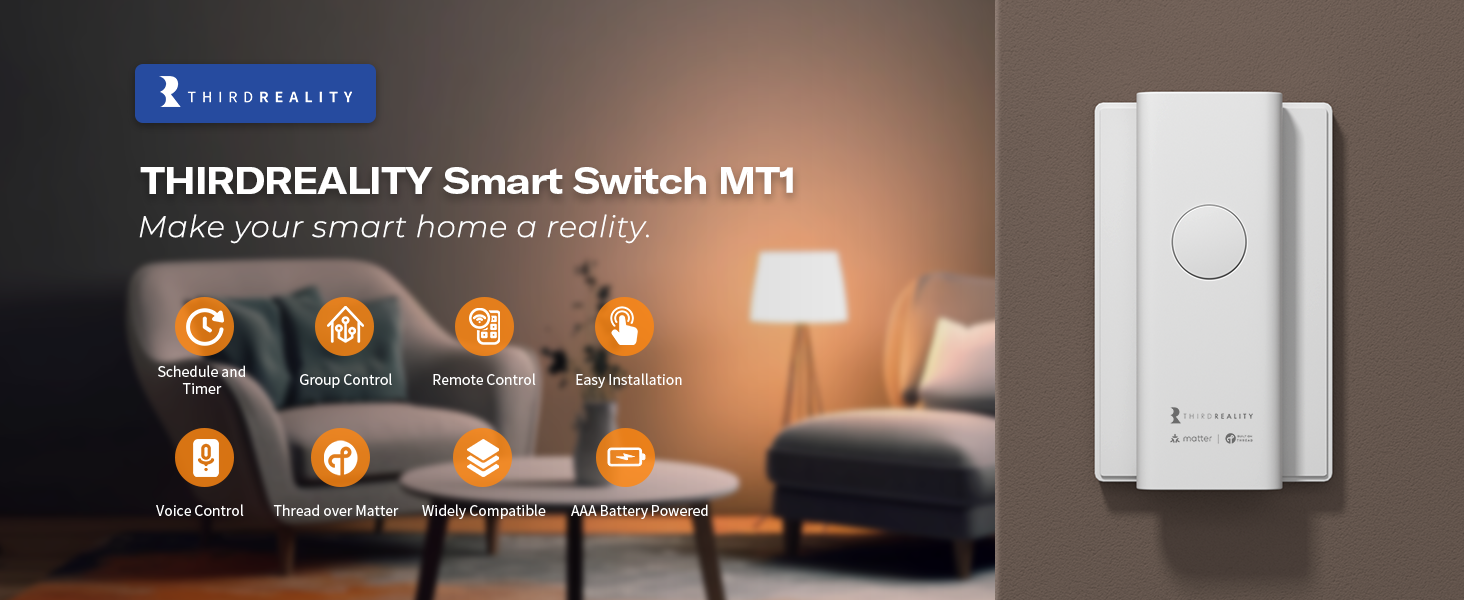
Figure 6: An illustration of setting up a schedule for the Smart Switch MT1 to automatically turn lights on and off at specific times.
7. Maintenance
7.1 Battery Replacement
When the battery level is low, your smart home app will typically notify you. Replace the two AAA batteries by carefully detaching the device from the switch plate, opening the battery compartment, and inserting new batteries with correct polarity. Dispose of old batteries responsibly.
7.2 Firmware Updates (OTA)
The Smart Switch MT1 supports Over-The-Air (OTA) firmware updates. Use the 3R-Installer App to easily check for and upgrade firmware to ensure you have the latest features and improvements. Regular updates enhance device performance and security.
8. Troubleshooting
- Device not responding: Check battery levels and replace if necessary. Ensure your Thread Border Router is online and functioning correctly. Verify the device is within range of your Thread network.
- Difficulty pairing: Ensure your phone's Bluetooth is on and connected to a 2.4GHz Wi-Fi network. Confirm the device is in pairing mode (rapidly flashing light). Try moving the device closer to your Thread Border Router.
- Switch not moving correctly: Ensure the Smart Switch MT1 is securely attached to the switch plate and properly aligned with the existing toggle or rocker switch. Check for any obstructions.
- Matter connectivity issues: Verify that your smart home hub and Thread Border Router are Matter-compatible and have the latest firmware.
9. Specifications
| Feature | Detail |
|---|---|
| Model Number | 3RSS02053MT |
| Product Dimensions | 5.9 x 0.9 x 1.7 inches |
| Weight | 3.53 ounces |
| Operation Mode | ON-OFF |
| Current Rating | 2.5 Amps |
| Operating Voltage | 3 Volts |
| Contact Type | Normally Closed |
| Connector Type | Clamp |
| Circuit Type | 2-way |
| Contact Material | Plastic |
| Power Source | 2 x AAA Batteries |
| Connectivity | Matter over Thread |
| Manufacturer | Third Reality, Inc. |
10. Warranty Information
THIRDREALITY products are covered by a limited warranty. For detailed warranty terms and conditions, please refer to the official THIRDREALITY website or contact customer support. This warranty typically covers defects in materials and workmanship under normal use.
11. Support
For further assistance, technical support, or to provide feedback, please visit the official THIRDREALITY support page or contact their customer service team. Support resources often include FAQs, troubleshooting guides, and contact options for direct assistance.


