
1. Introduction
Thank you for choosing the CLABEL 221D Bluetooth Thermal Label Printer. This compact and efficient label printer is designed for various labeling needs in office, retail, and personal environments. It offers versatile connectivity options and supports a wide range of label types.
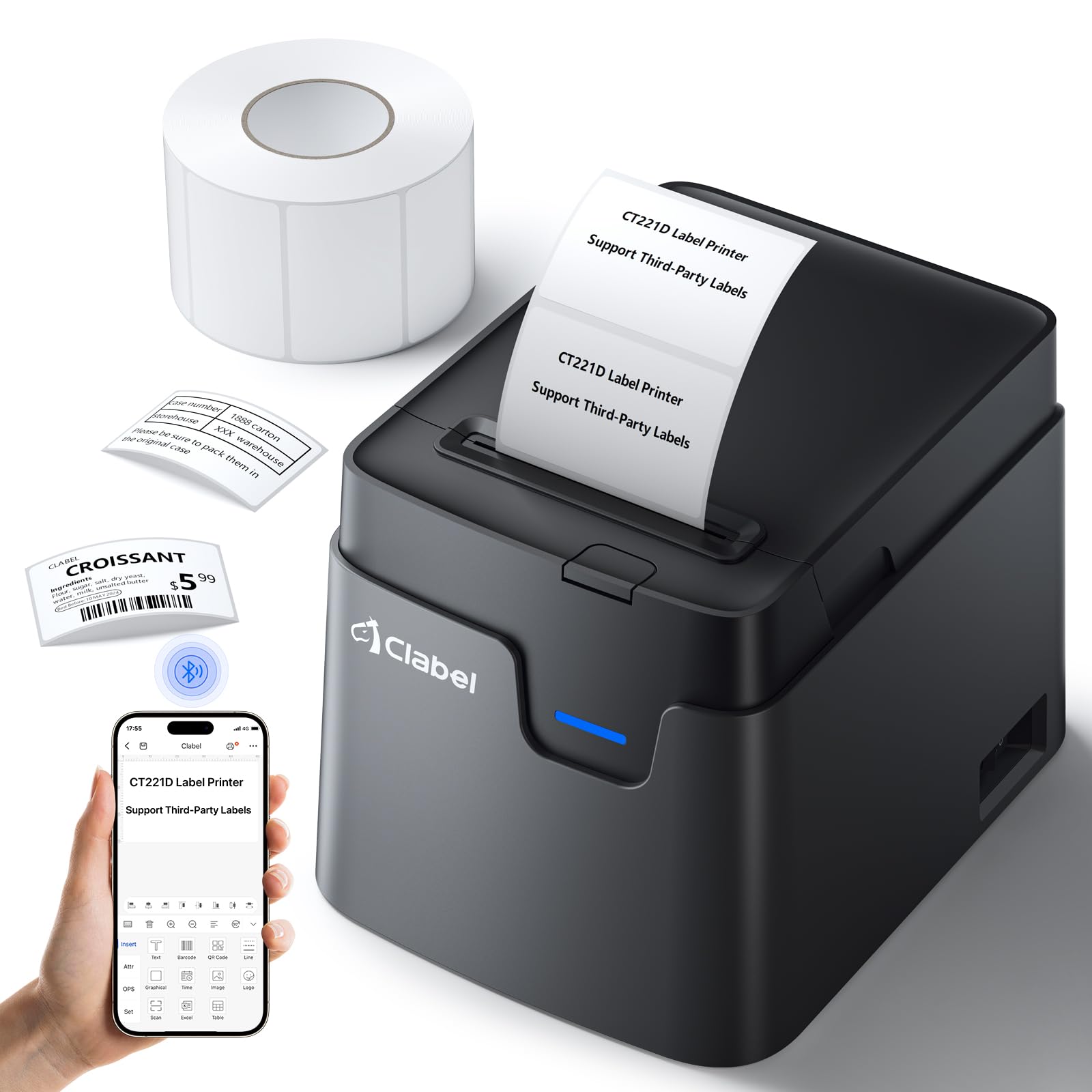
The CLABEL 221D thermal label printer, a compact black device with a blue indicator light.
Key features of the CLABEL 221D include:
- Simple Bluetooth & USB Connectivity: Easily connect to your smartphone (iOS/Android) via Bluetooth or to your computer via USB.
- Third-Party Label Compatibility: Supports self-adhesive labels from 20 to 50 mm in width and 15 to 150 mm in height, including third-party brands.
- Direct Thermal Printing: Eliminates the need for ink or toner, providing cost-effective and environmentally friendly printing.
- Free Application with Professional Templates: Utilize the free Clabel Trade app for easy label creation with numerous pre-installed templates.
- Compact and High-Performance: Delivers fast and clear printing for various professional and personal labeling tasks.
2. Safety Information
- Do not expose the printer to water or high humidity.
- Avoid placing the printer in direct sunlight or near heat sources.
- Use only the power adapter provided with the printer.
- Keep out of reach of children.
- Do not attempt to disassemble or repair the printer yourself. Contact support if issues arise.
3. Package Contents
Please check the package contents upon unboxing:
- CLABEL 221D Thermal Label Printer
- USB-C Cable
- Power Adapter
- 1 Roll of 50x30mm Thermal Labels
- User Manual
4. Product Overview
The CLABEL 221D is a versatile desktop label printer designed for ease of use and broad compatibility.

An image showcasing the CLABEL 221D printer's versatility for small businesses, printing various labels including price tags, barcodes, and address labels.
Key Features:
- No Ink/Toner Required: Utilizes direct thermal printing technology.
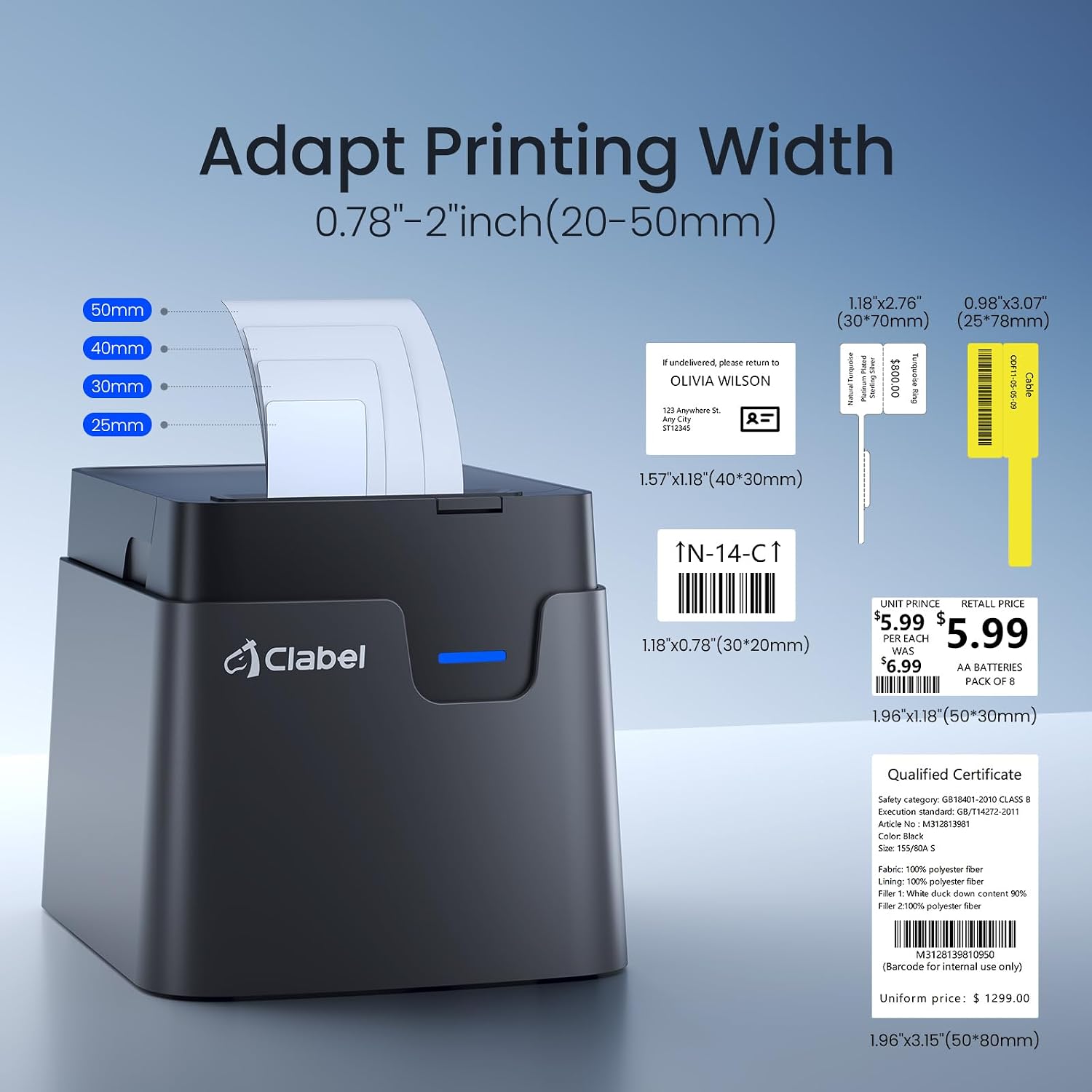
- Wide Label Compatibility: Supports labels with widths from 20mm to 50mm.
- High Resolution: Prints at 300 dpi for clear text and barcodes.
- Memory Printing: Allows for efficient reprinting of frequently used labels.

Diagram illustrating the printer's internal features, including its 90mm paper capacity and high-quality printhead.
5. Setup
5.1 Loading Labels
Follow these steps to load thermal labels into your CLABEL 221D printer:
- Open the printer cover.
- Place the label roll into the label compartment, ensuring the labels feed smoothly.
- Adjust the label guides to fit the width of your labels.
- Pull a few labels out past the print head.
- Close the printer cover. The printer will automatically detect the label size.

The CLABEL 221D printer demonstrating its ability to adapt to various label widths from 20mm to 50mm, with examples of different label sizes.
5.2 Connecting to Power
Connect the power adapter to the printer's power port and then plug it into a wall outlet. Turn on the printer using the power button.
5.3 Software/App Installation
The CLABEL 221D printer supports both PC and mobile device connections.
The CLABEL 221D printer set up on a desk, connected to a laptop via USB and wirelessly to a smartphone via Bluetooth, highlighting its multi-device compatibility.
For Mobile Devices (iOS/Android):
- Download the "Clabel Trade" app from the App Store (iOS) or Google Play Store (Android).
- Enable Bluetooth on your smartphone.
- Open the "Clabel Trade" app and follow the in-app instructions to connect to your printer (e.g., search for "CT221D").

A three-step visual guide demonstrating how to download the Clabel Trade app, enable Bluetooth on a phone, and connect to the CLABEL 221D printer.
For PC (Windows/Mac):
- Connect the printer to your computer using the provided USB-C cable.
- Download the "Clabel Trade" software from the official CLABEL website.
- Install the software and follow the on-screen prompts to set up the printer.

A four-step visual guide showing how to turn on the printer, connect it to a PC via USB, download the Clabel Trade software, create a label, and print.
6. Operating Instructions
6.1 Creating and Printing Labels with the Clabel Trade App (Mobile)
The Clabel Trade app offers a user-friendly interface for designing and printing labels:
- Ensure your printer is connected via Bluetooth as described in Section 5.3.
- Open the Clabel Trade app.
- Select a template or create a new label design. The app supports various elements like text, barcodes, QR codes, and images.
- Customize your label with the desired information.
- Preview the label and then tap the print button to send it to the printer.

A smartphone screen showing the CLABEL app interface, illustrating its features for creating text, barcode, QR code, and image labels using multiple templates.
6.2 Printing from PC
After installing the Clabel Trade software on your PC:
- Ensure your printer is connected via USB and powered on.
- Open the Clabel Trade software on your computer.
- Create a new label or open an existing design.
- Select the CLABEL 221D printer from the print options.
- Click "Print" to send the label to the printer.
6.3 Label Applications
The CLABEL 221D printer is suitable for a variety of labeling tasks:
- Workspace Organization: Label storage bins, shelves, and documents.
- Cable Management: Identify network cables and power cords.
- Retail: Create price tags, product labels, and barcode labels.
- Shipping: Print address labels for packages.
- Food & Beverage: Label jars, containers, and coffee cups.
- Personal Use: Design gift tags, decorative labels, and more.

Various applications of labels printed by the CLABEL 221D, including organizing items in bins, identifying network cables, and creating decorative gift tags.

Further examples of label usage, such as for coffee cups, product pricing, shipping addresses, and organizing office files.
7. Maintenance
7.1 Cleaning the Printer
To ensure optimal print quality and prolong the life of your printer, regular cleaning is recommended:
- Turn off the printer and unplug it from the power source.
- Use a soft, lint-free cloth lightly dampened with isopropyl alcohol to gently wipe the print head.
- Clean the exterior of the printer with a dry, soft cloth.
- Allow the printer to dry completely before plugging it back in and turning it on.
7.2 Label Compatibility
The CLABEL 221D printer is designed to work with direct thermal labels. Ensure you use high-quality thermal labels for best results. The printer supports label widths from 20mm to 50mm and heights from 15mm to 150mm.

An illustration detailing the layered structure of high-quality thermal labels, including the protective, thermosensitive, base, isolation, and adhesive layers.
8. Troubleshooting
| Problem | Possible Cause | Solution |
|---|---|---|
| Printer not turning on | No power connection | Check power adapter and wall outlet. |
| Poor print quality | Dirty print head; Low-quality labels | Clean the print head (Section 7.1); Use recommended thermal labels. |
| Labels not feeding correctly | Labels improperly loaded; Label guides not adjusted | Reload labels correctly (Section 5.1); Adjust label guides to fit. |
| Cannot connect via Bluetooth | Bluetooth not enabled; App not recognizing printer | Ensure Bluetooth is on; Restart app and printer; Re-pair device. |
| Cannot print from PC | USB connection issue; Driver not installed | Check USB cable connection; Reinstall Clabel Trade software/drivers. |
9. Specifications
| Model Number | CT221D |
| Print Technology | Direct Thermal |
| Connectivity | Bluetooth, USB |
| Compatible Devices | Laptop, PC, Smartphone (Android, iOS) |
| Maximum Print Resolution | 300 dpi |
| Maximum Print Speed (Monochrome) | 50 Pages per minute |
| Maximum Media Size | 50x100mm |
| Supported Label Width | 20mm - 50mm |
| Supported Label Height | 15mm - 150mm |
| Product Dimensions | 15P x 12l x 12H centimeters |
| Color | Black |
| Country of Origin | China |
10. Warranty
The CLABEL 221D Thermal Label Printer comes with a 2-year manufacturer's warranty. This warranty covers defects in materials and workmanship under normal use. Please retain your proof of purchase for warranty claims. The warranty does not cover damage caused by misuse, accidents, unauthorized repairs, or use of non-CLABEL accessories.
11. Support
If you encounter any issues or have questions regarding your CLABEL 221D printer, please refer to the troubleshooting section of this manual first. If the problem persists, please contact CLABEL customer support through the official website or the contact information provided in your product packaging. Please have your model number (CT221D) and purchase details ready when contacting support.