
1. Product Overview
The Blackview MP20 is a compact and powerful mini PC designed for various computing needs, from office productivity to home entertainment. It features an Intel Twin Lake N150 processor, ample memory and storage, and versatile connectivity options, including dual 4K display support.

Image: The Blackview MP20 Mini PC, showcasing its compact design and sleek black finish with copper accents.
Key Features:
- Processor: Intel Twin Lake N150 (up to 3.6 GHz)
- Memory: 16GB DDR4 RAM (expandable)
- Storage: 512GB NVMe SSD (expandable up to 2TB)
- Graphics: Integrated Intel UHD Graphics with 4K UHD (4096 x 2160@60 Hz) support
- Display Output: Dual screen support via HDMI and DisplayPort (DP)
- Connectivity: Gigabit Ethernet, Dual-band Wi-Fi 6, Bluetooth 5.2
- Ports: 2x USB 3.0, 2x USB 2.0, 1x HDMI, 1x DisplayPort, Audio In/Out, DC Jack
- Operating System: Pre-installed Windows 11 Pro
- Design: Ultra-compact (0.325L volume), lightweight (265g), VESA mount compatible
- Cooling: Efficient cooling system with silent fan and copper tube

Image: An overview of the Blackview MP20's key features, including its processor, compact size, 4K dual screen display, versatile ports, wireless connectivity, cooling system, SSD, and RAM.
2. Initial Setup
Follow these steps to set up your Blackview MP20 Mini PC for the first time.
- Connect Peripherals:
- Connect your monitor(s) to the HDMI or DisplayPort (DP) outputs. The MP20 supports dual 4K displays.
- Connect your keyboard and mouse to the available USB ports (USB 3.0 or USB 2.0).
- If using a wired network, connect an Ethernet cable to the Gigabit Ethernet port.
- Connect any other desired USB devices (e.g., external hard drives, webcams) to the remaining USB ports.
- Connect Power:
- Plug the power adapter into the DC Jack on the back of the mini PC.
- Plug the power adapter into a wall outlet.
- Power On:
- Press the power button located on the front of the mini PC. The power indicator light will illuminate.
- Initial Windows Setup:
- Upon first boot, the Windows 11 Pro operating system will guide you through the initial setup process. Follow the on-screen prompts to configure language, region, network settings, and user accounts.

Image: A detailed diagram illustrating the 9 versatile ports on the Blackview MP20 Mini PC, including USB, HDMI, DisplayPort, Ethernet, and audio jacks, along with examples of connected peripherals.
3. Operating Instructions
3.1. Connecting Displays
The Blackview MP20 supports connecting up to two 4K displays simultaneously, enhancing your productivity or entertainment experience.
- Use the HDMI port for one display.
- Use the DisplayPort (DP) for a second display.
- Ensure your monitors are set to the correct input source.
- In Windows, navigate to Display settings (right-click on desktop) to configure display arrangement (extend, duplicate) and resolution.
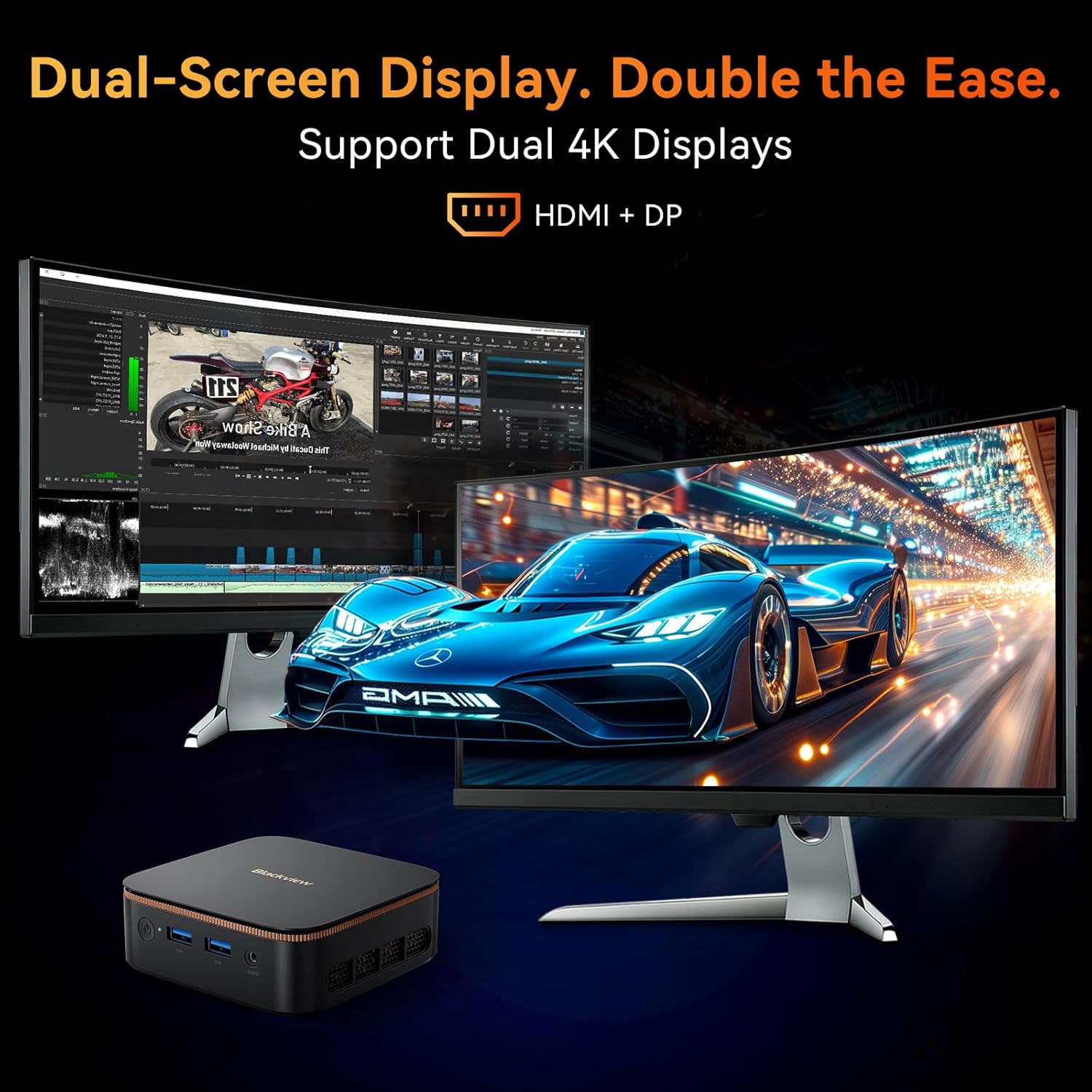
Image: The Blackview MP20 Mini PC connected to two monitors, demonstrating its dual 4K display capability for extended workspaces or multimedia viewing.
3.2. Wireless Connectivity
The MP20 features dual-band Wi-Fi 6 and Bluetooth 5.2 for seamless wireless connections.
- Wi-Fi: To connect to a wireless network, click the Wi-Fi icon in the Windows taskbar, select your network, and enter the password. Wi-Fi 6 provides higher bandwidth and lower latency.
- Bluetooth: To pair Bluetooth devices (e.g., headphones, speakers, keyboards), go to Settings > Bluetooth & devices in Windows, turn on Bluetooth, and select "Add device".

Image: A visual representation of the Blackview MP20's seamless connectivity, highlighting its dual-band Wi-Fi 6 and Bluetooth 5.2 capabilities for stable and fast wireless communication.
3.3. Storage Expansion
The MP20 comes with a 512GB NVMe SSD and supports expansion up to 2TB via an M.2 PCIe 3.0 slot. Refer to the product's internal design for specific upgrade instructions, typically involving opening the chassis and installing a compatible M.2 SSD.
4. Maintenance
4.1. Cooling System
The Blackview MP20 features an efficient cooling system with a silent fan and copper tube to maintain optimal operating temperatures and ensure stable performance.
- Ensure proper airflow around the device. Do not block the ventilation openings.
- Keep the mini PC in a well-ventilated area.
- Regularly clean dust from the exterior vents using a soft brush or compressed air to prevent accumulation.

Image: An exploded view of the Blackview MP20's twofold heat dissipation system, highlighting the copper tube for fast heat conduction and the efficient cooling fan.
4.2. Software Updates
Keep your Windows 11 Pro operating system and drivers updated to ensure optimal performance, security, and compatibility.
- Windows Updates: Go to Settings > Windows Update and click "Check for updates".
- Driver Updates: While Windows Update often handles drivers, you may occasionally need to check the Blackview support website for the latest drivers for specific components if issues arise.
5. Troubleshooting
This section provides solutions to common issues you might encounter with your Blackview MP20 Mini PC.
| Problem | Possible Cause / Solution |
|---|---|
| No Power / System Not Starting |
|
| No Display Output |
|
| No Wi-Fi Connection |
|
| Bluetooth Device Not Pairing |
|
| System Slow or Unresponsive |
|
If you continue to experience issues, please refer to the Warranty and Support section for contact information.
6. Technical Specifications
| Feature | Detail |
|---|---|
| Brand | Blackview |
| Model | MP20 512G |
| Operating System | Windows 11 Pro |
| Processor | Intel Twin Lake N150 (up to 3.6 GHz) |
| Cores | 4 Cores (Intel N150) |
| Graphics | Integrated Intel UHD Graphics |
| Display Resolution | 4K UHD (4096 x 2160 @ 60Hz) |
| RAM | 16GB DDR4 (Max 32GB) |
| Storage | 512GB NVMe SSD (Expandable up to 2TB via M.2 PCIe 3.0 slot) |
| Ports | 1x HDMI, 1x DisplayPort, 2x USB 3.0 (5Gbps), 2x USB 2.0, 1x Gigabit Ethernet, 1x Audio In/Out Jack, 1x DC Jack |
| Wireless Connectivity | Dual-band Wi-Fi 6 (802.11ax), Bluetooth 5.2 |
| Dimensions (L x W x H) | 10.01 x 10.01 x 3.56 cm (3.94 x 3.94 x 1.4 inches) |
| Weight | 265 grams (0.58 lbs) |
| VESA Mount Support | Yes |
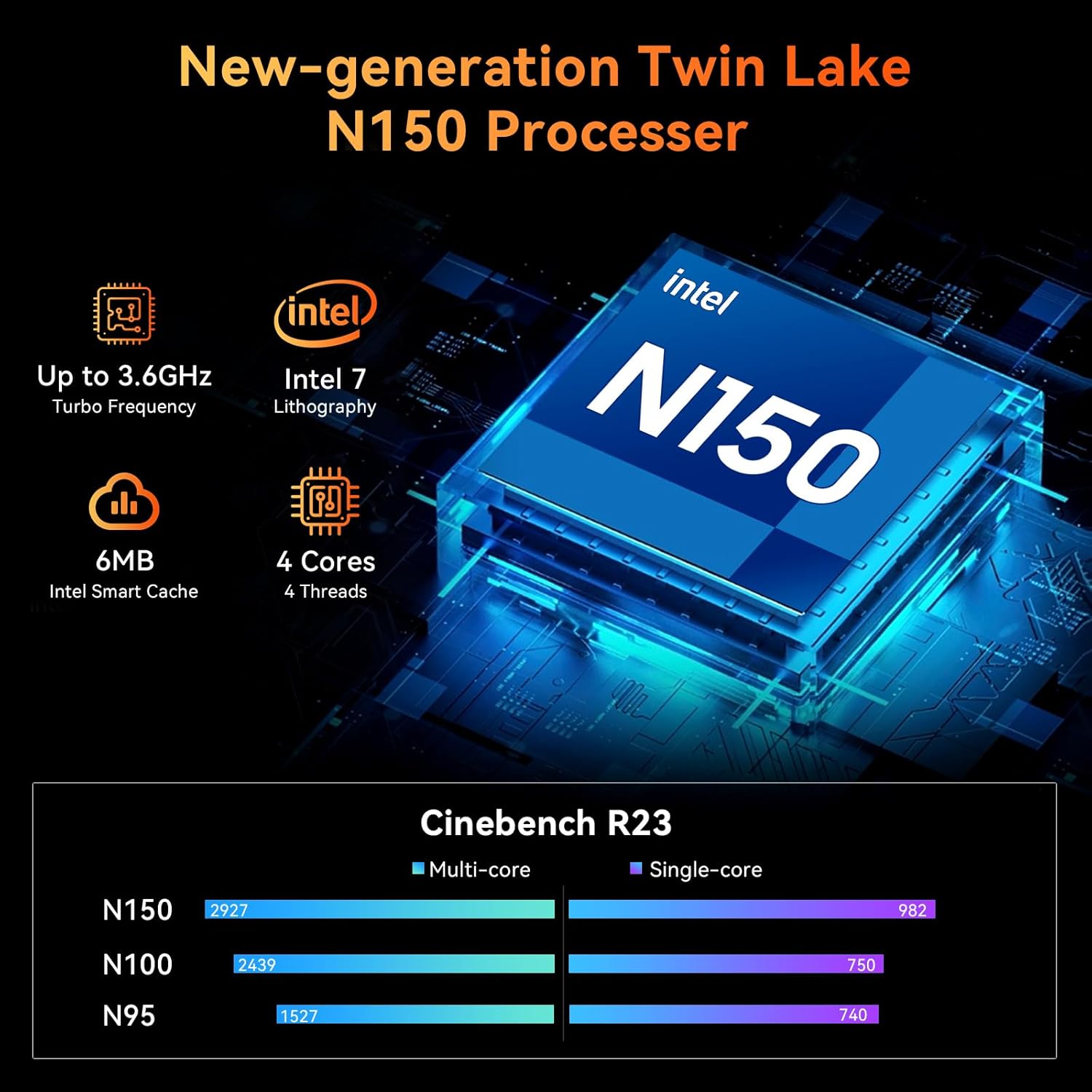
Image: Detailed information about the New-generation Twin Lake N150 Processor, including its turbo frequency, lithography, cores, and Intel Smart Cache, along with Cinebench R23 benchmark comparisons.

Image: A comparison highlighting the Blackview MP20's compact size (0.326L) and ultra-light weight (265g), along with its low power consumption (15W) and VESA mounting support, demonstrating its space-saving and power-saving benefits.
7. Warranty and Support
Blackview is committed to providing excellent customer service and support for your MP20 Mini PC.
- Product Warranty: Your Blackview MP20 Mini PC comes with a 12-month product warranty from the date of purchase. This warranty covers manufacturing defects and ensures the product functions as intended under normal use.
- Technical Support: Lifetime technical support is available for all Blackview products. If you encounter any issues or have questions regarding the operation, maintenance, or troubleshooting of your mini PC, please contact Blackview customer service.
- Contact Information: For support, please visit the official Blackview website or refer to the contact details provided with your product packaging.


