
1. Introduction
Thank you for choosing the Redkey R10 Robot Vacuum Cleaner and Mop. This device is designed to provide efficient and automated cleaning for your home, combining powerful vacuuming with effective mopping capabilities. Equipped with advanced LiDAR navigation and a self-emptying station, the R10 offers a convenient and hands-free cleaning experience. This manual provides essential information for the safe and proper use, maintenance, and troubleshooting of your Redkey R10.
Please read this manual thoroughly before operating the device and retain it for future reference.
2. Safety Information
To reduce the risk of injury or damage, read these safety instructions carefully and keep them accessible when setting up, using, and maintaining your robot.
- The robot is for indoor use only. Do not use it outdoors or on commercial or industrial surfaces.
- Do not use the robot in environments with high humidity or near water sources.
- Before using the robot, remove any loose cables, small objects, or fragile items from the cleaning area to prevent entanglement or damage.
- Do not allow children or pets to play with the robot or the charging station.
- Use only the original charging station and power adapter provided by the manufacturer.
- Do not handle the robot or charging station with wet hands.
- Do not use the robot to pick up large debris, sharp objects, or liquids.
- Ensure the robot is turned off and unplugged from the charging station before performing any maintenance or cleaning.
- If the power cord is damaged, it must be replaced by the manufacturer, its service agent, or similarly qualified persons to avoid a hazard.
3. Package Contents
Verify that all components are present and in good condition upon unpacking.
- Redkey R10 Robot Vacuum Cleaner
- Self-Emptying Station
- Power Cord
- Dust Collection Bag (pre-installed in station)
- Water Tank
- Mopping Pad
- Side Brushes (x2)
- Cleaning Tool
- User Manual
4. Product Overview
4.1 Robot Vacuum Cleaner

Image: The Redkey R10 robot vacuum cleaner, its self-emptying station, and mopping accessories.
- Top View: LiDAR Navigation Sensor, Power/Clean Button, Spot Clean Button.
- Front/Side View: Bumper, Wall Sensor, Charging Contacts, Dustbin Release Button.
- Bottom View: Main Brush, Side Brushes, Driving Wheels, Universal Wheel, Cliff Sensors, Charging Contacts.
4.2 Self-Emptying Station
- Dust Collection Port
- Dust Bag Compartment
- Charging Contacts
- Power Indicator Light
5. Setup
5.1 Charging Station Placement
Place the self-emptying station on a hard, level surface against a wall. Ensure there is at least 0.5 meters (1.6 feet) of clear space on both sides and 1.5 meters (4.9 feet) in front of the station for optimal robot navigation and docking. Plug the power cord into the station and then into a wall outlet. Ensure the station is connected to power.
5.2 Initial Charging
Place the Redkey R10 robot onto the charging station, aligning its charging contacts with those on the station. The robot will automatically begin charging. For first-time use, fully charge the robot before operation. The indicator light on the robot will show charging status.
5.3 Water Tank and Mopping Pad Preparation (for Mopping Function)
If you intend to use the mopping function, fill the water tank with clean water. Attach the mopping pad securely to the water tank module. Insert the prepared water tank module into the designated slot on the robot.
6. Operating Instructions
6.1 Power On/Off
- Power On: Press and hold the Power/Clean button on the robot for a few seconds until the indicator lights illuminate.
- Power Off: Press and hold the Power/Clean button for a few seconds until the indicator lights turn off.
6.2 Connecting to the Redkey App

Image: A smartphone displaying the Redkey app interface for controlling the robot vacuum cleaner, showing cleaning programs, specific room cleaning, and cleaning order settings.
- Download the 'Redkey' app from your smartphone's app store (iOS or Android).
- Register or log in to your Redkey account.
- Follow the in-app instructions to add your Redkey R10 device. Ensure your Wi-Fi network is 2.4GHz.
6.3 Mapping and Navigation

Image: The Redkey R10 robot vacuum cleaner actively mapping a room using its LiDAR sensor, with text indicating 360° LiDAR navigation, room mapping, path planning, and efficient cleaning.
The R10 uses LiDAR navigation to create a precise map of your home. During its first cleaning cycle, it will map out your floor plan. This map can be viewed and managed within the Redkey app.
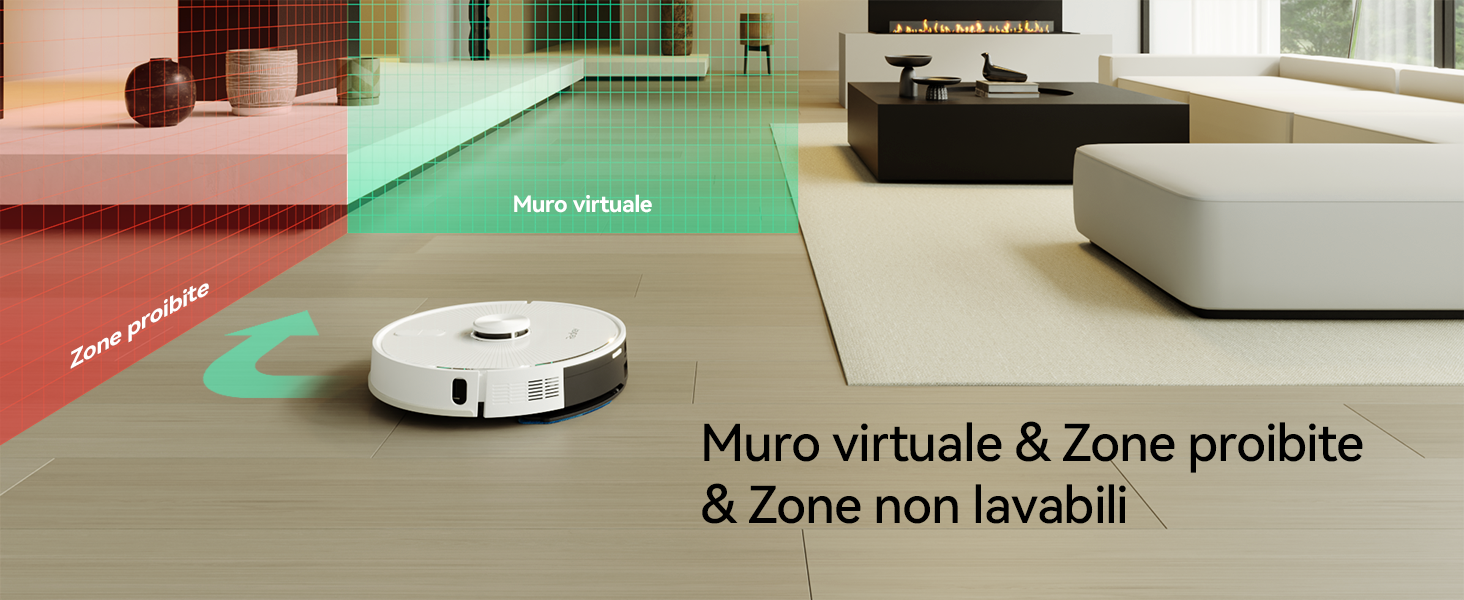
Image: A woman relaxing on a sofa while the Redkey R10 robot vacuum cleaner maps her home, with a holographic representation of a house map indicating customized mapping for efficient cleaning.
6.4 Cleaning Modes

Image: A woman reading on a sofa while the Redkey R10 robot vacuum cleaner operates on a rug, with icons indicating 'Silent', 'Standard', 'Strong', and 'MAX' suction modes up to 4000Pa.
- Auto Clean: The robot automatically cleans the entire mapped area.
- Spot Clean: The robot cleans a specific small area intensively.
- Zone Clean: Select specific rooms or zones on the app map for the robot to clean.
- Mopping Mode: Attach the water tank and mopping pad. The robot will mop the selected area. It can adjust water flow automatically.
- Vacuum & Mop: The robot can perform both vacuuming and mopping simultaneously.
6.5 Setting Virtual Walls and No-Go Zones
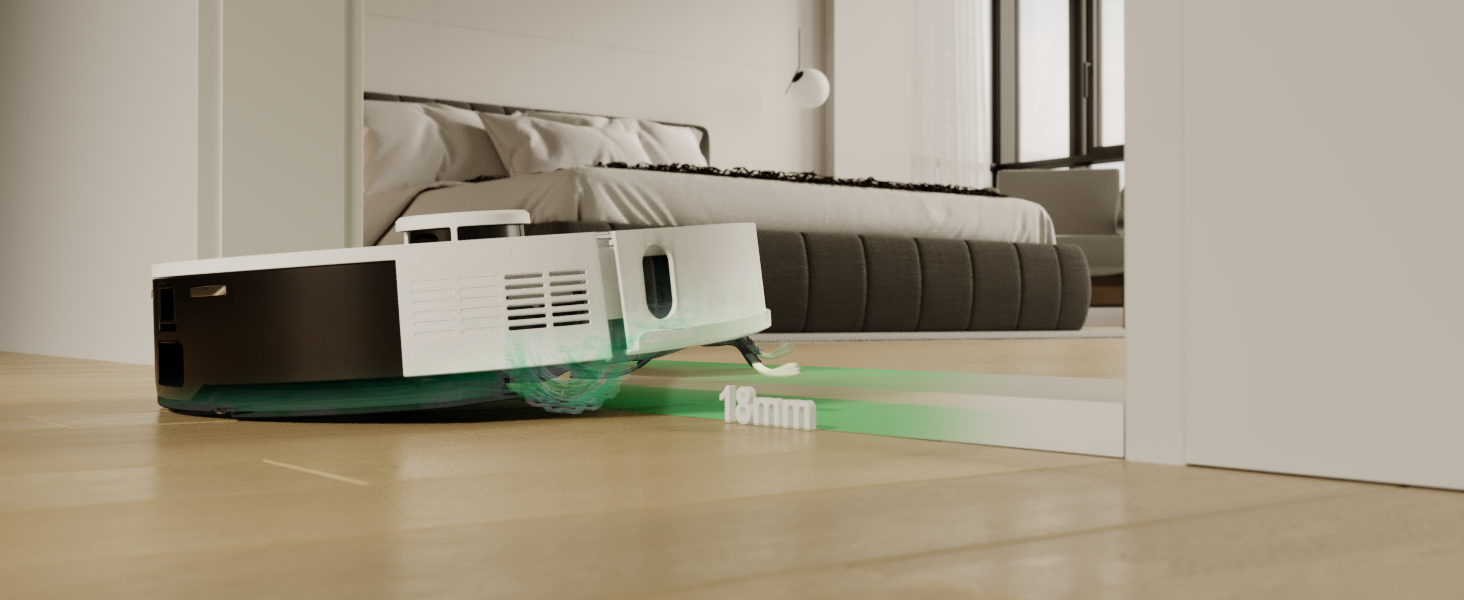
Image: The Redkey R10 robot vacuum cleaner navigating a room, with red and green shaded areas indicating 'Prohibited Zones' and 'Virtual Wall' respectively, demonstrating its ability to avoid restricted areas.
Using the Redkey app, you can draw virtual walls or define no-go zones on the map to prevent the robot from entering specific areas (e.g., pet bowls, fragile items, or areas with loose cables).
6.6 Scheduling
Set up cleaning schedules through the app for automated cleaning at preferred times and days.
6.7 Voice Control
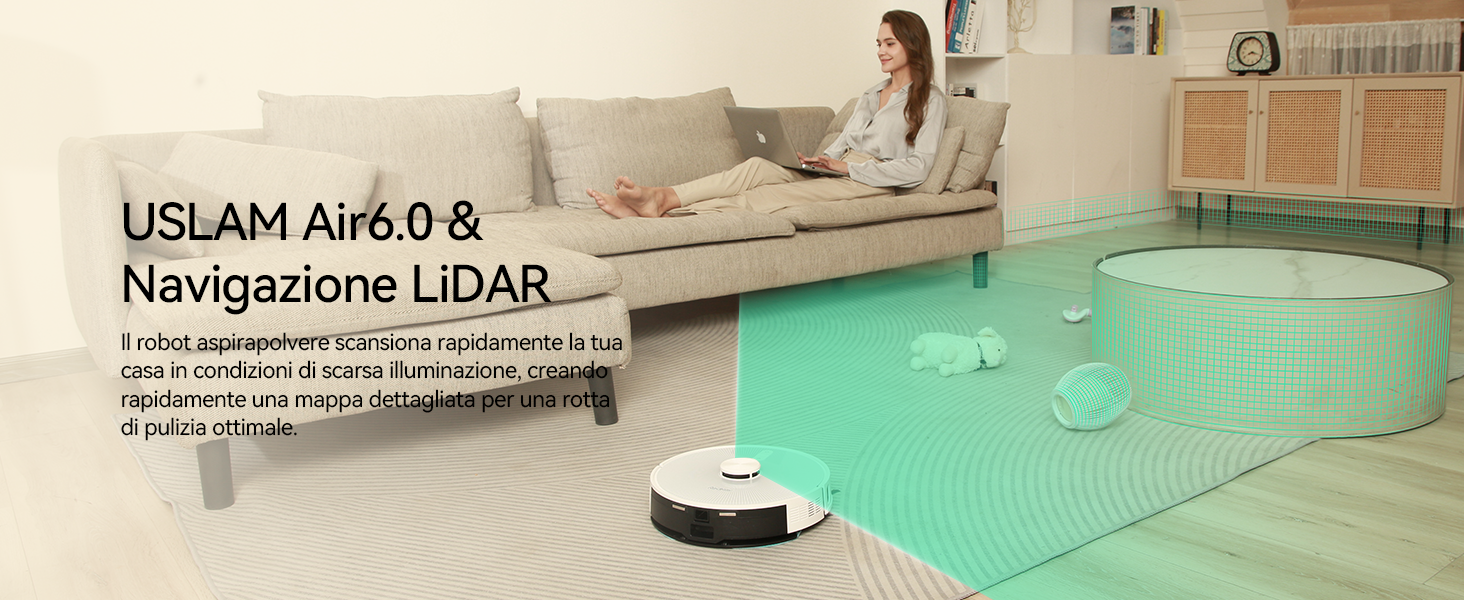
Image: A woman sitting on a sofa, speaking into her phone, with the Redkey R10 robot vacuum cleaner in the foreground. Text indicates voice control compatibility with Alexa and Google Assistant, allowing commands like 'Tell R10 to vacuum and mop in front of the counter.'
The Redkey R10 supports voice control via Amazon Alexa and Google Assistant. Link your Redkey account in the respective voice assistant app and use commands to start, stop, or send the robot to its charging station.
7. Maintenance
Regular maintenance ensures optimal performance and extends the lifespan of your Redkey R10.
7.1 Emptying Dustbin / Self-Emptying Station Bag

Image: The Redkey R10 robot vacuum cleaner docked at its self-emptying station, with a visual representation of dust being transferred from the robot's dustbin to the station's 4L dust bag, indicating up to 90 days of hands-free cleaning.
- Robot Dustbin: Even with the self-emptying station, it is recommended to periodically check and manually empty the robot's internal dustbin, especially if you notice reduced suction. Press the dustbin release button and pull out the dustbin. Empty its contents into a trash bin.
- Self-Emptying Station Dust Bag: The 4L dust bag in the self-emptying station can hold debris for up to 90 days. When the bag is full, the app will notify you. Open the station's lid, remove the full bag, and dispose of it. Install a new dust bag.
7.2 Cleaning Brushes
- Main Brush: Turn the robot over. Remove the main brush cover and lift out the main brush. Use the provided cleaning tool to remove hair and debris tangled around the brush. Reinstall the brush and cover.
- Side Brushes: Check the side brushes for tangled hair or debris. If damaged or worn, replace them.
7.3 Cleaning Filters
Remove the dustbin. Take out the filter assembly. Tap the filter to remove loose dust. Do not wash the HEPA filter with water. Replace filters every 3-6 months depending on usage.
7.4 Cleaning Sensors
Wipe the cliff sensors (on the bottom of the robot), wall sensors (on the side), and charging contacts (on the robot and station) with a clean, dry cloth to ensure proper function.
7.5 Cleaning Water Tank and Mopping Pad
- Water Tank: After each mopping session, empty any remaining water from the tank and allow it to air dry.
- Mopping Pad: Remove the mopping pad and wash it by hand or machine. Allow it to air dry completely before reattaching.
7.6 Battery Care
To maintain battery life, ensure the robot is regularly charged. If storing the robot for an extended period, fully charge it and power it off. Recharge every three months to prevent battery degradation.
8. Troubleshooting
| Problem | Possible Cause | Solution |
|---|---|---|
| Robot does not power on. | Low battery; not charged. | Place robot on charging station and ensure it is charging. |
| Robot cannot dock. | Charging station obstructed; contacts dirty. | Clear area around station; clean charging contacts on robot and station. |
| Reduced suction power. | Dustbin full; filter clogged; main brush tangled. | Empty dustbin; clean/replace filter; clean main brush. |
| Robot gets stuck frequently. | Obstacles in path; cliff sensors dirty. | Clear cleaning area; clean cliff sensors. |
| Mopping function not working. | Water tank empty; mopping pad not attached correctly. | Fill water tank; ensure mopping pad is correctly installed. |
| App connection issues. | Incorrect Wi-Fi password; 5GHz Wi-Fi network. | Ensure correct password; connect to a 2.4GHz Wi-Fi network. |
9. Specifications
| Feature | Specification |
|---|---|
| Brand | Redkey |
| Model Name | R10 |
| Color | White |
| Product Dimensions (Robot) | 33 cm (Diameter) x 9.4 cm (Height) |
| Product Dimensions (Overall) | 38L x 41l x 37H cm |
| Item Weight | 8.16 Kilograms |
| Suction Power | Up to 4000Pa |
| Dust Bag Capacity (Station) | 4L (up to 90 days hands-free cleaning) |
| Water Tank Capacity | 350ml |
| Navigation Type | LiDAR (360° intelligent navigation) |
| Obstacle Crossing Capability | Up to 18mm |
| Battery Life (Max) | 150 minutes (up to 180 minutes in silent mode) |
| Control Method | APP Control (2.4GHz Wi-Fi), Voice Control (Alexa, Google Assistant) |
| Special Features | Exclusion zones, Auto-emptying, 2-in-1 Vacuum & Mop |
10. Warranty and Support
Redkey provides a limited warranty for this product. For detailed warranty information, please refer to the warranty card included in your package or visit the official Redkey website. If you encounter any issues or require technical assistance, please contact Redkey customer support through the contact information provided on the product packaging or the official website. Please have your model number and purchase details ready when contacting support.


