
1. Introduction
Thank you for choosing the Intelbras PFL7560 Full HD Wi-Fi Projector. This projector is designed to deliver a high-quality visual and audio experience for various applications, from home cinema to business presentations. It features Full HD resolution, 8000 lumens brightness, and integrated 12W stereo speakers. This manual provides essential information for safe and efficient operation of your projector.
2. Safety Information
Please read all safety instructions carefully before using the projector. Keep this manual for future reference.
- Power Supply: Use only the power adapter provided with the projector. Ensure the voltage matches your local power supply.
- Ventilation: Do not block the ventilation openings. Ensure adequate space around the projector for proper airflow to prevent overheating.
- Placement: Place the projector on a stable, level surface. Avoid placing it in direct sunlight, near heat sources, or in environments with high humidity or dust.
- Eye Protection: Do not look directly into the projector lens when the lamp is on, as the bright light can cause eye damage.
- Cleaning: Unplug the projector before cleaning. Use a soft, dry cloth. Do not use liquid or aerosol cleaners.
- Servicing: Do not attempt to repair the projector yourself. Refer all servicing to qualified service personnel.
3. Package Contents
Verify that all items are present in the package:
- Intelbras PFL7560 Projector Unit
- Remote Control
- Power Cable
- User Manual
4. Product Overview
Familiarize yourself with the main components and ports of your Intelbras PFL7560 projector.
4.1. Projector Components

Image: Intelbras PFL7560 Projector with included remote control.
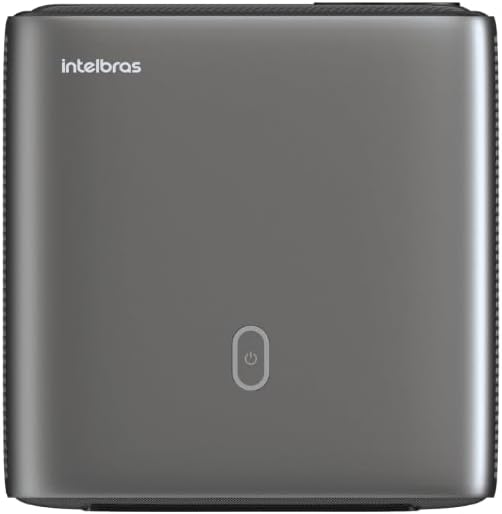
Image: Top view of the projector, highlighting the power button and sleek design.
4.2. Ports and Connectivity
The projector offers multiple connectivity options:
- HDMI: For connecting high-definition devices such as laptops, gaming consoles, or Blu-ray players.
- USB: For connecting USB storage devices to play media files directly.
- Wi-Fi (802.11 ac/b/g/n): For wireless connectivity and screen mirroring from compatible Android devices.
- Audio Out: For connecting external audio systems or headphones.
5. Setup
5.1. Placement
Choose a suitable location for your projector. The PFL7560 can project images from 60 to 150 inches, making it versatile for various room sizes. Ensure the projector is placed on a stable surface and is not obstructed.
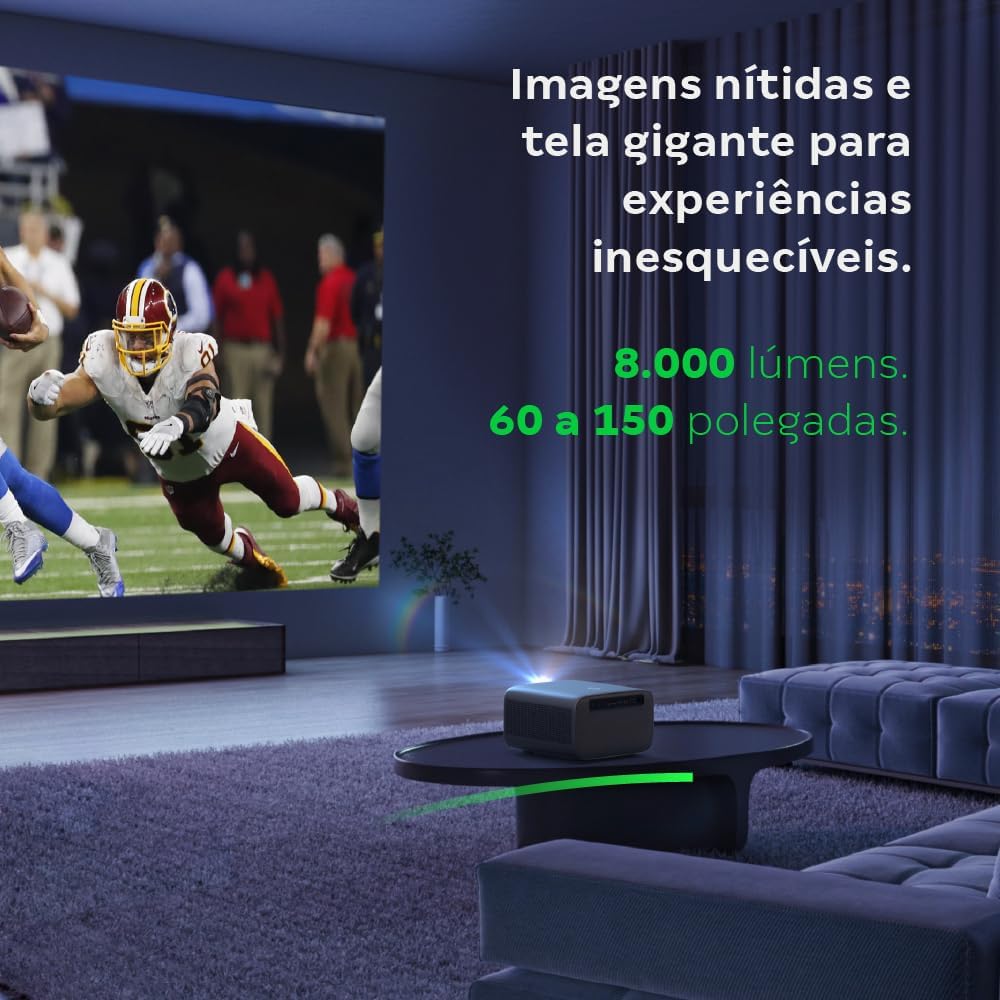
Image: The projector creating a large, clear image in a home environment, demonstrating its capability for immersive viewing.
5.2. Power Connection
Connect the power cable to the projector's power input and then to a power outlet.
5.3. Initial Power On
Press the power button on the projector or the remote control to turn on the device. The projector will initiate its startup sequence.
5.4. Focus and Keystone Correction
The PFL7560 features automatic focus and keystone correction for a perfectly aligned and sharp image without manual effort. If manual adjustment is needed, refer to the on-screen display (OSD) menu.
6. Operating Instructions
6.1. Connecting Devices
- HDMI: Connect your device using an HDMI cable to the HDMI port on the projector. Select the corresponding HDMI input from the projector's source menu.
- USB: Insert a USB drive into the USB port. The projector's media player will typically detect the drive automatically, allowing you to browse and play files.
- Wi-Fi / Screen Mirroring: For compatible Android devices, enable screen mirroring on your device and select the projector from the available devices. Ensure both devices are connected to the same Wi-Fi network.
6.2. Audio Output
The projector is equipped with two integrated 12W speakers, providing clear and immersive audio. For external audio, connect speakers or headphones to the audio output port.

Image: Detail of the projector's integrated 12W speakers, designed for powerful and clear sound.
7. Maintenance
7.1. Cleaning the Lens
Use a soft, lint-free cloth specifically designed for optical lenses to gently wipe the projector lens. Avoid using abrasive materials or harsh chemicals.
7.2. Cleaning the Projector Body
Wipe the exterior of the projector with a soft, dry cloth. Do not use liquid or spray cleaners directly on the unit.
7.3. LED Light Source Longevity
The Intelbras PFL7560 uses an LED light source with a lifespan of up to 30,000 hours, ensuring long-term use and consistent performance without significant brightness degradation.
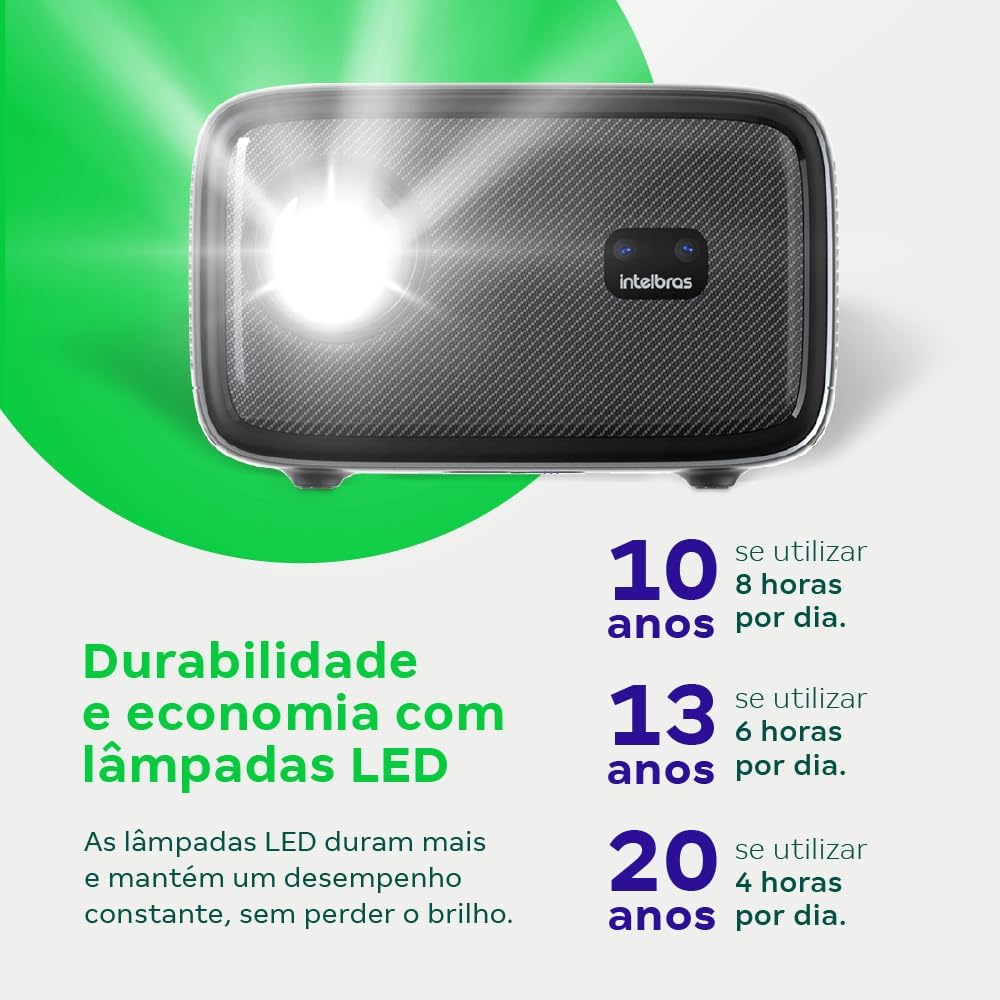
Image: An infographic illustrating the extended durability and economic benefits of the LED lamp, lasting up to 30,000 hours.
8. Troubleshooting
If you encounter issues with your projector, refer to the following common problems and solutions:
- No Image: Ensure the power cable is securely connected and the projector is turned on. Check the input source selection to match your connected device.
- Blurry Image: Adjust the focus. If the image is distorted, check for automatic keystone correction or adjust it manually via the settings menu.
- No Sound: Verify the volume level on both the projector and the connected device. Ensure external speakers are properly connected if used, or that the internal speakers are enabled.
- Connectivity Issues: For Wi-Fi or screen mirroring, ensure both the projector and your device are on the same network. Restart both devices if necessary.
- Overheating: Ensure the projector's ventilation openings are not blocked. Turn off the projector and allow it to cool down if it feels excessively hot.
9. Specifications
| Feature | Specification |
|---|---|
| Brand | Intelbras |
| Model Name | PFL 7560 |
| Connectivity Technology | Wi-Fi |
| Special Features | Wi-Fi Ready |
| Display Resolution | 1920 x 1080 (Full HD) |
| Native Resolution | 1920 x 1080 |
| Maximum Display Resolution | 1920 x 1080 |
| Display Type | LCD |
| Brightness | 8000 Lumens |
| Compatible Devices | Laptop, Smartphone, Tablet |
| Light Source Operating Life | 30000 Hours |
| Hardware Interface | 802.11 ac/b/g/n |
| Video Encoding | H.264, H.265 |
| Recommended Uses | Home Cinema |
| Audio | 2 x 12W Integrated Speakers |
10. Warranty and Support
For warranty information, technical support, or service requests, please refer to the official Intelbras website or contact their customer service directly. Keep your purchase receipt as proof of purchase for warranty claims.


