
1. Product Overview
The ThreeH Digital Alarm Clock is a compact and multifunctional LED desk clock designed for various environments such as bedrooms, home offices, and living rooms. It features a clear LED display that cycles through time, date, and temperature. Key functionalities include adjustable brightness, flexible time formats (12/24H), and selectable temperature units (Celsius/Fahrenheit).

Figure 1: ThreeH Digital Alarm Clock in a typical home setting, showcasing its compact design and clear display.
2. Initial Setup
Follow these steps to set up your ThreeH Digital Alarm Clock for the first time.
2.1 Power Connection
- Locate the power input port on the back of the clock.
- Connect the provided USB power cable to the clock.
- Plug the other end of the USB cable into a compatible USB power adapter (not included) and then into a wall outlet. The display will illuminate.

Figure 2: Rear view of the clock, highlighting the power input and control buttons.
2.2 Basic Settings (Time, Date, Temperature Unit)
Upon initial power-on, you may need to set the current time, date, and preferred temperature unit.
- Setting Time: Press the 'SET' button (refer to Figure 2 for button location) to enter time setting mode. Use the '+' and '-' buttons to adjust hours and minutes. Press 'SET' again to confirm and move to the next setting.
- Setting Date: After setting the time, the display will show the date. Use '+' and '-' to adjust the year, month, and day. Press 'SET' to confirm each part.
- Temperature Unit: After setting the date, you can select between Celsius (℃) and Fahrenheit (℉). Use '+' or '-' to toggle and 'SET' to confirm.
- 12/24 Hour Format: While in time display mode, press the '+' button to switch between 12-hour and 24-hour formats.
3. Operating Instructions
This section details the daily operation of your ThreeH Digital Alarm Clock.
3.1 Display Modes
The clock automatically cycles through time, date, and temperature displays. The main display shows the time, with smaller indicators for the day of the week and active alarms.
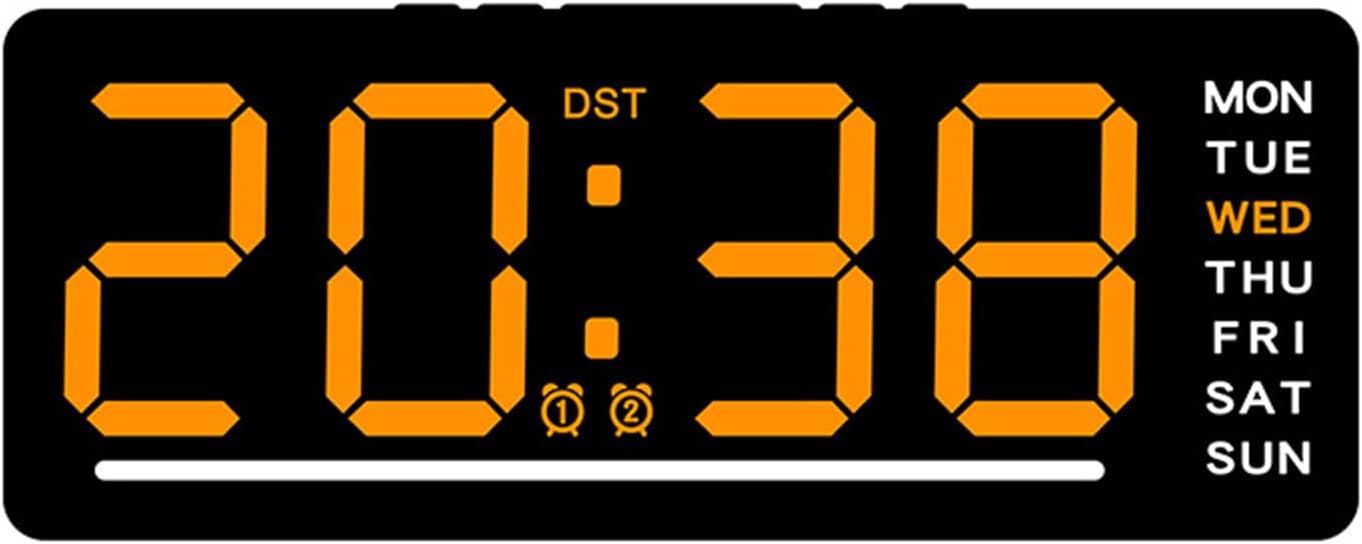
Figure 3: Clock display showing time, DST, alarm indicators, and day of the week.
3.2 Setting Alarms
The clock supports two independent alarms.
- Press the 'ALARM' button (refer to Figure 2) to enter Alarm 1 setting mode. The Alarm 1 icon will flash.
- Use the '+' and '-' buttons to adjust the desired alarm hour and minute.
- Press 'ALARM' again to confirm Alarm 1 and move to Alarm 2 setting mode.
- Repeat step 2 for Alarm 2.
- Press 'ALARM' a third time to exit alarm setting mode.
- To activate or deactivate an alarm, press the 'ALARM' button briefly while in normal time display mode. The corresponding alarm icon (🕑 or 🕒) will appear or disappear on the display.
3.3 Adjusting Brightness
The clock features 5 adjustable brightness levels to suit different lighting conditions.
- In normal time display mode, press the 'BRIGHTNESS' button (refer to Figure 2) repeatedly to cycle through the 5 brightness levels.
- The clock also has a proprietary light sensor that can automatically adjust screen brightness.

Figure 4: Icons representing various features of the clock, including brightness control.
3.4 Daylight Saving Time (DST)
If your region observes Daylight Saving Time, you can manually adjust the clock. The 'DST' indicator on the display (Figure 3) will show if DST is active.
- Consult your local regulations for DST changes.
- To adjust for DST, manually change the hour using the time setting procedure (Section 2.2).
4. Care and Maintenance
Proper care ensures the longevity and optimal performance of your ThreeH Digital Alarm Clock.
- Cleaning: Use a soft, dry cloth to gently wipe the display and casing. Avoid abrasive cleaners or solvents.
- Environment: This clock is not waterproof. Avoid placing it in humid environments such as bathrooms or kitchens to prevent damage.
- Power: Always use the specified power cable. Disconnect power during thunderstorms or if the clock will be unused for extended periods.
5. Troubleshooting
If you encounter issues with your ThreeH Digital Alarm Clock, refer to the following common problems and solutions.
| Problem | Possible Cause | Solution |
|---|---|---|
| Display is blank or not turning on. | No power or loose connection. | Ensure the USB power cable is securely connected to both the clock and a working power adapter/outlet. |
| Display is too dim or too bright. | Brightness level needs adjustment. | Press the 'BRIGHTNESS' button repeatedly to cycle through the 5 brightness levels until desired illumination is achieved. |
| Time is incorrect. | Time was not set correctly or power interruption. | Re-set the time following the instructions in Section 2.2. |
| Alarm is not sounding. | Alarm is not activated or set incorrectly. | Ensure the alarm is activated (alarm icon visible on display) and the alarm time is set correctly (Section 3.2). |
6. Product Specifications
Detailed technical specifications for the ThreeH Digital Alarm Clock.

Figure 5: Dimensions of the ThreeH Digital Alarm Clock.
| Feature | Detail |
|---|---|
| Brand | ThreeH |
| Model | B0F38C8MV5 |
| Color | Orange |
| Display Type | LED |
| Style | Modern |
| Special Feature | Corded |
| Product Dimensions | 6.1"W x 2.5"H (15.5cm x 6.3cm) |
| Power Source | Corded Electric |
| Room Type | Bedroom, Home Office, Living Room |
| Shape | Rectangular |
| Material | Plastic |
| Frame Material | Plastics |
| Batteries Included | No |
| Item Weight | 4.9 ounces |
7. Warranty and Support
For warranty information and customer support, please refer to the documentation provided with your purchase or contact the seller directly. You can also visit the official ThreeH store for more information:


