
ATTACK SHARK G6
ATTACK SHARK×Magic-Refiner G6 Wireless Gaming Mouse User Manual
Model: G6 | Brand: ATTACK SHARK
1. Introduction
Thank you for choosing the ATTACK SHARK×Magic-Refiner G6 Wireless Gaming Mouse. This manual provides detailed instructions on how to set up, operate, and maintain your new gaming mouse. The G6 mouse features tri-mode connectivity, a high-precision PixArt PAW3311 sensor, and a lightweight ergonomic design, making it ideal for various computing tasks and gaming scenarios.
2. Package Contents
Please check the box for the following items:
- ATTACK SHARK×Magic-Refiner G6 Wireless Gaming Mouse
- 2.4G USB Receiver
- USB-C Charging Cable
- Anti-Slip Grip Tape Set

Image: The ATTACK SHARK G6 Wireless Gaming Mouse in white, shown with its accompanying USB receiver.
3. Product Overview
The G6 gaming mouse is designed for versatility and performance. Familiarize yourself with its key components and features.

Image: Detailed diagram of the G6 mouse, highlighting its buttons and features including the Left Button, Scroll Wheel + Middle Button, Right Button, Back Button, Forward Button, Power Toggle Switch (2.4G-OFF-Bluetooth), DPI Cycle Button, Atmosphere Light Switch & Wireless Mode Frequency Binding Button, Battery & DPI Indicator Light, Atmosphere Light, and USB Receiver storage.
3.1. Key Features
- Tri-Mode Connectivity: Seamlessly switch between USB-C wired, 2.4GHz wireless, and Bluetooth 5.0 connections. The 2.4GHz mode offers a polling rate of 125-1000Hz, while Bluetooth operates at 125Hz. This allows for flexible use across various devices and scenarios.
- High-Precision Sensor: Equipped with the PixArt PAW3311 optical sensor, offering six adjustable DPI levels from 800 to 24000. Features a 1000Hz polling rate, 1ms response time, 300 IPS tracking, and 35G acceleration for precise control.
- Lightweight Design & Long Battery Life: Weighs approximately 72±3g, minimizing hand fatigue during extended use. The built-in 750mAh battery provides over 150 hours of wireless usage on a single charge.
- Durable Switches & Customization: Features 10M micro switches with a 10 million click lifespan. Includes a 1.5m braided USB-C cable. Customize rear RGB lighting via a bottom button for various effects.
- Anti-Slip Grips: Comes with a set of 6 DIY anti-slip grip tapes for enhanced control and sweat resistance.

Image: The G6 mouse illustrating its 2.4GHz Wireless, USB-C Wired, and Bluetooth connection modes.
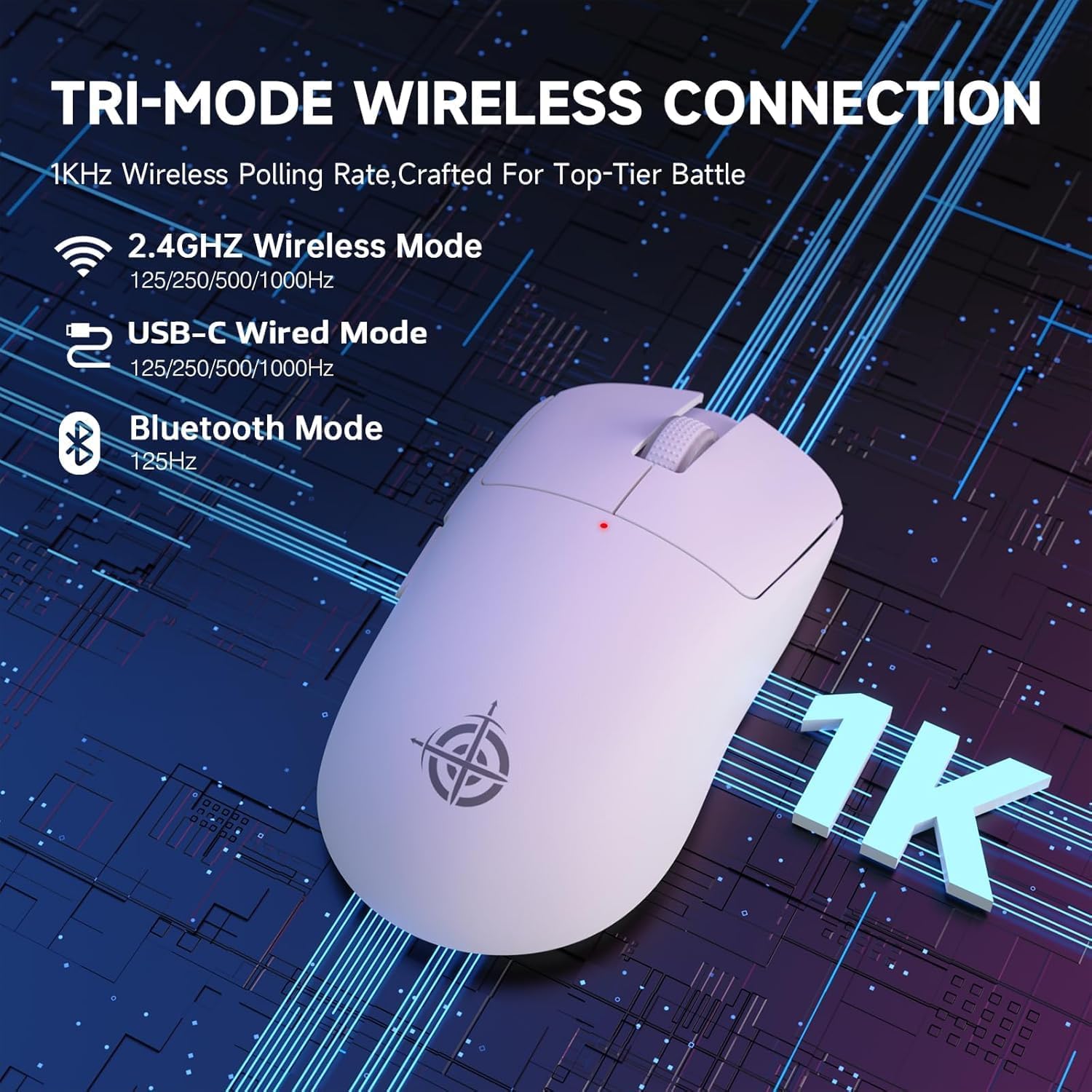
Image: The G6 mouse with an overlay indicating DPI levels (800-24000) and their associated indicator light colors (Red, Green, Blue, Yellow, Cyan, Purple).

Image: The G6 mouse displaying its customizable RGB lighting effects, including rainbow and single color options.

Image: The G6 mouse with its practical non-slip stickers applied, showing the textured surface for improved grip.
4. Setup Guide
The G6 mouse offers three connection methods. Choose the one that best suits your needs.
4.1. 2.4GHz Wireless Mode
- Locate the 2.4G USB receiver stored in the compartment on the bottom of the mouse.
- Plug the USB receiver into an available USB port on your computer.
- Slide the power toggle switch on the bottom of the mouse to the '2.4G' position.
- The mouse should automatically connect. If not, press the 'Atmosphere light switch & wireless mode frequency binding button' on the bottom of the mouse to initiate pairing.
4.2. Bluetooth Mode
- Slide the power toggle switch on the bottom of the mouse to the 'Bluetooth' position.
- The mouse's indicator light will start blinking, indicating it's in pairing mode.
- On your computer or device, go to Bluetooth settings and search for new devices.
- Select 'ATTACK SHARK G6' (or similar name) from the list of available devices to pair.
4.3. USB-C Wired Mode
- Connect the provided USB-C cable to the front port of the mouse.
- Connect the other end of the USB-C cable to an available USB port on your computer.
- The mouse will automatically switch to wired mode and begin charging.
5. Operating Instructions
5.1. DPI Adjustment
The G6 mouse has a dedicated DPI cycle button on the bottom. Press this button to cycle through the preset DPI levels (800, 1600, 2400, 3200, 6400, 24000). The indicator light will change color to reflect the current DPI setting (Red, Green, Blue, Yellow, Cyan, Purple respectively).
5.2. Button Functions
The G6 mouse features 5 programmable buttons:
- Left Button: Standard left click.
- Right Button: Standard right click.
- Scroll Wheel + Middle Button: Scroll up/down, middle click.
- Forward Button: Navigates forward in web browsers or file explorers.
- Backward Button: Navigates backward in web browsers or file explorers.
For advanced customization of button functions and macros, please download the official driver software from the ATTACK SHARK website.
5.3. RGB Lighting Control
The G6 mouse features customizable RGB lighting. Use the 'Atmosphere light switch' button on the bottom of the mouse to cycle through different lighting effects (e.g., Rainbow Lighting, Single Lighting) or to turn the lighting off.
6. Maintenance
To ensure the longevity and optimal performance of your G6 gaming mouse, follow these maintenance guidelines:
- Cleaning: Use a soft, dry cloth to wipe the mouse surface. For stubborn dirt, slightly dampen the cloth with water or a mild cleaning solution. Avoid harsh chemicals or abrasive materials.
- Sensor Care: Keep the optical sensor on the bottom of the mouse clean and free from dust or debris. Use a cotton swab or compressed air if necessary.
- Storage: When not in use for extended periods, store the mouse in a cool, dry place away from direct sunlight and extreme temperatures.
- Battery: Avoid fully discharging the battery frequently. Charge the mouse regularly to maintain battery health.
7. Troubleshooting
If you encounter any issues with your G6 gaming mouse, please refer to the following common solutions:
- Mouse not responding:
- Ensure the mouse is charged. Connect it via USB-C cable to charge.
- Check the power toggle switch on the bottom of the mouse is in the correct position (2.4G, BT, or OFF for wired).
- For 2.4GHz mode, ensure the USB receiver is securely plugged into a working USB port. Try a different USB port.
- For Bluetooth mode, ensure Bluetooth is enabled on your device and the mouse is paired. Try unpairing and re-pairing.
- Cursor movement is erratic or imprecise:
- Clean the optical sensor on the bottom of the mouse.
- Ensure you are using the mouse on a suitable surface. Some surfaces (e.g., plain black neoprene pads, highly reflective surfaces) may interfere with optical tracking. Try a different mouse pad or surface.
- Adjust the DPI setting using the DPI cycle button.
- 2.4GHz dongle not working:
- Ensure the mouse is switched to 2.4G mode.
- Try plugging the dongle into a different USB port on your computer.
- If issues persist, try re-pairing the mouse with the dongle by pressing the binding button on the mouse while the dongle is connected.
- Bluetooth connection issues:
- Ensure the mouse is in Bluetooth pairing mode (indicator light blinking).
- Remove the mouse from your device's Bluetooth list and attempt to pair again.
- Ensure your device's Bluetooth drivers are up to date.
8. Specifications
| Feature | Specification |
|---|---|
| Model Number | G6 |
| Connectivity Technology | 2.4Ghz / Bluetooth / USB-C Wired |
| Movement Detection Technology | Optical (PixArt PAW3311) |
| DPI Levels | 800-24000 (6 adjustable levels) |
| Polling Rate | 125-1000Hz (2.4Ghz), 125Hz (Bluetooth) |
| Battery Capacity | 750mAh |
| Item Weight | 72±3g (2.54 ounces) |
| Dimensions | 116.2 x 62.2 x 37.3mm (approx.) |
| Switch Lifespan | 10 Million Clicks |
| Cable Length | 1.5m (Braided USB-C) |
| Compatibility | Windows, macOS, Linux, Chrome OS, Consoles, Tablets, Smartphones |
9. Warranty and Support
The ATTACK SHARK×Magic-Refiner G6 Wireless Gaming Mouse comes with a standard manufacturer's warranty. Please refer to the product packaging or the official ATTACK SHARK website for specific warranty terms and conditions.
For technical support, troubleshooting assistance, or warranty claims, please contact ATTACK SHARK customer service through their official website or the retailer where you purchased the product.
Note: No official product videos from the seller were available for embedding in this manual.
Ask a question about this manual
Ask about setup, troubleshooting, compatibility, parts, safety, or missing instructions. Manuals+ will review the question and use this page’s manual context to help answer it.