
1. Introduction
Thank you for choosing the TECKNET TK-GK006 Wired Gaming Keyboard. This manual provides essential information for setting up, operating, and maintaining your keyboard to ensure optimal performance and longevity. Please read these instructions carefully before use.
2. Package Contents
- 1 x TECKNET TK-GK006 Wired Gaming Keyboard
- 1 x User Manual
3. Product Overview
The TECKNET TK-GK006 is a wired gaming keyboard designed for an enhanced gaming and typing experience. It features customizable RGB lighting, an ergonomic design, 26-key anti-ghosting, and a spill-resistant construction.
3.1 Key Features
- Customizable RGB Lighting: Over 13 dynamic lighting modes, 8 adjustable brightness levels, and 6 speed settings.
- Ergonomic Design: Integrated wrist rest, foldable stands for an 8° typing angle, and a stepped key layout for comfort.
- Integrated Phone Holder: A convenient slot for holding your smartphone during use.
- 26-Key Anti-Ghosting: Ensures accurate registration of multiple simultaneous key presses.
- Spill-Resistant Design: Equipped with 3 drainage holes to protect against accidental liquid spills.
- Mechanical-Feeling Membrane Keys: Provides tactile feedback similar to mechanical keyboards.
3.2 Visual Reference
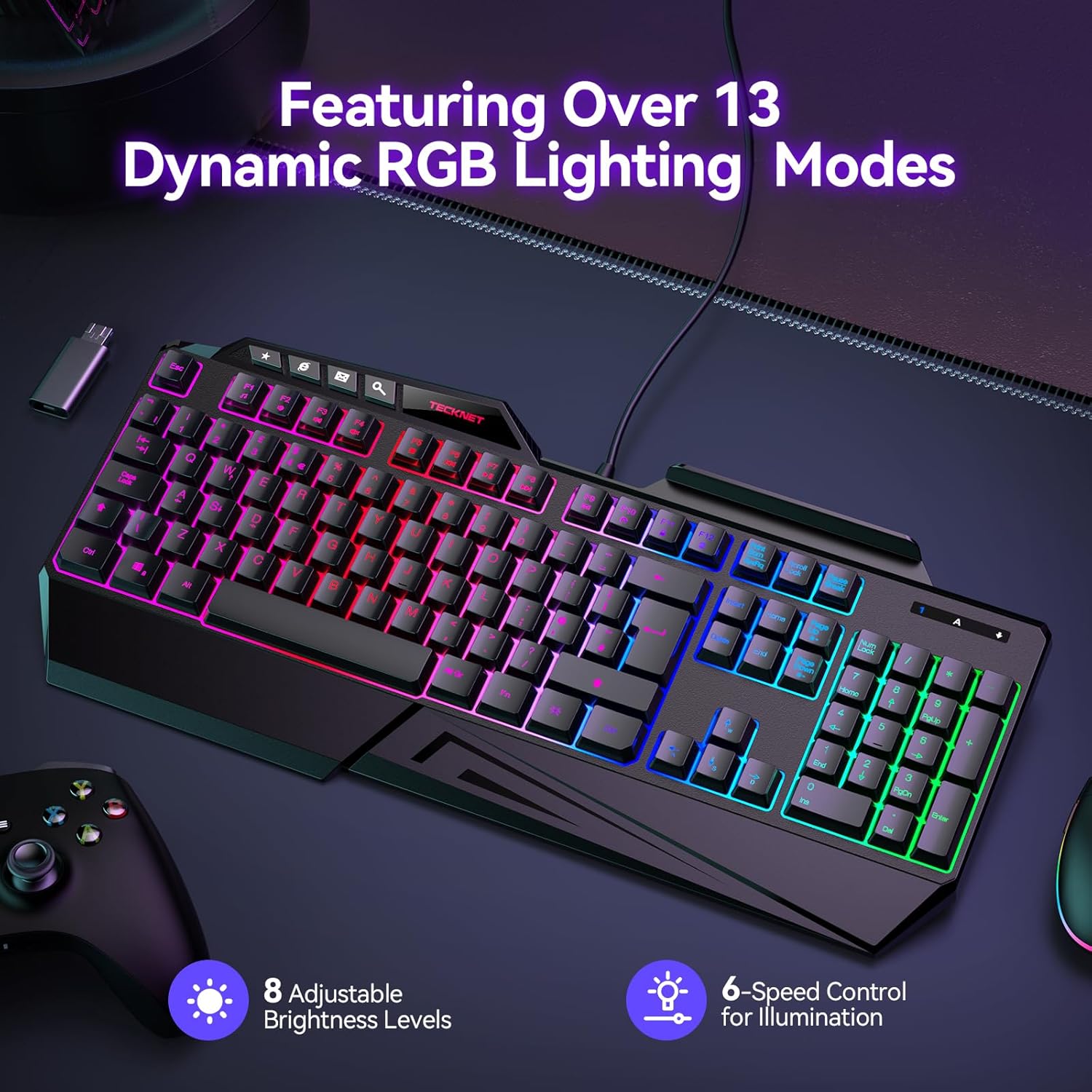
Image: The TECKNET TK-GK006 keyboard showcasing its dynamic RGB lighting modes, with indicators for 8 adjustable brightness levels and 6-speed control for illumination.

Image: A side profile view illustrating the ergonomic design of the keyboard, highlighting the foldable kickstand, stepped key layout, and integrated wrist rest for comfortable typing, compared to a standard flat keyboard.

Image: The TECKNET TK-GK006 keyboard featuring its built-in phone stand, located in the top-right slot, with a smartphone placed in it, demonstrating its multi-tasking capability.

Image: The keyboard demonstrating its spill-resistant design, with water droplets on its surface and highlighting the three discreet drainage ports designed to protect the internal components from accidental liquid spills.

Image: A close-up view of the keyboard highlighting the 26 anti-ghosting keys, indicating an optimized layout for MOBA/FPS games to ensure no missed keystrokes during intense gameplay.
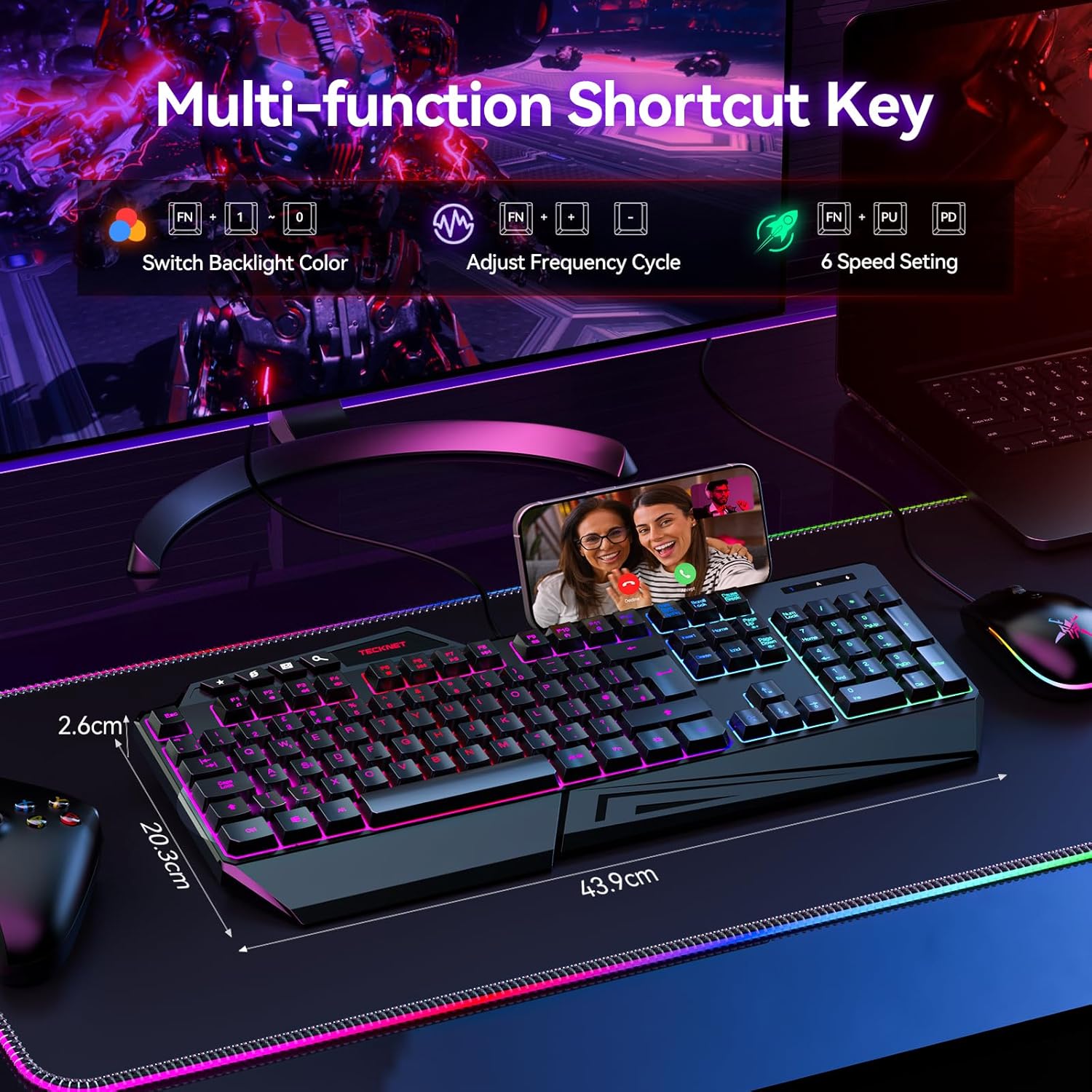
Image: The keyboard displaying its multi-function shortcut keys, specifically the FN+ combinations for switching backlight color, adjusting frequency cycle, and controlling 6 speed settings for RGB lighting.
4. Setup Instructions
4.1 Connecting the Keyboard
- Unpack the TECKNET TK-GK006 keyboard from its packaging.
- Locate an available USB port on your computer (PC, Mac), gaming console (PS5, Xbox), or other compatible device.
- Plug the USB connector of the keyboard firmly into the USB port.
- The keyboard should be automatically recognized by your operating system. No additional drivers are typically required.
- The RGB lighting will illuminate upon successful connection.
4.2 Compatibility
The TECKNET TK-GK006 keyboard is compatible with:
- PC (Windows 7 or above)
- Mac OS
- Xbox
- PS5
5. Operating Instructions
5.1 RGB Lighting Control
The keyboard features customizable RGB backlighting. Use the following FN+ shortcut combinations to adjust the lighting:
- FN + Scroll Lock: Cycle through over 13 dynamic lighting modes (e.g., static, breathing, wave, color cycle).
- FN + Page Up: Increase backlight brightness (8 levels).
- FN + Page Down: Decrease backlight brightness (8 levels).
- FN + '+' (on Numpad): Increase lighting speed (6 settings).
- FN + '-' (on Numpad): Decrease lighting speed (6 settings).
5.2 Ergonomic Adjustments
- Wrist Rest: The integrated wrist rest is designed to reduce fatigue during extended use.
- Foldable Stands: Flip out the stands located on the underside of the keyboard to achieve an 8° ergonomic typing angle for improved comfort.
5.3 Integrated Phone Holder
Utilize the slot located on the top-right of the keyboard to securely hold your smartphone, allowing for easy viewing during streaming, multitasking, or communication.
5.4 Anti-Ghosting Technology
The 26-key anti-ghosting feature automatically ensures that multiple key presses are registered accurately, preventing missed inputs during fast-paced gaming or typing.
5.5 Dedicated Media Keys
The keyboard includes dedicated media keys (e.g., volume control, play/pause) for quick adjustments without interrupting your game or workflow. Refer to the keycap legends for specific functions.
6. Maintenance and Care
6.1 Cleaning the Keyboard
- Disconnect the keyboard from your device before cleaning.
- The keycaps are detachable for easier cleaning. Gently pull them upwards to remove.
- Use a soft, damp cloth to wipe the surface of the keyboard. For stubborn dirt, a mild cleaning solution can be applied to the cloth (not directly to the keyboard).
- Use compressed air to remove dust and debris from between the keys.
- Ensure the keyboard is completely dry before reconnecting it.
6.2 Spill Management
The keyboard is designed with 3 drainage holes to mitigate damage from accidental spills. In case of a liquid spill:
- Immediately disconnect the keyboard from your device.
- Turn the keyboard upside down to allow liquid to drain through the drainage holes.
- Wipe the surface thoroughly with a dry cloth.
- Allow the keyboard to air dry completely for several hours (or ideally 24 hours) before reconnecting. Do not use heat to dry it.
7. Troubleshooting
7.1 Keyboard Not Responding
- Ensure the USB cable is securely plugged into a functional USB port. Try a different USB port.
- Restart your computer or device.
- Test the keyboard on another computer or device to rule out a system-specific issue.
7.2 RGB Lighting Not Working or Incorrect
- Check if the keyboard is properly connected.
- Use the FN+ Scroll Lock combination to cycle through lighting modes.
- Use FN+ Page Up to increase brightness. The lighting might be set to the lowest brightness level.
- Ensure no software conflicts are present if you are using third-party lighting control applications (though this keyboard typically does not require them).
7.3 Keys Are Sticking or Unresponsive
- Clean the affected keys and the area around them. Detach keycaps if necessary (refer to Maintenance section).
- Ensure no debris or foreign objects are lodged under the keycaps.
- If a recent spill occurred, ensure the keyboard is completely dry.
8. Specifications
| Feature | Description |
|---|---|
| Brand | TECKNET |
| Model Number | TK-GK006 |
| Keyboard Description | Gaming, Membrane |
| Number of Keys | 108 |
| Keyboard Layout | QWERTY |
| Connectivity | Wired (USB) |
| Compatible Devices | PC (Windows 7+), Mac OS, Xbox, PS5 |
| Backlighting | RGB (13+ modes, 8 brightness, 6 speed) |
| Anti-Ghosting | 26-Key |
| Special Features | Customizable RGB Lighting, Ergonomic Design, Integrated Phone Holder, Spill-Resistant |
| Water Resistance Level | Water Resistant (with drainage holes) |
| Material | Plastic |
| Product Dimensions (L x W x H) | 17.28" x 7.87" x 1.02" (43.9cm x 20.0cm x 2.6cm) |
| Color | Black |
9. Warranty and Support
TECKNET provides comprehensive support for your TK-GK006 Wired Gaming Keyboard.
- Warranty: The product comes with 36 months of support (registration may be required).
- Customer Support: For any inquiries or assistance, please feel free to contact TECKNET customer support, available 24/7. Refer to the product packaging or TECKNET's official website for contact details.


