
EPOMAKER Galaxy65
EPOMAKER Galaxy65 Wireless QMK/VIA Mechanical Keyboard User Manual
Model: Galaxy65 | Brand: EPOMAKER
1. Introduction
The EPOMAKER Galaxy65 is a compact 65% layout wireless mechanical keyboard designed for enhanced typing sound, customization, and broad compatibility. It features a ball-catch gasket-mount structure, QMK/VIA support, and versatile connectivity options.

Image: The EPOMAKER Galaxy65 mechanical keyboard in silver, showcasing its compact 65% layout and keycap design.
Key Features:
- 65% QMK Aluminum Keyboard: Compact layout with a robust anodized aluminum body, designed for a satisfying typing experience.
- Ball-Catch Gasket-Mount: Innovative mechanism for easy disassembly and customization, ensuring typing stability and comfort.
- QMK/VIA Customization: Full programmability for key remapping, macros, and lighting effects.
- Tri-Mode Wireless Performance: Offers 2.4Ghz wireless, Bluetooth, and USB-C wired connectivity for broad compatibility across various devices.
- South-Facing RGB Backlight: Customizable per-key RGB illumination for an immersive visual experience.
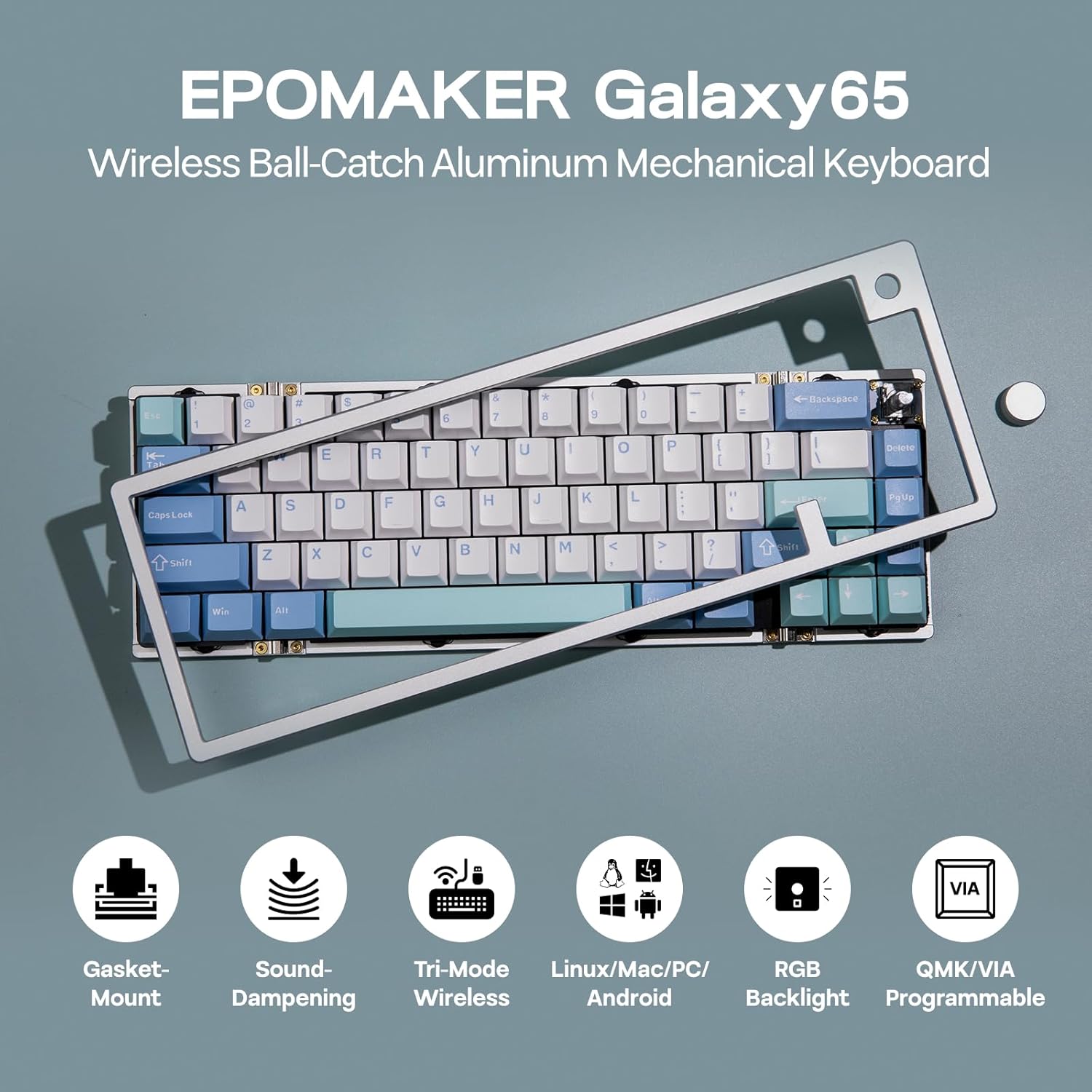
Image: Overview of key features including Gasket-Mount, Sound-Dampening, Tri-Mode Wireless, Linux/Mac/PC/Android compatibility, RGB Backlight, and QMK/VIA Programmable.
2. What's in the Box
Upon opening your EPOMAKER Galaxy65 package, please ensure all the following items are present:
- EPOMAKER Galaxy65 Mechanical Keyboard
- Dust Cover
- Multilingual Manual
- USB A to C Keyboard Cable
- 2-in-1 Switch-and-Keycap Puller
- Spare Switches (typically 2)
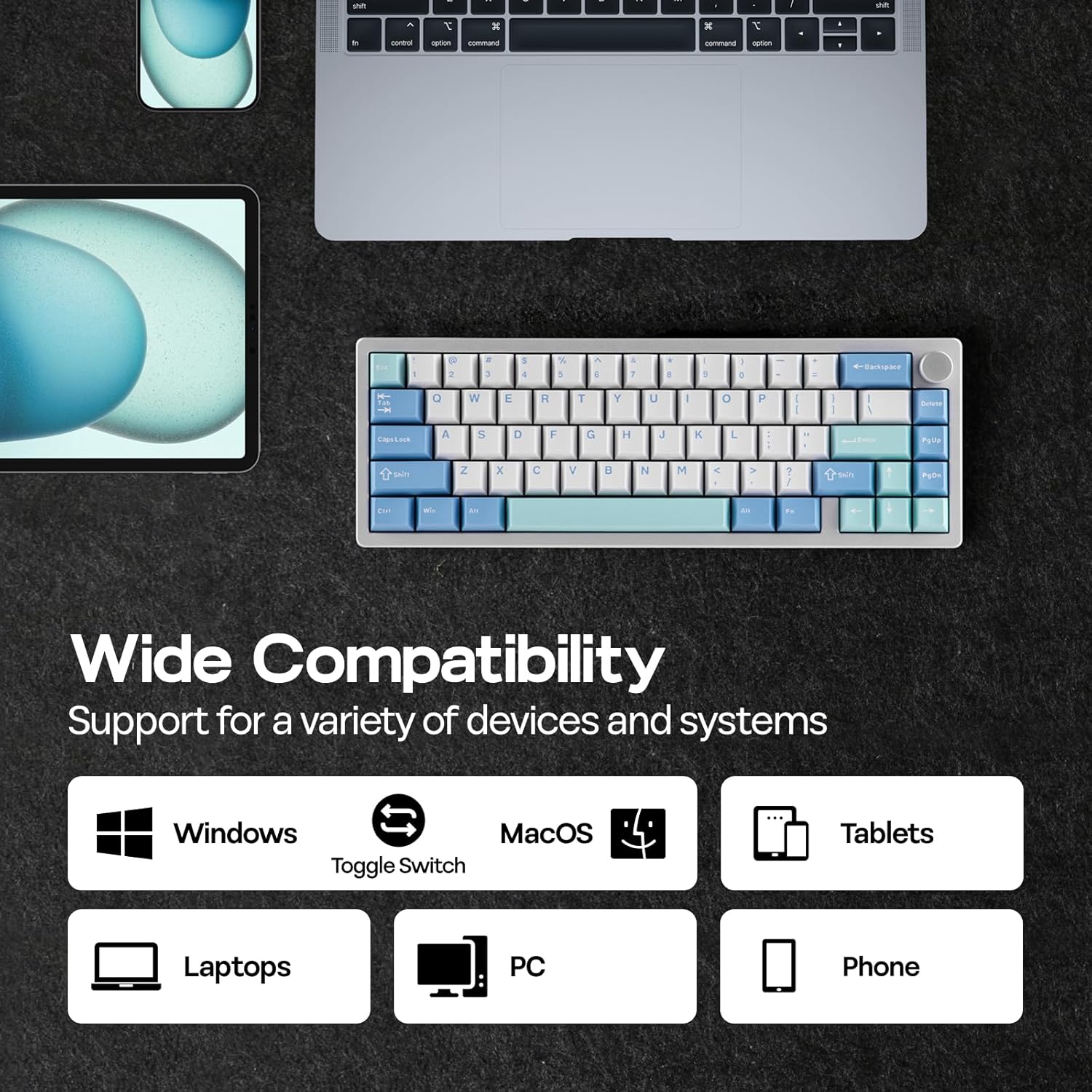
Image: Contents of the EPOMAKER Galaxy65 package, including the keyboard, USB cable, switch/keycap puller, and spare switches.
Unboxing Video:
Video: An unboxing and typing sound demonstration of the EPOMAKER Galaxy65 keyboard. This video provides a visual guide to the package contents and initial impressions.
3. Setup
Connectivity Options:
The Galaxy65 supports three connection modes: Bluetooth, 2.4GHz Wireless, and USB-C Wired. A mode switch is conveniently located near the USB port.
- Bluetooth: Press FN + Q/W/E to enter Bluetooth pairing mode. The keyboard can connect to up to three Bluetooth devices.
- 2.4GHz Wireless: Press FN + R to activate 2.4GHz wireless mode. Ensure the included USB dongle is plugged into your device.
- USB-C Wired: Connect the keyboard directly to your device using the provided USB-C cable. Press FN + T for wired mode.

Image: Visual guide to checking connection status using FN keys (Q/W/E for Bluetooth, R for Wireless, T for Wired).
Ball-Catch Gasket-Mount Mechanism:
The innovative ball-catch mechanism allows for easy disassembly of the keyboard for maintenance or customization. Simply apply gentle pressure to release the top case without needing screws.

Image: Close-up view of the ball-catch mechanism and silicon gasket, highlighting the toolless design for quick release.
Hot-Swappable PCB:
The keyboard features a hot-swappable PCB, allowing you to easily change switches without soldering. Use the included 2-in-1 puller to remove keycaps and switches.

Image: Demonstration of the hot-swappable PCB, showing how switches can be easily removed and replaced. Features south-facing LEDs and plate-mounted stabilizers.
QMK/VIA Customization:
The Galaxy65 is QMK/VIA compatible, offering extensive customization. Download the appropriate JSON file for your keyboard model and use the VIA software or web driver to remap keys, create macros, and adjust lighting.

Image: Screenshot of the VIA software interface, illustrating options for setting, RGB lights, macros, key layout, and mod tap functions.
4. Operating Instructions
RGB Backlight Control:
Adjust the keyboard's RGB lighting effects using the following key combinations:
- FN + PGUP: Turn On/Off Backlight Effect
- FN + ENTER: Toggle Backlight Effect
- FN + ]}: Increase Backlight Hue
- FN + [{: Decrease Backlight Hue
- FN + Up Arrow: Increase Backlight Brightness
- FN + Down Arrow: Decrease Backlight Brightness
- FN + Left Arrow: Decrease Backlight Effect Speed
- FN + Right Arrow: Increase Backlight Effect Speed
Video: A demonstration of various RGB lighting settings and controls on the EPOMAKER Galaxy65 keyboard.
Rotary Knob Functionality:
The rotary knob on the keyboard typically controls system volume. Rotate clockwise to increase volume, counter-clockwise to decrease volume. Press the knob to mute/unmute audio.
Battery Life:
The Galaxy65 is equipped with a 4000mAh rechargeable battery. It offers approximately 200 hours of use with the backlight off and 23 hours with the RGB backlight on, providing long-lasting wireless performance.
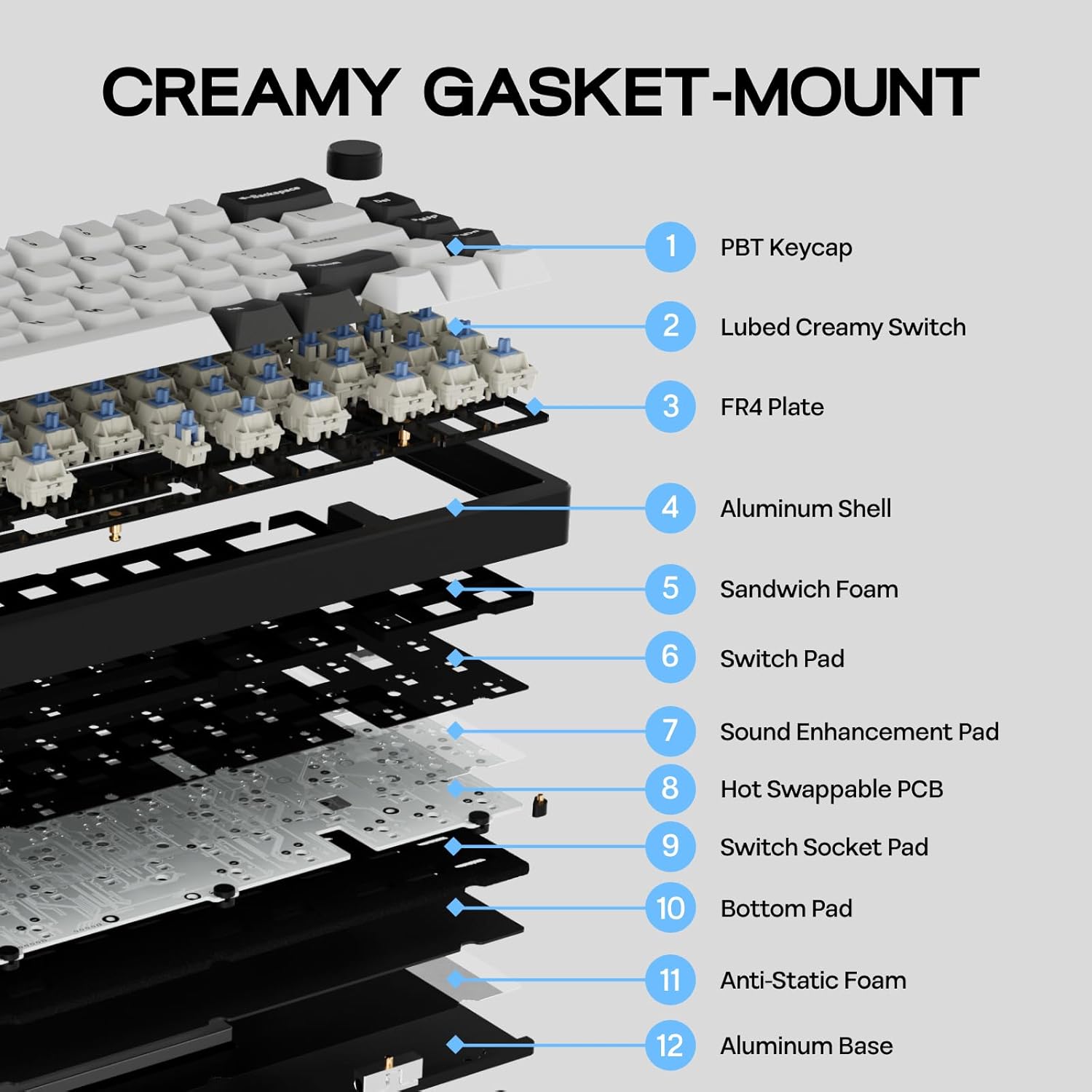
Image: Illustration of the keyboard's battery life, showing 200 hours with RGB off and 23 hours with RGB on.
Typing Experience:
The keyboard features pre-lubed linear switches and a gasket-mounted structure for a smooth and satisfying typing sound. The thick PBT keycaps are durable and resistant to shine.
Video: A short typing sound demonstration of the EPOMAKER Galaxy65 keyboard, highlighting the acoustic feedback of the switches.
5. Maintenance
Regular maintenance helps prolong the life and performance of your keyboard:
- Cleaning: Use a soft, dry cloth to wipe down the keycaps and case. For deeper cleaning, remove keycaps using the provided puller and use compressed air to clear debris from between switches.
- Switch and Keycap Replacement: Thanks to the hot-swappable PCB and ball-catch mechanism, switches and keycaps can be easily replaced. Gently pull keycaps straight up with the keycap puller. For switches, use the switch puller to grasp the switch firmly and pull straight up. Align new switches carefully before pressing them into place.
- Battery Care: To maintain battery health, avoid fully discharging the keyboard frequently. Charge it regularly, especially if storing for extended periods.
6. Troubleshooting
If you encounter issues with your EPOMAKER Galaxy65, please refer to the following common solutions:
| Issue | Possible Cause / Solution |
|---|---|
| Keyboard not responding |
|
| Number keys not working as expected (e.g., acting as function keys) |
|
| Bluetooth connection unstable or not pairing |
|
| RGB backlight not functioning |
|
7. Specifications
| Feature | Detail |
|---|---|
| Model | Galaxy65 |
| Brand | EPOMAKER |
| Product Dimensions | 4.37 x 12.52 x 0.75 inches |
| Item Weight | 3.61 pounds |
| Connectivity Technology | Bluetooth, 2.4Ghz Wireless, USB-C |
| Keyboard Description | Mechanical |
| Special Feature | FR4 Plate, QMK/VIA Programmable, 65% Compact Layout, Ball-catch Structure, Tri-mode Connection |
| Color | Silver (This specific variant) |
| Number of Keys | 66 |
| Keyboard Backlighting | RGB (South-Facing LED) |
| Battery | 1 Lithium Ion (4000mAh) |
| Compatible Devices | Laptop, PC, Gaming Console, Tablet, Smartphone |
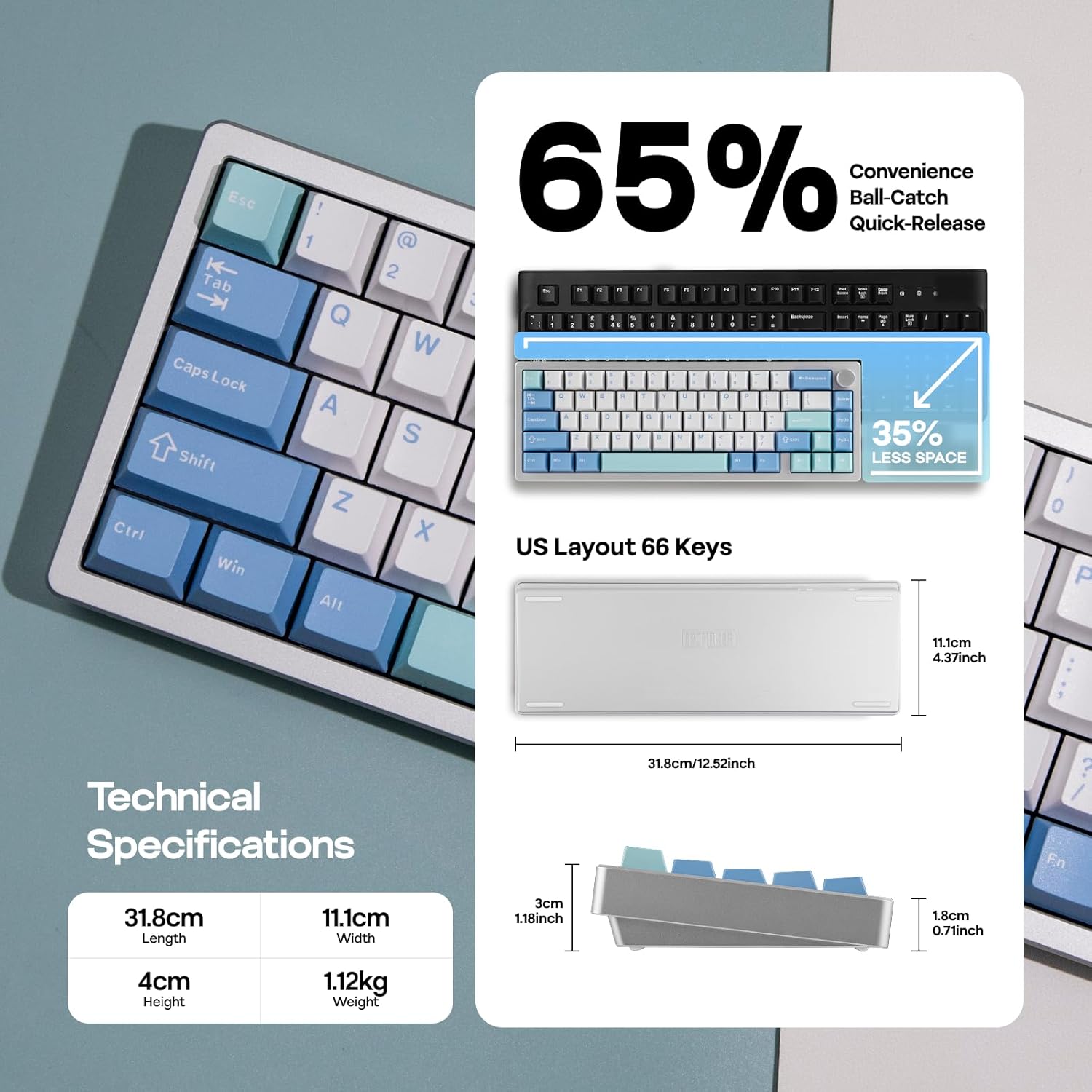
Image: Detailed technical specifications and dimensions of the EPOMAKER Galaxy65 keyboard.
8. Warranty and Support
For detailed warranty information and customer support, please refer to the official EPOMAKER website or the documentation provided with your product.
An official User Manual in PDF format is available for download:
For further assistance, you may also visit the EPOMAKER Store on Amazon.
Related documentsGalaxy65


Ask a question about this manual
Ask about setup, troubleshooting, compatibility, parts, safety, or missing instructions. Manuals+ will review the question and use this page’s manual context to help answer it.