
1. Introduction
Thank you for purchasing the UPERFECT 15.6-inch 4K Portable Monitor. This device is designed to enhance your productivity and entertainment experience with its stunning 4K UHD resolution, vibrant color reproduction, and versatile connectivity. This manual provides essential information for proper setup, operation, and maintenance to ensure optimal performance and longevity of your monitor.

Figure 1: UPERFECT 15.6-inch 4K Portable Monitor
2. Package Contents
Please check the package for the following items:
- UPERFECT 15.6-inch 4K Portable Monitor
- Magnetic Protective Cover (doubles as a stand)
- USB Type-C to Type-C Cable (x2)
- HDMI to Mini HDMI Cable (x1)
- USB Type-A Power Adapter (PSE certified) (x1)
- User Manual (this document)
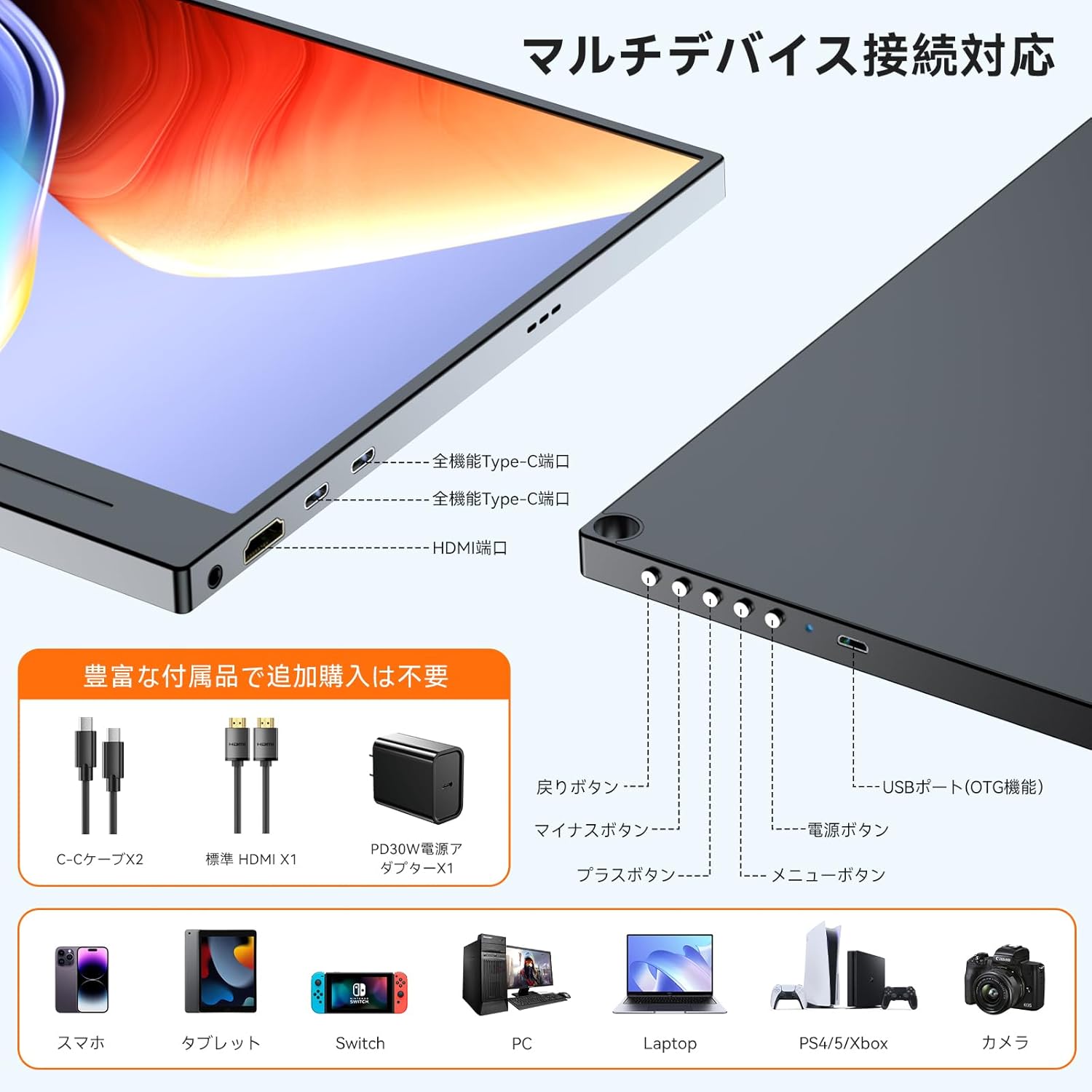
Figure 2: Included Accessories
3. Product Overview
Familiarize yourself with the monitor's components and ports.
3.1. Monitor Components
- Display Panel: 15.6-inch 4K UHD (3840x2160) IPS non-glare screen.
- Magnetic Cover: Protects the screen and functions as a multi-angle stand.
- Built-in Speakers: Two 8Ω 1W speakers for audio output.
- Control Buttons: Power, Menu, Up, Down, Back buttons for OSD navigation.
3.2. Ports and Controls

Figure 3: Ports and Controls Layout
- Full-function USB-C Ports (x2): For video signal, data transfer, and power delivery.
- Mini HDMI Port (x1): For video signal input.
- USB-A Port (OTG function) (x1): For connecting peripherals like a keyboard or mouse.
- 3.5mm Audio Jack (x1): For connecting headphones or external speakers.
- Power Button: Turns the monitor on/off.
- Menu Button: Accesses the On-Screen Display (OSD) menu.
- Navigation Buttons (+/-): Used to navigate and adjust settings within the OSD menu.
- Back Button: Returns to the previous OSD menu level.
4. Setup
Follow these steps to set up your UPERFECT portable monitor.
4.1. Connecting to a Power Source
The monitor can be powered via a USB-C connection from a compatible device or an external power adapter.
- Via USB-C (Single Cable Solution): If your device (e.g., laptop, smartphone) has a full-function USB-C port (supporting DisplayPort Alternate Mode and Power Delivery), connect one end of the provided USB-C to USB-C cable to your device and the other end to one of the monitor's full-function USB-C ports. This single cable can provide both video signal and power. Note: If your device's USB-C port does not support sufficient power delivery, or if it's not Thunderbolt 3/4 compatible, you may need to connect an external power source.
- Via External Power Adapter: Connect the provided USB Type-A power adapter to a power outlet and then to one of the monitor's USB-C ports using a USB-C cable. This ensures stable power delivery, especially when using HDMI for video input or connecting power-intensive devices.
4.2. Connecting to Devices
The monitor supports various devices through USB-C and HDMI connections.
- For Laptops/PCs (USB-C): Connect a USB-C to USB-C cable from your laptop's full-function USB-C port to the monitor. Ensure your laptop's USB-C port supports DisplayPort Alternate Mode.
- For Laptops/PCs (HDMI): Connect the provided HDMI to Mini HDMI cable from your laptop's HDMI port to the monitor's Mini HDMI port. You will also need to connect the monitor to a power source via USB-C.
- For Smartphones: Connect a USB-C to USB-C cable from your smartphone's full-function USB-C port to the monitor. Ensure your smartphone supports video output via USB-C (DisplayPort Alternate Mode).
- For Gaming Consoles (Nintendo Switch, PS4/PS5, Xbox): Connect the provided HDMI to Mini HDMI cable from your console's HDMI output to the monitor's Mini HDMI port. The monitor must also be powered via its USB-C port using the external power adapter.
- For Cameras: Connect your camera via HDMI to Mini HDMI. Ensure the monitor is powered externally.

Figure 4: Multi-Device Connectivity
4.3. Using the Magnetic Protective Cover
The included magnetic cover not only protects your monitor but also serves as a versatile stand. Fold the cover into a triangular shape to prop up the monitor at various viewing angles.
5. Operating Instructions
Learn how to operate your monitor and adjust its settings.
5.1. Power On/Off
- Power On: Press the Power button located on the side of the monitor.
- Power Off: Press and hold the Power button for a few seconds until the screen turns off.
5.2. On-Screen Display (OSD) Menu
The OSD menu allows you to customize various display settings.
- Access Menu: Press the Menu button to open the OSD menu.
- Navigate: Use the '+' and '-' buttons to move through menu options.
- Select/Confirm: Press the Menu button again to select an option or confirm a setting.
- Exit: Press the Back button to go back or exit the OSD menu.
5.3. Key Settings and Features
- Brightness/Contrast: Adjust these settings for optimal visibility in different lighting conditions. The monitor features 300 nits brightness and a 1300:1 contrast ratio.
- Color Settings: Fine-tune color temperature, hue, and saturation. The monitor offers 100% sRGB color gamut for accurate color reproduction.
- HDR Mode: Enable High Dynamic Range for enhanced visual depth and contrast in compatible content.
- Blue Light Reduction: Activate this feature to reduce eye strain during prolonged use.
- Input Source: Manually select between USB-C and HDMI input if auto-detection is not desired.
- Aspect Ratio: Adjust the display aspect ratio (e.g., 16:9).
- FreeSync: For compatible gaming setups, enable FreeSync to reduce screen tearing and stuttering.

Figure 5: 4K Resolution Detail

Figure 6: High Contrast Ratio

Figure 7: 100% sRGB Color Gamut

Figure 8: 3ms Response Time and FreeSync
5.4. Display Modes
Depending on your connected device, you can configure the display mode:
- Extend Mode: Extends your desktop across both screens, providing more workspace.
- Duplicate Mode: Mirrors your primary display, showing the same content on both screens.
- Portrait/Landscape Mode: The monitor supports both horizontal and vertical orientations. Settings for these modes are typically adjusted on the connected PC or device.

Figure 9: Portrait Mode Usage
6. Maintenance
Proper care will extend the life of your monitor.
- Cleaning the Screen: Gently wipe the screen with a soft, lint-free cloth. For stubborn marks, slightly dampen the cloth with water or a screen-cleaning solution. Avoid harsh chemicals or abrasive materials.
- Cleaning the Casing: Use a soft, dry cloth to clean the monitor's casing.
- Storage: When not in use, store the monitor in its protective magnetic cover in a cool, dry place away from direct sunlight and extreme temperatures.
- Handling: Avoid dropping or subjecting the monitor to strong impacts.
7. Troubleshooting
If you encounter issues, refer to the following common problems and solutions.
| Problem | Possible Cause | Solution |
|---|---|---|
| No display/No signal |
|
|
| Screen flickering/Unstable display |
|
|
| No audio from speakers/headphones |
|
|
| Cannot connect keyboard/mouse via OTG |
|
|
8. Specifications
Detailed technical specifications for the UPERFECT 15.6-inch 4K Portable Monitor.
| Feature | Specification |
|---|---|
| Brand | UPERFECT |
| Model Number | 15.6-inch 4K Portable Monitor |
| Screen Size | 15.6 inches |
| Resolution | 3840 x 2160 (4K UHD) |
| Panel Type | IPS, Non-glare |
| Aspect Ratio | 16:9 |
| Color Gamut | 100% sRGB |
| Contrast Ratio | 1300:1 |
| Brightness | 300 nits |
| Response Time | 3ms |
| Refresh Rate | 60Hz |
| Ports | 2x Full-function USB-C, 1x Mini HDMI, 1x USB-A (OTG), 1x 3.5mm Audio Jack |
| VESA Mount | 75mm compatible |
| Dimensions (W x H x D) | 355 x 225 x 11 mm |
| Weight | 932 g |
| Power Consumption | 12.00 W |
9. Warranty and Support
UPERFECT is committed to providing high-quality products and excellent customer service.
- Warranty Period: This product comes with a 12-month warranty from the date of purchase.
- PSE Certification: The included power adapter is PSE certified, ensuring compliance with electrical appliance safety standards.
- Customer Support: UPERFECT offers unlimited customer support. If you have any questions regarding product usage, or encounter any issues such as damage during shipping or defective accessories, please contact our support team. We aim to resolve issues within 12 hours.
- Contact Information: Please refer to the contact details provided on the UPERFECT official website or your purchase platform for support.

Figure 10: UPERFECT Customer Support


