
1. Product Overview
The OOSSXX OSX-POEB-8001 is a high-resolution 4K (8 Megapixel) PoE security camera designed for both indoor and outdoor surveillance. It features two-way audio communication, a 130° ultra-wide-angle lens, advanced H.265+ video compression, and AI-powered human detection combined with PIR detection for accurate monitoring. This camera ensures 24/7 safety with its robust design and superior night vision capabilities.

Image: Experience crystal-clear 4K 8 Megapixel resolution for detailed surveillance.

Image: The 130° ultra-wide-angle lens minimizes blind spots, providing extensive coverage.
2. Package Contents
Please verify that all items listed below are included in your package:
- 4K 8MP Camera x 1
- LAN Cable for Camera (18.2 meters) x 1
- Mounting Screw Pack for Camera x 1
- Mounting Sticker x 1
Video: Unboxing the PIR 4K PoE Add-on Camera. This video demonstrates the contents and initial handling of a similar OOSSXX camera model.
3. Setup Guide
3.1. Installation
The OOSSXX PoE security camera is designed for easy plug-and-play installation. Simply connect the camera to the main unit (NVR) using the provided LAN cable. The LAN cable features a waterproof connector, ensuring protection for outdoor installations.
- Choose a suitable location for your camera, ensuring it covers the desired surveillance area and is within reach of the LAN cable connection to your NVR.
- Use the mounting sticker to mark the drill holes on the wall or ceiling.
- Drill holes and insert the wall anchors if necessary.
- Secure the camera bracket using the provided screws.
- Connect the LAN cable to the camera and the NVR. Ensure the waterproof connector is properly sealed for outdoor use.
- Connect the NVR to a power source and a monitor (via HDMI or VGA) for initial setup and viewing.

Image: The camera supports two power modes: Power over Ethernet (PoE) via the LAN cable for simplified wiring, or a separate DC power supply.
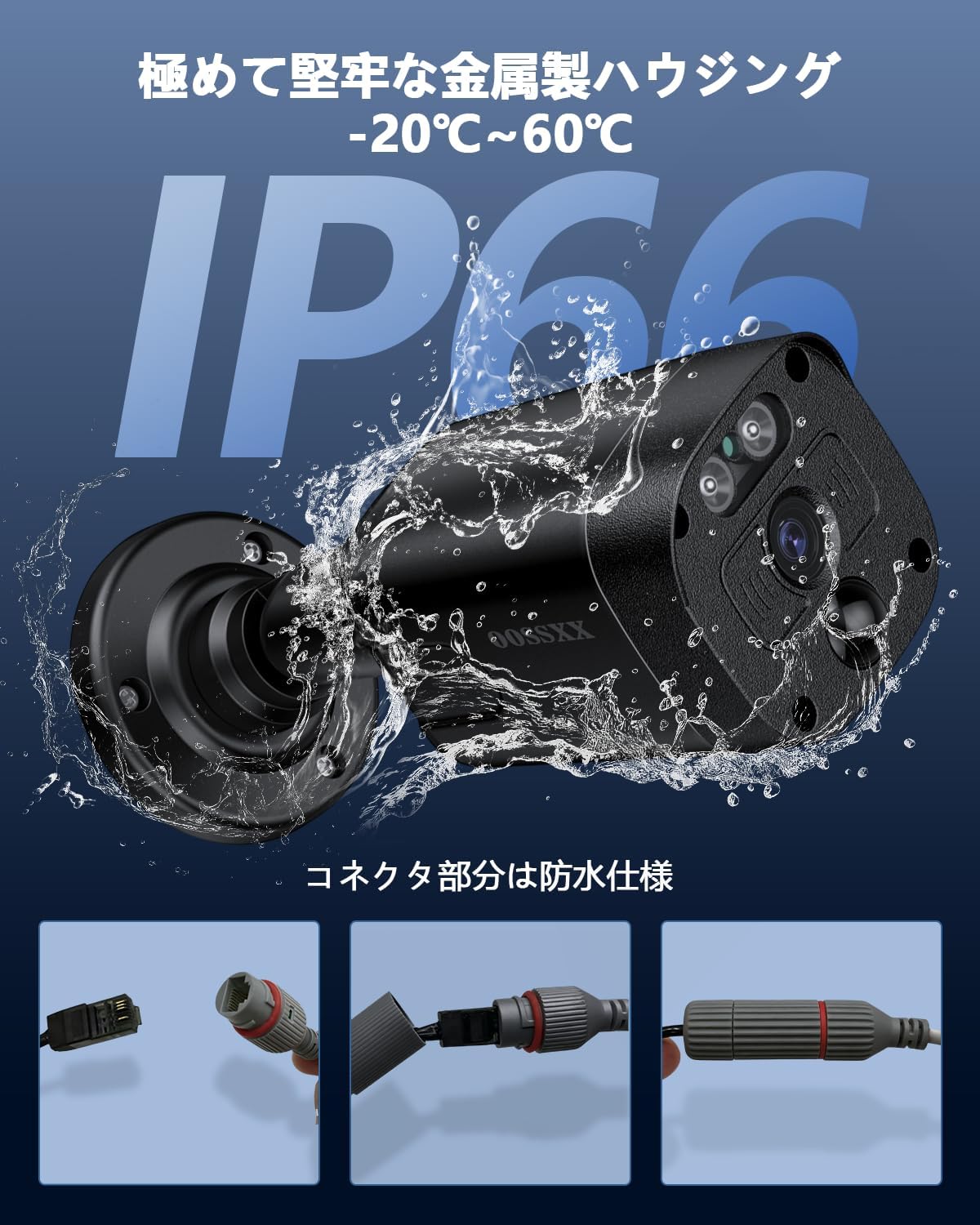
Image: The camera features an IP66-rated robust metal housing and a waterproof LAN connector, making it suitable for outdoor use in various weather conditions.
3.2. Initial Connection
Once physically installed, connect the NVR to a monitor using an HDMI or VGA cable. Power on the NVR. The camera feed should appear on the monitor within seconds. Follow the on-screen prompts to complete the initial system configuration, including setting up network access.
4. Operating Instructions
4.1. Two-Way Audio Communication
The camera supports two-way audio, allowing you to communicate with individuals near the camera from your smartphone or other compatible devices. This feature is useful for interacting with visitors or deterring intruders.

Image: Engage in real-time conversations with visitors or family members via the camera's two-way audio function.
4.2. Remote Access and Mobile App
Monitor your property remotely using the free 'Honestview' or 'Eseecloud' app, available on iOS App Store and Android Play Store. There are no monthly fees for using the app. The app allows up to 4 users to view streaming video simultaneously.

Image: Access live feeds and recordings from your camera anytime, anywhere, using the dedicated mobile application on various devices.
4.3. Recording Modes
The system supports multiple recording modes to suit your needs:
- Continuous Recording: Records 24/7.
- Scheduled Recording: Records during specific times you set.
- Motion Detection Recording: Records only when motion is detected.

Image: Choose from continuous, scheduled, or motion-activated recording to optimize storage and monitoring.
4.4. Motion Detection (AI & PIR)
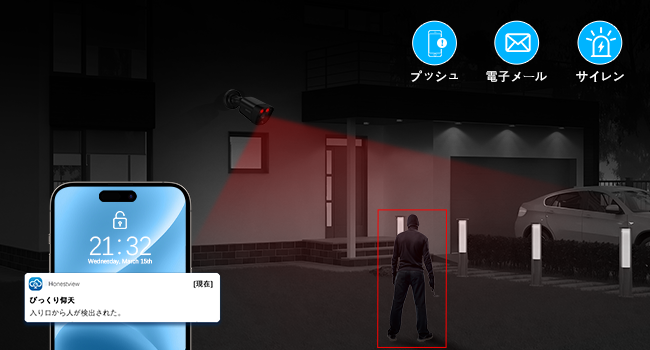
The camera utilizes advanced AI human detection combined with PIR (Passive Infrared) detection to accurately identify human movement and reduce false alarms. You can define specific motion detection areas to focus on critical zones.
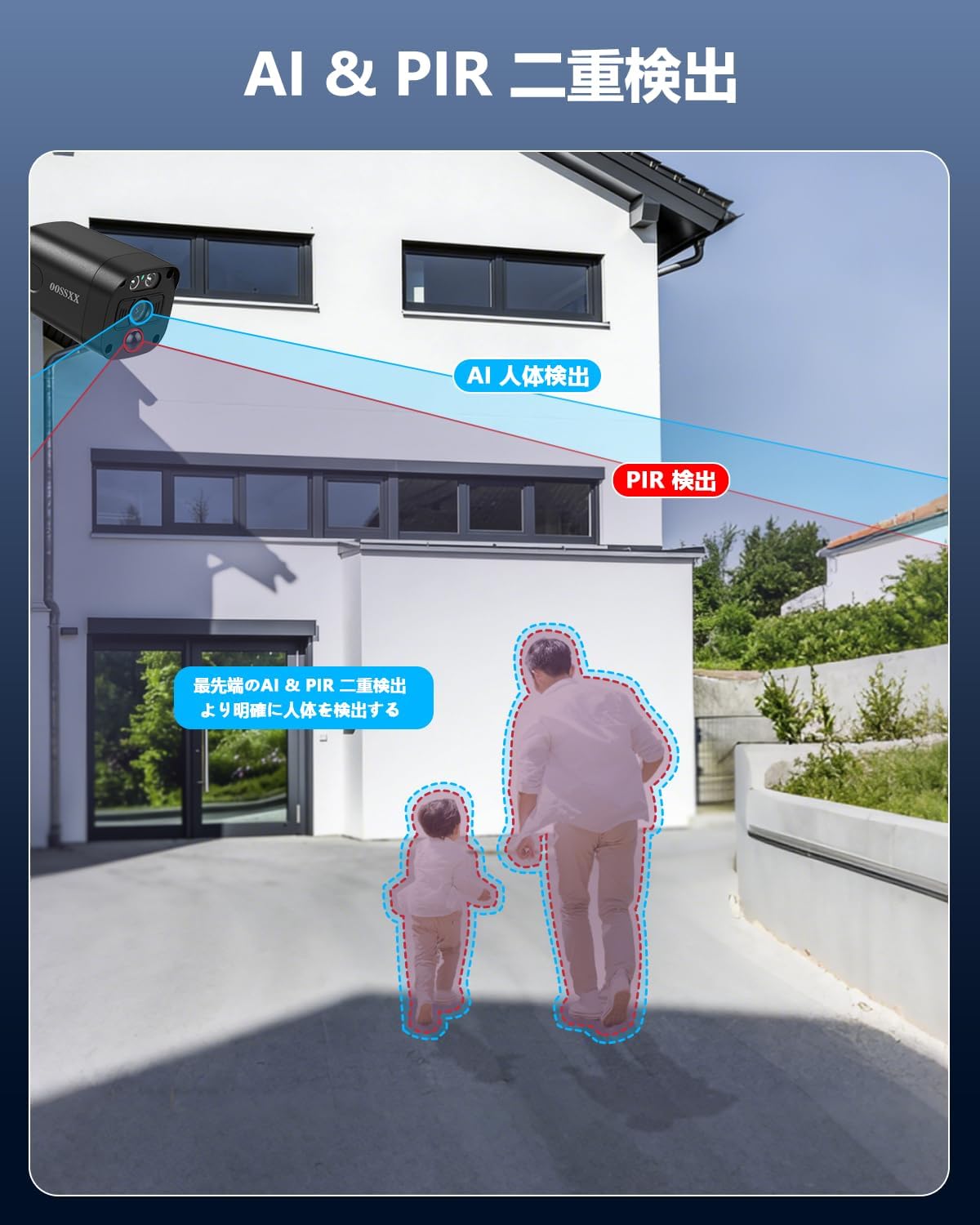
Image: AI and PIR dual detection work together to precisely identify human figures, enhancing security accuracy.
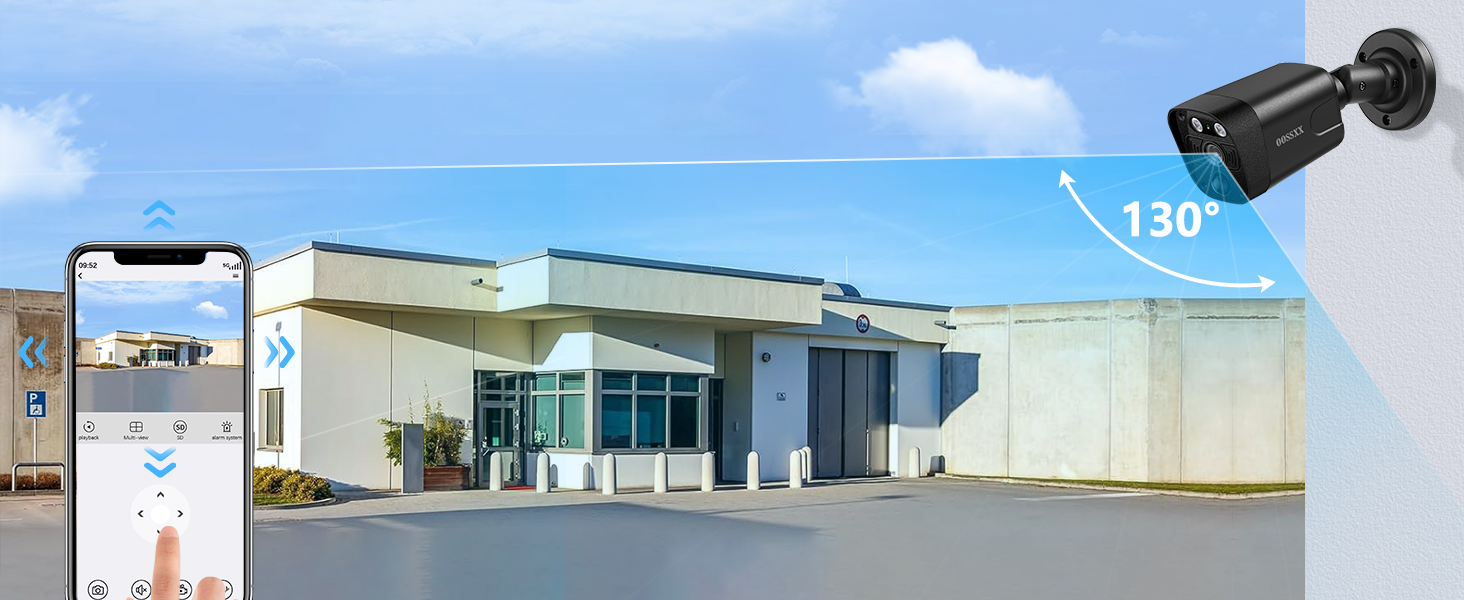
Image: Customize motion detection zones to monitor specific areas of interest and avoid unnecessary alerts.
4.5. Night Vision
Equipped with an IR-LED system, the camera automatically activates infrared mode in low-light conditions, providing clear night vision up to 20 meters. This ensures continuous surveillance even in complete darkness.
4.6. H.265+ Video Compression
The camera utilizes the advanced H.265+ video compression standard. This technology allows for more than twice the recording time compared to conventional H.264, while maintaining high image quality and saving storage capacity. When the HDD is full, older data is automatically overwritten.

Image: H.265+ compression technology efficiently stores more footage without compromising video quality.
5. Maintenance
The OOSSXX OSX-POEB-8001 camera features an IP66-rated robust metal housing, providing excellent protection against dust and water. This makes it suitable for outdoor installation in various weather conditions. Regular cleaning of the lens with a soft, damp cloth is recommended to ensure optimal image clarity. Avoid using harsh chemicals.
6. Troubleshooting
- No Image on Monitor: Ensure all cables (power, LAN, HDMI/VGA) are securely connected. Check if the NVR and camera are powered on.
- No Remote Access: Verify that the NVR is connected to the internet and that your mobile device has a stable internet connection. Ensure the 'Honestview' or 'Eseecloud' app is correctly configured and logged in.
- Poor Image Quality: Check the camera lens for dirt or obstructions. Ensure the camera is within its optimal night vision range if viewing in the dark.
- False Motion Alarms: Adjust the motion detection sensitivity settings in the NVR or app. Refine the motion detection zones to exclude areas with frequent irrelevant movement (e.g., trees swaying).
- Two-Way Audio Issues: Check microphone and speaker settings in the app or NVR. Ensure there are no obstructions blocking the camera's microphone or speaker.
7. Product Specifications
| Feature | Specification |
|---|---|
| Brand | OOSSXX |
| Model Number | OSX-POEB-8001 |
| Connectivity Technology | Wired |
| Video Capture Resolution | 3264x2488 (8 Megapixels) |
| Features | 130° Ultra Wide Angle, 4K 8 Megapixels, PIR Dual Detection, Two-Way Audio, Remote Monitoring |
| Color | Black (4K 8MP PoE Camera) |
| Power Type | AC/DC |
| Operating System | Linux |
| Compatible Devices | Smartphone, Tablet, TV, Desktop PC, Laptop |
| Night Vision | 845nm 2 Infrared Dot Matrix Lamp Super Night Vision |
| Night Vision Range | 20 Meters |
| Frame Rate | 15 fps |
| Recording Mode | Manual |
| USB Ports | 2 |
| Hardware Interface | HDMI, USB, VGA |
| Lens Type | Wide Angle |
| Video Input | Digital Video Camera, Network Camera |
| Field of View | 130 Degrees |
| Signal Format | Digital |
| Optical Sensor Technology | CMOS |
| Product Dimensions | 39 x 28 x 19 cm |
| Recommended Use | Indoor/Outdoor Security |
| Warranty | One-year free warranty period |
8. Warranty and Support
OOSSXX provides a 12-month quality guarantee for this product. We maintain strict quality control throughout manufacturing and inspection processes to ensure reliable products.
8.1. Contact Information
Should you have any questions or encounter issues during the use of your OOSSXX security camera, please do not hesitate to contact our support team.
- Email Support: jp-info@oossxx.com (Japanese language support available, response within 24 hours)
- Service Center Address (Japan): Chiba Prefecture, Chiba City, Inage Ward, Tendai 5-8-9 Rose Avenue Inage Tendai 1F
8.2. LINE Service
For additional support and updates, you can connect with OOSSXX via our LINE service:
Scan this QR code to access the OOSSXX LINE service for support.
Alternatively, visit: https://lin.ee/K941p57


