
Introduction
This manual provides detailed instructions for the setup, operation, and maintenance of your VELATEMOR Ink Screen Book Reader. Designed for portability and comfort, this device combines an e-ink display with multimedia capabilities to enrich your daily reading and listening.
Product Features
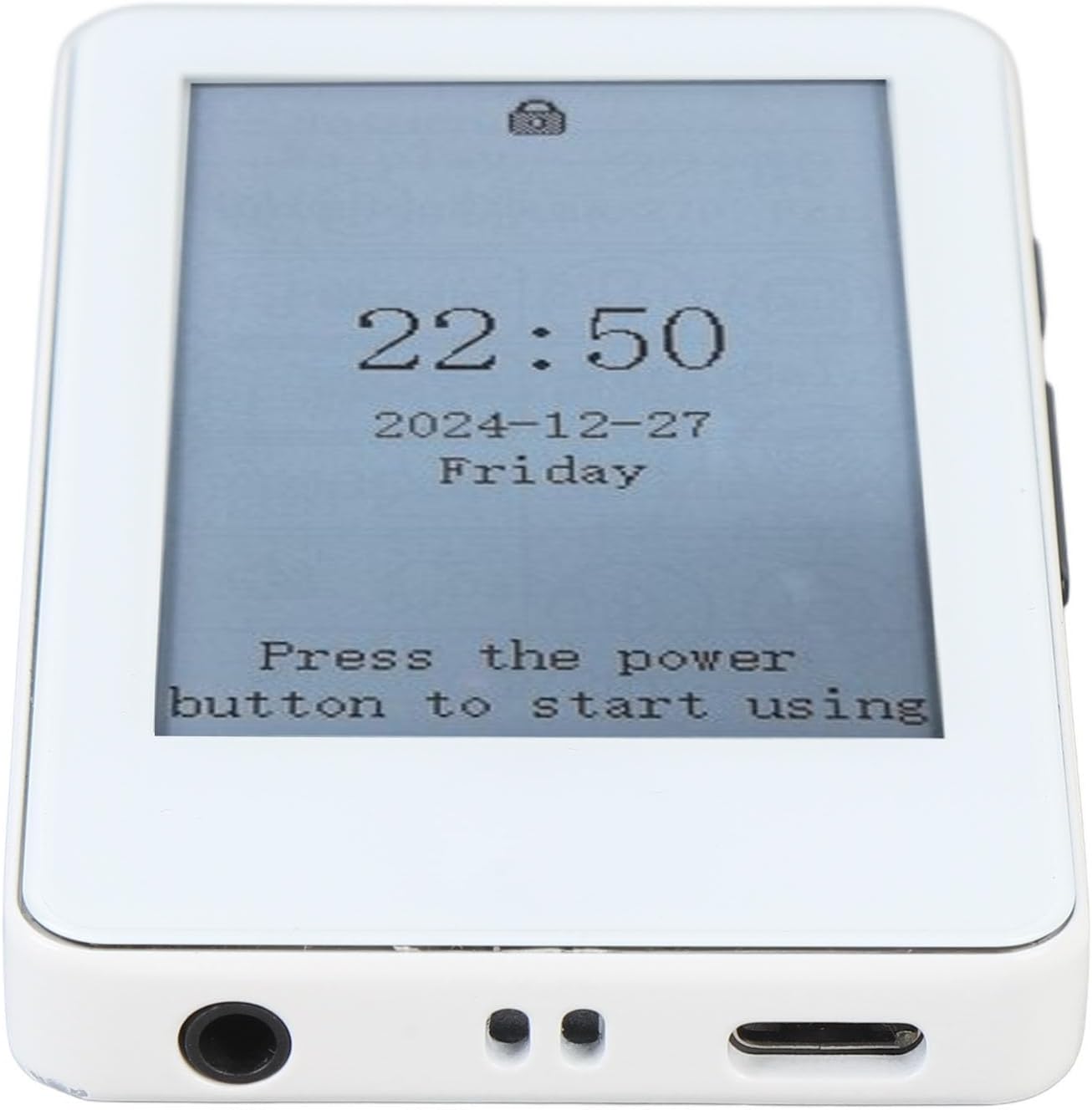
- Better Reading Experience: Equipped with a 2.7-inch touchscreen electric ink display, this e-reader delivers a paper-like reading experience. It supports backlight adjustment for comfortable reading in various lighting conditions.
- Multifunctional Entertainment Hub: Combines e-book reading, music playback, and Bluetooth connectivity. Enjoy both reading and music on the go, with lyrics synchronization for an enhanced musical experience.
- Extended Battery Life: A built-in 400mAh battery offers up to 30 hours of continuous use, ensuring long periods of enjoyment for books and music during travel or daily commutes.
- Smart and Practical Tools: Includes a calendar, alarm clock, and calculator for added daily convenience and personalized efficiency.
- Ample Storage Support: Supports up to 128GB of external memory card expansion, allowing for a vast collection of e-books and music files without storage concerns.
What's in the Box
- VELATEMOR Ink Screen Book Reader
- USB Charging Cable
- User Manual (this document)

Setup
1. Charging the Device
Before first use, fully charge your device using the provided USB cable. Connect the small end of the USB cable to the device's USB-C port and the other end to a compatible USB power adapter (not included) or a computer's USB port.
2. Power On/Off
- To Power On: Press and hold the power button located on the side of the device until the screen activates.
- To Power Off: Press and hold the power button until a power-off option appears on the screen. Select 'Power Off'.
- Sleep Mode: A short press of the power button will put the device into sleep mode, conserving battery. Press again to wake.

3. Initial Setup (Language & Wi-Fi)
- Upon first power-on, you will be prompted to select your preferred language.
- Connect to a Wi-Fi network to access online features and download content. Navigate to 'Settings' and select 'Wi-Fi' to choose your network and enter the password.
Operating Instructions
1. Basic Navigation
- Touchscreen: The 2.7-inch touchscreen allows for intuitive navigation through menus and content.
- Page Turn Buttons: Use the physical buttons on the side of the device to turn pages while reading.
2. Reading E-books
- Opening Books: From the main screen, tap on the 'Books' icon to view your library. Select a book to open it.
- Adjusting Font Size: While reading, use a pinch-to-zoom gesture on the touchscreen to increase or decrease the font size for optimal comfort.
- Backlight Adjustment: Access the quick settings menu (usually by swiping down from the top of the screen or a dedicated button) to adjust the backlight intensity.
3. Downloading Content
- Project Gutenberg App: The device includes a pre-installed Project Gutenberg app, offering access to a vast library of free e-books in the public domain. Ensure Wi-Fi is connected to browse and download.
- Computer Transfer: Connect the device to your computer using the USB cable. The device will appear as a removable storage drive, allowing you to transfer e-book files directly.
4. Audio Playback
- Bluetooth Connectivity: Pair your Bluetooth headphones or speakers via the 'Settings' menu to listen to audiobooks or music wirelessly.
- Headphone Jack: The device features a 3.5mm headphone jack for wired audio listening.
- Music Playback: Use the built-in music player to enjoy your audio files. The device supports lyrics synchronization.
5. Smart Features
Access the 'App' section to utilize practical tools such as the calendar, alarm clock, and calculator.
Maintenance
- Cleaning: Use a soft, dry, lint-free cloth to clean the screen and body of the device. Avoid abrasive cleaners or solvents.
- Storage: Store the device in a cool, dry place away from direct sunlight and extreme temperatures.
- Battery Care: To prolong battery life, avoid fully discharging the device frequently. Charge it regularly, even if not in constant use.
Troubleshooting
- Device Not Responding: If the device becomes unresponsive, press and hold the power button for 10-15 seconds to perform a hard reset.
- Cannot Connect to Wi-Fi: Ensure your Wi-Fi password is correct and the device is within range of the network. Try restarting both the device and your Wi-Fi router.
- Screen Display Issues: If the e-ink display shows ghosting or artifacts, perform a full screen refresh (often triggered automatically during page turns or can be manually initiated in settings).
Specifications
| Feature | Specification |
|---|---|
| Brand | VELATEMOR |
| Model Name | VELATEMORxhdr83k45g |
| Display Technology | Electronic Ink |
| Screen Size | 2.7 Inches |
| Memory Storage Capacity | 128 GB (expandable) |
| Item Weight | 4.9 ounces |
| Package Dimensions | 5.51 x 3.15 x 1.57 inches |
| Battery Life | Up to 30 hours (400mAh) |
| Supported File Format | RM (and other common e-book formats) |
Warranty and Support
For warranty information and customer support, please refer to the documentation provided at the time of purchase or visit the official VELATEMOR website. Keep your proof of purchase for any warranty claims.