
1. Introduction
This manual provides essential instructions for the safe and effective use of your LIKCUT S501 Vinyl Cutter Machine Cardstock Creator Bundle. Please read this manual thoroughly before operating the device to ensure optimal performance and longevity. The LIKCUT S501 is designed for creative DIY projects, enabling precise cutting and drawing on various materials such as vinyl, cardstock, and HTV.
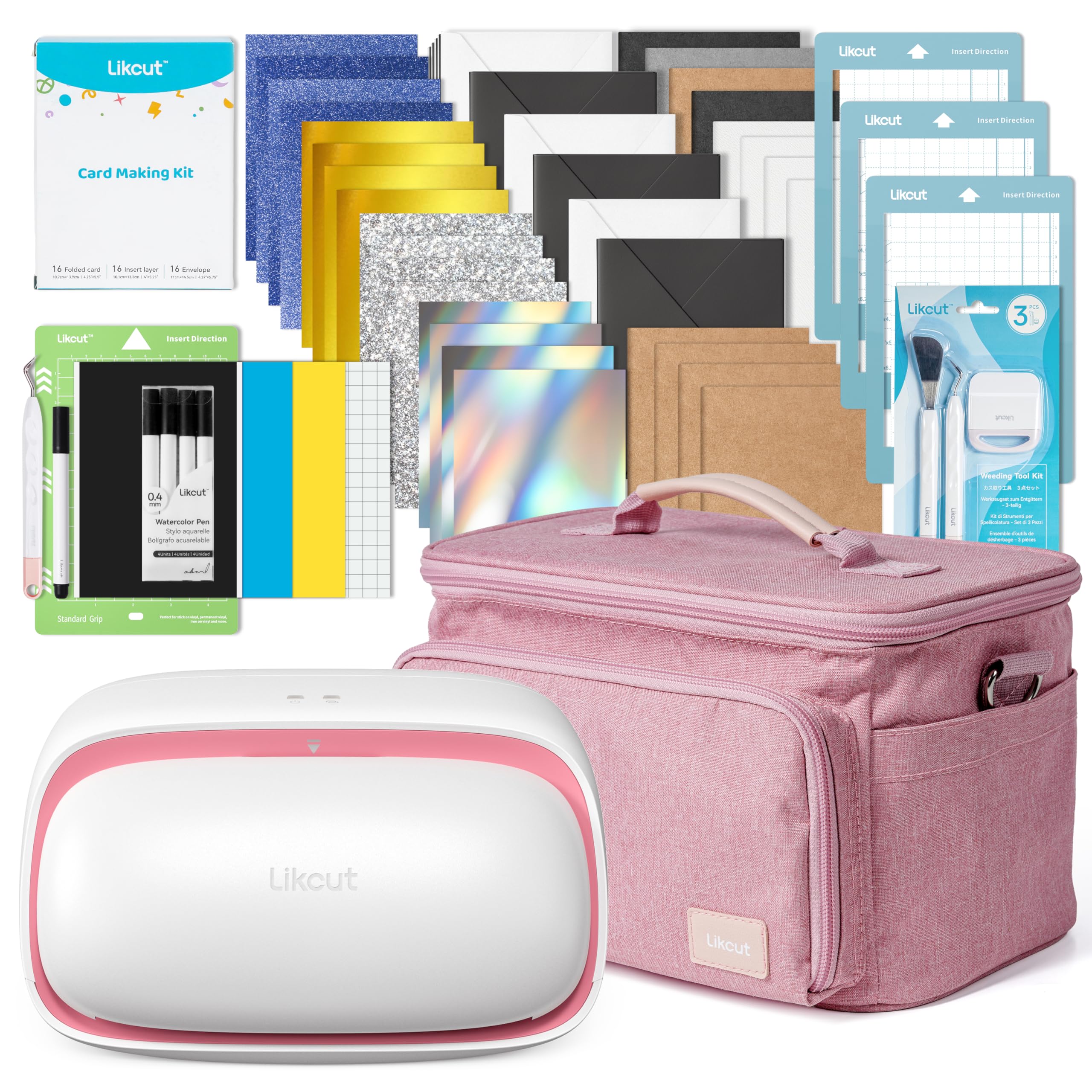
Image 1.1: The LIKCUT S501 Vinyl Cutter Machine Cardstock Creator Bundle, including the machine, carrying case, and various crafting materials.
2. Package Contents
Verify that all items listed below are present in your package. If any items are missing or damaged, please contact LIKCUT customer support.
- 1 x LIKCUT S501 Vinyl Cutting Machine
- 1 x Carrying Case Bag
- 1 x Power Adapter
- 1 x USB-C Cable
- 3 x Card Mats (4.5" x 6.5")
- 1 x Standard Cutting Mat (4.5" x 6.5")
- 5 x Watercolor Pens Black (0.4 mm)
- 1 x Weeding Tools Set
- 1 x Adhesive Vinyl Sheet Bundle (Smart Adhesive Vinyl 5.5" x 6.5", Adhesive Vinyl Sheet 4.5" x 6.5" x 2)
- 1 x Card Making Kit (16 Insert Cards, 16 Insert Layers, 16 Envelopes)
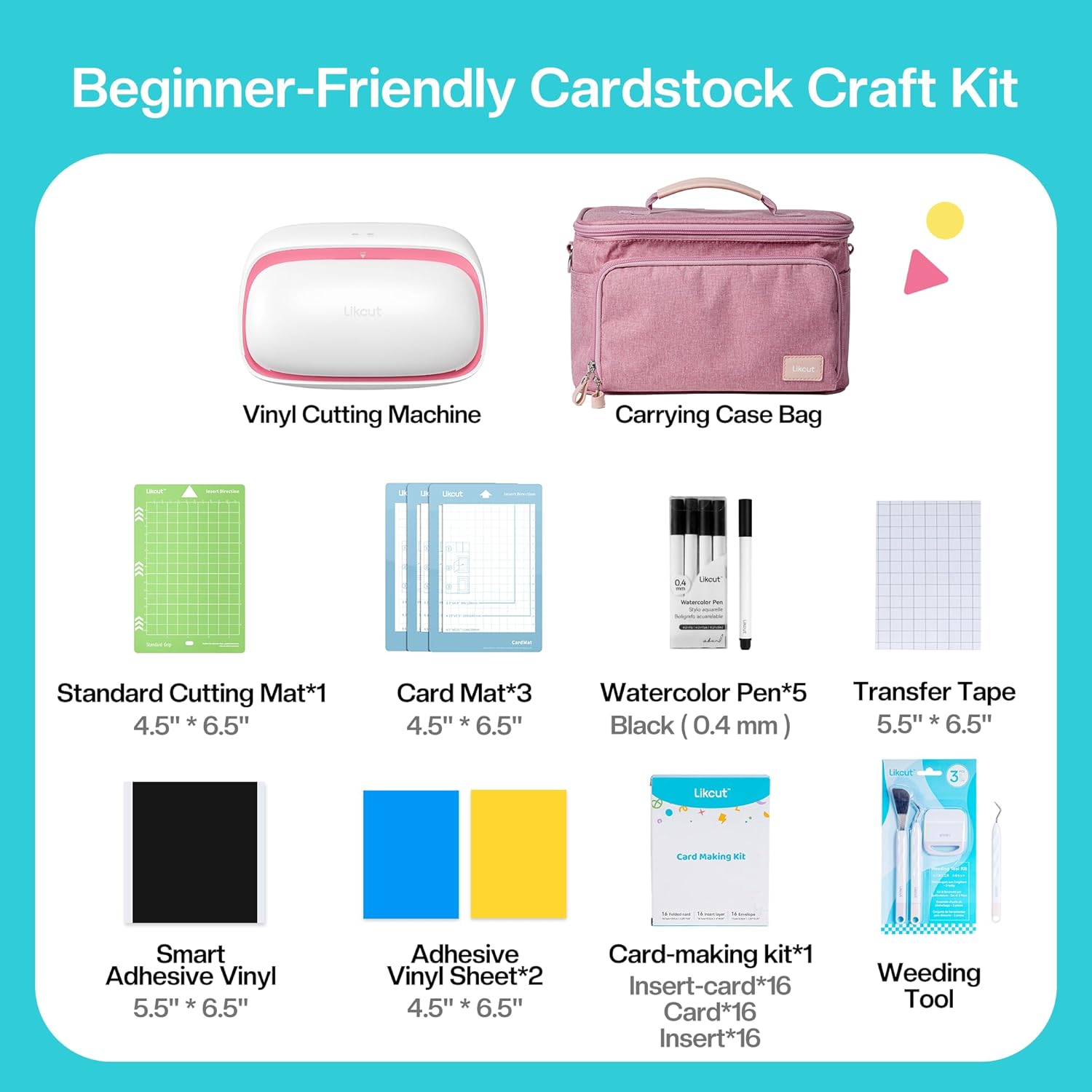
Image 2.1: Detailed view of the LIKCUT S501 Cardstock Craft Kit contents, including the machine, carrying case, mats, pens, vinyl, and card-making supplies.

Image 2.2: Visual representation of the LIKCUT S501 bundle components, highlighting the machine, carrying case, and various included accessories.
3. Setup
3.1 Power Connection
- Connect the power adapter to the machine's charging port (Type-C).
- Plug the adapter into a standard electrical outlet.
- The indicator light on the machine will illuminate, indicating it is connected to power.
3.2 Software and Connectivity
- Download the LIKCUT design application from your device's app store.
- Open the application and follow the on-screen instructions to pair your LIKCUT S501 machine via Bluetooth or connect directly using the USB-C cable.
- A steady blue light indicates an active Bluetooth connection. A fast blinking blue light indicates a successful Type-C connection.

Image 3.1: Visual guide to the indicator lights for power, Bluetooth, and Type-C connections on the LIKCUT S501 machine.
4. Operation
4.1 Basic Workflow (DIY in 3 Steps)
- Select Project: Choose a design from the LIKCUT app's extensive library or create your own.
- Cut or Draw: Load your material onto the appropriate mat and insert it into the machine. The LIKCUT S501 will execute the design.
- Complete Project: Remove the material and finish your creation.

Image 4.1: Overview of the simple three-step process for creating projects with the LIKCUT S501: select, cut/draw, and complete.
4.2 Cutting and Drawing Functions
The LIKCUT S501 supports both cutting and drawing operations, allowing for versatile crafting.
- Cutting: Use the cutting blade to precisely cut various materials like cardstock, vinyl, and HTV.
- Drawing: Insert a compatible pen into the tool holder to draw intricate designs.
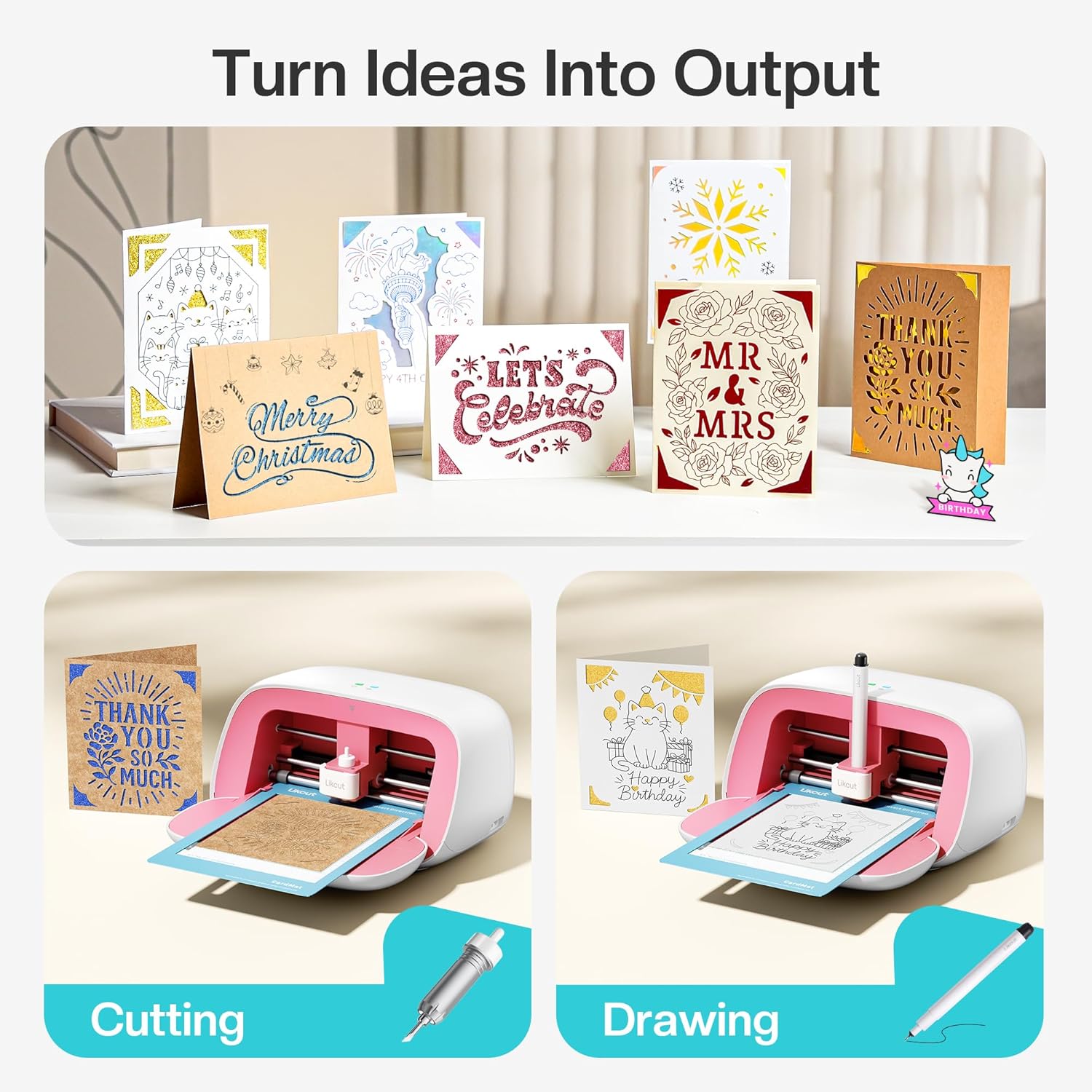
Image 4.2: The LIKCUT S501 demonstrating both cutting and drawing functions for card creation.

Image 4.3: Illustration of the LIKCUT S501's versatility, showing its ability to cut paper, draw designs, and cut vinyl using different mats and tools.
4.3 Using Insert Cards
The included Card Making Kit allows for easy creation of custom insert cards.
- Design: Select or create your card design in the LIKCUT app.
- Cut: Place the folded card onto the Card Mat and insert it into the machine for cutting.
- Weed: Carefully remove excess material from your cut design using the weeding tools.
- Apply: Insert the decorative layer into the cut card and place it in an envelope.

Image 4.4: A four-step visual guide demonstrating the process of creating insert cards: design, cut, weed, and apply.

Image 4.5: Dimensions for the folded card, insert layer, and envelope included in the LIKCUT S501 Card Making Kit.
4.4 App Features
The LIKCUT app provides a rich library of designs and functionalities to enhance your crafting experience.
- Design Library: Access over 1,000,000 designs and 1,000+ fonts.
- Photo Extraction: Utilize the photo extraction and printing function to convert images into cuttable designs. Supported file formats include JPG, PNG, and SVG.

Image 4.6: Step-by-step demonstration of the photo extraction and printing function within the LIKCUT app, converting an image into a cut design.

Image 4.7: A collage showcasing the vast array of designs and tutorials available through the LIKCUT app, inspiring various crafting projects.
5. Maintenance
5.1 Cleaning the Machine
Regular cleaning ensures optimal performance and extends the life of your LIKCUT S501.
- Power off and unplug the machine before cleaning.
- Use a soft, dry cloth to wipe down the exterior of the machine.
- Gently remove any debris or material scraps from the cutting area and around the blade housing.
- Do not use abrasive cleaners or solvents.
5.2 Blade Care and Replacement
The cutting blade is a consumable part. Replace it when you notice a decrease in cutting precision or quality.
- Always handle the blade with care, as it is extremely sharp.
- Refer to the LIKCUT app or website for specific instructions on how to safely replace the blade.
- Use only genuine LIKCUT replacement blades to ensure compatibility and performance.
6. Troubleshooting
If you encounter issues with your LIKCUT S501, refer to the common problems and solutions below. For further assistance, contact LIKCUT customer support.
| Problem | Possible Cause | Solution |
|---|---|---|
| Machine not powering on | Power cable not connected properly; Power outlet issue | Ensure power adapter is securely connected to machine and outlet. Test outlet with another device. |
| Bluetooth connection fails | Bluetooth disabled on device; Machine too far from device; Interference | Enable Bluetooth on your device. Move machine closer. Restart both machine and device. Try USB-C connection. |
| Poor cutting quality | Dull blade; Incorrect material settings; Material not properly adhered to mat | Replace blade. Adjust material settings in the app. Ensure material is firmly pressed onto the cutting mat. |
| Mat not feeding correctly | Obstruction; Mat not inserted straight | Check for any debris in the feed path. Ensure the mat is aligned correctly with the guides before inserting. |
7. Specifications
Technical specifications for the LIKCUT S501 Vinyl Cutter Machine.
| Feature | Detail |
|---|---|
| Model Number | S501 |
| Product Dimensions | 0.86 x 4.53 x 6.3 inches |
| Item Weight | 8.98 pounds |
| Manufacturer | LIKCUT |
| Material | Plastic |
| Operation Mode | Automatic |
| Print Media Compatibility | Back print film, Card stock, Glossy film, Labels, Paper (plain) |

Image 7.1: Diagram illustrating the compact dimensions of the LIKCUT S501 machine, including indicator light, cutting shaft, cutting knife, storage box, and Type-C ports.

Image 7.2: Dimensions of the Card Mat (15.9cm x 11.4cm) and Standard Cutting Mat (16.51cm x 11.43cm) for the LIKCUT S501.
8. Safety Information
Please observe the following safety precautions to prevent injury or damage to the machine:
- Keep the machine away from water or other liquids.
- Do not operate the machine with wet hands.
- Keep fingers and loose clothing away from moving parts during operation.
- Store the machine and accessories out of reach of children.
- Use only the provided power adapter and USB-C cable.
- Do not attempt to disassemble or repair the machine yourself. Contact customer support for service.
9. Warranty and Support
LIKCUT provides dedicated customer support to assist with any questions or issues you may encounter.
- For product support, troubleshooting, or warranty information, please visit the official LIKCUT store or contact their customer service team.
- Official LIKCUT Store: LIKCUT Store on Amazon


