
1. Introduction
Thank you for choosing the ODK 48 Inch Gaming Desk. This U-shaped computer desk is designed to provide an expansive and organized workspace for gaming, work, or study. It features integrated LED lighting, a built-in power outlet, a monitor stand, and storage shelves to enhance your setup. This manual provides essential information for assembly, operation, maintenance, and troubleshooting to ensure optimal use of your new desk.

Image 1.1: The ODK 48 Inch Gaming Desk, showcasing its U-shaped design and integrated features.
Video 1.1: An overview of the ODK U Shaped Gaming Desk, highlighting its design and key functionalities.
2. Safety Information
Please read and understand all safety instructions before assembling and using the desk. Failure to follow these instructions may result in injury or damage to the product.
- Assembly requires careful handling of parts and proper use of tools to avoid injury. Always follow the provided instructions and safety guidelines during assembly.
- Ensure all screws and fasteners are securely tightened before use. Periodically check and re-tighten as necessary.
- Do not overload the desk or shelves beyond their weight capacity. Refer to the specifications section for weight limits.
- Keep liquids away from electrical components, including the power outlet and LED lights, to prevent electric shock or damage.
- Place the desk on a level surface to prevent tipping.
- Keep small parts and packaging materials away from children to prevent choking hazards.
3. Package Contents
Verify that all components are present before beginning assembly. If any parts are missing or damaged, please contact customer support.
- Desk Panels (U-shaped desktop, monitor stand, shelves)
- Metal Frame Components
- Built-in Power Outlet (3 AC ports, 2 USB ports)
- LED Lighting Strip
- Headphone Hook
- Assembly Hardware (screws, bolts, Allen wrench, etc.)
- Instruction Manual
4. Assembly Instructions (Setup)
The ODK 48 Inch Gaming Desk is designed for quick and easy assembly. All necessary tools, pre-drilled holes, and clear, easy-to-follow instructions are included. It is recommended to assemble the desk with two people for optimal ease and safety.
- Unpack Components: Carefully remove all parts from the packaging and lay them out on a clean, soft surface to prevent scratches.
- Identify Parts: Refer to the included parts list and diagrams to identify each component.
- Assemble Frame: Follow the step-by-step diagrams to connect the metal frame components using the provided hardware. Do not fully tighten screws until all parts are aligned.
- Attach Desktop Panels: Secure the U-shaped desktop panels to the assembled frame.
- Install Shelves and Monitor Stand: Attach the storage shelves and monitor stand as indicated in the manual. The storage shelves are movable and can be installed on the left or right side for flexible storage.
- Install Power Outlet and LED Lights: Integrate the built-in power outlet and attach the LED lighting strip according to the instructions.
- Attach Headphone Hook: Secure the headphone hook to the desired location.
- Final Tightening: Once all components are in place and aligned, securely tighten all screws and fasteners.
- Adjust Foot Pads: Adjust the foot pads at the bottom of the desk legs to ensure stability on uneven floors.
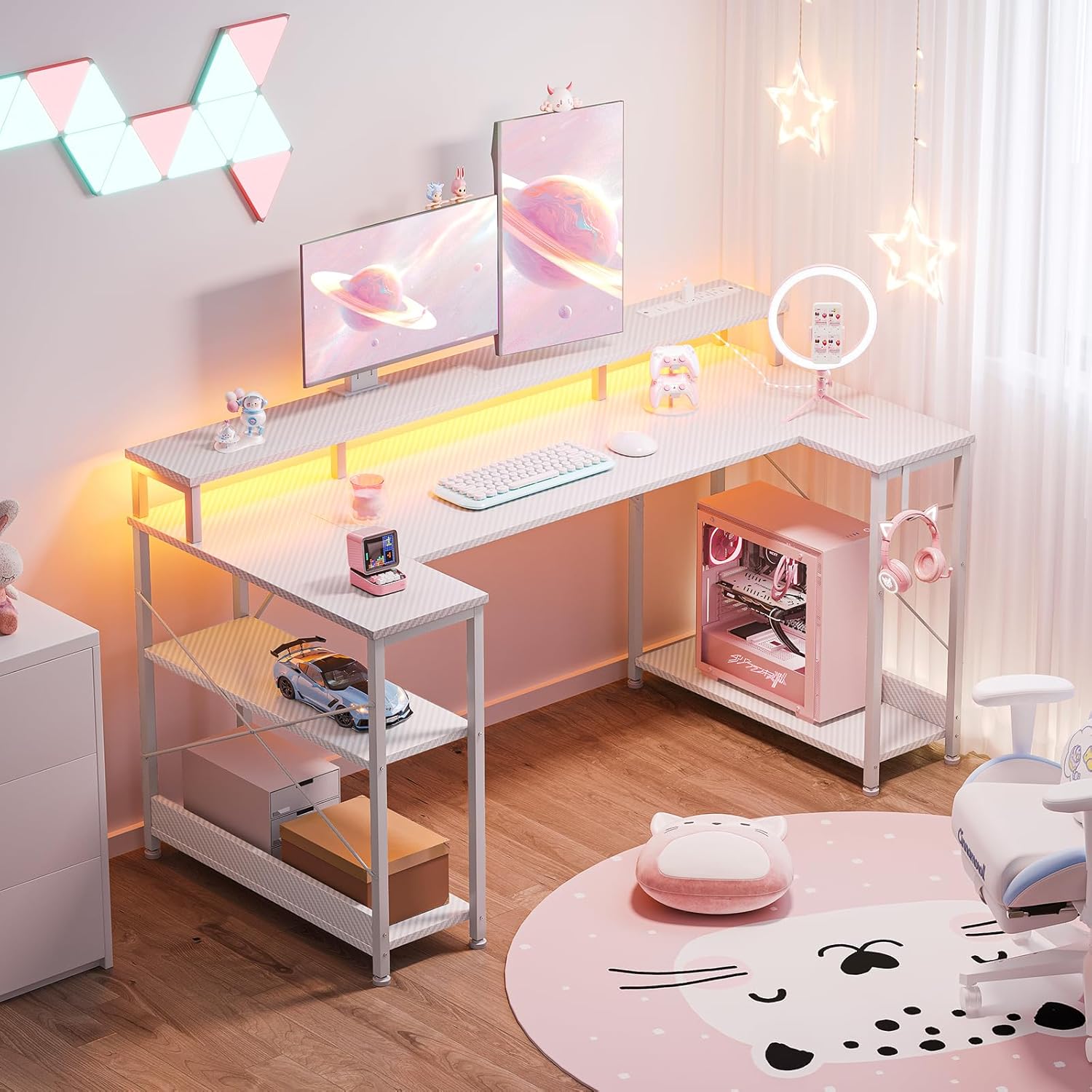
Image 4.1: Detailed product dimensions for assembly reference.
5. Operating Instructions
5.1. LED Lights
The desk features customizable LED lights with 10 vibrant colors and 20 dynamic lighting modes. The LED strip is controlled via an inline remote.
- Power On/Off: Press the power button on the remote to turn the lights on or off.
- Change Colors: Use the color selection buttons to cycle through the 10 available static colors.
- Select Modes: Use the mode buttons to choose from 20 dynamic lighting effects, such as flashing, fading, or strobing.
- Adjust Brightness/Speed: Use the brightness or speed adjustment buttons to customize the intensity of static colors or the pace of dynamic modes.

Image 5.1: The RGB LED Lights Strip and its remote control for color and mode selection.
5.2. Built-in Power Outlet
The desk includes a convenient built-in power outlet with 3 AC ports and 2 USB ports for charging and powering your devices.
- AC Ports: Plug in your computer, monitors, or other AC-powered devices.
- USB Ports: Connect USB cables to charge smartphones, tablets, or other USB-powered accessories.
- Safety: Do not exceed the maximum power rating of the outlet. Avoid spilling liquids near the power strip.

Image 5.2: Close-up view of the built-in power outlet, showing 3 AC and 2 USB ports.
5.3. Headphone Hook
A dedicated headphone hook is provided for convenient storage of your headphones, keeping them within reach and off the desktop.
5.4. Monitor Stand
The ergonomic monitor stand elevates your display(s) to eye level, promoting better posture and freeing up valuable desktop space underneath for other essentials.

Image 5.3: The ergonomic monitor stand elevating displays for improved viewing comfort.
5.5. Storage Shelves
The desk includes integrated storage shelves that can be positioned on either the left or right side to suit your setup. These shelves provide additional space for books, gaming accessories, or a PC tower.

Image 5.4: The versatile storage shelves, offering flexible organization options.
6. Maintenance
Regular maintenance will help prolong the life and appearance of your ODK Gaming Desk.
- Cleaning: Wipe the carbon fiber surface with a soft, damp cloth. Avoid abrasive cleaners or harsh chemicals that could damage the finish.
- Dusting: Regularly dust the desk and shelves to prevent buildup.
- Fastener Check: Periodically check all screws and bolts to ensure they remain tight. Re-tighten if necessary.
- Electrical Components: Ensure the power outlet and LED lights are free from dust and debris. Do not attempt to repair electrical components yourself.
7. Troubleshooting
If you encounter any issues with your ODK Gaming Desk, refer to the following common troubleshooting steps:
| Problem | Possible Cause | Solution |
|---|---|---|
| Desk is wobbly | Loose fasteners; Uneven floor | Check and tighten all screws. Adjust the leveling foot pads at the bottom of the legs. |
| LED lights not working | Power connection issue; Remote battery low; Damaged LED strip | Ensure the LED strip is properly connected to a power source. Check the remote control battery. If issues persist, contact customer support. |
| Power outlet not functioning | No power to the desk; Overload; Faulty outlet | Ensure the desk's main power cord is securely plugged into a working wall outlet. Check if the circuit breaker has tripped. Reduce the number of devices plugged in. If still not working, contact customer support. |
For issues not covered here, please contact ODK customer support.
8. Specifications
Detailed specifications for the ODK 48 Inch Gaming Desk:
- Brand: ODK
- Model: 48 Inch Gaming Desk
- Shape: U-shaped / Rectangular
- Product Dimensions (D x W x H): 26.77" x 47.24" x 34.84" (68cm x 120cm x 88.5cm)
- Color: Carbon Fiber White
- Materials: Engineered Wood, Metal
- Item Weight: 39 Pounds (17.7 kg)
- Number of Shelves: 2
- Power Outlet: 3 AC ports, 2 USB ports (5V/2A, 125V/2A)
- Special Features: LED lighting strip (10 colors, 20 modes), Monitor Stand, Headphone Hook, Adjustable Foot Pads
- Assembly: Required (Tools included)
9. Warranty and Support
The ODK 48 Inch Gaming Desk comes with a Limited Warranty. Please refer to the warranty card included in your package for specific terms and conditions.
For technical support, missing parts, or warranty claims, please contact ODK customer service through the retailer where the product was purchased or visit the official ODK website.
