
1. Introduction
The EPOMAKER X Aula F65 PRO is a 65% layout wireless mechanical gaming keyboard designed for performance and customization. It features a compact design with 66 keys and a multi-functional rotary knob. Key features include hot-swappable switches, a sound-dampened gasket structure, programmable keys, RGB backlighting, and versatile connectivity options.

Image 1.1: The EPOMAKER X Aula F65 PRO keyboard, showcasing its compact layout and RGB backlighting.
2. Package Contents
Verify that all items are present in your package:
- EPOMAKER X Aula F65 PRO Keyboard
- 2-in-1 Keycap-and-Switch Puller
- USB Cable (Type-A to Type-C)
- 2.4GHz Wireless Receiver
- 3 Extra Switches
- User Manual (this document)

Image 2.1: All items included in the EPOMAKER X Aula F65 PRO keyboard package.
3. Setup
3.1 Initial Charging
Before first use, connect the keyboard to a USB power source using the provided USB-C cable to ensure it is fully charged. The keyboard contains a 4000mAh battery.
3.2 Connectivity Modes
The F65 PRO supports three connection modes: Bluetooth, 2.4GHz wireless, and wired USB-C.

Image 3.1: The keyboard supports Bluetooth, 2.4GHz wireless, and USB-C wired connections for various devices.
3.2.1 Wired Connection
- Connect the USB-C end of the cable to the keyboard and the USB-A end to your computer.
- The keyboard will automatically switch to wired mode.
3.2.2 2.4GHz Wireless Connection
- Locate the 2.4GHz wireless receiver in the package.
- Plug the receiver into an available USB port on your computer.
- Switch the mode selector on the keyboard to 2.4GHz wireless mode (refer to keyboard markings for switch location).
- The keyboard should connect automatically.
3.2.3 Bluetooth Connection
- Switch the mode selector on the keyboard to Bluetooth mode.
- On your device (PC, laptop, tablet, smartphone), enable Bluetooth and search for new devices.
- Select "F65 PRO" from the list of available devices to pair.
- The keyboard can store up to 3 Bluetooth devices. Use specific key combinations (e.g., Fn+1, Fn+2, Fn+3) to switch between paired devices.
4. Operating Instructions
4.1 Key Functions and Combinations
The F65 PRO features a 65% layout with dedicated arrow keys and various function key combinations for extended functionality.
- Fn + WIN: Locks the Windows key to prevent accidental presses during gaming.
- Fn + L_Ctrl: Toggles the number row to function as F-keys (F1-F12).
- Other Fn combinations are typically printed on the keycaps for quick reference.
4.2 RGB Backlighting Control
The keyboard features vibrant RGB backlighting with shine-through PBT keycaps. Use the multi-functional knob or specific key combinations to adjust lighting effects.
- Knob Rotation: Adjusts backlight brightness or volume depending on mode.
- Knob Press: Toggles between lighting modes or mute/unmute.
- Refer to the keyboard's specific key combinations (often Fn + arrow keys or dedicated lighting keys) for changing lighting patterns, colors, and speed.

Image 4.1: Detail of the shine-through PBT keycaps and the multi-functional knob for controlling volume and lighting.
4.3 Software Customization
The F65 PRO supports custom software for advanced customization, including key remapping, macro recording, and detailed light settings.
- Download the official software from the EPOMAKER website.
- Install the software on your computer.
- Use the software to personalize system settings, remap keys, create macros, and fine-tune RGB lighting effects.

Image 4.2: The F65 PRO keyboard can be customized using dedicated software for key assignments, macros, and lighting.
5. Maintenance
5.1 Cleaning the Keyboard
To clean your keyboard, disconnect it from all power sources. Use a soft, lint-free cloth slightly dampened with water or a mild cleaning solution. Avoid harsh chemicals or abrasive materials. For cleaning between keycaps, use compressed air or a small brush.
5.2 Hot-Swappable Switches
The F65 PRO features hot-swappable switch sockets, allowing you to change switches without soldering. This enables customization and easy replacement of faulty switches.
- Using the provided 2-in-1 keycap-and-switch puller, carefully remove the keycap from the desired switch.
- Use the switch puller to gently grip the switch and pull it straight up to remove it from the PCB.
- Align the pins of the new switch with the holes on the PCB and press it firmly until it clicks into place. Ensure pins are not bent.
- Replace the keycap.
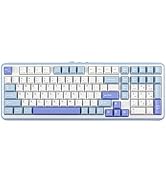
Image 5.1: Demonstrating the removal of a hot-swappable switch from the keyboard.
6. Troubleshooting
- Keyboard not responding:
- Ensure the keyboard is charged. Connect it via USB-C cable.
- Check the connection mode (wired, 2.4GHz, Bluetooth) and ensure it matches your device's connection.
- For 2.4GHz, ensure the receiver is properly plugged in.
- For Bluetooth, ensure the keyboard is paired and selected on your device. Try re-pairing if necessary. - Keys not registering:
- If a specific key is not working, try replacing its switch (refer to Section 5.2).
- Ensure the switch is fully seated in the PCB.
- Clean any debris around the switch. - RGB lighting not working or inconsistent:
- Check lighting settings via the multi-functional knob or software.
- Ensure the keyboard is sufficiently charged. - Bluetooth connection issues:
- Ensure your device's Bluetooth is enabled and discoverable.
- Remove the keyboard from your device's paired list and re-pair it.
- Ensure no other devices are interfering with the Bluetooth signal.
7. Specifications
| Feature | Detail |
|---|---|
| Model | F65 PRO |
| Dimensions (L x W x H) | 12.8 x 4.4 x 1.2 inches (322mm x 112mm x 32mm) |
| Weight | 2.23 pounds (0.8 kg) |
| Connectivity | 2.4Ghz Wireless, Bluetooth 5.0, USB A to C Cable |
| Polling Rate | 1000Hz (2.4Ghz/USB), 125Hz (Bluetooth) |
| Battery | 4000mAh Lithium Ion |
| Backlighting | RGB |
| Keycaps | Shine-Through PBT |
| Switches | Hot-Swappable (3/5-pin mechanical switches) |
| Special Features | 5-Layer Padding, Gasket Structure, Multi-functional Knob |
| Compatible Devices | Gaming Console, Laptop, PC, Smartphone, Tablet |
Image 7.1: Details of LEOBOG Icesoul and Ice Crystal switch specifications.

Image 7.2: Battery life estimates: 20 hours with RGB backlight ON, 200 hours with RGB backlight OFF.

Image 7.3: Low-latency performance across connectivity modes: USB-C Wired (1-3ms), 2.4GHz Wireless (1-3ms), Bluetooth (8ms).
8. Warranty and Support
For warranty information, technical support, or further assistance, please refer to the official EPOMAKER website or contact their customer service directly. A digital version of this user manual may also be available for download at https://manuals.plus/m/c5309e71438b1f9f705dd396b880ce98fecb2304cad890dfaa22c80f73ce7f97.


