
Introduction
This manual provides detailed instructions for the assembly, operation, maintenance, and troubleshooting of your Creality Ender 5 Max 3D Printer. Please read this manual thoroughly before operating the device to ensure proper usage and optimal performance.

Image: The Creality Ender 5 Max 3D Printer, showcasing its large build volume with a complex, multi-colored model printed within its frame.
Key Features:
- High-Speed Printing: Achieves speeds up to 700 mm/s using 42-76 stepper motors on X and Y axes.
- Automatic Bed Leveling: Features a 64-point fully automatic bed leveling system for precise first layers.
- Large Build Volume: Offers a substantial 400 × 400 × 400 mm printing area.
- Rapid Heatbed: A 1000W heatbed heats to 80°C (max 100°C) in 200 seconds, compatible with various filaments.
- Status Indicator Light: A 3-color light provides clear operational status from a distance.
- Reliable Extruder: Dual tempered gears ensure continuous extrusion with minimal downtime.
- Dual Z-axis Motors: Independently motorized Z-axes with leadscrews and linear rods for enhanced precision.
Setup Guide
1. Unpacking and Component Check
Carefully remove all components from the packaging. Verify that all parts listed in the packing list are present. The package typically includes the 3D printer and necessary accessories for assembly.
2. Assembly
The Ender 5 Max is designed for straightforward assembly. Follow the included quick start guide for step-by-step instructions. Key assembly steps generally involve:
- Attaching the gantry to the base frame.
- Securing the print head and connecting necessary cables.
- Mounting the filament holder.
3. Power Connection and Voltage Selection
Before connecting the power cable, ensure the voltage switch on the power supply unit is set correctly for your region (e.g., 110V for North America, 240V for Europe). Incorrect voltage selection can damage the printer. The Ender 5 Max supports 100V-240V input voltages. Once set, connect the power cable to the printer and a suitable power outlet.
4. Initial Bed Leveling
The Ender 5 Max features a 64-point fully automatic bed leveling system. Power on the printer and navigate to the auto-leveling function in the user interface. Initiate the process, and the printer will automatically calibrate the print bed for an optimal first layer. Manual intervention is typically not required for this process.

Image: The illuminated print bed of the Ender 5 Max, showing the grid for the 64-point automatic leveling system, ensuring a perfect first layer.
Operating Instructions
1. Loading Filament
- Place the filament spool onto the filament holder.
- Preheat the hotend to the recommended temperature for your filament type (e.g., PLA: 200°C, PETG: 230°C).
- Insert the filament into the extruder's inlet hole and push it gently until it is gripped by the extruder gears.
- Initiate the "Load Filament" function from the printer's menu to allow the extruder to pull the filament through the hotend until it extrudes smoothly.
2. Preparing a Print Job
Use a compatible slicing software (e.g., Creality Slicer, Cura, PrusaSlicer) to prepare your 3D model (.STL or .OBJ file) for printing. Configure settings such as layer height, infill, print speed, and support structures. Save the sliced file (.GCODE) to a USB drive or transfer it via Wi-Fi connection.
3. Starting a Print
- Insert the USB drive into the printer's USB port or ensure Wi-Fi connection is established.
- Navigate to the "Print" menu on the printer's touchscreen interface.
- Select your desired GCODE file from the list.
- Confirm the print job to begin. The printer will preheat and then start printing.
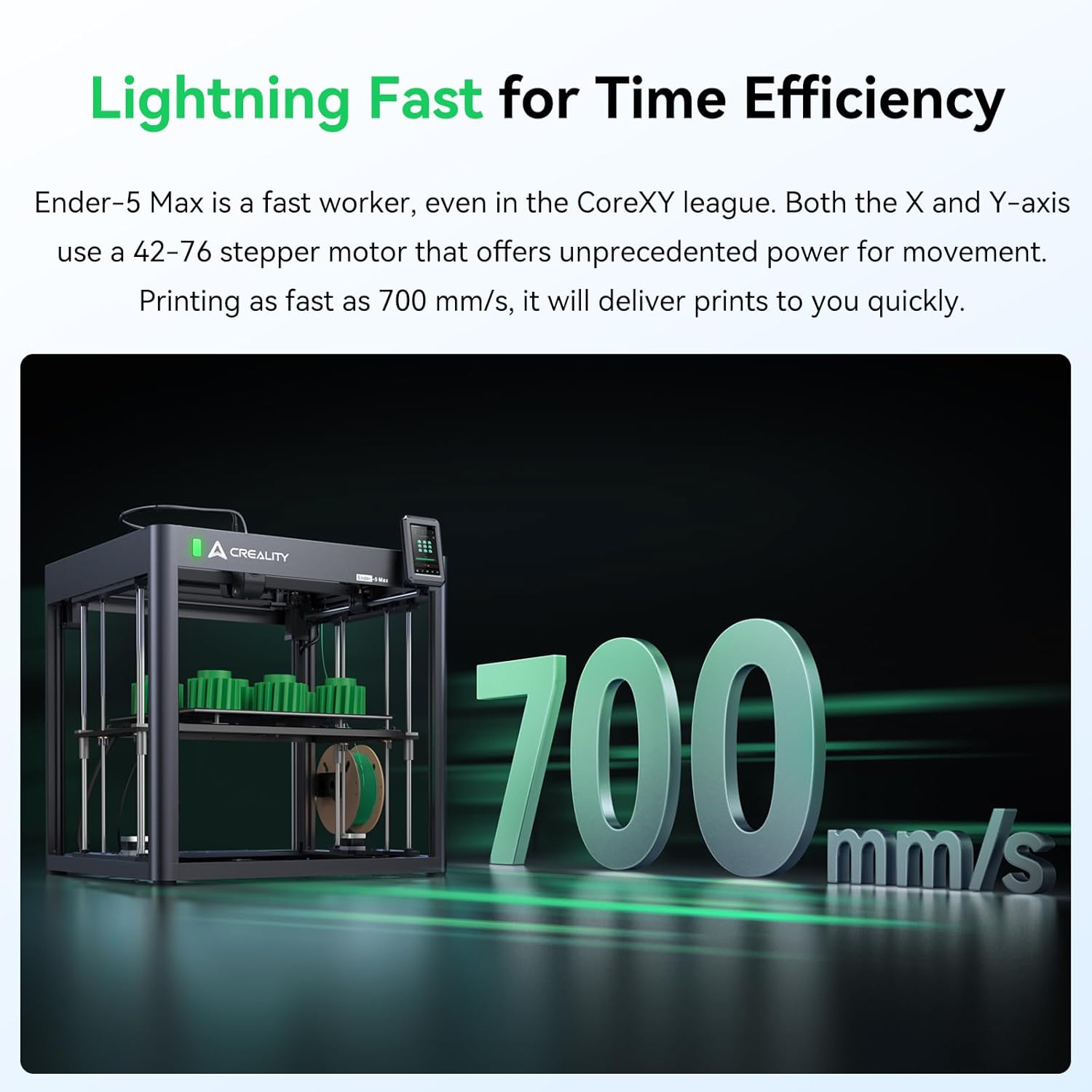
Image: The Ender 5 Max in operation, illustrating its capability for high-speed printing up to 700 mm/s, significantly reducing print times.
4. Monitoring Print Status
The Ender 5 Max features a 3-color indicator light to show its operational status:
- Green Light: Indicates the printer is running or actively printing.
- Yellow Light: Indicates the printer is in standby mode.
- Red Light: Indicates an error has occurred. Refer to the troubleshooting section for assistance.

Image: A visual representation of the 3-color status indicator light on the Ender 5 Max, showing green for running, yellow for standby, and red for error conditions.
5. Utilizing Large Print Volume
With its 400 × 400 × 400 mm build volume, the Ender 5 Max is suitable for printing large single models or batch printing multiple smaller parts simultaneously. Optimize your slicing software settings to maximize the use of the print area for efficiency.

Image: A diagram showing the large 400x400x400 mm build volume of the Ender 5 Max, highlighting its capacity for substantial prints.
6. Rapid Heatbed Operation
The integrated 1000W heatbed can reach 80°C in approximately 200 seconds, with a maximum temperature of 100°C. This rapid heating allows for quicker print starts and supports a wide range of filament types including PLA, PETG, PA, ABS, and ASA.

Image: The 1000W heatbed of the Ender 5 Max, shown illuminated, emphasizing its capability for rapid heating to optimal printing temperatures.
Maintenance
Regular maintenance ensures the longevity and consistent performance of your Ender 5 Max 3D Printer.
1. Extruder Maintenance
The dual tempered gears in the extruder are designed for durability, tested for over 500 hours of continuous extrusion. Periodically inspect the extruder gears for filament debris and clean as necessary with a soft brush or compressed air. Ensure the filament path is clear and unobstructed.

Image: A detailed view of the Ender 5 Max's reliable dual-geared extruder, designed for consistent filament feeding and minimal maintenance.
2. Print Bed Cleaning
After each print, allow the print bed to cool down. Carefully remove the printed object. Clean the print surface with isopropyl alcohol and a clean cloth to remove any residue, which helps maintain optimal adhesion for future prints.
3. Linear Rail and Leadscrew Lubrication
The Ender 5 Max utilizes precise linear rails and dual Z-axis leadscrews. Periodically apply a small amount of lithium-based grease or machine oil to the linear rails and leadscrews to ensure smooth movement and prevent wear. Wipe off any excess lubricant.

Image: The robust dual Z-axis motor system of the Ender 5 Max, featuring leadscrews and linear rods for enhanced precision and stability during printing.
4. Nozzle Inspection and Replacement
Regularly inspect the nozzle for wear or clogs. A worn nozzle can lead to poor print quality. If necessary, replace the nozzle with a new one of the correct size and material. Always ensure the hotend is heated before attempting to remove or install a nozzle to prevent damage.
Troubleshooting
This section addresses common issues you might encounter with your Ender 5 Max 3D Printer.
1. Print Not Sticking to Bed (Poor First Layer Adhesion)
- Solution: Ensure the print bed is clean and free of grease or dust. Re-run the 64-point auto-leveling process. Adjust the Z-offset slightly closer to the bed if needed during the first layer of a test print. Verify the bed temperature is appropriate for your filament type.
2. Filament Not Extruding or Clogged Nozzle
- Solution: Check if the filament is tangled or obstructed. Increase the hotend temperature slightly. Perform a "cold pull" or use a nozzle cleaning needle to clear the clog. Ensure the extruder gears are gripping the filament properly.
3. Layer Shifting
- Solution: Check the tension of the X and Y axis belts; they should be taut but not overly tight. Ensure the stepper motor pulleys are securely fastened. Reduce print speed, especially for complex geometries. Verify that the printer is on a stable surface.
4. Poor Print Quality (e.g., stringing, blobs, gaps)
- Solution: Adjust retraction settings in your slicer to reduce stringing. Calibrate E-steps for proper extrusion. Check for partial nozzle clogs. Ensure filament is dry and stored correctly.
5. Red Status Light (Error Indication)
- Solution: A red light indicates an error. Check the printer's touchscreen for specific error messages. Common errors include thermal runaway protection (check thermistor and heater connections), motor errors (check cable connections), or filament run-out (load new filament). Power cycle the printer if no specific error message is displayed.
Technical Specifications
| Feature | Specification |
|---|---|
| Model | Ender 5 Max |
| Brand | Creality |
| Build Volume | 400 x 400 x 400 mm |
| Printing Speed | Up to 700 mm/s |
| Bed Leveling | 64-point Automatic Leveling |
| Heatbed Power | 1000W (Heats to 80°C in 200s, max 100°C) |
| Extruder Type | Dual Tempered Gear Extruder |
| Z-axis Mechanism | Dual Independently Motorized Z-axes with Linear Rods |
| Product Dimensions | 24 x 25 x 22 inches (60.96 x 63.5 x 55.88 cm) |
| Item Weight | 68.2 pounds (31 kg) |
| Compatible Filaments | PLA, PETG, PA, ABS, ASA, and more |
| Input Voltage | 100-240V AC |
Warranty and Support
Warranty Information
The Creality Ender 5 Max 3D Printer is covered by a manufacturer's warranty. Please refer to the warranty card included with your product or visit the official Creality website for detailed terms and conditions regarding warranty coverage and duration. Keep your proof of purchase for warranty claims.
Customer Support
For technical assistance, troubleshooting beyond this manual, or warranty inquiries, please contact Creality customer support. You can typically find contact information on the official Creality website or through the retailer where you purchased the product. When contacting support, please have your product model (Ender 5 Max) and serial number ready.
Online resources such as user forums and official documentation may also provide helpful information and community support.


