
SEUNKWANG EWEADN-V97
SEUNKWANG EWEADN V97 Tri-Mode Wireless Gaming Keyboard
User Manual
Model: EWEADN-V97
Introduction
The SEUNKWANG EWEADN V97 is a versatile tri-mode wireless gaming keyboard designed for a seamless user experience across various platforms. It features Bluetooth 5.0, 2.4GHz wireless, and wired connectivity options, a 97-key compact layout, vibrant RGB backlighting with multiple effects, and a convenient 2-in-1 knob for volume and lighting control. Its ergonomic curved body and durable PBT keycaps ensure comfortable and reliable performance for work, gaming, and study.

Image: The EWEADN V97 keyboard showcasing its compact layout and RGB backlighting.
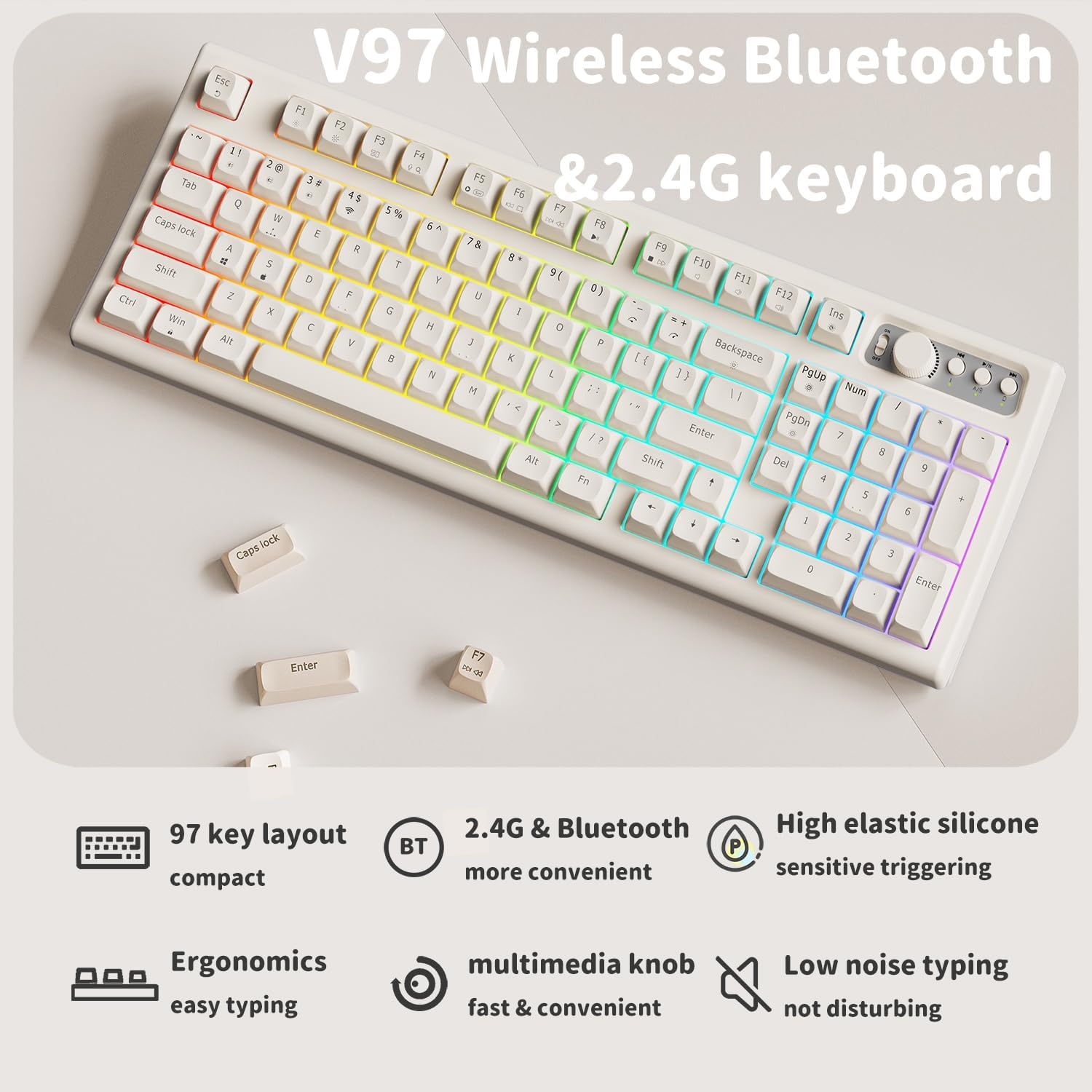
Image: An overview of the V97 keyboard highlighting its 97-key compact layout, 2.4G & Bluetooth connectivity, high elastic silicone sensitive triggering, ergonomics, multimedia knob, and low noise typing.
Setup
Follow these steps to set up your EWEADN V97 keyboard for the first time.
1. Unboxing and Initial Charge
Carefully remove the keyboard and the included USB Type-C cable from the packaging. It is recommended to fully charge the keyboard before first use. Connect the Type-C cable to the keyboard's charging port and the other end to a USB power source (e.g., computer USB port, wall adapter). The power indicator light will show charging status.
2. Connectivity Modes
The V97 keyboard supports three connection modes: 2.4GHz wireless, Bluetooth 5.0, and wired (USB-C).
2.1. 2.4GHz Wireless Mode
- Locate the 2.4G USB dongle, typically stored magnetically within the keyboard's chassis.
- Plug the USB dongle into an available USB port on your computer or device.
- On the keyboard, switch to 2.4G mode by pressing Fn + 4. The keyboard will automatically connect to the dongle.

Image: The EWEADN V97 keyboard showing its 97% layout, 7-degree tilt angle, and the magnetic 2.4G dongle socket.
2.2. Bluetooth 5.0 Mode
The keyboard can connect to up to three Bluetooth devices simultaneously.
- On the keyboard, press Fn + 1, Fn + 2, or Fn + 3 to select a Bluetooth channel. The corresponding indicator light will flash rapidly, indicating pairing mode.
- On your device (PC, laptop, tablet, smartphone), enable Bluetooth and search for new devices.
- Select "EWEADN V97" (or similar name) from the list of available devices to pair.
- Once paired, the indicator light will stop flashing and remain solid.
- To switch between connected Bluetooth devices, simply press Fn + 1/2/3 for the desired channel.

Image: Diagram illustrating the two modes of connection (2.4GHz and Bluetooth) and compatibility with various devices like PC, Laptop, Tablet, Switch, Xbox, and PlayStation.

Image: Visual guide on switching between Bluetooth modes (Fn+1, Fn+2, Fn+3) and 2.4G mode (Fn+4).
2.3. Wired Mode
Connect the keyboard directly to your device using the provided USB Type-C cable. The keyboard will automatically switch to wired mode and begin charging.
3. System Compatibility Switching
The keyboard is compatible with both Windows and Mac operating systems.
- To enter Windows system mode: Press and hold Fn + A.
- To enter Mac system mode: Press and hold Fn + S.

Image: The EWEADN V97 keyboard connected to various devices, demonstrating compatibility with BT5.0 & 2.4GHz, and the ability to connect to three devices simultaneously.
Operating Instructions
1. RGB Backlighting Control
The V97 keyboard features vibrant RGB backlighting with 11 pre-set lighting effects and adjustable brightness and speed.
- Switch Lighting Effect: Press Fn + INS to cycle through the 11 pre-set lighting effects.
- Adjust Brightness: Press Fn + PgUp to increase brightness, and Fn + PgDn to decrease brightness (9 levels).
- Adjust Speed: Press Fn + -_ to decrease lighting speed, and Fn + =+ to increase lighting speed.
- Turn Backlight On/Off: Use the dedicated knob (see below) or specific key combination if available (not explicitly stated, but usually part of knob function).

Image: Visual guide for controlling RGB backlight effects, brightness, and speed using Fn key combinations.
2. Volume & Light 2-in-1 Knob
The multi-functional knob allows for quick adjustments of both volume and lighting settings.
- Switch Modes: Press the knob for approximately 5 seconds to switch between Volume Mode and RGB Mode.
- In Volume Mode:
- Rotate the knob clockwise to increase volume.
- Rotate the knob counter-clockwise to decrease volume.
- Press the knob briefly to mute/unmute audio.
- In RGB Mode:
- Rotate the knob clockwise to increase backlight brightness.
- Rotate the knob counter-clockwise to decrease backlight brightness.
- Press the knob briefly to cycle through lighting effects.

Image: Close-up of the 2-in-1 knob, illustrating its functions for changing lighting effects, adjusting brightness, muting, and controlling volume.

Image: Detailed explanation of the knob's functions in Multimedia Mode (mute/unmute, volume +/-) and RGB Mode (switch effect, brightness +/-).
3. Power Display Light
The keyboard features a power display light to indicate battery status:
- Low Battery: Indicator light flashes.
- Charging: Indicator light is always on.
- Fully Charged: Indicator light turns off.
4. Ergonomic Design
The keyboard's unique curved body and 7-degree tilt angle, combined with the ergonomic stepped keycap layout, are designed to fit the natural arc of your fingers and wrists, reducing fatigue during extended use.
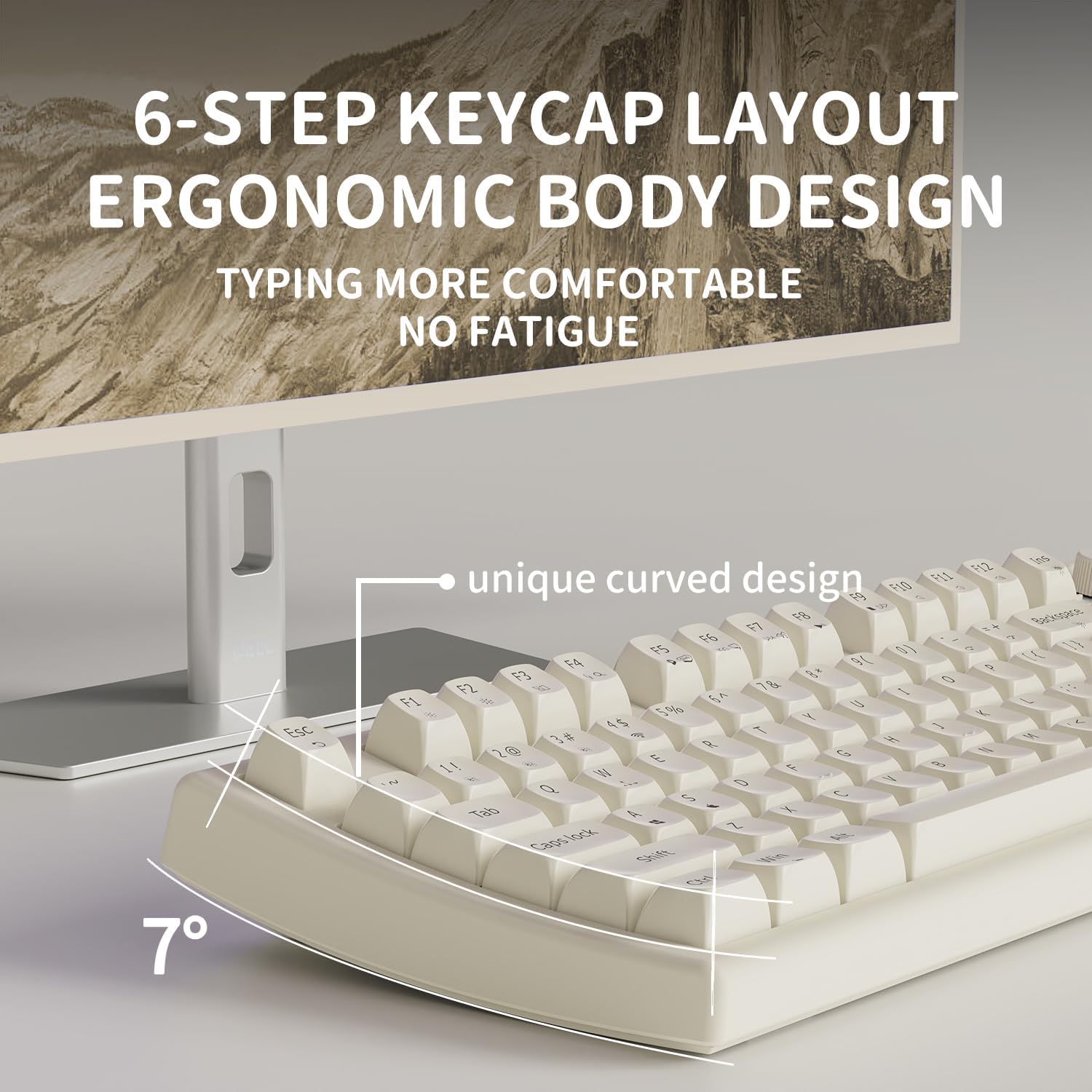
Image: Illustration of the keyboard's 6-step keycap layout and ergonomic body design, emphasizing comfortable typing.
Maintenance
Proper maintenance ensures the longevity and optimal performance of your keyboard.
1. Cleaning the Keyboard
The V97 keyboard features durable PBT keycaps, which are resistant to wear and fading.
- General Cleaning: Use a soft, lint-free cloth slightly dampened with water or a mild, non-abrasive cleaning solution to wipe down the keycaps and keyboard body.
- Dust Removal: Use compressed air to remove dust and debris from between the keycaps.
- Deep Cleaning (Keycaps): For thorough cleaning, keycaps can be carefully removed using a keycap puller (not included) and washed with mild soap and water. Ensure keycaps are completely dry before reattaching.

Image: Close-up of the keyboard's high-quality PBT keycaps with MDA profile, highlighting their fine matte texture and wear-resistant characters.

Image: Detail of the PBT Retro Ball Caps, emphasizing their smooth surface and lack of light transmission.
2. Battery Care
The keyboard is equipped with a built-in 2000mAh rechargeable battery.
- Avoid completely draining the battery frequently.
- Charge the keyboard when the low battery indicator flashes.
- If storing the keyboard for an extended period, charge it to about 50% to prevent battery degradation.
- Use only the provided USB Type-C cable or a certified equivalent for charging.

Image: Information on the 2000mAh rechargeable battery, showing approximate battery life: Backlit OFF ~200 hours, Backlit ON ~30 hours.
Troubleshooting
If you encounter issues with your EWEADN V97 keyboard, refer to the following common problems and solutions.
1. Keyboard Not Connecting/Responding
- Check Power: Ensure the keyboard is turned on and has sufficient battery charge.
- Mode Selection: Verify that the correct connection mode (2.4GHz, Bluetooth, or Wired) is selected on the keyboard and matches your device.
- 2.4GHz: Ensure the USB dongle is securely plugged into a working USB port. Try a different USB port.
- Bluetooth: Ensure Bluetooth is enabled on your device. Forget the device in your device's Bluetooth settings and attempt to re-pair. Try a different Bluetooth channel (Fn+1/2/3).
- Wired: Ensure the USB-C cable is securely connected to both the keyboard and your device. Try a different USB-C cable or port.
- Restart: Restart your computer/device and the keyboard.
2. Backlight Not Working or Incorrect
- Brightness Level: Increase brightness using Fn + PgUp or the knob in RGB mode.
- Effect Cycle: Cycle through lighting effects using Fn + INS or the knob in RGB mode.
- Power Saving: The backlight may turn off automatically after a period of inactivity to save battery. Press any key to reactivate.
3. Battery Not Holding Charge
- Charging Cable: Ensure you are using the original USB Type-C cable or a high-quality replacement.
- Power Source: Try charging from a different USB port or wall adapter.
- Charging Time: Allow sufficient time for a full charge (until the indicator light turns off).
- Usage: High backlight brightness and continuous wireless use will consume battery faster. Adjust settings for longer battery life.
4. Keyboard Color Discrepancy
Please note that while the product may be described as 'white', the actual color is a creamy off-white. This is an intentional design choice and not a defect.
Specifications
| Feature | Detail |
|---|---|
| Model Number | EWEADN-V97 |
| Connectivity | 2.4G Wireless, Bluetooth 5.0, Wired (USB Type-C) |
| Layout | 97-key (90% Compact) |
| Keycaps | Durable PBT, MDA Profile |
| Backlighting | RGB, 11 Pre-set Effects, 9 Brightness Levels |
| Battery Capacity | 2000mAh Rechargeable |
| Estimated Battery Life | Backlight OFF: ~200 hours; Backlight ON: ~30 hours |
| Ergonomics | Curved Body, 7° Tilt Angle, Stepped Keycap Layout |
| Special Features | Volume & Light 2-in-1 Knob, Power Display Light |
| Compatibility | Windows, macOS, Gaming Consoles, Laptops, PCs, Tablets, Smartphones |
| Dimensions (L x W x H) | 16 x 5.7 x 1.85 inches (407 x 146 x 47 mm) |
| Weight | 2.2 lbs (1003g) |
| Color | Cream White |
| Included in Box | EWEADN V97 Keyboard, USB Type-C Cable |

Image: Detailed dimensions of the 97% layout keyboard, including length, width, height, and weight.
Warranty and Support
The EWEADN V97 keyboard comes with 24-month brand support. If you encounter any issues or have questions regarding your product, please contact our customer support team. Our expert team is dedicated to assisting you.
For assistance, please refer to the contact information provided with your purchase or visit the official SEUNKWANG website.
Ask a question about this manual
Ask about setup, troubleshooting, compatibility, parts, safety, or missing instructions. Manuals+ will review the question and use this page’s manual context to help answer it.