
1. Introduction
Welcome to the user manual for your new DigiLand 10.1 Inch HD Octa-Core Android Tablet. This device is designed to provide a versatile and powerful experience for both productivity and entertainment. Featuring an Octa-Core processor, ample RAM and storage, and a vibrant HD display, your tablet is equipped for a wide range of tasks, from browsing and streaming to gaming and office work.
This manual will guide you through the initial setup, operation, maintenance, and troubleshooting of your tablet to ensure you get the most out of its capabilities.
2. What's in the Box
Please verify that all items are present in your product package:
- DigiLand 10.1 Inch Android Tablet
- Protective Case
- USB Type-C Charging Cable
- Power Adapter (5V/2A)
- Quick Start Guide

Figure 2.1: Package Contents
3. Product Overview
The DigiLand R10 Pro+ tablet combines powerful hardware with a user-friendly Android 14 operating system. Below are the key features and components of your device.
3.1 Key Features
- Processor: MediaTek Helio G80 Octa-Core CPU (2x A75 2.0GHz + 6x A55 1.8GHz) for robust performance.
- Display: 10.1-inch HD (800x1280) In-cell touchscreen with IPS clarity and 350cd/m² brightness.
- Memory & Storage: 12GB RAM and 128GB ROM, expandable up to 256GB via TF card.
- Battery: 6000mAh battery providing over 12 hours of runtime, with 10W fast-charging support.
- Cameras: 13MP rear camera and 8MP front camera for photography and video calls.
- Audio: Dual 8Ω/1W speakers for clear sound.
- Connectivity: Bluetooth 5.0, 802.11n Wi-Fi, Type-C port, and headphone jack.
- Operating System: Android 14.
- Widevine L1 Support: Enables high-definition streaming from platforms like Netflix, Hulu, and Amazon Prime Video.
3.2 Visual Overview
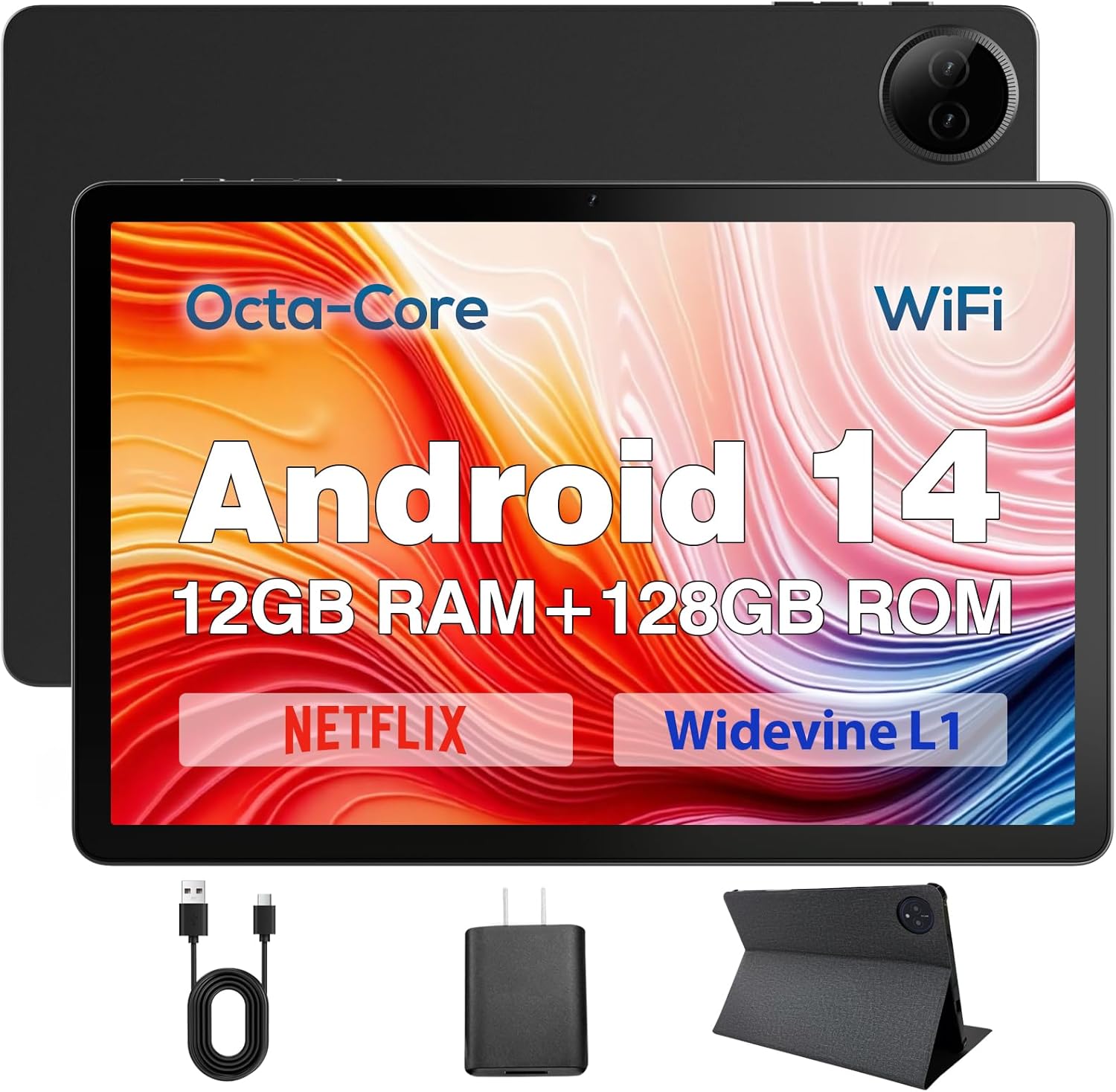
Figure 3.1: DigiLand Tablet Front and Rear View
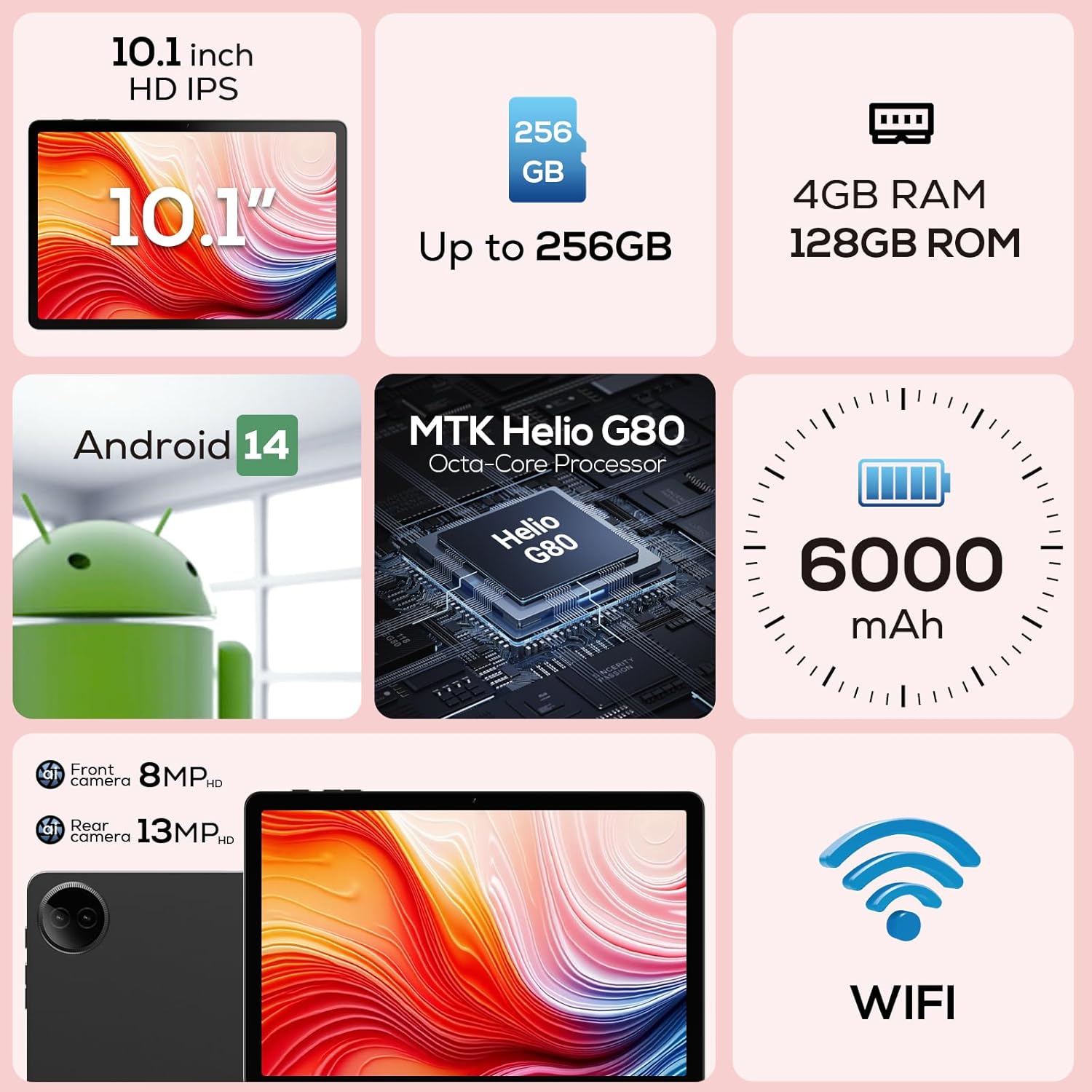
Figure 3.2: Key Features Diagram

Figure 3.3: Widevine L1 Support for HD Streaming

Figure 3.4: Ultra-thin and Lightweight Design
4. Setup
4.1 Initial Charging
Before first use, fully charge your tablet. Connect the USB Type-C cable to the tablet's charging port and the power adapter to a wall outlet. The charging indicator will show the charging status. A full charge typically takes several hours.
4.2 Powering On/Off
- To Power On: Press and hold the Power button located on the side of the tablet until the DigiLand logo appears on the screen.
- To Power Off: Press and hold the Power button until the power options menu appears. Select 'Power off' and confirm.
- To Restart: From the power options menu, select 'Restart'.
4.3 First-Time Setup Wizard
Upon first power-on, the tablet will guide you through a setup wizard. Follow the on-screen prompts to:
- Select your language.
- Connect to a Wi-Fi network.
- Sign in with your Google account or create a new one.
- Set up screen lock (PIN, pattern, password).
- Review and accept terms and conditions.
5. Operating Instructions
5.1 Touchscreen Navigation
Your tablet features a responsive multi-touch display. Common gestures include:
- Tap: To select an item, open an app, or press a button.
- Touch & Hold: To open contextual menus or drag items.
- Swipe: To scroll through lists, move between home screens, or dismiss notifications.
- Pinch-to-Zoom: To zoom in or out on images, maps, or web pages.
5.2 Wi-Fi Connection
To connect to a Wi-Fi network:
- Go to Settings > Network & internet > Wi-Fi.
- Toggle Wi-Fi On.
- Select your desired network from the list.
- Enter the password if prompted and tap Connect.

Figure 5.1: High-Speed Wi-Fi Connectivity
5.3 Bluetooth Pairing
To pair with Bluetooth devices (e.g., headphones, speakers):
- Go to Settings > Connected devices > Connection preferences > Bluetooth.
- Toggle Bluetooth On.
- Ensure your Bluetooth device is in pairing mode.
- Select your device from the 'Available devices' list and follow any on-screen prompts to complete pairing.
5.4 Using the Cameras
Your tablet is equipped with a 13MP rear camera and an 8MP front camera.
- Open the Camera app from your home screen or app drawer.
- Tap the camera switch icon to alternate between front and rear cameras.
- Tap the shutter button to take a photo or the video icon to record a video.
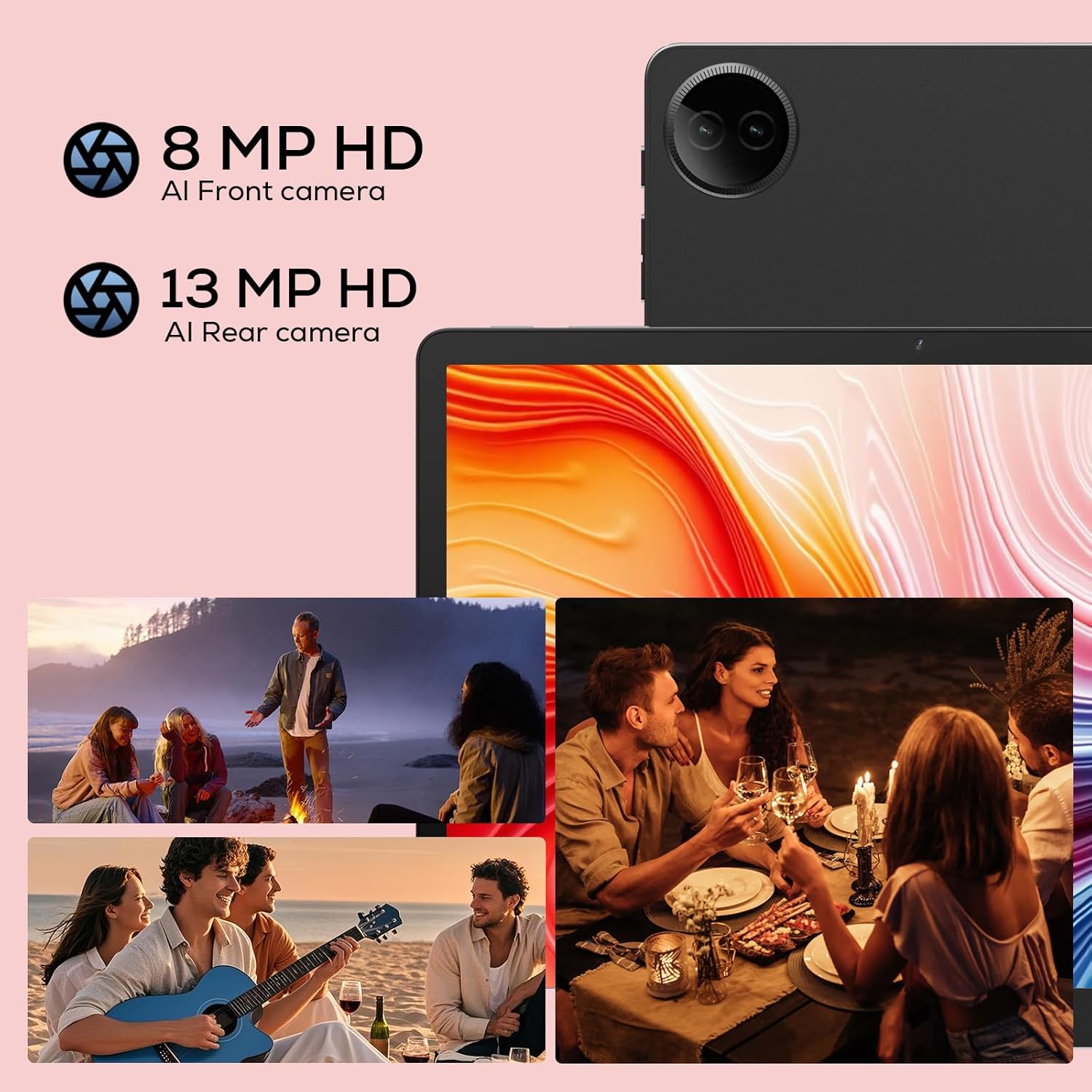
Figure 5.2: Tablet Cameras and Sample Photos
5.5 App Management
Installing Apps: Download and install apps from the Google Play Store. Open the Play Store app, search for your desired app, and tap 'Install'.
Uninstalling Apps: Touch and hold the app icon on the home screen or app drawer, then drag it to 'Uninstall' or select 'App info' and tap 'Uninstall'. Alternatively, go to Settings > Apps > See all apps, select the app, and tap 'Uninstall'.
6. Maintenance
6.1 Cleaning Your Tablet
Use a soft, lint-free cloth to clean the screen and body of your tablet. For stubborn smudges, slightly dampen the cloth with water or a screen cleaner designed for electronics. Avoid using harsh chemicals or abrasive materials.
6.2 Battery Care
To prolong battery life:
- Avoid extreme temperatures.
- Do not let the battery completely drain frequently.
- Use the provided charger and cable.
- Adjust screen brightness and disable unused features (Wi-Fi, Bluetooth) to conserve power.

Figure 6.1: Extended Battery Life Features
6.3 Software Updates
Regularly check for and install software updates to ensure optimal performance, security, and access to new features. Go to Settings > System > System update.
6.4 Storage Management
To manage your tablet's storage:
- Go to Settings > Storage to view storage usage.
- Uninstall unused apps.
- Clear cache data for apps.
- Transfer large files (photos, videos) to cloud storage or an external TF card.
7. Troubleshooting
If you encounter issues with your tablet, refer to the following common problems and solutions:
| Problem | Possible Solution |
|---|---|
| Tablet won't turn on | Ensure the battery is charged. Connect to charger for at least 30 minutes. If still unresponsive, perform a forced restart by holding the Power button for 10-15 seconds. |
| Wi-Fi connection issues | Restart your Wi-Fi router. Forget the network on your tablet and reconnect. Ensure you are within range of the Wi-Fi signal. |
| Apps are slow or crashing | Close background apps. Clear app cache (Settings > Apps > [App Name] > Storage & cache > Clear cache). Ensure sufficient storage space. Restart the tablet. |
| Battery drains quickly | Reduce screen brightness. Disable Wi-Fi/Bluetooth when not in use. Close unused apps. Check battery usage in Settings to identify power-hungry apps. |
| Screen is unresponsive | Restart the tablet. Ensure the screen is clean and dry. Remove any screen protectors that might be interfering. |
If the problem persists after trying these solutions, please contact customer support.
8. Specifications
Detailed technical specifications for your DigiLand R10 Pro+ Tablet:
| Feature | Specification |
|---|---|
| Brand | DigiLand |
| Model Name | R10 Pro+ |
| Operating System | Android 14 |
| Standing Screen Display Size | 10.1 Inches |
| Screen Resolution | 1280 x 800 pixels |
| Processor Brand | MediaTek |
| Processor Model | Helio G80 Octa-Core CPU |
| RAM | 12GB |
| Flash Memory Size (ROM) | 128 GB |
| Expandable Storage | Up to 256GB (TF card slot) |
| Wireless Type | 802.11n |
| Bluetooth | 5.0 |
| Average Battery Life | 12 Hours |
| Item Weight | 1.32 pounds (approx. 600g) |
| Product Dimensions | 10.17 x 6.41 x 0.31 inches |
| Color | Gray |
9. Warranty and Support
9.1 Warranty Policy
Your DigiLand Tablet comes with a 1-year warranty policy from the date of purchase. This warranty covers manufacturing defects and issues arising from normal use. Please retain your proof of purchase for warranty claims.
9.2 Customer Support
For any questions regarding the use, setup, or troubleshooting of your DigiLand Tablet, our customer service team is available to assist you.
- Online Support: We offer 24/7 online call support.
- Repair Support: 1-Year Repair Support is provided.
You can contact us directly through the channels provided on our official website or through your purchase platform. We are committed to providing prompt and helpful service.

Figure 9.1: Dedicated Customer Support
For more information and product updates, visit the official DigiLand Store: DigiLand Store on Amazon

