
Redragon K727-RGB-PRO
Redragon K727-RGB-PRO Wireless Mechanical Gaming Keyboard User Manual
Model: K727-RGB-PRO | Brand: Redragon
1. Introduction
This manual provides comprehensive instructions for the Redragon K727-RGB-PRO Wireless Mechanical Gaming Keyboard. Please read this manual carefully before using the product to ensure proper operation and to maximize its features.
2. Package Contents
Verify that all items are present in your package:
- Redragon K727-RGB-PRO Mechanical Gaming Keyboard
- USB Cable
- Keycap Puller
- User Manual (this document)
3. Product Overview
The Redragon K727-RGB-PRO is a 60% wireless mechanical gaming keyboard designed for a premium typing and gaming experience. It features a robust aluminum shell, versatile connectivity options, and customizable RGB lighting.

Image: Redragon K727-RGB-PRO Mechanical Gaming Keyboard, showcasing its compact layout and RGB lighting.
Key Features:
- Gasket-Mounted Design: Engineered with a gasket structure and extended integrated silicone pad for a soft, elastic typing feel. The PCB single-key slotting optimizes resilience, and four layers of sound-dampening material reduce cavity noise.

Image: Diagram illustrating the internal gasket structure and sound-dampening layers of the keyboard.
- Premium Aluminum CNC Construction: Features a robust aluminum alloy shell with an exquisite spray finish, ensuring durability and a modern aesthetic.
- Tri-Mode Connectivity: Supports Bluetooth 5.0, 2.4GHz wireless, and USB wired connections. Allows simultaneous connection to up to 5 devices.

Image: Visual representation of the keyboard connecting to various devices via Bluetooth, 2.4GHz, and USB-C.
- Hot-Swappable & Pre-Lubed Switches: Compatible with 3-pin/5-pin switches, allowing easy replacement without soldering. Pre-lubed linear switches provide smooth and responsive typing.

Image: Close-up view of the hot-swappable PCB socket and pre-lubed linear switches.
- South-Facing RGB Backlighting & Smart Knob Control: Features 16 dynamic RGB effects and 7 solid colors. The metal knob allows quick adjustment of RGB modes, brightness, and volume.

Image: Illustration of the multi-function metal knob and its controls for volume and RGB backlighting.
- Long-Lasting Battery & Double-Shot PBT Keycaps: Equipped with a 4000mAh battery for extended wireless use. Double-shot PBT keycaps offer fade-resistant legends and durability.
4. Setup Guide
4.1 Initial Charging
Before first use, connect the keyboard to a USB power source using the provided USB-C cable to fully charge the internal battery. The charging indicator will show the status.
4.2 Connectivity Modes
The Redragon K727-RGB-PRO supports three connection modes:
- Wired Mode:
1. Ensure the switch on the back of the keyboard is set to OFF.
2. Press FN + T for 3 seconds.
3. Connect the USB-C cable from the keyboard to your computer's USB port.
- 2.4GHz Wireless Mode:
1. Set the switch on the back of the keyboard to ON.
2. Press FN + R for 3 seconds.
3. Plug the 2.4GHz USB receiver into an available USB port on your computer.
4. The keyboard will automatically connect.
- Bluetooth Mode:
1. Set the switch on the back of the keyboard to ON.
2. Press FN + Q/W/E for 3 seconds to select a Bluetooth channel (Q, W, or E). The indicator light will flash.
3. On your device (PC, tablet, smartphone), enable Bluetooth and search for "BT3.0 KB" or "BT5.0 KB".
4. Select the keyboard to pair. The indicator light will become solid once connected.
You can connect up to 3 Bluetooth devices and switch between them using FN + Q, FN + W, or FN + E.
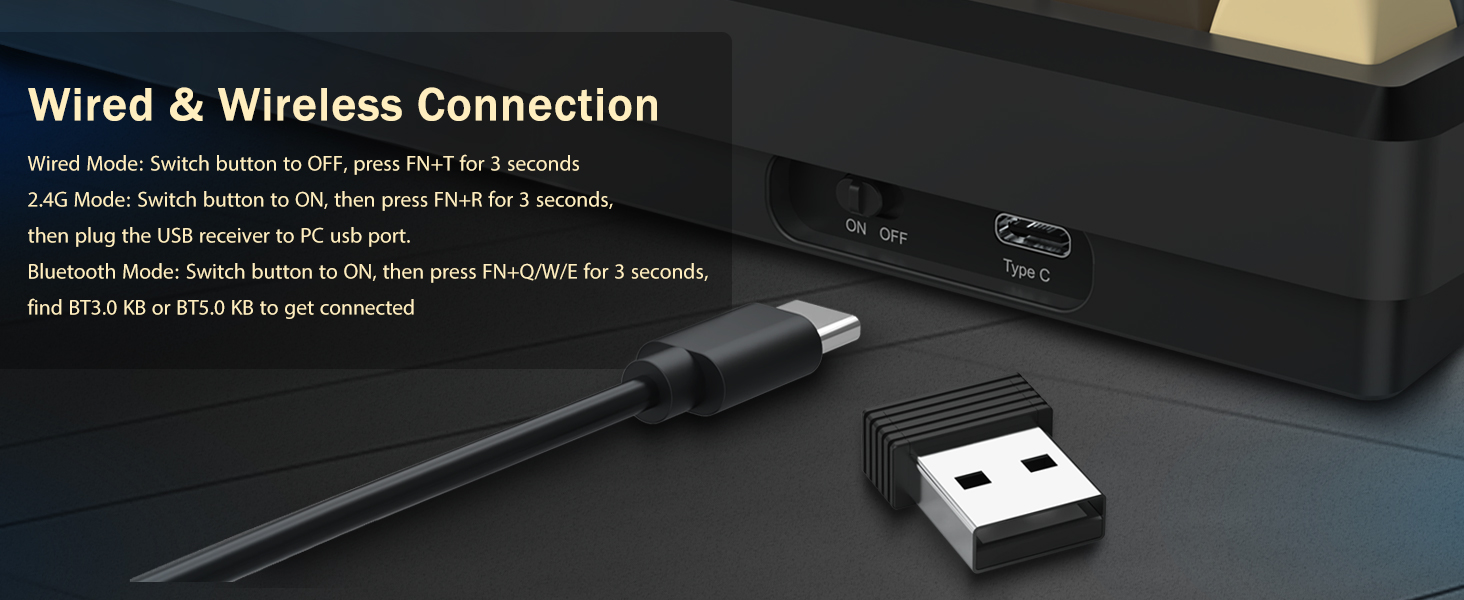
Image: Diagram showing the physical switch for ON/OFF and Type-C port, along with instructions for wired, 2.4G, and Bluetooth connections.
5. Operating Instructions
5.1 Function Key Combinations (FN Key)
The keyboard's compact 60% layout utilizes the FN key to access various functions and multimedia controls.
- FN + F1: Screen brightness +
- FN + F2: Screen brightness -
- FN + F3: Voice (Up to WIN10)
- FN + F4: Multiple task
- FN + F5: Computer desk
- FN + F6: Search
- FN + F7: Previous track
- FN + F8: Play/pause
- FN + F9: Next track
- FN + F10: Mute
- FN + F11: Volume -
- FN + F12: Volume +
- FN + P: PrtSc (Print Screen)
- FN + L: Home
- FN + ]: Pause
- FN + ;: End
- FN + /?: Del (Delete)
- FN + {: ScrLk (Scroll Lock)
- FN + WIN: Lock or unlock the Windows key.
- FN + ESC (hold for 3 seconds): Reset keyboard to factory settings.
Number Keys and F1-F12 Keys: Double-click the FN key to toggle between number keys and F1-F12 functions. When the FN light is white, F1-F12 functions are active.
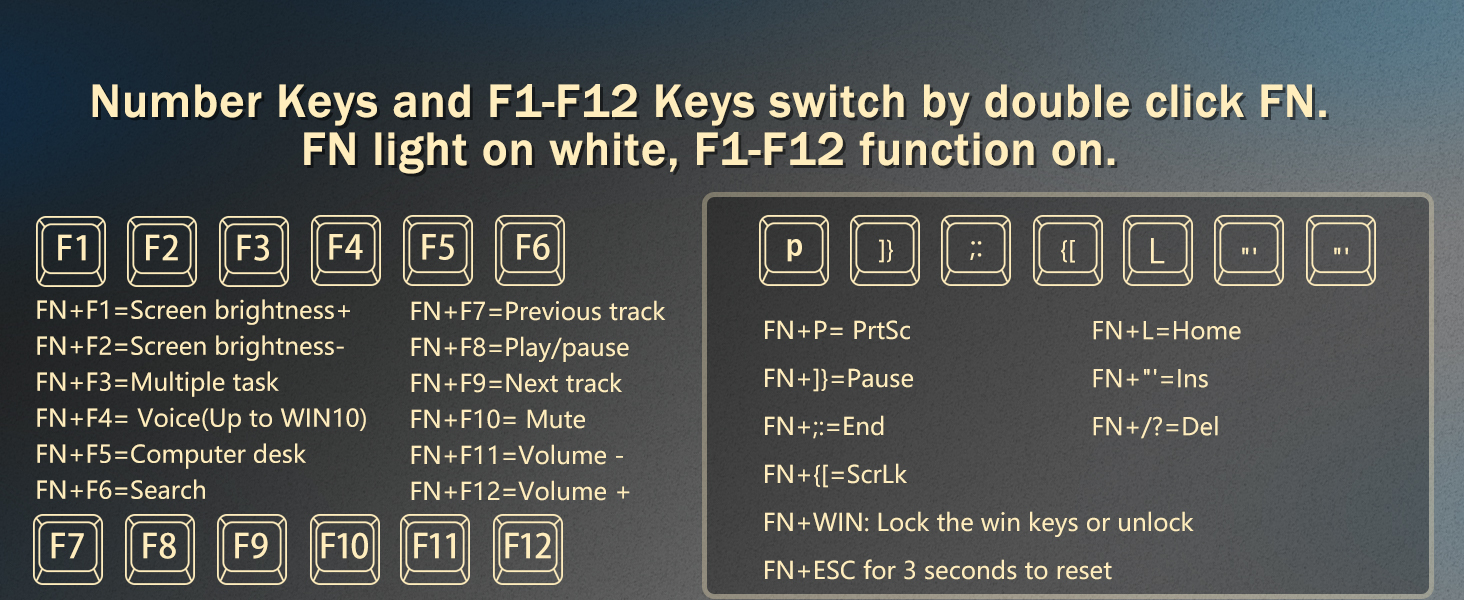
Image: Diagram illustrating various FN key combinations for multimedia and system controls.
5.2 RGB Backlighting Control
Customize your keyboard's lighting with various effects and colors.
- FN + < (comma): Switch RGB backlit modes.
- FN + > (period): Switch backlit color between red, green, blue, yellow, pink, cyan, white, and RGB in some modes.
- FN + ↑ (Up Arrow): Increase brightness.
- FN + ↓ (Down Arrow): Decrease brightness.
- FN + ← (Left Arrow): Decrease light speed.
- FN + → (Right Arrow): Increase light speed.

Image: Visual guide to RGB lighting controls using FN key combinations.
5.3 Multi-Function Metal Knob
The metal knob on the top right of the keyboard provides quick access to volume and RGB backlight adjustments.
- Roll Knob: Adjust volume (default).
- Short Press Knob: Mute/Unmute volume.
- FN + Knob (Short Press): Switch between volume control and RGB backlight mode adjustment.
- When in RGB mode, Roll Knob: Adjust brightness.
Image: Detailed explanation of the metal knob's functions for volume and RGB control.
5.4 Custom Software & Macro Customization (Windows-only)
For advanced customization, including custom lighting profiles and macro programming, download the dedicated software (Windows-only).
Driver download: bit.ly/K727Driver

Image: Screenshot of the keyboard's customization software interface, showing options for RGB and macro settings.
5.5 Battery Status and Power Saving
To check the battery level, press FN + ~. The keyboard will indicate the charge level.
The keyboard features an auto power-saving function. After 3 minutes of inactivity in wireless mode, the backlight will turn off. Press any key to wake the keyboard.
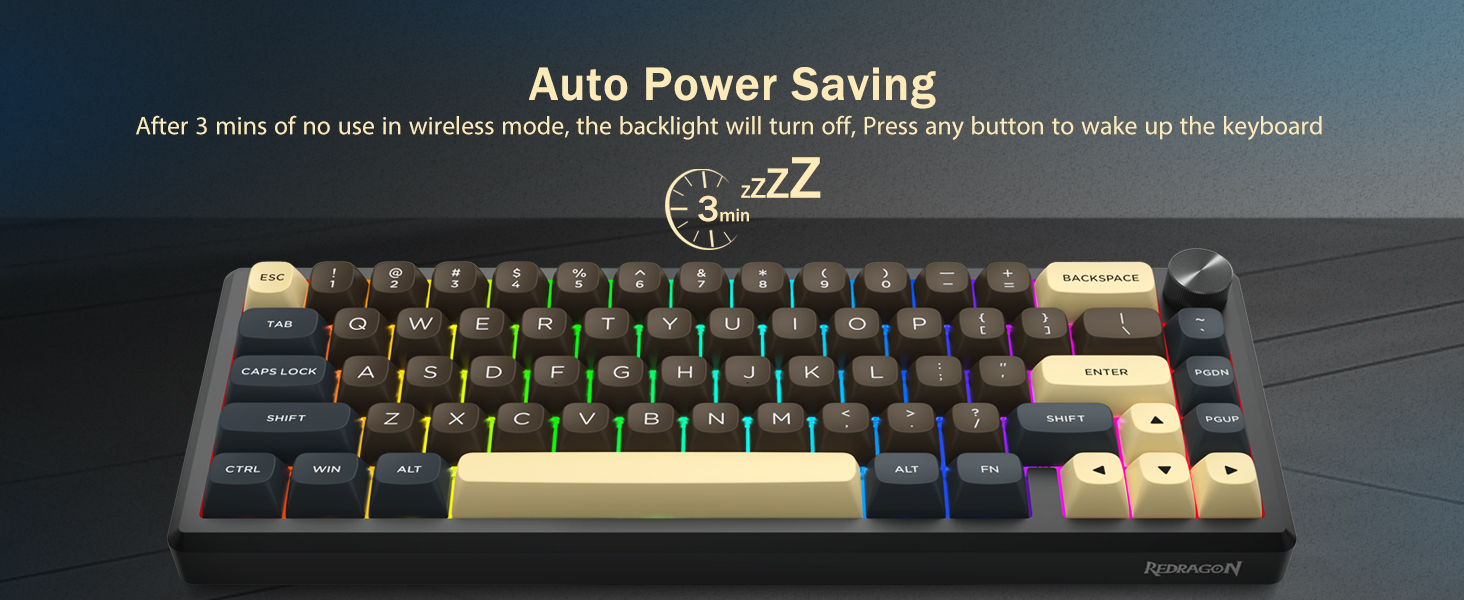
Image: Illustration demonstrating the auto power-saving mode after 3 minutes of inactivity.
6. Maintenance
6.1 Cleaning the Keyboard
To maintain the keyboard's appearance and functionality, regularly clean it.
- Use a soft, lint-free cloth slightly dampened with water or a mild cleaning solution.
- Avoid spraying liquids directly onto the keyboard.
- For dust and debris between keycaps, use compressed air.
6.2 Replacing Keycaps and Switches
The Redragon K727-RGB-PRO features hot-swappable switches, allowing for easy replacement without soldering.
- Use the provided keycap puller to gently remove keycaps.
- Use a switch puller (if not integrated with keycap puller) to carefully remove the switches.
- Align the pins of the new 3-pin or 5-pin switch with the holes on the PCB and press firmly until it clicks into place.
- Press the new keycap onto the switch stem.
7. Troubleshooting
| Problem | Possible Cause | Solution |
|---|---|---|
| Keyboard not responding in wireless mode. | Low battery; incorrect connection mode; receiver not plugged in (2.4GHz); not paired (Bluetooth). | Charge the keyboard. Ensure the switch is ON. Re-plug the 2.4GHz receiver. Re-pair Bluetooth by pressing FN+Q/W/E for 3 seconds and searching on your device. |
| Number keys or F1-F12 keys not working as expected. | FN lock is active/inactive. | Double-click the FN key to toggle between number keys and F1-F12 functions. The FN light indicates the active mode. |
| RGB lighting not working or stuck. | Lighting mode issue; software conflict. | Try cycling through RGB modes using FN + <. Adjust brightness with FN + ↑/↓. Reset the keyboard by holding FN + ESC for 3 seconds. Check software settings if applicable. |
| Keys feel inconsistent or unresponsive. | Dust/debris under keycap/switch; switch not fully seated. | Remove the keycap and switch, clean the area, and re-seat the switch firmly. |
8. Specifications
| Feature | Detail |
|---|---|
| Model Number | K727-RGB-PRO |
| Brand | Redragon |
| Connectivity Technology | 2.4Ghz, Bluetooth 5.0, USB-C (Wired) |
| Keyboard Description | Mechanical |
| Number of Keys | 67 |
| Keyboard Backlighting | RGB (South-Facing LEDs) |
| Special Features | Full Aluminum Shell, Backlit, Programmable Keys, Rechargeable, Hot-Swappable, Gasket Structure, Metal Knob |
| Battery | 4000mAh Lithium Polymer (included) |
| Keycap Material | Double-Shot PBT |
| Product Dimensions | 6 x 1.3 x 4.1 inches (15.24 x 3.3 x 10.41 cm) |
| Item Weight | 3.63 pounds (1.65 kg) |
| Compatible Devices | Laptop, Gaming Console, PC, Tablet, Smartphone |
9. Warranty and Support
Redragon products come with a standard manufacturer's warranty. For specific warranty terms and conditions, please refer to the warranty card included with your product or visit the official Redragon website.
For technical support, troubleshooting assistance, or product inquiries, please contact Redragon customer service through their official channels.
Official Redragon Website: www.redragonusa.com (Example, actual URL might vary)
Related documentsK727-RGB-PRO


Ask a question about this manual
Ask about setup, troubleshooting, compatibility, parts, safety, or missing instructions. Manuals+ will review the question and use this page’s manual context to help answer it.