
SIXWIN SIXWIN Android Car Stereo for Lexus CT200 (2011-2018)
User Manual: SIXWIN 2G+64G Android Car Stereo
Brand: SIXWIN | Model: Android Car Stereo for Lexus CT200 (2011-2018)
1. Introduction
This manual provides detailed instructions for the installation, operation, and maintenance of your SIXWIN Android Car Stereo, specifically designed for Lexus CT200 models from 2011 to 2018. This unit features an Android 13 system with 2GB RAM and 64GB ROM, offering a plug-and-play installation experience. Please read this manual thoroughly before use to ensure proper functionality and to maximize your product experience.

Figure 1: SIXWIN Android Car Stereo and included accessories.
2. What's in the Box
Please verify that all the following components are included in your package:
- Android Car Stereo Head Unit
- Power Cable (x2)
- RCA Input/Output Cable
- USB Cable (x2)
- GPS Antenna
- Reversing Camera Input Cable
- Radio Antenna
- Microphone
- Remote Control (Mouse)
- Mounting Bracket
- Installation Tool
- Stickers
- User Manual (this document)

Figure 2: Packing list and dimensions of the SIXWIN Android Car Stereo.
3. Specifications
| Feature | Specification |
|---|---|
| Operating System | Android 13 |
| Memory (RAM) | 2GB |
| Storage (ROM) | 64GB |
| Display Size | 9 Inches |
| Display Type | Touchscreen (1080P support) |
| Connectivity | Bluetooth, WiFi |
| Navigation | Built-in GPS (supports online/offline maps) |
| Radio | FM/RDS (87.50-108.0 MHz, 18 preset stations) |
| Compatibility | Lexus CT200 (2011-2018) |
| Special Features | Wireless CarPlay & Android Auto, Mirror Link, Steering Wheel Control, 28 UI interfaces, Split Screen, Backup Camera support |
| Item Weight | 4.33 pounds |
| Product Dimensions | 1 x 1 x 1 inches (Unit dimensions, refer to Figure 2 for detailed screen dimensions) |
4. Setup and Installation
The SIXWIN Android Car Stereo is designed for a plug-and-play installation in Lexus CT200 models from 2011-2018. While installation is generally straightforward, professional installation is recommended if you are unfamiliar with car electronics.
4.1 Pre-Installation Checks
- Ensure your vehicle is a Lexus CT200 manufactured between 2011 and 2018.
- Verify all components listed in Section 2 are present.
- Disconnect the vehicle's battery before starting installation to prevent electrical damage.
4.2 Installation Steps (General)
- Carefully remove the original car stereo unit and trim panels from your Lexus CT200 dashboard. Refer to your vehicle's service manual for specific instructions on panel removal.
- Connect the provided power cables, RCA cables, GPS antenna, and other necessary wiring from the new stereo to the vehicle's harness. Ensure all connections are secure.
- If installing a backup camera, route the camera cable to the rear of the vehicle and connect it to the 'Reversing Camera Input' on the stereo.
- Mount the new SIXWIN Android Car Stereo into the dashboard opening using the provided mounting brackets.
- Reconnect the vehicle's battery.
- Power on the stereo and perform initial function tests (radio, Bluetooth, touch screen response, etc.).
- Reinstall all trim panels.
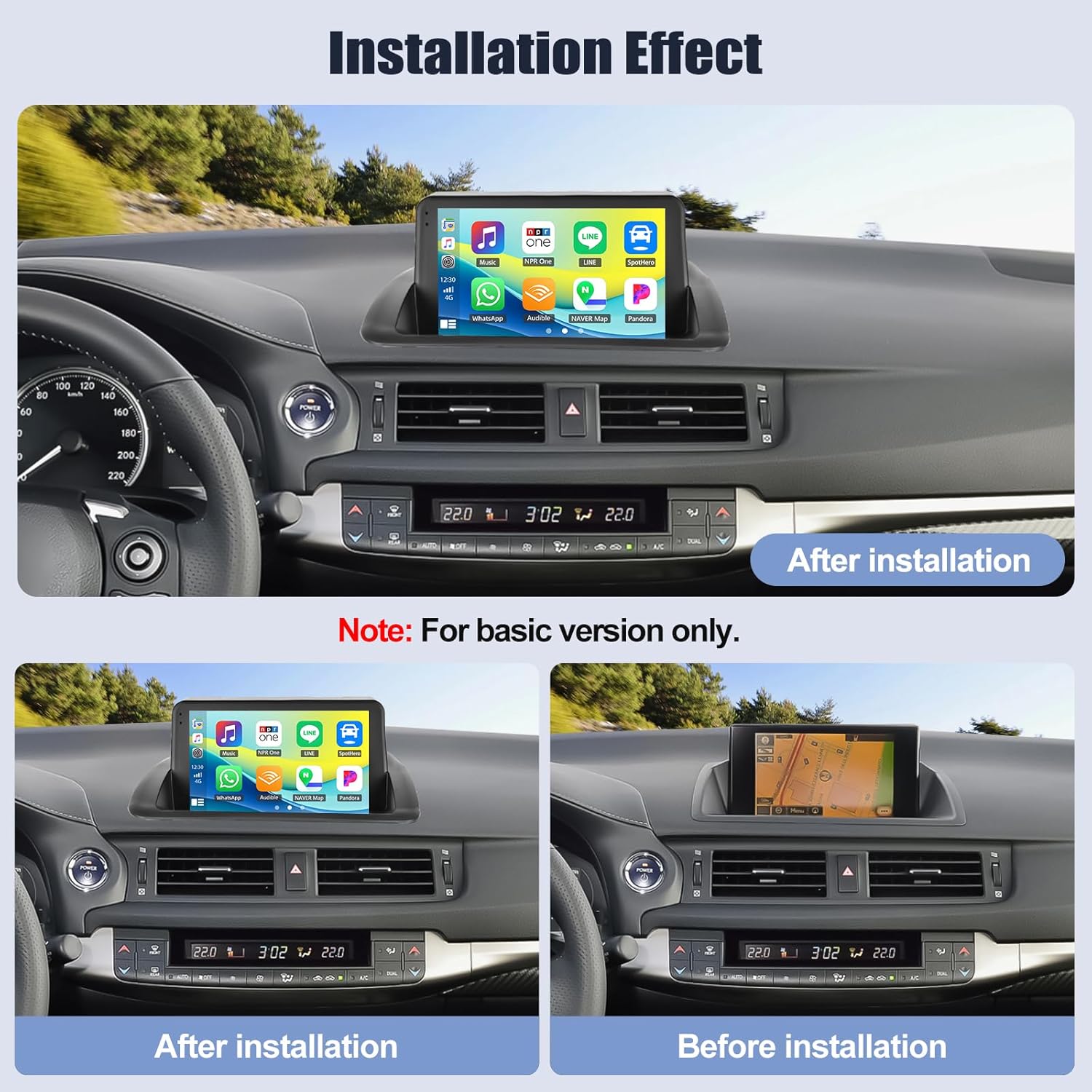
Figure 3: Visual comparison of the dashboard before and after stereo installation.
5. Operating Instructions
This section details the various functions and features of your SIXWIN Android Car Stereo.
5.1 Wireless CarPlay & Android Auto
The stereo supports both wireless and wired CarPlay and Android Auto, allowing seamless integration with your smartphone for navigation, communication, and entertainment.
- Ensure Bluetooth is enabled on your smartphone and the car stereo. Pair your phone with the stereo via Bluetooth.
- Open the 'Zlink5' app on the car stereo.
- Follow the on-screen prompts to connect wirelessly or via a USB cable.
- Once connected, you can access maps, GPS navigation, phone contacts, email, notifications, and music directly from the stereo's touch screen.
- Voice control (Siri or Google Assistant) is available for hands-free operation.
Note: Samsung phones may not be supported for Mirror Link functionality.

Figure 4: Wireless CarPlay and Android Auto connection and interface.

Figure 5: Wireless/Wired Apple CarPlay functionality.

Figure 6: Wired Android Auto functionality.
5.2 Mirror Link
Mirror Link allows you to display your smartphone's screen directly onto the car stereo. This feature supports both iOS and Android devices.
- For iOS devices: Connect via WiFi.
- For Android devices: Connect via USB or WiFi.
- Follow the instructions within the 'Zlink5' app for specific connection steps.

Figure 7: Mirror Link functionality for Android and iOS phones.
5.3 GPS Navigation & WiFi
The head unit includes built-in GPS navigation and WiFi connectivity.
- GPS Navigation: Supports both online and offline navigation. The 'Here We Go' app is pre-installed. Download necessary offline maps for navigation without an internet connection.
- WiFi: Connect to a WiFi hotspot to access the Google Play Store, download apps like YouTube, TikTok, Spotify, and browse the internet.

Figure 8: GPS Navigation and WiFi connectivity features.
5.4 Bluetooth Hands-free & FM Radio
Stay connected and entertained with Bluetooth and FM radio features.
- Bluetooth: Supports hands-free calling, Bluetooth music streaming, and phonebook download. Answer or make calls with a single button press.
- FM Radio: Provides 18 preset stations with a frequency range of 87.50-108.0 MHz. Listen to news, music, and traffic updates.

Figure 9: Bluetooth hands-free calling and music streaming.

Figure 10: FM/RDS Radio interface and features.
5.5 Steering Wheel Control (SWC)
The stereo supports steering wheel controls, allowing you to manage functions without taking your hands off the wheel.
- Access the SWC settings menu on the stereo.
- Follow the on-screen instructions to map your vehicle's steering wheel buttons to various stereo functions (e.g., volume, track skip, mode).

Figure 11: Steering Wheel Control mapping interface.
5.6 User Interface (UI) Customization
Personalize your stereo's appearance with 28 unique gradient UI interfaces.
- Navigate to the UI settings menu to browse and select different interface themes.
- Choose a UI that matches your preference and enhances your driving experience.

Figure 12: Examples of the 28 unique gradient UI interfaces.
5.7 EQ Sound Settings
Adjust the audio output to your preference with the built-in equalizer and sound field controls.
- Access the 'EQ Sound' settings from the main menu.
- Choose from preset equalizer modes (e.g., Standard, Rock, Pop, Jazz) or customize your own.
- Adjust the sound field to optimize audio for different seating positions.

Figure 13: EQ Sound settings and sound field adjustment.
5.8 Backup Camera Functionality
When a compatible AHD backup camera is connected, the stereo automatically displays the rear view when the vehicle is in reverse gear.
- Features clear night vision and a 170° wide-angle view.
- Aids in safer parking and maneuvering.

Figure 14: Backup Camera display with daytime and night vision.
6. Maintenance
Proper maintenance ensures the longevity and optimal performance of your car stereo.
- Cleaning the Screen: Use a soft, lint-free cloth to gently wipe the touch screen. For stubborn smudges, slightly dampen the cloth with water or a screen-safe cleaner. Avoid harsh chemicals or abrasive materials.
- General Cleaning: Keep the unit free from dust and debris. Use a soft brush or compressed air to clean vents and button areas.
- Software Updates: Periodically check for available software updates through the system settings or the manufacturer's website to ensure you have the latest features and bug fixes.
- Avoid Extreme Temperatures: Do not expose the unit to extreme heat or cold for extended periods, as this can affect performance and lifespan.
7. Troubleshooting
If you encounter issues with your SIXWIN Android Car Stereo, refer to the following common troubleshooting steps:
- No Power: Check all power connections and ensure the vehicle's battery is properly connected. Verify the fuse for the stereo is intact.
- No Sound: Check speaker connections. Ensure the volume is not muted or set too low. Verify audio output settings.
- Touch Screen Unresponsive: Try restarting the unit. If the issue persists, a factory reset might be necessary (note: this will erase all user data).
- Bluetooth Connection Issues: Ensure Bluetooth is enabled on both the stereo and your phone. Delete previous pairings and try reconnecting. Ensure your phone is within range.
- GPS Not Working: Ensure the GPS antenna is properly connected and has a clear view of the sky. Check GPS settings for correct region and time zone.
- CarPlay/Android Auto Not Connecting: Verify Bluetooth connection first. Ensure the 'Zlink5' app is running. Check USB cable if using a wired connection. Ensure your phone model is supported (e.g., Samsung phones may have Mirror Link limitations).
- Poor Radio Reception: Check the radio antenna connection. Ensure the antenna is fully extended (if applicable) and not obstructed.
For persistent issues not resolved by these steps, please contact customer support.
8. Warranty and Support
8.1 Product Warranty
The SIXWIN Android Car Stereo comes with a 1-year manufacturer's warranty from the date of purchase, covering defects in materials and workmanship.
Extended protection plans are also available for purchase:
- 2-Year Protection Plan: Available for $18.99 (one-time payment).
- 3-Year Protection Plan: Available for $25.99 (one-time payment).
- Complete Protect: One plan covering all eligible past and future purchases for $16.99/month.
Please retain your proof of purchase for warranty claims.
8.2 Customer Support
For technical assistance, troubleshooting, or warranty inquiries, please contact SIXWIN customer support:
- Email: sixwin_vip@163.com
Our support team is available to provide online help and user manual assistance.

Figure 15: Contact customer support via email for assistance.
Related documentsSIXWIN Android Car Stereo for Lexus CT200 (2011-2018)

Ask a question about this manual
Ask about setup, troubleshooting, compatibility, parts, safety, or missing instructions. Manuals+ will review the question and use this page’s manual context to help answer it.