1. Introduction
The Dell 27 Monitor SE2725HM offers a 27-inch Full HD (1920x1080) display with a 16:9 aspect ratio and a 100Hz refresh rate. Featuring an IPS panel, it delivers 16.70 million colors and wide viewing angles. Designed with ComfortView Plus and TÜV Rheinland 3-star certification, it minimizes harmful blue light exposure without compromising color accuracy, ensuring a comfortable viewing experience. The anti-glare screen further enhances usability.
Key Features:
- 100Hz Refresh Rate: Provides less flicker, seamless scrolling, and smoother motion for an improved viewing experience.
- ComfortView Plus: Built-in technology that reduces harmful blue light emissions while maintaining color accuracy.
- In-Plane Switching (IPS) Technology: Ensures excellent color accuracy and consistency across wide viewing angles.
- Integrated Cable Management: Features a built-in power supply unit and cable holder for a tidy workspace.
- Flexible Viewing: Allows easy tilt adjustments for optimal viewing angles and is compatible with VESA mounts.
2. What's in the Box
Upon unboxing your Dell 27 Monitor SE2725HM, please ensure all the following components are present:
- Monitor with stand
- Power cable
- 1 x HDMI cable - 1.8 m
- QR card
- Safety Information
3. Setup Instructions
3.1 Assembling the Monitor Stand
- Place the monitor panel face down on a soft, clean cloth to prevent scratches.
- Attach the stand riser to the stand base. Ensure it clicks securely into place.
- Align the assembled stand with the mounting slots on the back of the monitor panel. Push firmly until the stand locks into place.

Figure 1: Dell 27 Monitor SE2725HM with stand assembled.
3.2 Connecting the Cables
Connect the necessary cables to your monitor and computer. The monitor supports both HDMI and VGA connections.
- Power Cable: Connect one end of the power cable to the power connector on the back of the monitor and the other end to a power outlet.
- Video Cable (HDMI or VGA):
- HDMI: Connect the provided HDMI cable from the HDMI port on your computer to the HDMI port on the monitor.
- VGA: If using VGA, connect a VGA cable (not included) from the VGA port on your computer to the VGA port on the monitor.
- Cable Management: Utilize the built-in cable holder on the stand to route your cables neatly, reducing clutter.

Figure 2: Rear view of Dell 27 Monitor SE2725HM showing power, HDMI, and VGA ports.
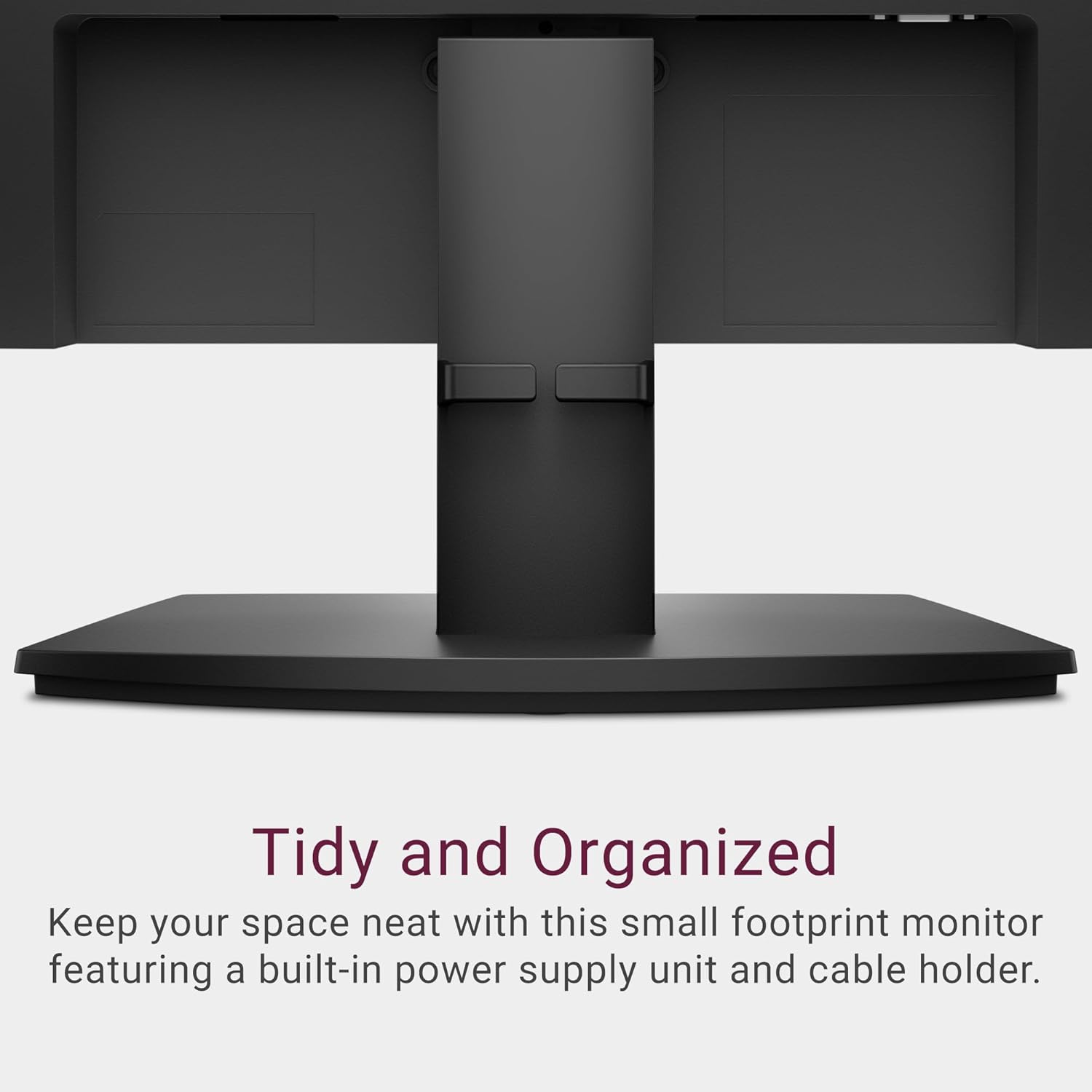
Figure 3: Cables routed through the integrated cable holder on the monitor stand.
4. Operating Instructions
4.1 Powering On/Off
Press the power button, usually located on the bottom right side of the monitor bezel, to turn the monitor on or off. The power LED will indicate the monitor's status.
4.2 On-Screen Display (OSD) Menu
The OSD menu allows you to adjust various monitor settings. Use the buttons located on the bottom bezel to navigate and select options.
- Brightness/Contrast: Adjust the display's brightness and contrast levels to your preference.
- Input Source: Manually select between HDMI and VGA input sources if the monitor does not auto-detect.
- Color Settings: Fine-tune color temperature, gamma, and other color-related options.
- Display Settings: Adjust aspect ratio, sharpness, and response time.
- ComfortView Plus: This feature is always on to reduce blue light. No manual adjustment is typically needed.
4.3 Adjusting Viewing Angle
The monitor stand allows for tilting the screen to achieve your desired viewing angle. Gently hold both sides of the monitor and tilt it forwards or backwards.
5. Maintenance
5.1 Cleaning the Monitor
To clean your Dell monitor, follow these guidelines:
- Always unplug the monitor from the electrical outlet before cleaning.
- Use a soft, lint-free cloth lightly dampened with water or a non-abrasive screen cleaner.
- Wipe the screen gently. Avoid applying excessive pressure.
- Do not use harsh chemicals, abrasive cleaners, or aerosol sprays directly on the screen or casing.
6. Troubleshooting
If you encounter issues with your Dell 27 Monitor SE2725HM, refer to the following common troubleshooting steps:
- No Power: Ensure the power cable is securely connected to both the monitor and the power outlet. Check if the power outlet is functional.
- No Image: Verify that the video cable (HDMI or VGA) is correctly connected to both the monitor and the computer. Ensure the correct input source is selected in the OSD menu.
- Flickering Screen: Check the video cable connection. Adjust the refresh rate settings on your computer to 100Hz if not already set.
- Poor Image Quality: Adjust brightness, contrast, and color settings via the OSD menu. Ensure your computer's display resolution is set to 1920x1080.
- Buttons Not Responding: Power cycle the monitor by unplugging it for a few seconds and then plugging it back in.
For more detailed troubleshooting or persistent issues, please visit the official Dell support website or contact Dell customer service.
7. Specifications
| Feature | Specification |
|---|---|
| Model Number | SE2725HM |
| Screen Size | 27 Inches |
| Panel Type | IPS |
| Resolution | 1920x1080 (Full HD) |
| Aspect Ratio | 16:9 |
| Refresh Rate | 100Hz |
| Color Support | 16.70 Million Colors |
| Screen Surface | Anti-Glare, Matte |
| Video Ports | 1 x HDMI, 1 x VGA |
| Dimensions (LxWxH) | 7.87 x 24.06 x 17.86 inches |
| Item Weight | 9.69 pounds |
| Color | Black |
| Special Features | TÜV Rheinland 3-Star Certified, ComfortView Plus, VESA Mount Compatible |
8. Warranty and Support
Your Dell 27 Monitor SE2725HM is covered by Dell's standard warranty. For specific warranty terms, registration, and technical support, please refer to the documentation included with your product or visit the official Dell support website. Dell provides comprehensive support resources, including drivers, manuals, and troubleshooting guides, to ensure optimal performance and longevity of your monitor.


