
FOXWELL BT60, NT726
FOXWELL BT60 Car Battery Tester & NT726 Scan Tool User Manual
Models: BT60, NT726
1. Introduction
This manual provides detailed instructions for the proper use, setup, operation, and maintenance of your FOXWELL BT60 Car Battery Tester and FOXWELL NT726 All System Diagnostic Scan Tool. Please read this manual thoroughly before operating the devices to ensure correct usage and to prevent damage.

Image: The FOXWELL BT60 Car Battery Tester and NT726 Scan Tool, showcasing both devices included in the package.
2. FOXWELL NT726 All System Diagnostic Scan Tool
2.1 Key Features
- All System Diagnostic: Capable of diagnosing all electronic systems within a vehicle, including Engine, ABS, SRS, Transmission, BMS, Suspension, EPB, Steering, and 4WD.
- 12 Most-Essential Service Resets: Supports common maintenance functions such as Injector Coding, EPB Reset, Battery Registration, TPMS Reset, Throttle Relearn, ABS Bleeding, D-P-F Regen, SAS Calibration, Transmission Adaptation, Windows-Door, and Oil Reset.
- Advanced Hardware: Features a 5.5-inch responsive touch screen, Android 9.0 operating system, 32GB internal memory, and Wi-Fi for lifetime free updates.

Image: The NT726 scan tool displaying its capability for powerful all-system diagnostics, highlighting various vehicle systems it can access.

Image: A visual representation of the 12 most essential service resets available on the NT726, including Injector Coding, ABS Bleeding, and Battery Registration.
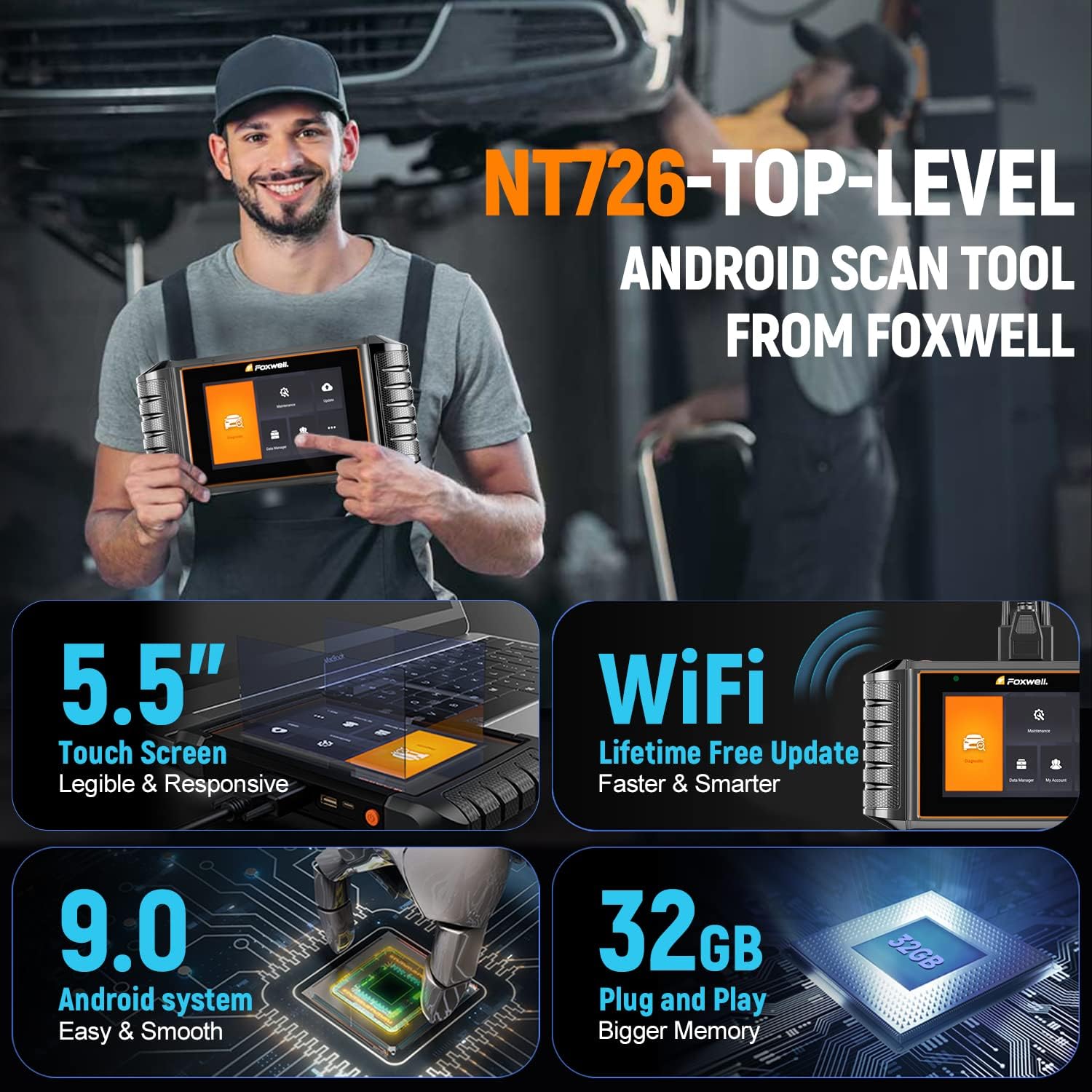
Image: Details of the NT726's hardware, emphasizing its 5.5-inch touch screen, Wi-Fi connectivity for updates, Android 9.0 system, and 32GB storage.
2.2 Setup and Initial Use
- Power On: Connect the NT726 to your vehicle's OBD-II port. The device will power on automatically.
- Language and Time Settings: Follow the on-screen prompts to select your preferred language and set the date and time.
- Wi-Fi Connection: Navigate to 'Settings' and connect to an available Wi-Fi network to enable updates and online features.
- Software Update: After connecting to Wi-Fi, check for and install any available software updates to ensure optimal performance and the latest vehicle coverage.
2.3 Operating the NT726
The NT726 features an intuitive Android-based interface. From the main menu, you can select various functions:
- Diagnosis: Select 'Diagnosis' to perform full system scans, read/clear fault codes, view live data, and perform active tests.
- Service: Access the 'Service' menu to perform specific maintenance resets and adaptations.
- Update: Use the 'Update' function to download the latest software and vehicle data.
- Data Manager: Review and manage saved diagnostic reports and data streams.
2.4 NT726 Model Comparison
The NT726 offers significant upgrades over previous models like the NT604 and NT624:

Image: A comparison chart detailing the enhanced features of the NT726, such as larger screen size, Android OS, all-system diagnostics, and more service resets, compared to the NT604 Elite.
| Feature | NT726 | NT604 Elite |
|---|---|---|
| Screen Size | 5.5" | 4.3" |
| Touchscreen | ✓ | ✕ |
| Operating System | Android 9.0 | Arm |
| Diagnostic System | All System | 4 System |
| Service Reset | 12 | ✕ |
| ABS Bleeding | ✓ | ✕ |
| Suspension Reset | ✓ | ✕ |
| Transmission Adaptation | ✓ | ✕ |
| Update Type | One-click WIFI update | via PC |
| Car Makes | 100+ | 60+ |
| Live Data Stream | 4 in 1 | 2 in 1 |
| Lifetime Free Update | ✓ | ✓ |
3. FOXWELL BT60 Car Battery Tester
3.1 Key Features
- Comprehensive Battery Diagnosis: Tests 6V and 12V batteries, measuring State of Health (SOH), State of Charge (SOC), cranking voltage/start time, and performing load tests.
- Charging System Test: Checks alternator output, including load/no-load voltage and ripple, to ensure charging system reliability.
- Wireless Bluetooth Connection: Utilizes BLE Bluetooth technology for low power consumption, fast connection, and a wide operating range (up to 10 meters), allowing independent testing from the driver's seat.
- Data Management & Sharing: Allows customization of battery serial numbers, effortless management, storage, and sharing of diagnostic reports via image or text.

Image: The BT60 battery tester highlighting its versatile features, including State of Health (SOH), State of Charge (SOC), Load Test, Battery Voltage, Resistance Test, Cranking Test, Ripple Test, Data Storage, and Data Share capabilities.
3.2 Setup and Connection
- Download App: Download the FOXWELL BT60 app from your device's app store (iOS/Android).
- Connect to Battery: Connect the BT60's red clamp to the positive (+) battery terminal and the black clamp to the negative (-) battery terminal.
- Pair via Bluetooth: Open the BT60 app on your smartphone or tablet. The app will automatically search for and connect to the BT60 device via Bluetooth 5.3.

Image: The BT60 connected to a car battery in the trunk, demonstrating its wireless Bluetooth 5.3 connection with a smartphone up to 10 meters away, allowing remote testing.
3.3 Performing Battery Tests
Once connected, select the desired test from the app interface:
- Battery Test: Measures SOH, SOC, voltage, and internal resistance. Follow on-screen prompts for accurate results.
- Cranking Test: Evaluates the battery's ability to start the engine. The app will guide you through the process, including starting the vehicle.
- Charging Test: Assesses the alternator's performance. The app will prompt you to perform tests under no-load and load conditions.

Image: Screenshots of the BT60 mobile app interface, showing how battery status, charging test results, and cranking test data are displayed for quick assessment.
3.4 Interpreting Results and Sharing
The BT60 app provides clear, easy-to-understand results for each test. You can:
- Review Data: Access historical test data and detailed graphs.
- Customize Information: Add battery name, vehicle input, battery type, and standard for better record-keeping.
- Share Reports: Generate and share diagnostic reports as images or text via various messaging or email applications directly from your mobile device.

Image: The BT60 app interface demonstrating the ability to customize battery information and share diagnostic reports as images or text, facilitating easy data management and communication.
4. General Maintenance
- Cleaning: Use a soft, damp cloth to clean the exterior of both devices. Do not use abrasive cleaners or solvents.
- Storage: Store the devices in a dry, cool place away from direct sunlight and extreme temperatures.
- Cable Care: Inspect cables and connectors regularly for damage. Replace if necessary.
- Software Updates: Regularly check for and install software updates for both the NT726 and the BT60 app to ensure compatibility and access to new features.
5. Troubleshooting
5.1 NT726 Scan Tool
- Device Not Powering On: Ensure the OBD-II cable is securely connected to both the vehicle's port and the NT726. Check the vehicle's battery voltage.
- Communication Error: Verify the vehicle's ignition is on. Check for loose connections. Try testing on another vehicle if possible.
- Screen Freezes: Restart the device. If the issue persists, perform a factory reset (refer to the device's settings menu).
5.2 BT60 Battery Tester
- No Bluetooth Connection: Ensure Bluetooth is enabled on your mobile device. Confirm the BT60 clamps are correctly connected to the battery. Restart the app and the BT60 device.
- Inaccurate Readings: Ensure battery terminals are clean and clamps have good contact. Verify the battery type and CCA input in the app are correct.
- App Crashing: Ensure your mobile device's operating system is up to date. Reinstall the BT60 app.
6. Specifications
6.1 FOXWELL NT726 Scan Tool
- Display: 5.5-inch Touch Screen
- Operating System: Android 9.0
- Memory: 32GB
- Connectivity: Wi-Fi
- Update: Lifetime Free Update via Wi-Fi
6.2 FOXWELL BT60 Battery Tester
- Battery Compatibility: 6V and 12V Lead-Acid Batteries
- Test Standards: CCA, BCI, CA, MCA, JIS, DIN, IEC, EN, SAE, GB
- Connectivity: Bluetooth 5.3 (BLE)
- Operating Range: Up to 10 meters (33 feet)
- App Support: iOS and Android
7. Warranty and Support
FOXWELL products are designed for reliability and performance. For warranty information, please refer to the warranty card included with your product or visit the official FOXWELL website. For technical support, product inquiries, or service, please contact FOXWELL customer support through their official channels.
Official FOXWELL Website: www.foxwelltech.com
Ask a question about this manual
Ask about setup, troubleshooting, compatibility, parts, safety, or missing instructions. Manuals+ will review the question and use this page’s manual context to help answer it.