
1. Introduction
Thank you for choosing the KRPTQJoo Replacement Remote Control. This remote is designed to provide seamless control for various Blaupunkt and Alba television models. This manual will guide you through the setup, operation, and maintenance of your new remote control.
This remote control is a direct replacement and does not require any programming or pairing. Simply insert the batteries, and it is ready for use with compatible models.
Compatible Models include, but are not limited to:
- Blaupunkt: 32/194I-GB-FHBKU-DE, B32FX122BK, B32A2124TC, B32A22TC, B32SHE126, B32A112TC-3B2, B32A133TCHD, B32A191TCFHD-3D, BA32M191BF3BKUER01
- Alba: 22/207, 22-207-B, 22-207-S, UNFRMC0002, 50/211F, 22/207DVD, 22/207FDVD, 22/207F
2. Product Overview
The KRPTQJoo replacement remote control features a standard layout for easy navigation and control of your television. Below are images illustrating the front and back of the remote.
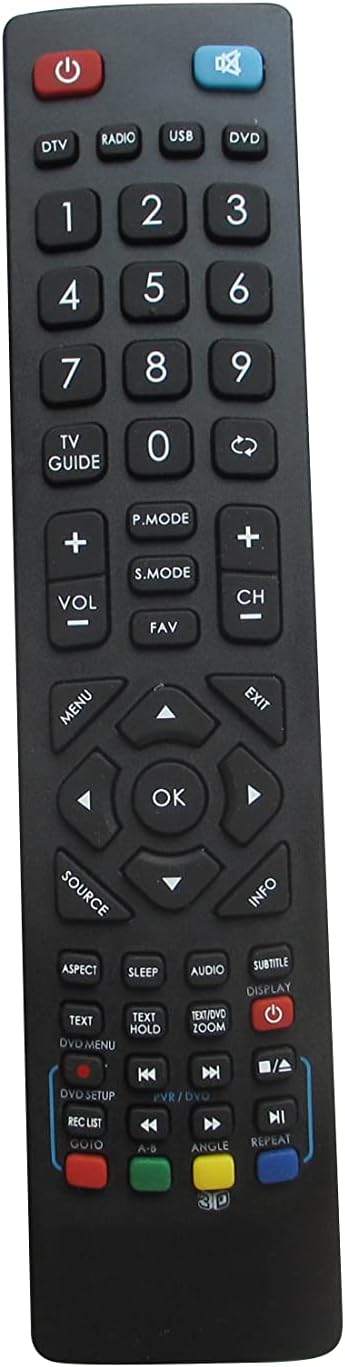
Figure 2.1: Front view of the remote control. This image displays the full button layout, including power, number keys, channel and volume controls, navigation pad, and various function buttons for TV, DVD, and media playback.
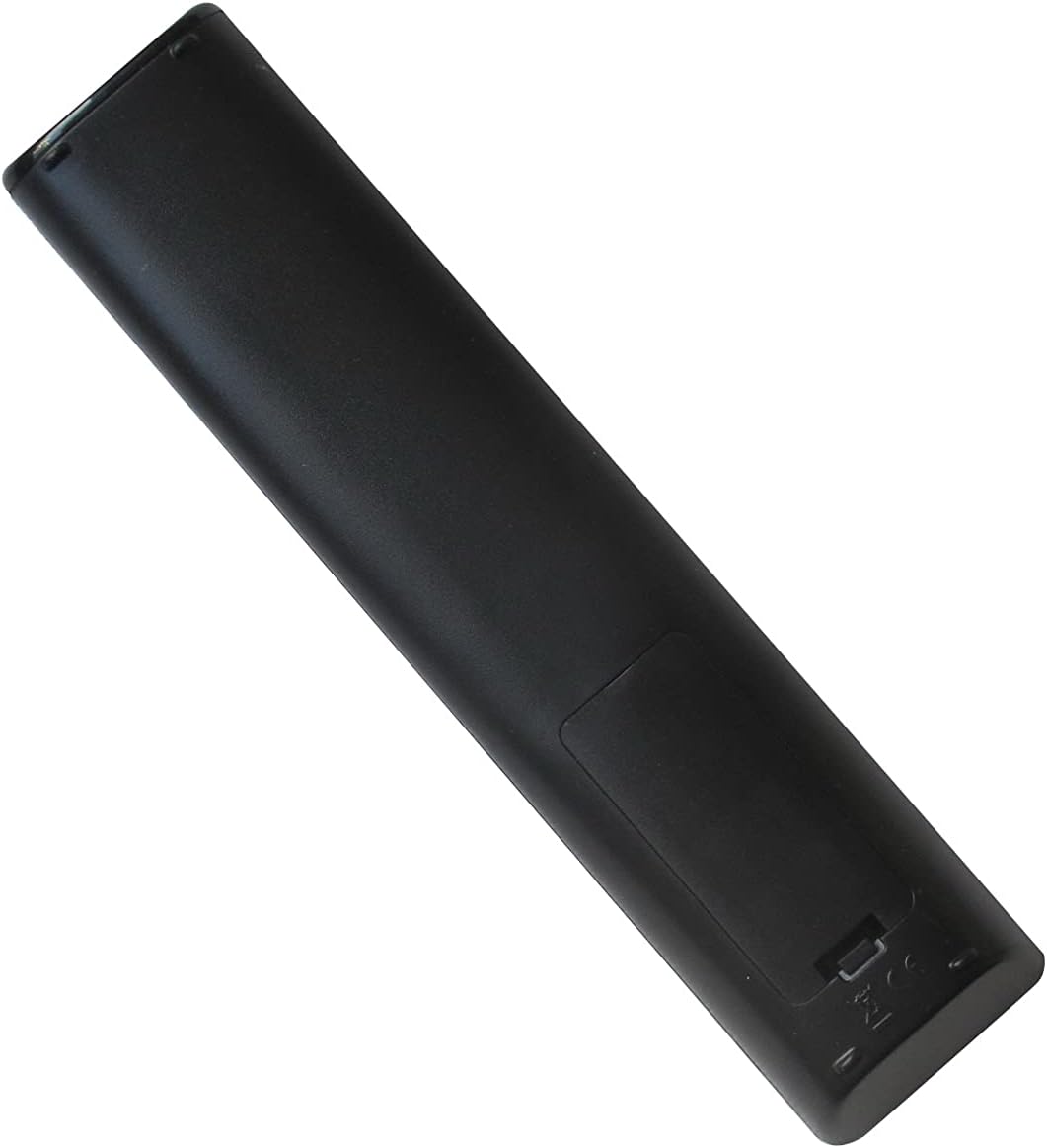
Figure 2.2: Back view of the remote control. This image shows the smooth, ergonomic design and the location of the battery compartment cover.
3. Setup
3.1 Battery Installation
- Locate the battery compartment on the back of the remote control.
- Slide the battery compartment cover downwards or press the latch and lift to open.
- Insert two (2) AAA batteries, ensuring the positive (+) and negative (-) terminals match the diagrams inside the compartment.
- Replace the battery compartment cover, ensuring it clicks securely into place.
Note: This remote control operates using infrared (IR) technology and does not require any programming or pairing with your television. It is ready for use immediately after battery installation.
4. Operating Instructions
Point the remote control directly at your television's IR receiver. Ensure there are no obstructions between the remote and the TV.
4.1 Button Functions
| Button | Function |
|---|---|
| Power (⏻) | Turns the TV On or Off. |
| DTV / Radio / USB / DVD | Selects the corresponding input source or mode. |
| 0-9 (Number Buttons) | Direct channel selection or numerical input. |
| TV GUIDE | Accesses the Electronic Program Guide (EPG). |
| VOL +/- | Adjusts the volume level. |
| CH +/- | Changes the television channel. |
| Mute (🔇) | Mutes or unmutes the TV audio. |
| P.MODE | Cycles through picture modes (e.g., Standard, Dynamic, Movie). |
| S.MODE | Cycles through sound modes (e.g., Standard, Music, Movie). |
| FAV | Accesses favorite channels list. |
| MENU | Opens the main TV menu. |
| Navigation Arrows (▲ ▼ ◄ ►) | Navigates through menu options. |
| OK | Confirms selection in menus. |
| EXIT | Exits the current menu or function. |
| SOURCE | Selects input sources (e.g., HDMI, AV, Component). |
| INFO | Displays information about the current program or input. |
| ASPECT | Changes the screen aspect ratio. |
| SLEEP | Sets the sleep timer. |
| AUDIO | Selects audio tracks or modes. |
| SUBTITLE | Toggles subtitles on or off. |
| DISPLAY | Displays on-screen information. |
| TEXT / TEXT HOLD | Accesses teletext functions. |
| ZOOM | Adjusts screen zoom level. |
| DVD SETUP / REC LIST / GOTO | Functions related to DVD player setup, recording lists, or specific time jumps. |
| Playback Controls (◀◀ / ▶▶ / ■ / ▶ / ██ / ▣) | Standard media playback controls: Rewind, Fast Forward, Stop, Play, Pause, Record. |
| Color Buttons (Red, Green, Yellow, Blue) | Context-sensitive functions, often used in menus or teletext. |
| ANGLE / REPEAT / 3D | Functions for DVD angle selection, repeating playback, or 3D mode activation (if supported by TV). |
Note: The functionality of some buttons may vary depending on your specific TV model and its features. Refer to your television's original manual for detailed information on specific functions.
5. Maintenance
5.1 Cleaning the Remote
To clean your remote control, gently wipe it with a soft, dry cloth. For stubborn dirt, slightly dampen the cloth with water or a mild, non-abrasive cleaner. Avoid using harsh chemicals or excessive moisture, as this can damage the remote.
5.2 Battery Replacement
Replace batteries when the remote's response becomes sluggish or stops working. Always replace both batteries at the same time with new AAA batteries. Do not mix old and new batteries, or different types of batteries, as this can lead to leakage or malfunction.
Remove batteries if the remote will not be used for an extended period to prevent potential leakage and damage.
6. Troubleshooting
- Remote is not working:
- Ensure batteries are inserted correctly with the correct polarity (+/-).
- Replace old batteries with new AAA batteries.
- Check for any obstructions between the remote control and the TV's IR receiver.
- Ensure you are within the effective operating range (up to 8 meters).
- Some buttons do not function:
- Verify that your TV model supports the specific function of that button. Not all TVs have the same features (e.g., 3D, specific DVD functions).
- This remote is a replacement for specific models; some advanced or unique functions of your original TV remote might not be replicated.
- Limited range or intermittent response:
- Replace batteries.
- Ensure the remote's IR emitter and the TV's IR receiver are clean and unobstructed.
- Avoid strong light sources (like direct sunlight or bright fluorescent lights) that might interfere with the IR signal.
7. Specifications
- Brand: KRPTQJoo
- Model: Joo5661
- Connectivity Technology: Infrared (IR)
- Maximum Range: 8 meters (approx. 26 feet)
- Power Source: 2 x AAA batteries (not included)
- Compatible Devices: Television (specific Blaupunkt and Alba models)
- Color: Black
8. Support
If you encounter any issues that cannot be resolved using the troubleshooting guide, or if you have questions regarding your KRPTQJoo replacement remote control, please contact customer service for assistance.
For the quickest resolution, please provide your product model number (Joo5661) and a detailed description of the issue when contacting support.
